
How SLA Breach Automation Works
When a flagged message (any conversation the system marks as high-priority) remains unresolved beyond your time threshold, Periskope automatically:- Creates a support ticket to track the issue
- Sends an email alert to your team
- Posts a Slack notification to the right channel
- Assigns an escalation owner
- And much more.
Step-by-Step Setup
Step 1: Access Automation Rules
- From the Periskope dashboard, go to Automation Rules
- Click New Rule
- Select Start From Template
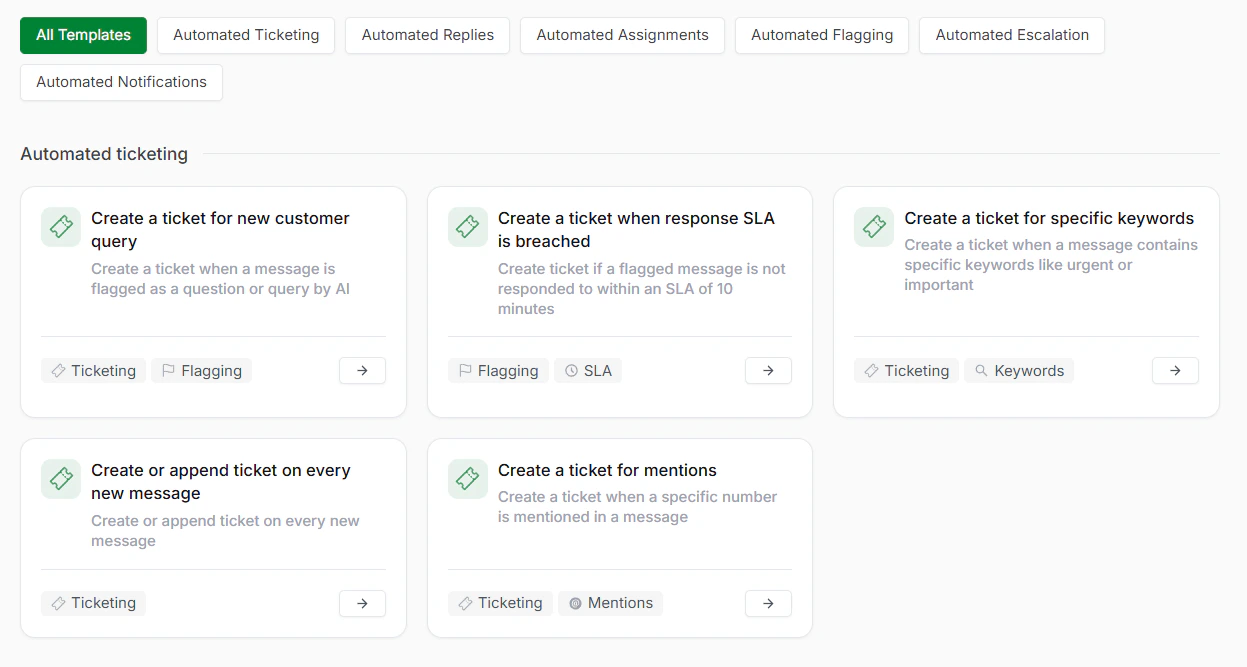
Choose Template
The trigger is automatically pre-configured to monitor WhatsApp conversations for flagged messages. A flagged message is any WhatsApp conversation that the system automatically marks as important based on your predefined conditions. This includes:Step 2: Review the Trigger
- Customer complaints or negative sentiment
- Messages containing urgent keywords (e.g., “ASAP”, “urgent”, “help”)
- Conversations waiting longer than expected for a response
- Messages from high-value customers or VIP accounts
- Any custom condition you define
In the Criteria section, define the Check Condition After; it manages how frequently the system should check if a flagged message is still unresolved.Step 3: Set Your Check Condition Time
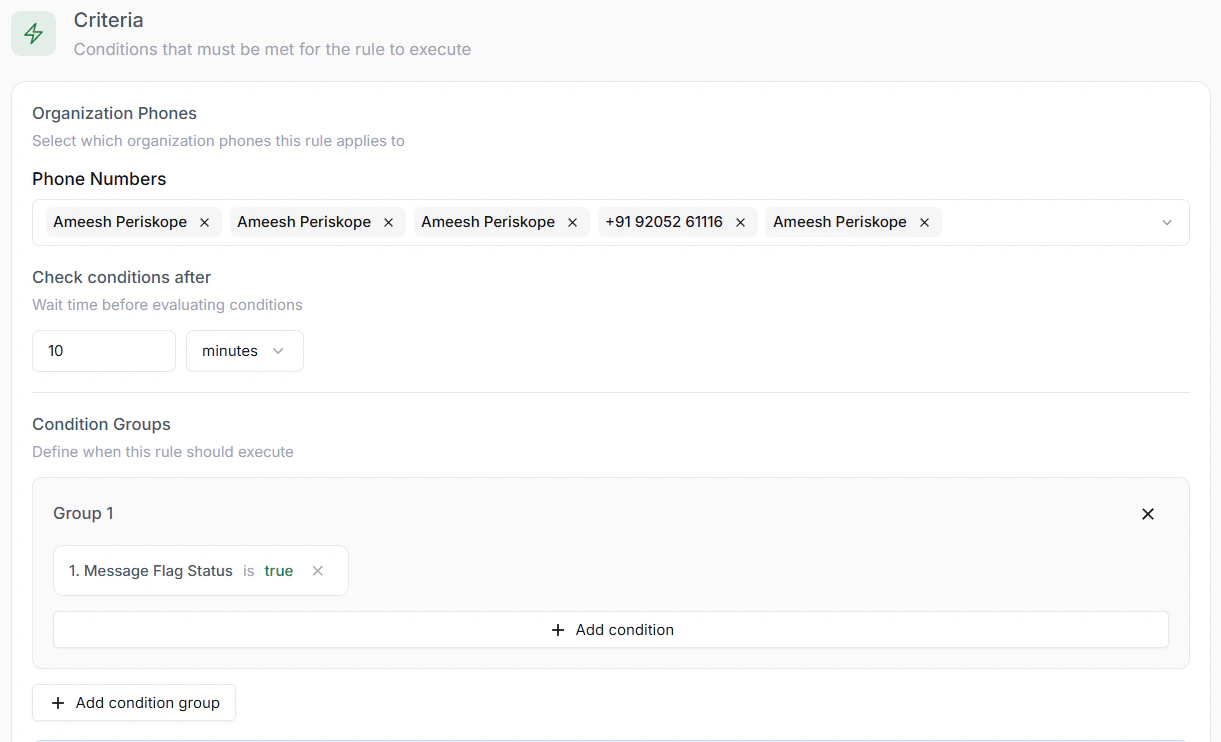
Setting up Criteria
Once a flagged message remains unresolved after your time threshold, the system triggers your chosen actions. You can enable any combination of the following:Step 4: Configure Automated Actions
- Create a Support Ticket: Automatically generates a ticket in your support system. Includes the conversation context and message history. Ensures no issue falls through the cracks.
- Send an Email Notification: Delivers an alert to your support team. Includes a link to the WhatsApp conversation. Can be sent to multiple team members.
- Fire a Slack Notification: Posts an alert to your Slack channel or direct message. Keeps your team notified in real-time. Allows immediate action without leaving Slack.
- Assign an Escalation Owner: Routes the escalation to a specific team member. Can be based on skills, availability, or role. Ensures clear ownership and accountability.
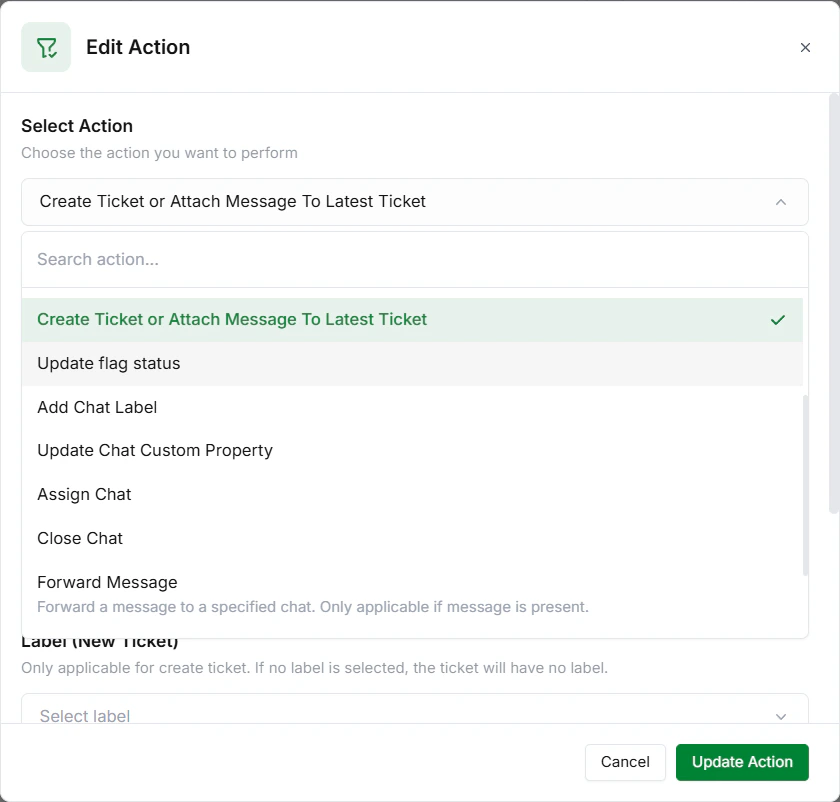
Set up Action
Step 5: Save and Publish
- Review all your settings
- Click Save Rule and Publish it to get it online
- Your automation is now active and monitoring