Overview
Ticket Custom Properties allow you to add additional data fields to your tickets in Periskope. These properties appear inside the ticket detail view, enabling your team to capture and view important information for every issue they handle. Properties are organised into sections, and ticket properties are configured independently from chat properties — so you can tailor each one to how your team works.Setting Up Ticket Custom Properties
1. Go to Settings → Custom Properties
Go to Settings from the left sidebar and click Custom Properties under the Organisation section.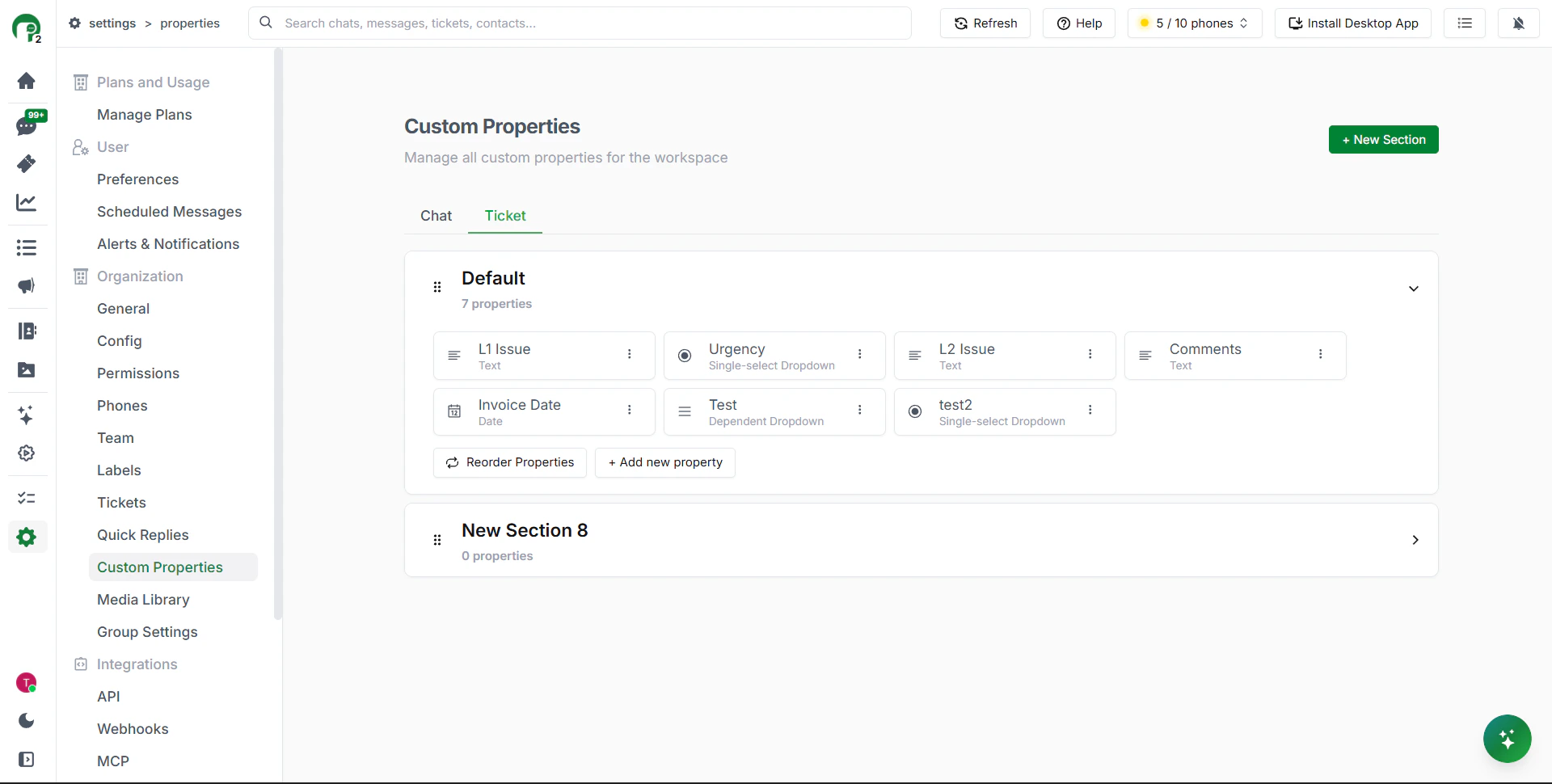
2. Click on the Ticket tab
At the top of the page, click the Ticket tab to switch to ticket properties.3. Create a new section
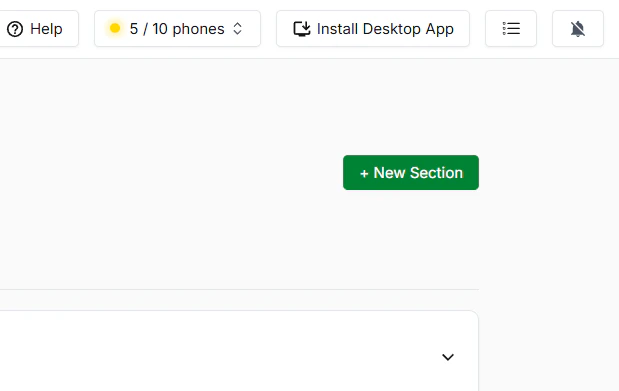
Properties are organised into sections. To create one:- Click + New Section in the top right
- Give the section a name — for example, “Issue Details” or “Resolution Info”
4. Add a property to the section
- Click on the section to open it
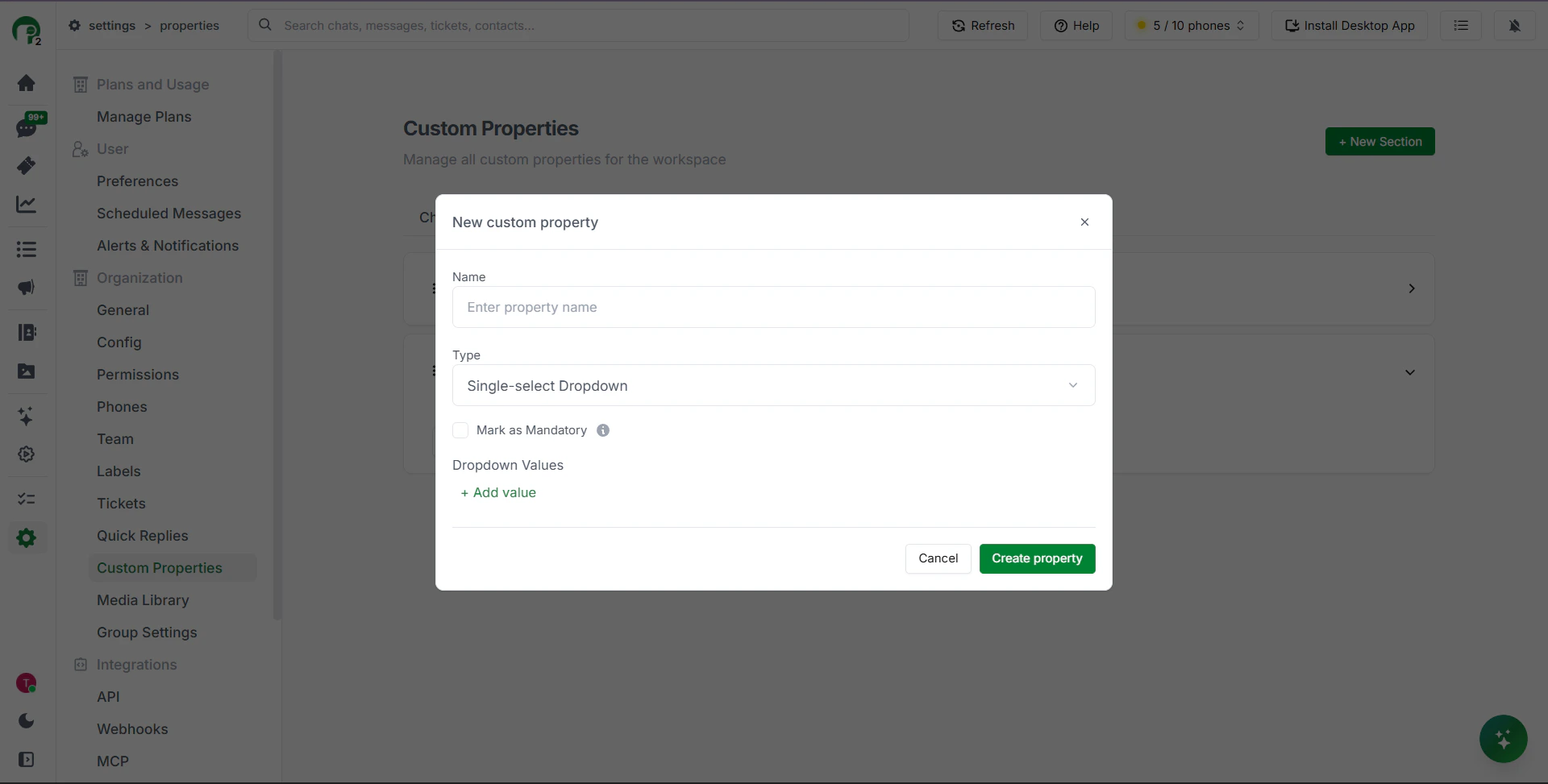
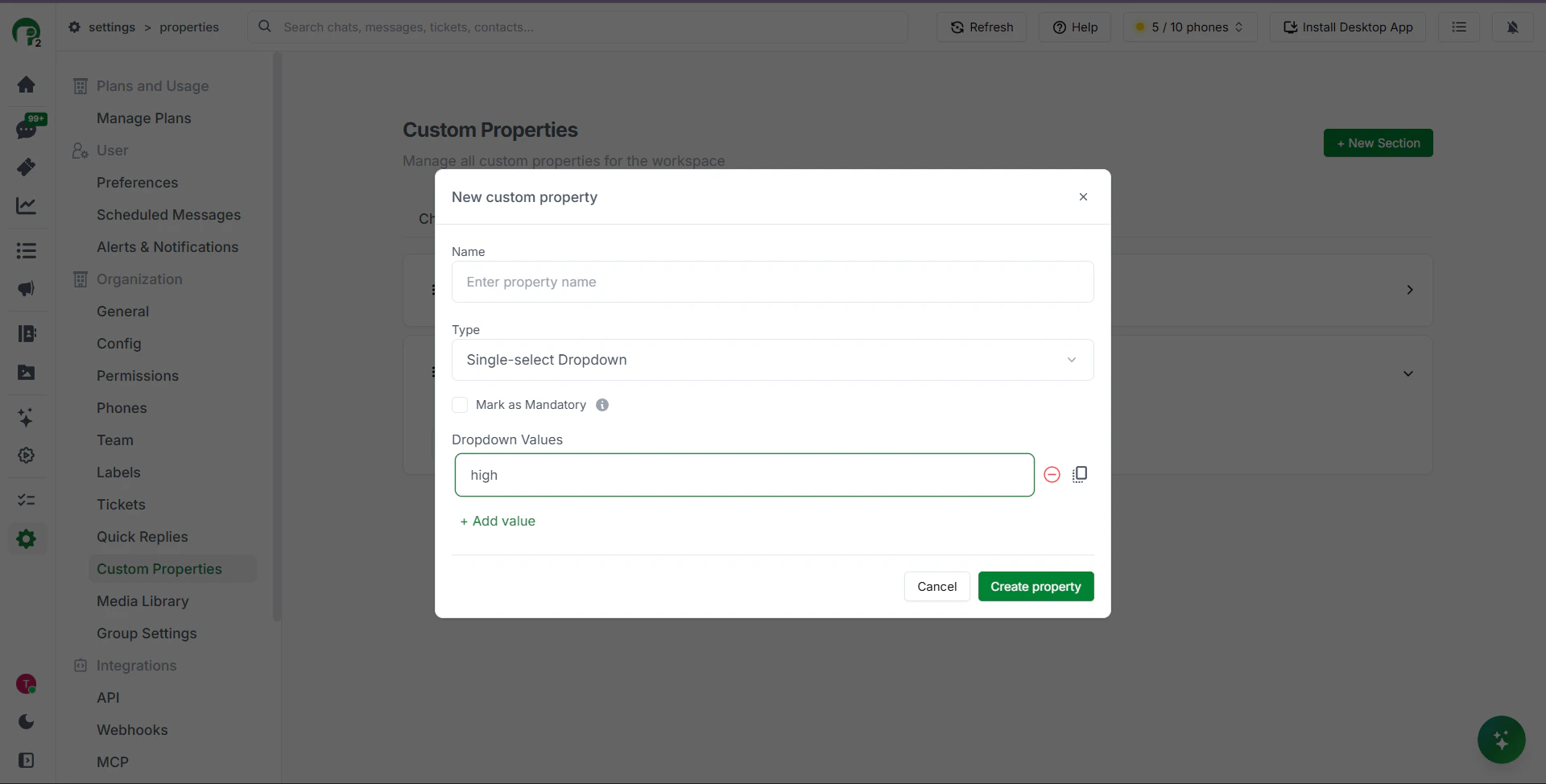
- Click + Add New Property
- Enter a property name
- Select a property type
- Configure any additional settings based on the type selected
- Click Create Property
Note: For tickets, you can mark certain properties as mandatory — ensuring your team always captures critical information before a ticket can be closed.
Types of Custom Properties
Periskope offers six property types to cover different business needs:Dependent Dropdown — Example
The dependent dropdown is the most advanced type. Each selection at one level determines the available options at the next — useful when you need to track layered information without free-form text errors. Example — Product Selection:- Level 1 (Category): Electronics, Appliances, Furniture
- Level 2 (Product): If “Electronics” is selected → Smartphones, Laptops, TVs
- Level 3 (Model): If “Smartphones” is selected → Model X, Model Y, Model Z
Viewing Ticket Properties
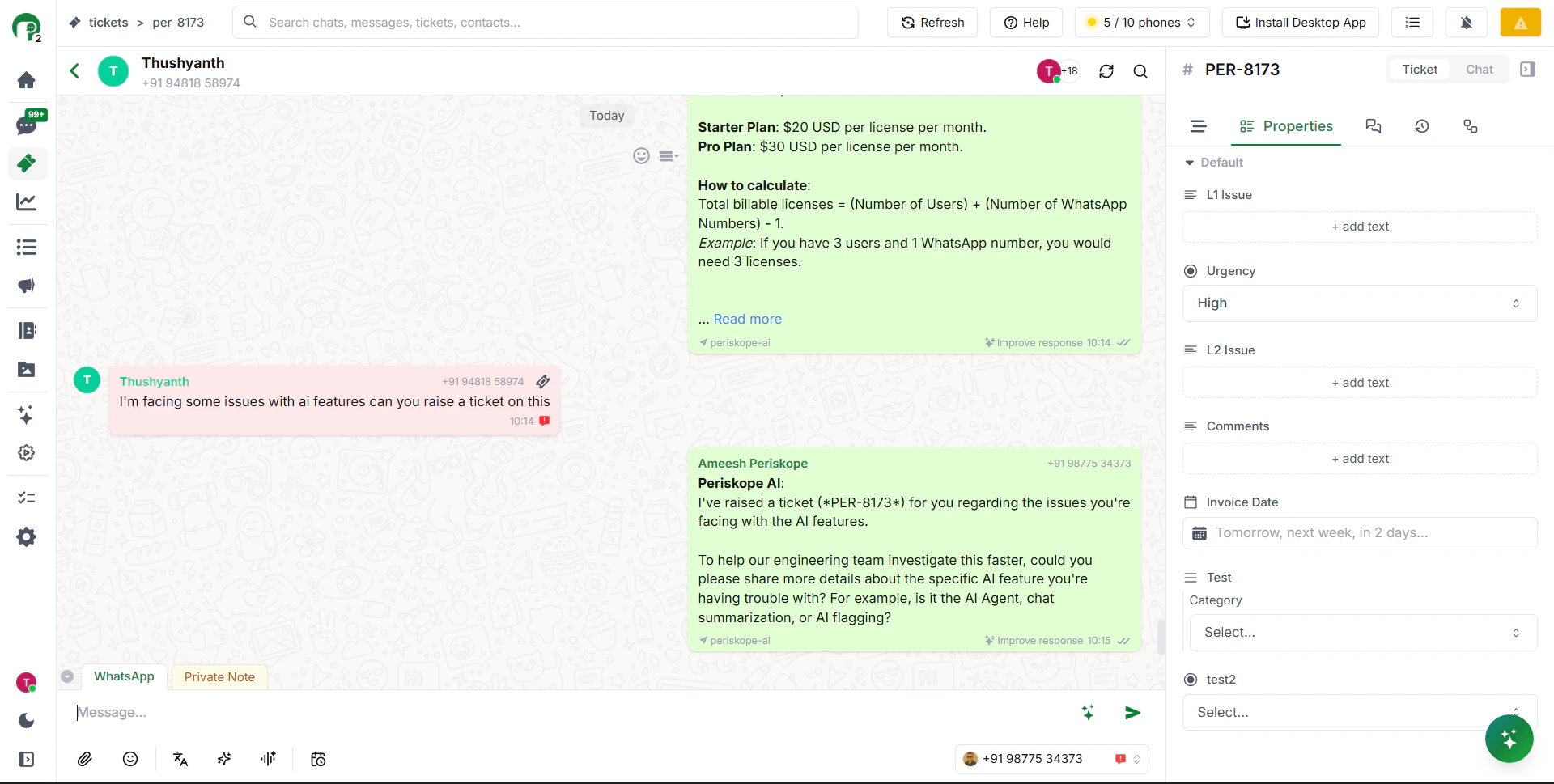
Once properties are created, your team can view and fill them in from inside any ticket.- Open any ticket
- You’ll see all your custom sections and fields listed in the ticket detail view
- Click any field to fill it in or update it
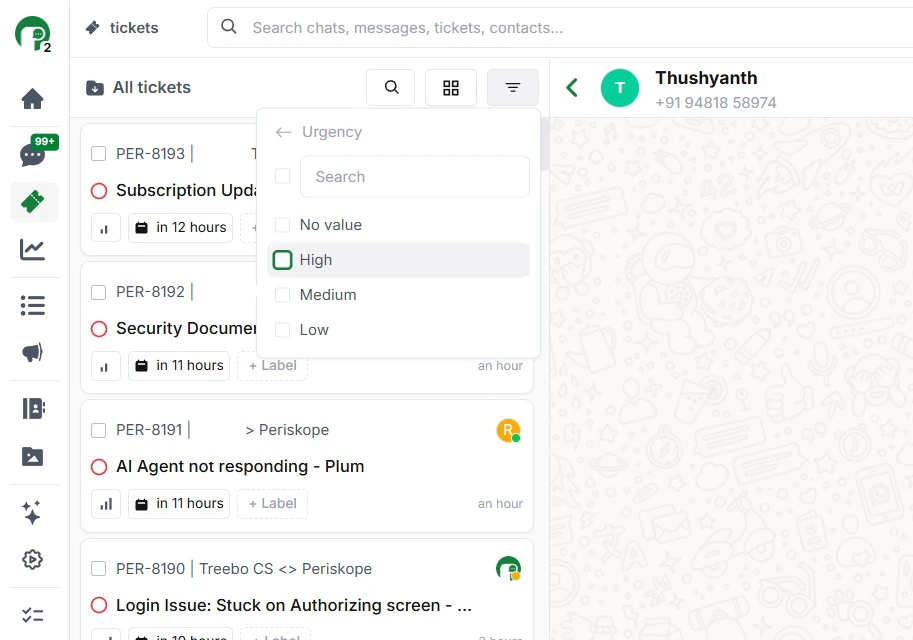
- Mark the urgency as High, Medium, or Low
- Add a relevant date
- Add comments directly inside the ticket
Managing Custom Properties
Moving properties between sections
You can move a property from one section to another at any time to reorganise your structure.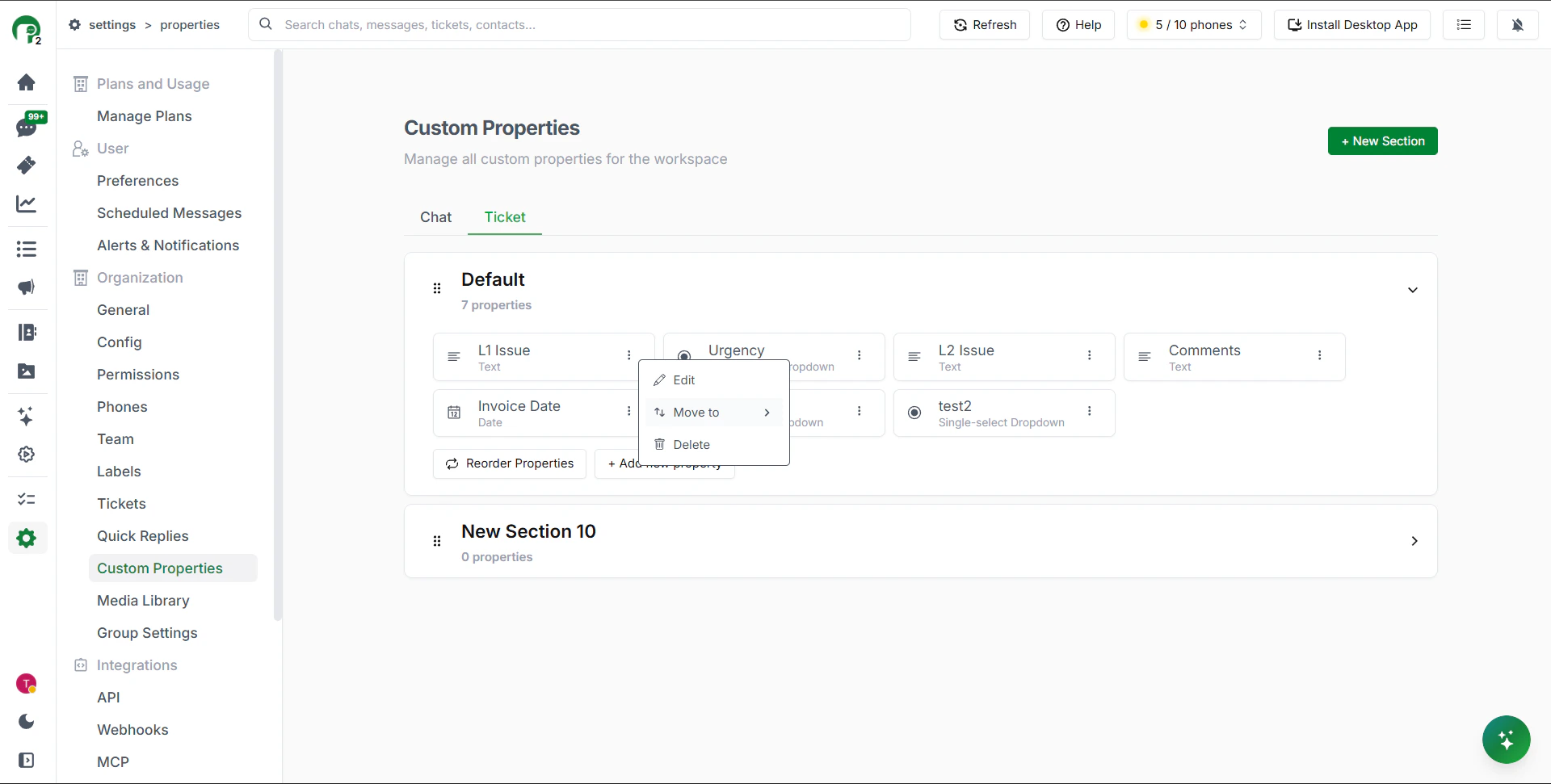
Reordering and deleting sections and properties
Sections and properties can be reordered or deleted as your needs change.Filtering tickets by custom properties
You can filter your ticket inbox based on custom property values — for example, showing only tickets where urgency is “High” or where a specific dropdown value is selected.