
Overview ℹ️
Actions are the tasks executed when the criteria are satisfied. Each action can be delayed, allowing it to be executed at a specific time. Available Actions:- Send Message - Send a message to a chat or group.
- Forward Message - Forward a message to another chat.
- Flag Message - Flag a message in Periskope.
- Unflag Message - Unflag a message in Periskope.
- Delete Message - Delete a message from a chat.
- Create Ticket - Create a new ticket in Periskope.
- Assign Ticket - Assign a ticket to a user.
- Close Ticket - Close a ticket in Periskope.
- Add Ticket Label - Add one or more labels to a ticket.
- Add Chat Label - Add one or more labels to a chat.
- Assign Chat - Assign a chat to a user.
- Send Email - Send an email to a user.
The available actions may vary based on the triggers selected. Not all actions are available for all triggers.You can add multiple actions to a rule and set delays for each action.
1. Send Message To Chat 📩
The Send Message action allows you to send a message to a chat or group. You can customize the message content and choose the chat or group to send the message to.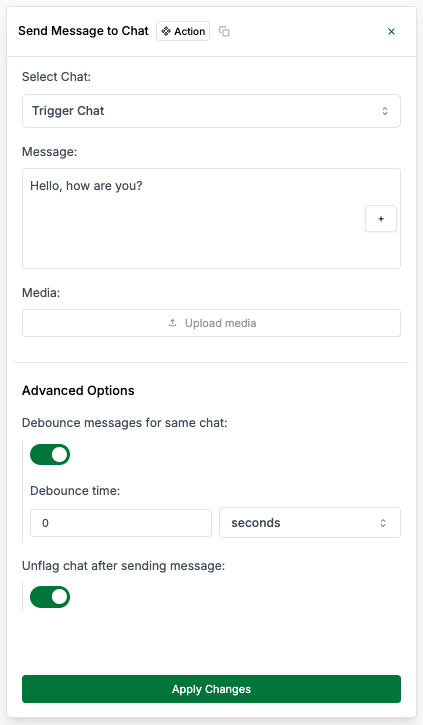
Send Message Action
<number> <seconds/minutes/hours/days>
The chat or group to send the message to. You can search for the chat from the dropdown.If you want to send the message to the same chat in which the workflow is triggered, you can select trigger chat from the dropdown.
editor
The message content to be sent. You can add variables to personalize the message.Example:
Hello {{ chat.chat_name || '<fallback>' }}, your request has been received.file
Optional media file to attach to the message. You can upload an image, video, document, or other supported file type.
boolean (true/false)
Whether to enable a cooldown period after sending the message. You can set a
cooldown period to prevent sending multiple messages in quick succession.
<number> <seconds/minutes/hours/days>
The duration of the cooldown period. You can specify the period in seconds,
minutes, hours, or days.
boolean (true/false)
Option to maintain the flag status of the previous messages after sending the
message.
2. Forward Message 📩⏩
The Forward Message action allows you to forward a message to another chat.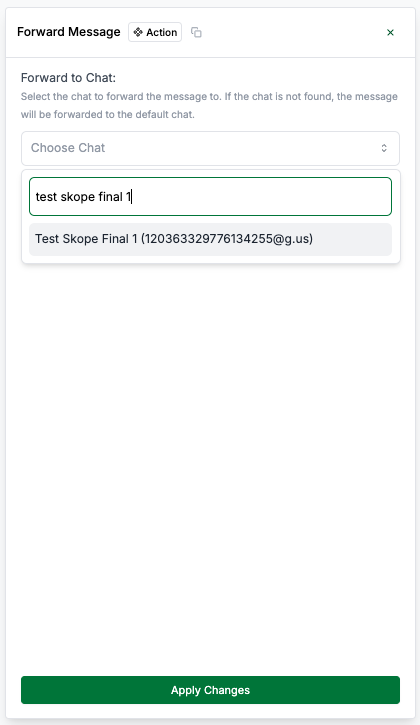
Forward Message Action
dropdown
The chat or group to forward the message to.
3. Flag Message 🚩
The Flag Message action allows you to flag or unflag a message in Periskope.4. Unflag Message 🚩
The Unflag Message action allows you to unflag a message in Periskope.5. Delete Message 🗑️
The Delete Message action allows you to delete a message from a chat.6. Create Ticket 🎫
The Create Ticket action allows you to create a new ticket in Periskope.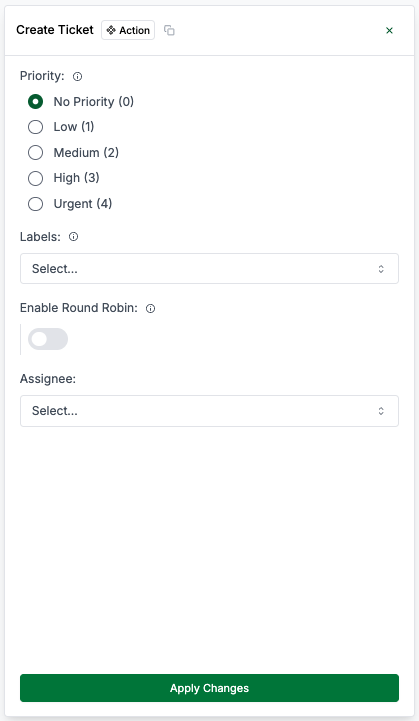
Create Ticket Action
radio
The priority of the ticket. You can choose from No Priority, Low, Medium, High, or
Urgent. Only applicable when creating a new ticket.
dropdown
The labels to add to the ticket. You can add multiple labels by selecting from
the dropdown. Only applicable when creating a new ticket.
dropdown
The user to assign the ticket to. You can select the user from the dropdown. Only applicable when creating a new ticket.You can assign ticket to user from a list on round-robin basis as well.
7. Assign Ticket 🎫👤
The Assign Ticket action allows you to assign a ticket to a user.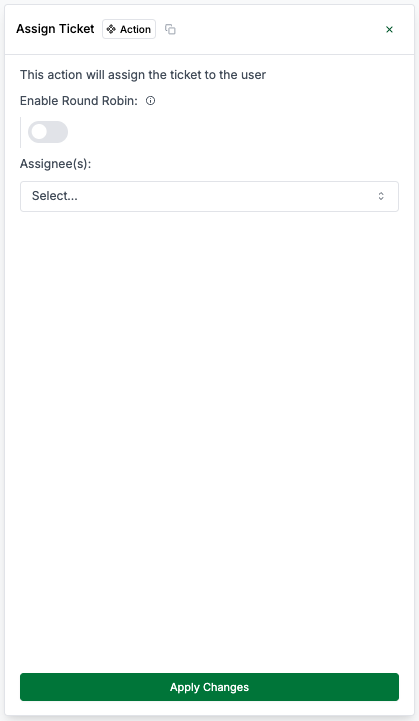
Assign Ticket Action
boolean (true/false)
Whether to assign the ticket using the round-robin method. You can enable
round-robin assignment to distribute tickets evenly among users.
dropdown
The user(s) to assign the ticket to. You can select multiple users by selecting from the dropdown.If round-robin assignment is enabled, you can select multiple users to assign tickets to.
8. Close Ticket ❌
The Close Ticket action allows you to close a ticket in Periskope. Action Inputstextarea
The note to add when closing the ticket.
9. Add Ticket Label Action 🎫🏷️
The Add Ticket Label action allows you to add one or multiple label to a ticket.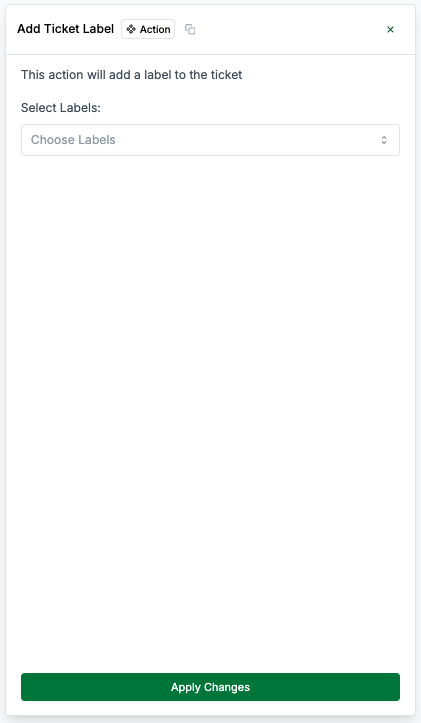
Add Ticket Label Action
dropdown
The labels to add to the ticket. You can add multiple labels by selecting from
the dropdown.
10. Add Chat Label Action 💬🏷️
The Add Chat Label action allows you to add a label to a chat.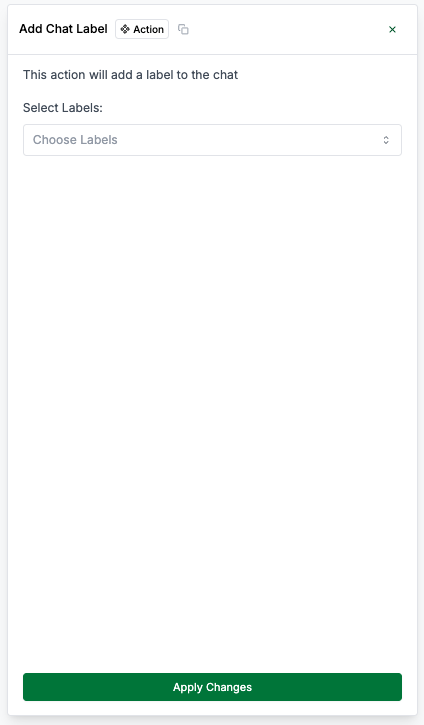
Add Chat Label Action
dropdown
The labels to add to the chat. You can add multiple labels by selecting from
the dropdown.
11. Assign Chat Action 💬👤
The Assign Chat action allows you to assign a chat to a user.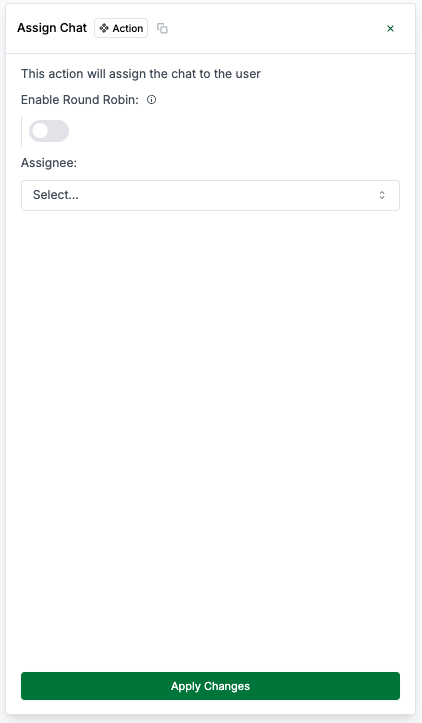
Assign Chat Action
boolean (true/false)
Whether to assign the chat using the round-robin method. You can enable
round-robin assignment to distribute chats evenly among users.
Round-robin assignment assigns chats to users in a circular order. Each user
receives a chat in turn, ensuring an even distribution of chats among users.
dropdown
The user to assign the chat to. If round-robin assignment is enabled, you can
select multiple users to assign chats to.
12. Send Email Action 📧
The Send Email action allows you to send an email notification to any email address.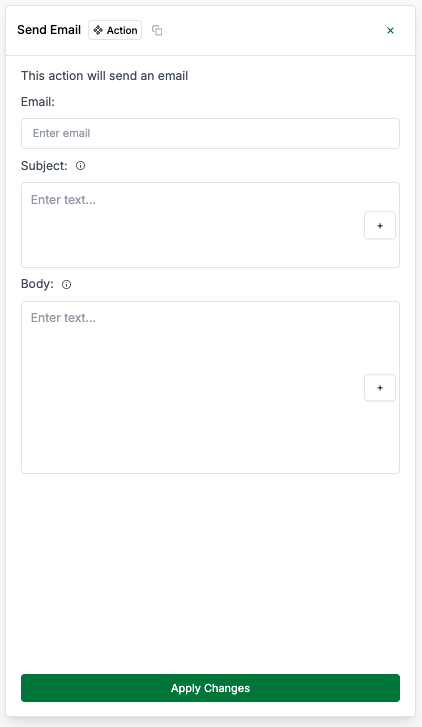
Send Email Action
string
The email address to send the email to.
string
The subject of the email. You can add variables to personalize the subject.Example:
New ticket created: {{ ticket.ticket_id || '<fallback>' }}editor
The email content to be sent. You can add variables to personalize the email.Example:
Hello, new ticket {{ ticket.ticket_id || '<fallback>' }} has been assigned to you.