
Chat Assistant
The Chat Assistant is available inside any individual chat. When you open a chat, look for the right-side panel — click the AI tab to access it.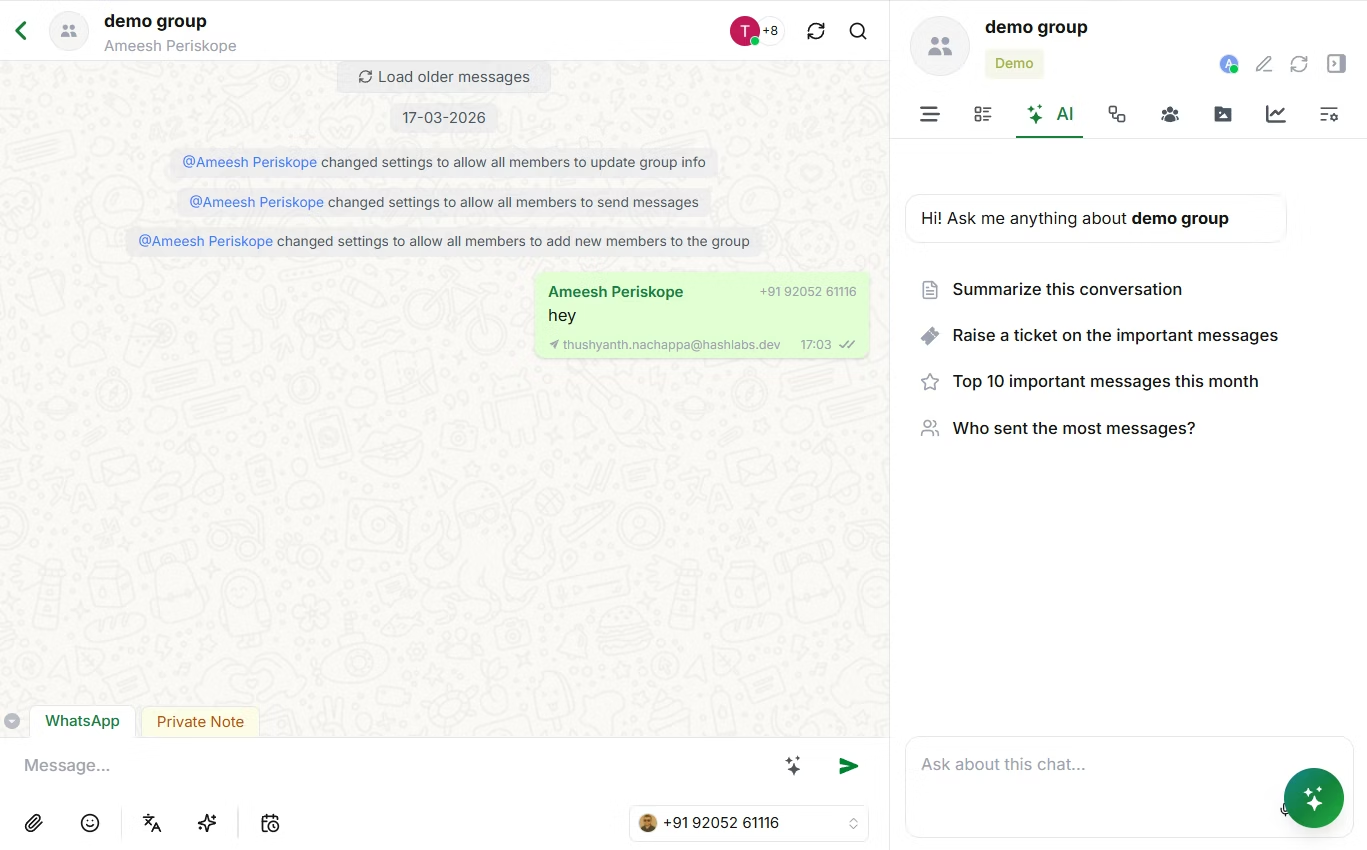
Chat Assistant
What the Chat Assistant Can Do
When you open the AI tab in a chat, you’ll see a set of built-in quick actions: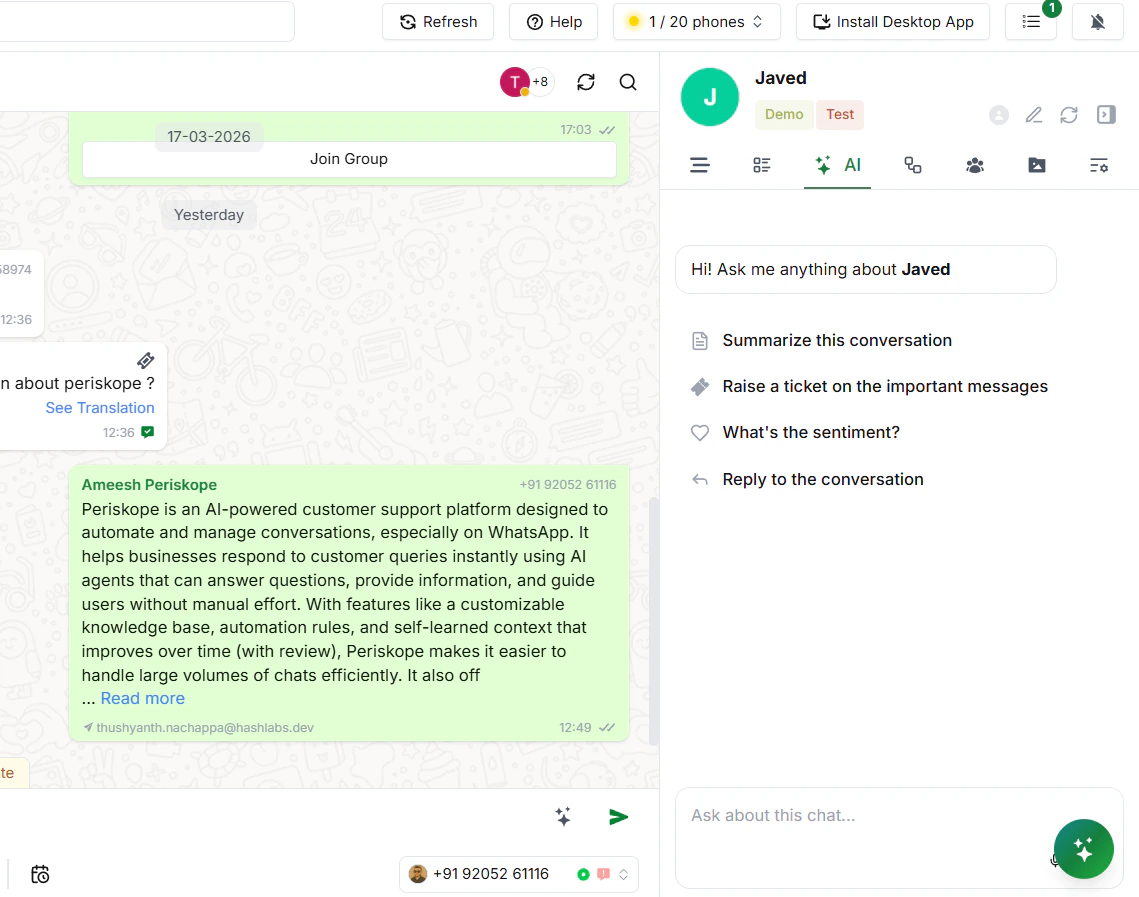
You can also type a custom question in the text field at the bottom of the AI panel:
Org Assistant
The Org Assistant is available across every page in Periskope. Look for the AI icon in the bottom-right corner of the screen — clicking it opens the Org Assistant in a side panel.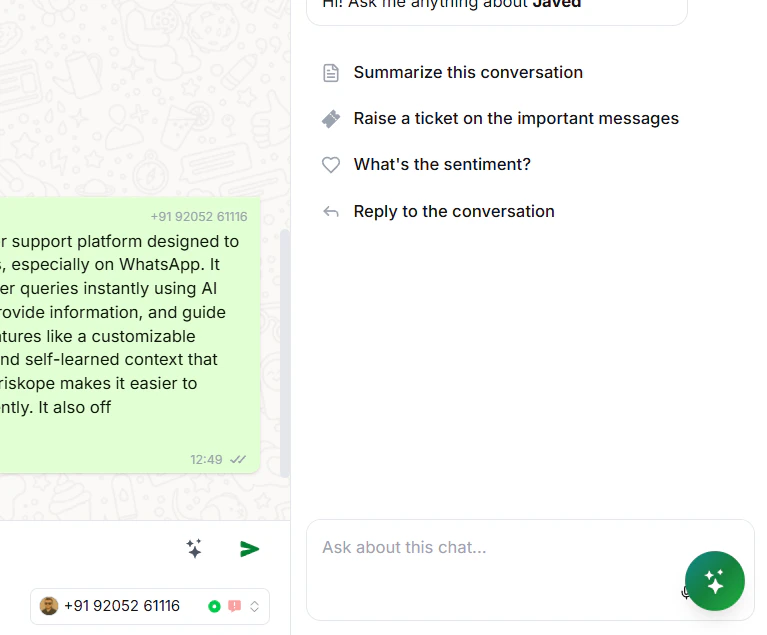
Org Assistant
What the Org Assistant Can Do
Manage Multiple Chats at Once
One of the most powerful — and least obvious — things the Org Assistant can do is act across many chats at the same time. Instead of opening each chat individually, just tell it what you need.Update labels across multiple chats
Apply, update, or remove labels across a group of chats in one instruction. Useful after a busy period when chats need to be re-categorised, or when tagging a batch of conversations for a campaign or audit. Example prompts:Assign multiple chats to one person
Hand off an entire batch of chats to a team member in a single request. Useful during shift changes or when redistributing workload.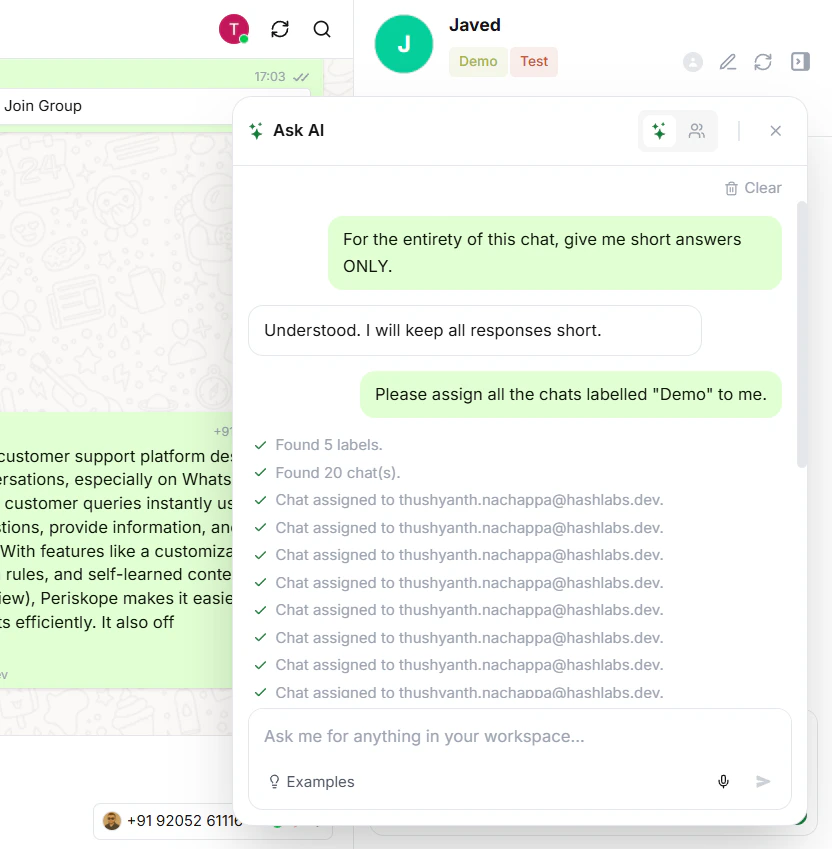
Send private notes to multiple chats
Drop an internal note into several chats simultaneously — helpful when you need to flag context or instructions for your team across multiple active conversations at once.
Activate the AI Agent on multiple chats
Switch on the AI Agent across several chats at the same time, without toggling each one manually. Example prompts:Handle Tasks & Tickets in Bulk
Update multiple tickets or tasks
Describe the change you need and let the Org Assistant apply it across all matching tickets at once — no need to open each one individually. Example prompts:Look Up Chat Data Instantly
Get custom properties of any chat
Every chat can have custom properties attached — things likeorg_id, plan type, account tier, or renewal date. Instead of opening the chat to look these up, just ask.
Example prompts:
Search messages within a specific timeframe
Search for specific messages across a set of chats within a date range. Useful for audits, escalation reviews, or tracking down a conversation.
Keep the Knowledge Base Up to Date
On the Knowledge Base page, the Org Assistant reads your actual FAQs, documents, and self-learned entries before responding — it isn’t guessing. Open the panel there and you’ll see suggested prompts for common upkeep tasks:Clicking a suggested prompt fills the message box with that text — it doesn’t send automatically. Review or edit it, then hit send.
Custom Tool Actions
If your workspace has Custom Tools configured, the Org Assistant can call them directly — no tab switching, no manually looking up IDs. When you ask it to perform an action, the Org Assistant will:- Understand what you need from your message
- Look up required values — like
org_id— from the chat’s custom properties automatically - Call the relevant Custom Tool with the right parameters
- Confirm the result back to you in the conversation
Example — Extending a customer’s trial
org_id from the chat’s custom properties and calls your trial extension tool automatically — no need to open the chat.
Example — Fetching account details
Note: For custom tool actions to work, the relevant tool must be active under AI > Custom Tools, and required properties like org_id must be present in the chat’s custom properties.