
Overview
Sometimes your ticket queue looks busy, but it’s not always clear if your team is actually keeping up or starting to fall behind. With Periskope’s Ticket Metrics Dashboard, you get a clear view of what’s happening so you can understand performance at a glance. Stop guessing. Start measuring ticket efficiency.How It Works
The Ticket Metrics Dashboard gives you a complete view of your ticket system performance:- Quick Snapshot - Key metrics at a glance
- Ticket History Graph - Trends over time
- Individual Performance - Team member breakdown
Accessing the Ticket Metrics Dashboard
From your Periskope dashboard, go to Analytics > Ticket Metrics. You’ll see your complete ticket performance overview with customizable filters and date ranges.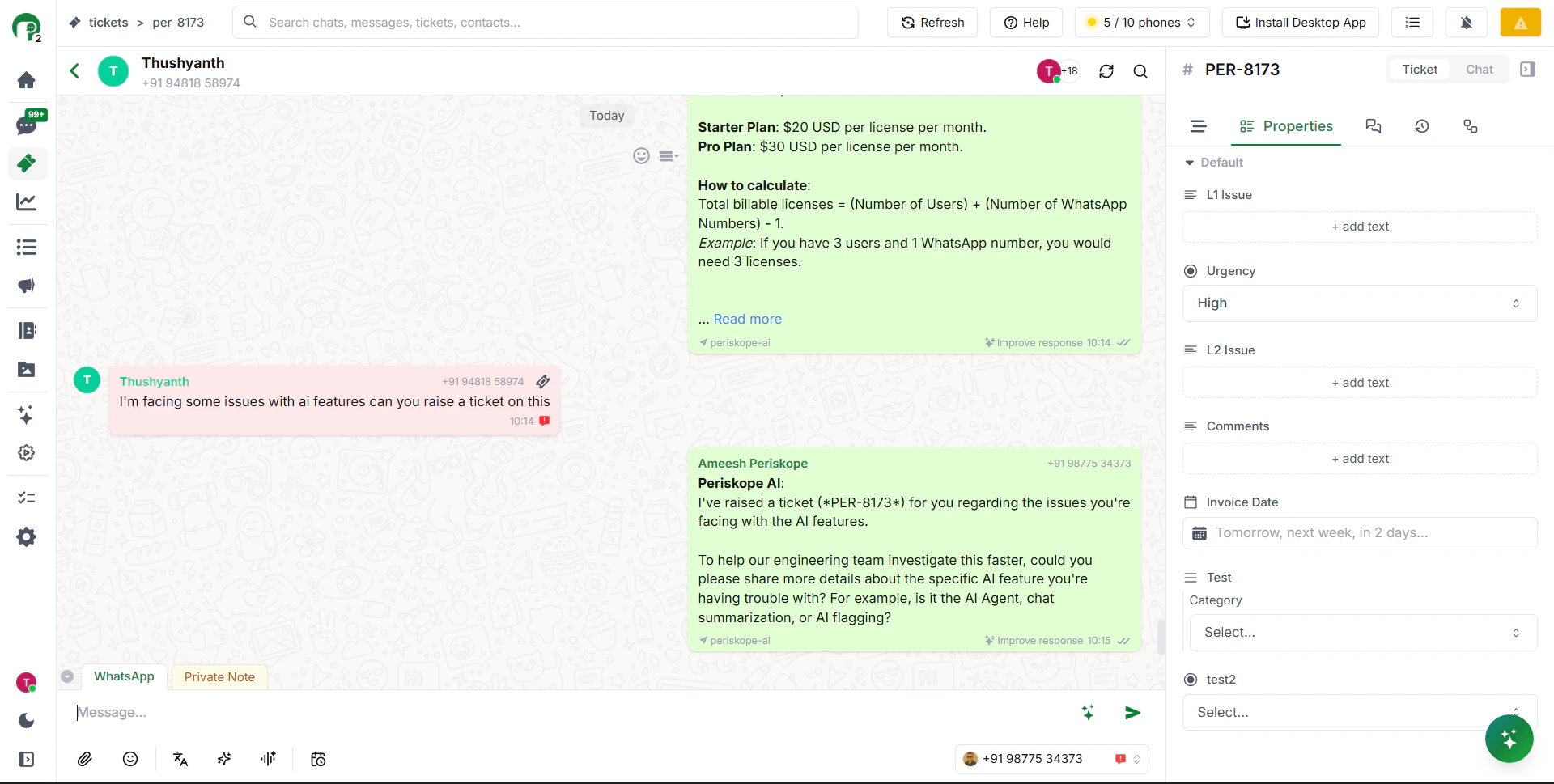
Ticket Metrics
Quick Snapshot - Key Metrics
The Quick Snapshot gives you an instant overview of your ticket system health. These are the core numbers that tell you if your team is keeping up.- Tickets in Progress: The number of tickets currently being actively worked on. This shows your team’s current workload. High numbers might indicate your team is busy. Compare this to your team size to assess if workload is balanced.
- Unresolved Tickets: Total tickets that are not yet closed (includes both Open and In Progress). This shows backlog. If this number is growing over time, your team might be falling behind.
- Resolved Tickets: Number of tickets closed during your selected period. High numbers show productivity. Compare resolved vs unresolved to see if your team is catching up or accumulating backlog.
- Unassigned Tickets: Tickets with no owner yet. These need attention. If this number is high, bottlenecks might be in assignment, not resolution. Assign these quickly to prevent delays.
- Average Resolution Time: How long it typically takes your team to close a ticket. This is your efficiency metric. If it’s increasing, investigate why tickets are taking longer. Set target resolution times and track against them.
Key Metrics
Customizing Your View with Date Ranges and Filters
- Date Range Selection: Adjust the date range to focus on specific periods. Last 24 hours shows daily performance. Last 7 days shows weekly trends. Last 30 days shows monthly patterns. Custom ranges let you analyze specific projects or campaigns.
Date Range
- Filter by Label: Focus on specific ticket categories. Example: Filter for only Billing or Technical tickets. This helps you understand performance per category.
- Filter by Priority: See how your team handles different urgency levels. Are Urgent tickets resolved faster? Are Low priority tickets piling up? This reveals capacity and priorities.
- Filter by Status: Focus on Open, In Progress, or Closed tickets. Understand the split. If lots are Open and few are In Progress, assignment might be slow.
- Filter by Assignee: See individual team member performance. Which agents are handling tickets? Who might be overloaded or underutilized?
- Filter by Urgency: Monitor how critical issues are being handled. Are urgent tickets being prioritized? Track resolution speed for high-urgency items.
- Filter Logic [All vs Any]: When applying multiple filters, you can choose how they combine:
- ALL- Ticket must match EVERY filter. Example: Show tickets that are Urgent AND Billing AND assigned to Sarah. Narrows results significantly.
- ANY- Ticket can match ANY filter. Example: Show tickets that are Urgent OR Unassigned. Broader view of potential issues.
Filters
Ticket History Graph - Visualizing Trends
The Ticket History graph shows ticket activity over your selected period. This visual view reveals patterns and trends instantly.- Unresolved Tickets Line: Shows open and in-progress tickets over time. If this line is trending upward, your team is accumulating backlog. If it’s stable or declining, you are keeping pace.
- Tickets Created Line: Shows incoming ticket volume. Spikes show busy periods. Compare this to the unresolved line. If unresolved grows while created stays flat, your team is slowing down.
- Tickets Closed Line: Shows resolution rate. Higher numbers mean more tickets resolved. Compare to created. If created > closed, backlog is building.
Ticket History
Individual Performance Breakdown
Scroll down to see how each team member is performing. This is where you identify who might need support or additional workload.- Total Tickets Assigned: How many tickets each agent has been given. Compare across team members. Big differences might indicate unbalanced assignment.
- Open or In Progress: Current active workload for each agent. Who has the most tickets being worked on right now? If one person has significantly more, consider rebalancing.
- Tickets Closed: Productivity metric. Who is closing the most tickets? This shows resolution rate, but don’t confuse speed with quality. Fast doesn’t always mean good.
- Average Resolution Time: How long each agent typically takes to close a ticket. Compare across team. If one person is much slower, they might need support or training.
- Unresolved Count: Tickets still pending for each agent and for how long they have remained unresolved. High numbers might indicate they need help, are blocked, or need additional resources.
Individual Stats