
Auto Translate with AI
Overview
Auto Translate with AI helps your team communicate seamlessly with customers who speak different languages. When a customer sends a message in a foreign language, Periskope automatically translates it into your team’s display language — so your team can read and respond without any confusion or delay.
If your customers speak different languages and your team often struggles to understand or respond to them efficiently, Auto Translate is for you. You can view translated messages inline, reply in your own language, and Periskope handles the translation in the background — for both incoming and outgoing messages.
How does Auto Translate work
Auto Translate works in two directions —- Incoming messages — When a customer sends a message in a different language (for example, Dutch), your team will see it translated into your display language (for example, English). You don’t have to do anything — it happens automatically.
- Outgoing messages — When your team replies in English, the customer receives the message translated into their language. This means both sides of the conversation are always in the language each person is comfortable with.
How to enable Auto Translate
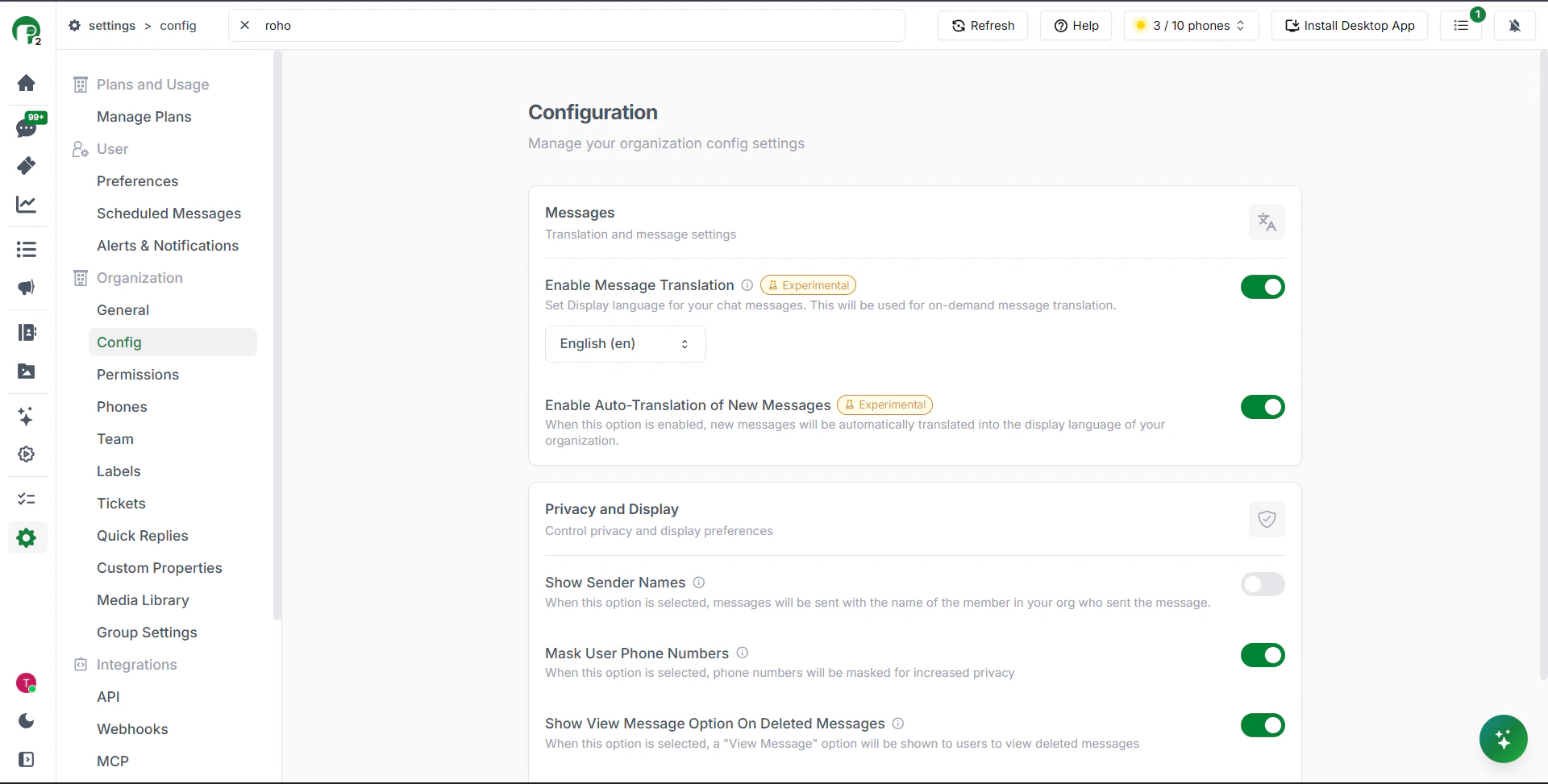
To turn on Auto Translate for your organization —- Go to Settings in your Periskope dashboard
- Navigate to Configuration
- Under the Messages section, toggle on Enable Message Translation
- Select your display language from the dropdown — this is the language your team reads and writes in (for example, English)
- Below that, also toggle on Enable Auto-Translation of New Messages — this makes sure every new incoming message is automatically translated into your display language
How to translate messages manually
If you don’t want to enable Auto Translate globally, you can still translate individual messages on demand. Simply click See Translation on any message in the chat to view it in your display language..png?fit=max&auto=format&n=A0sdStd_dac-NyWg&q=85&s=0adb44c270920125fa8c7fc5fe95a57d)
How to enable Auto Translate for a specific chat
You can also turn Auto Translate on or off for individual chats without changing your global settings. This gives you more control over which conversations get translated —- Open the chat you want to enable translation for
- In the message input area at the bottom of the chat, look for the Auto Translate button in the toolbar (the globe-like icon next to where you type)
- Click it to toggle Auto Translate on for that specific chat
- You can also select the language for that particular conversation directly from the same menu
.png?fit=max&auto=format&n=A0sdStd_dac-NyWg&q=85&s=6b12d21f3e95240837629dd07d5dca9b)
.png?fit=max&auto=format&n=A0sdStd_dac-NyWg&q=85&s=3065a3476bc557dd235e1c8051862ce8)