
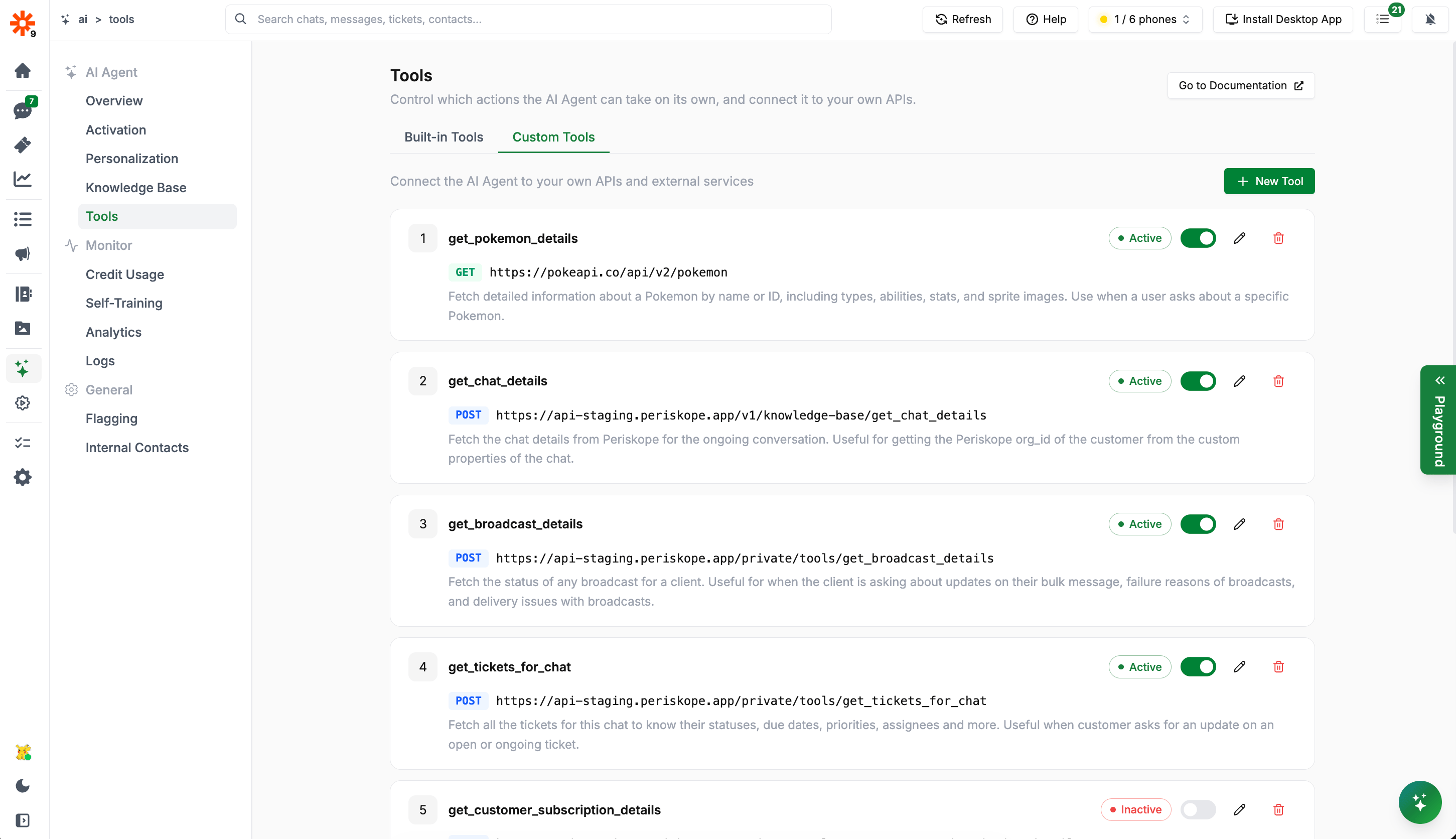
Custom Tools List
Creating a Custom Tool
Click + New Tool to open the tool editor. A custom tool has four sections:- Basic Information
- Authentication
- Request Headers
- Parameters
- Response Schema (optional)
1. Basic Information
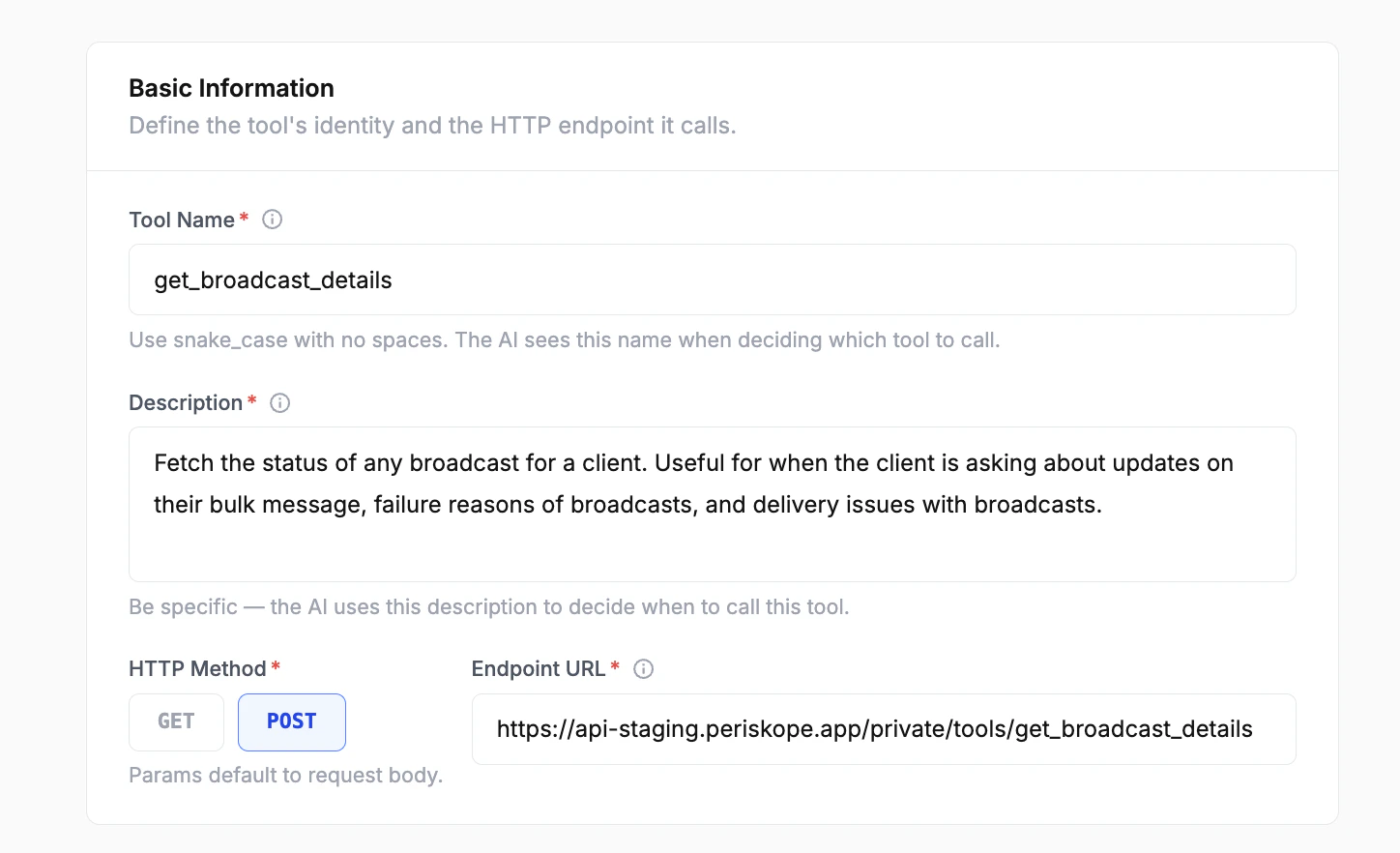
Custom Tool - Basic Information
snake_case with no spaces. The AI sees this name when deciding which tool to call.
GET or POST.
- Use
GETfor fetching data (parameters go in the query string) - Use
POSTfor sending data (parameters go in the request body)
2. Authentication
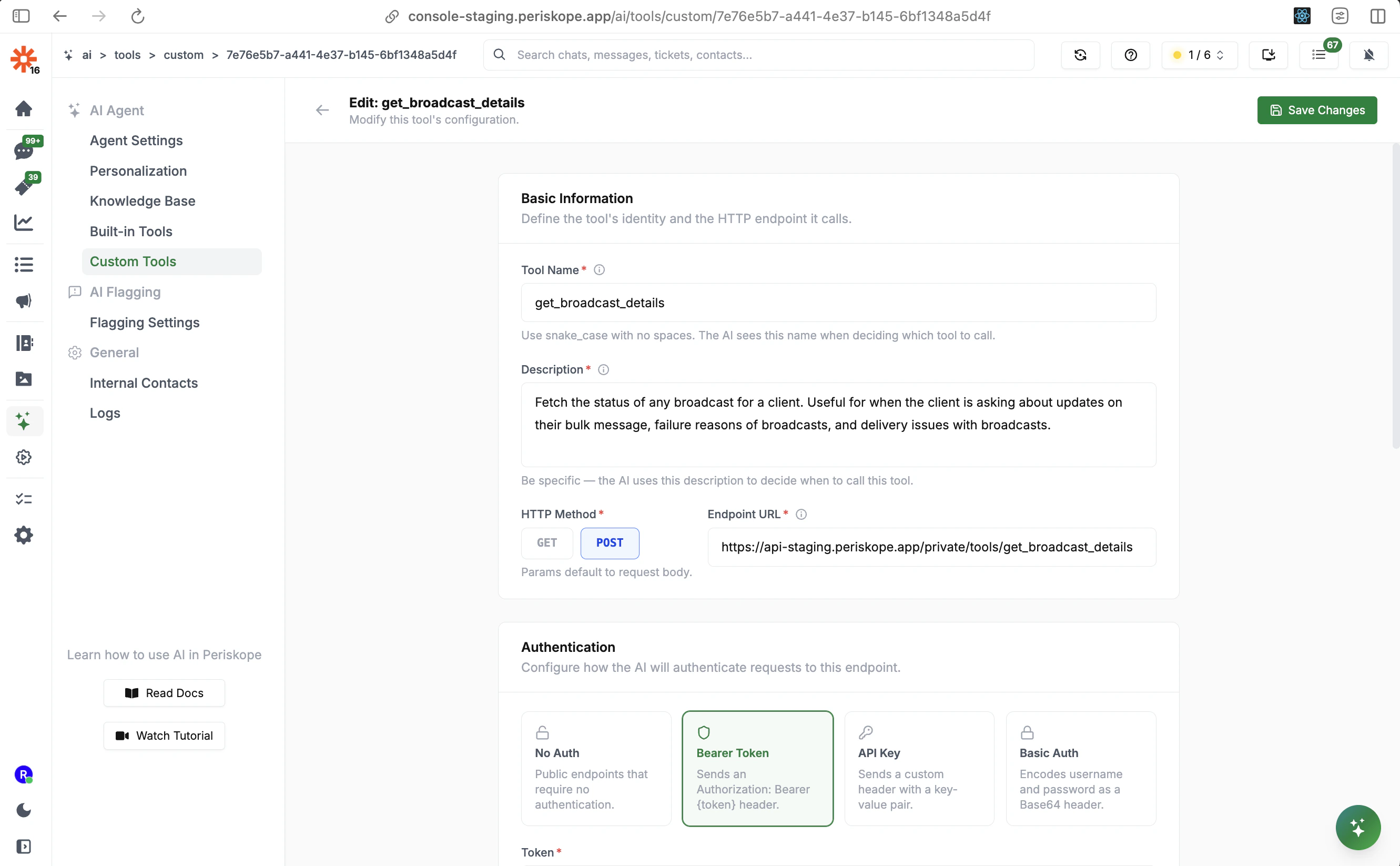
Custom Tool - Authentication
For Bearer Token, enter your token and it will be sent as
Authorization: Bearer <token> with every request.
3. Request Headers
Static headers sent with every call to this endpoint. Authentication headers are managed separately in the Authentication section above. Use this for headers likeorg_id, Content-Type, or any other static values your API requires.
Click + Add Header to add name-value pairs.
4. Parameters
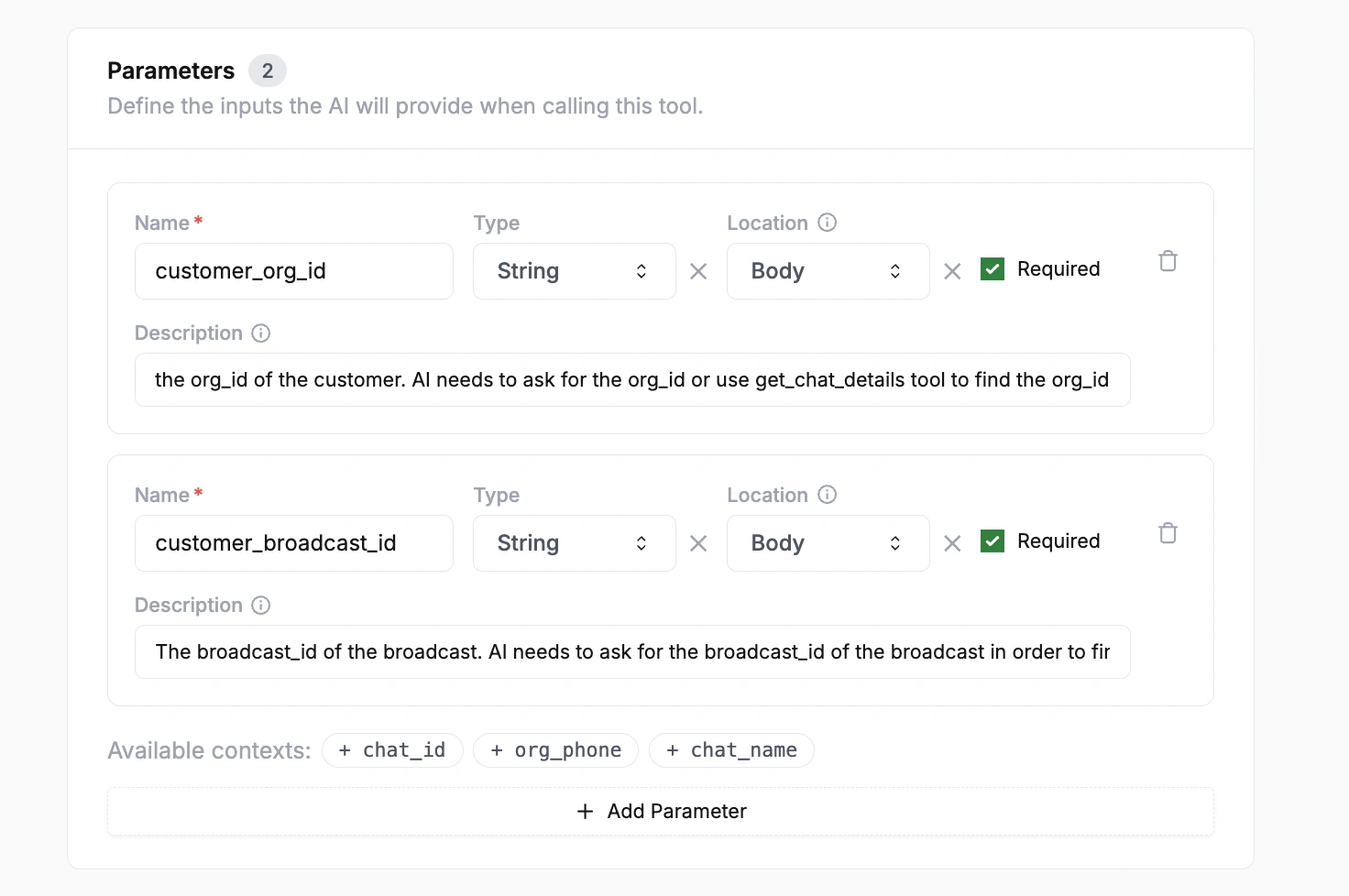
Custom Tool - Parameters
Available Contexts
At the bottom of the parameters section, you’ll see Available contexts:
+ chat_id, + org_phone, + chat_name. Click these to automatically inject conversation context as parameter values — no need for the AI to ask the customer.
Parameter Description Tips
The description tells the AI where to get the value from. Be explicit:
5. Response Schema (Optional)
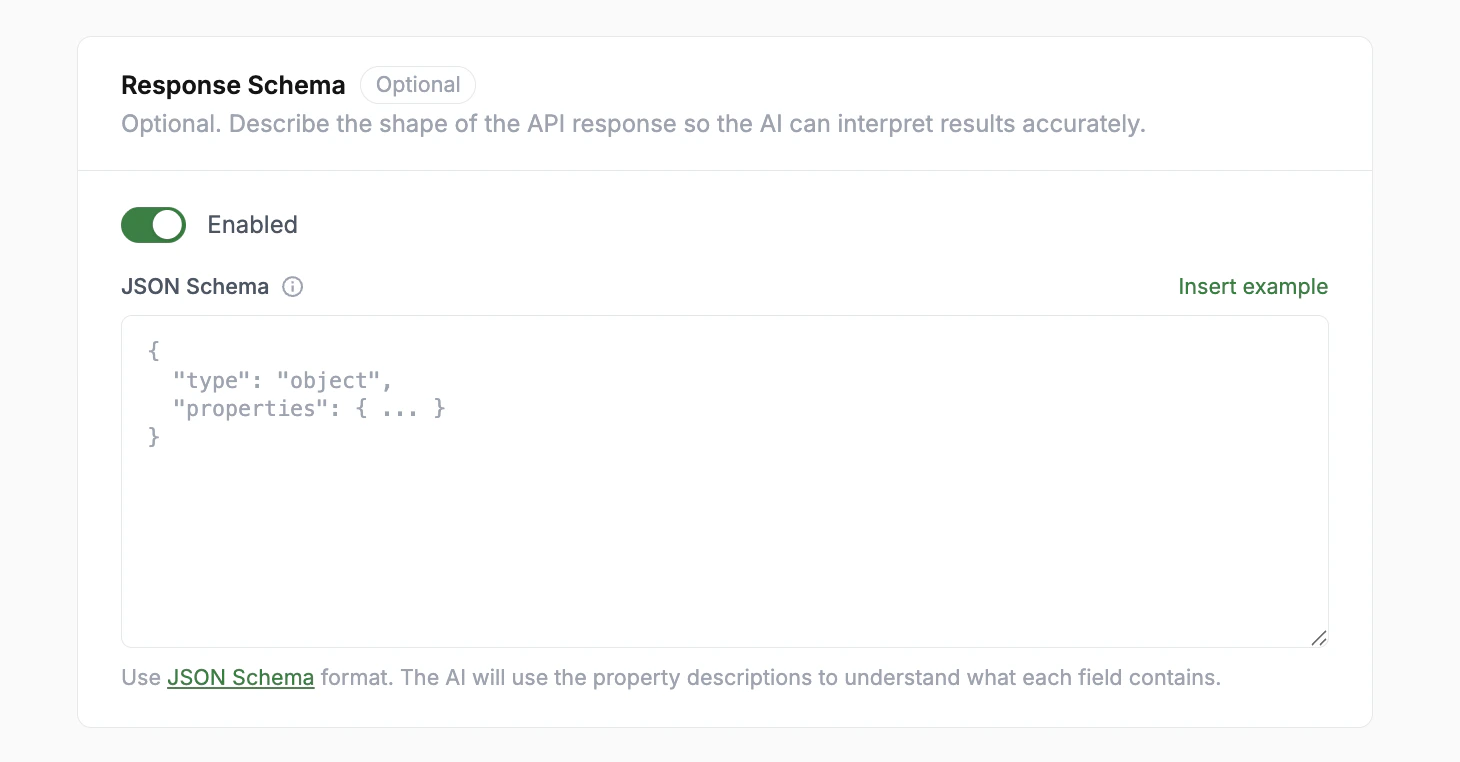
Custom Tool - Response Schema
Example: Full Custom Tool Setup
Here’s a complete example of a tool that fetches broadcast status for a customer: Basic Informationcustomer_org_id— String, Body, Required — “The org_id of the customer. AI needs to ask for the org_id or use get_chat_details tool to find it”customer_broadcast_id— String, Body, Required — “The broadcast_id. AI needs to ask for the broadcast_id in order to fetch its details”
Managing Tools
Back on the Custom Tools list, you can:- Toggle active/inactive: Enable or disable a tool without deleting it. Inactive tools are not called by the AI.
- Edit: Click the pencil icon to modify a tool’s configuration
- Delete: Click the trash icon to permanently remove a tool
The AI only calls tools that are marked as Active. Use the inactive state when testing new tools or temporarily disabling one without losing its configuration.
How the AI Uses Custom Tools
The AI decides when to call a custom tool based on the conversation context and the tool’s description. When it determines a tool is relevant:- It gathers the required parameters — either from the conversation context, by asking the customer, or from other tools
- It makes the API call
- It uses the response to formulate an accurate answer
Next Steps
- Built-in Tools - Configure native AI actions like creating tickets and private notes
- Knowledge Base - Train the AI with FAQs and documents
- Personalization - Define the AI’s role and how it uses tools