
How Automated Ticket Assignment Works
Periskope monitors every new ticket created in your system. When a ticket is created (manually or automatically), the system evaluates your assignment rules and instantly assigns the ticket to the right agent.- Ticket is created in your system
- Automation rule triggers immediately
- System evaluates your conditions
- Ticket auto-assigns to next available agent
- Agent is notified and starts working
Step-by-Step Setup
Step 1: Access Automation Rules
- From the Periskope dashboard, go to Automation Rules
- Click New Rule
- Select Start From Template
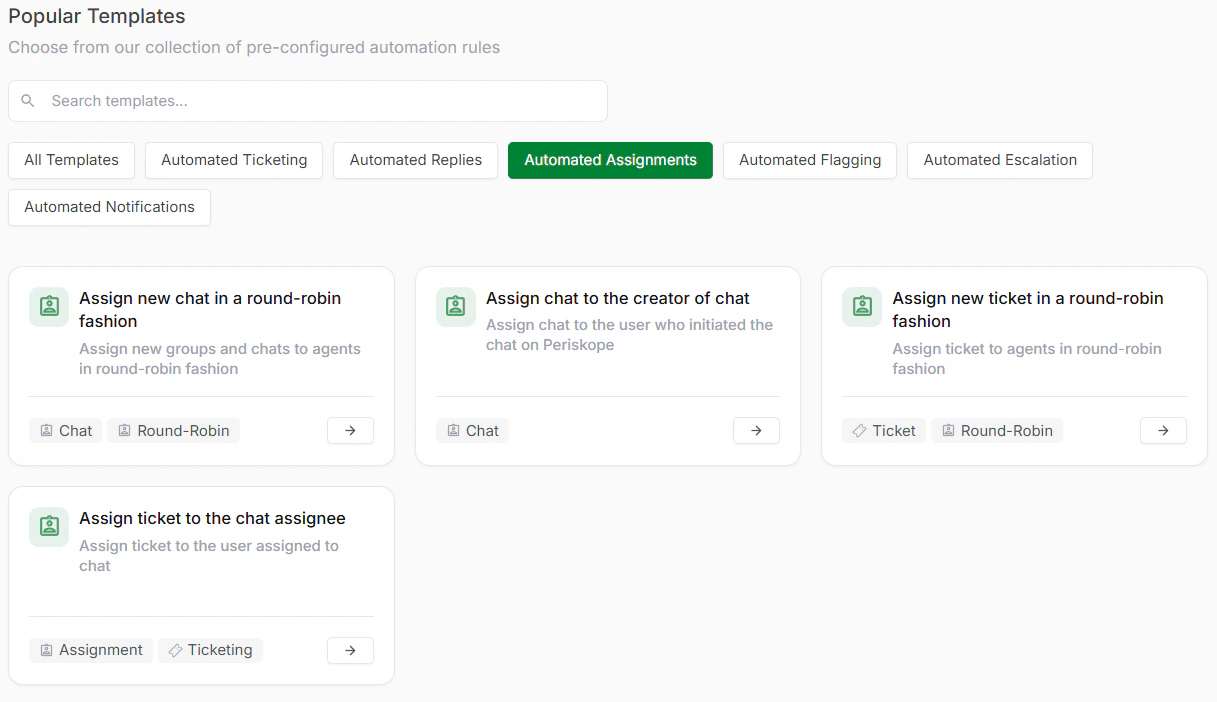
Choose Template
The trigger is automatically pre-configured to monitor all new tickets. This means whenever a new ticket is created, whether manually or automatically through another automation rule, this rule will activate.Step 2: Review the Trigger
What This Means: Every ticket created in your system will go through this assignment rule. The trigger is always active, watching for new tickets that need to be assigned.
Conditions let you control which tickets get assigned by this rule. You can create simple or complex conditions depending on your needs.Step 3: Set Up Your Conditions
Example Conditions: Chat label matches ‘Support’; Message body contains ‘billing’; Chat priority is ‘High’; Message is from saved contact; Time is within business hours; etc.
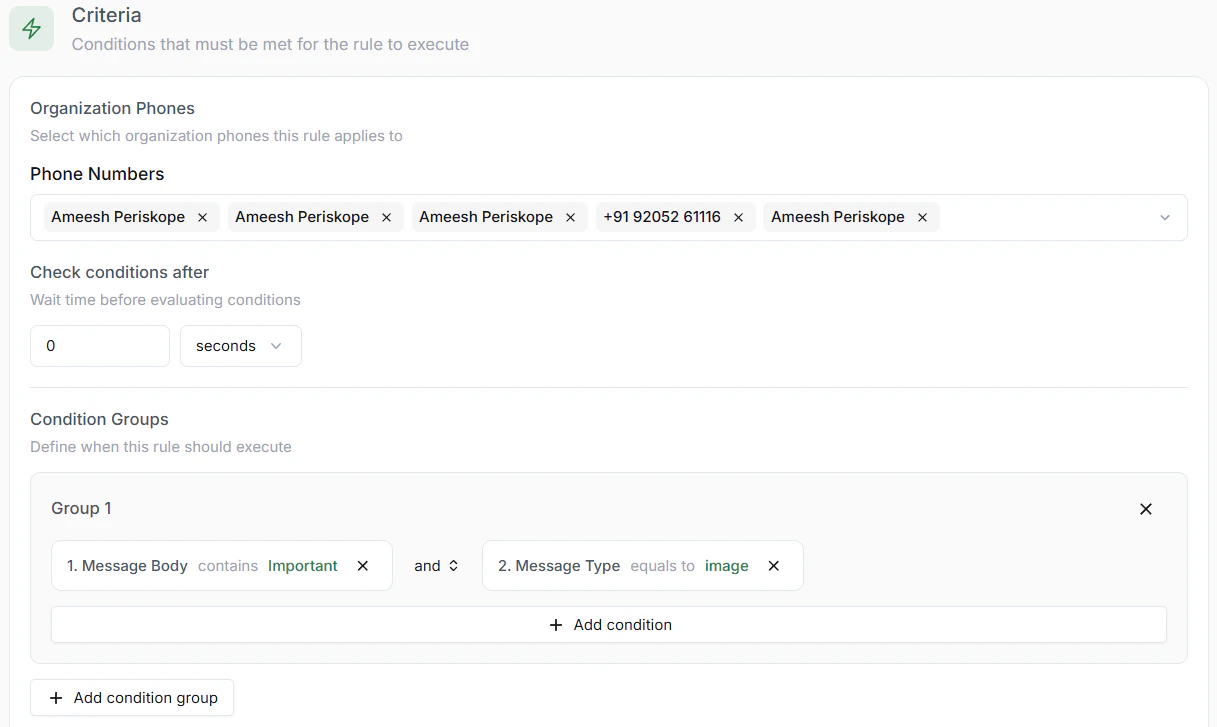
Set up Condition(s)
You have two main options for how tickets are assigned:Step 4: Choose Your Assignment Method
Important: Agent Availability Periskope respects each agent’s business hours and availability settings. Tickets are only assigned to agents who are currently available. If no one is available, the system will retry until an agent comes online.
Choose which agents should be included in the assignment pool. You can select:Step 5: Select Your Assignment Team
- Individual team members
- Entire teams or departments
- Agents by skill level or specialty
- Custom agent groups
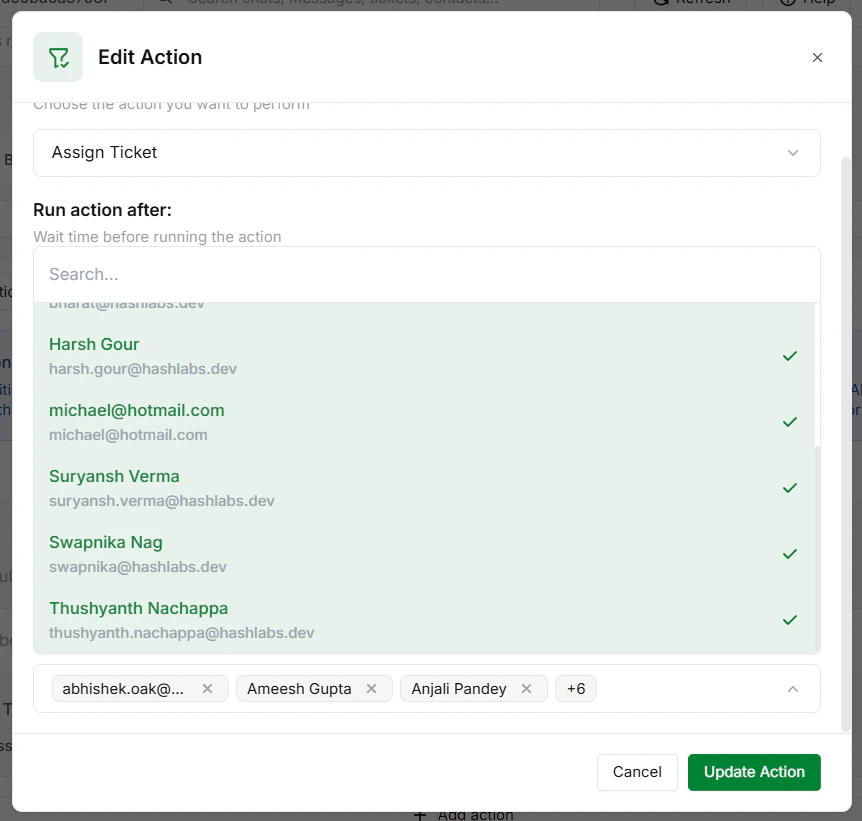
Select Team Member(s)
Step 6: Save and Publish
- Review all your settings
- Click Save Rule and Publish it to get it online
- Your automation is now active and monitoring