
Overview
How often have you missed a customer message on WhatsApp, only to catch it too late? Good news, you don’t have to manually create tickets anymore. With Periskope, you can simply react to a message, and a ticket will be created automatically. One emoji reaction. Instant ticket creation. Zero context lost.How It Works
The workflow is simple. Set up an automation rule that triggers when someone reacts to a message with a specific emoji (like thumbs up 👍). When that emoji is added, a new ticket is automatically created, or the message is attached to an existing ticket. Here’s the complete flow:- Team member sees an important WhatsApp message
- They react to it with your chosen emoji (e.g., 👍)
- Automation rule triggers immediately
- New ticket is created or message attached to existing ticket
- Ticket appears in dashboard ready for your team to work on
Setting Up Your Emoji Ticketing Rule
Go to “Automation Rules” > Click “New Rule”> Select “Create from Scratch” to build a custom rule for your workflow.Step 1: Start a New Rule
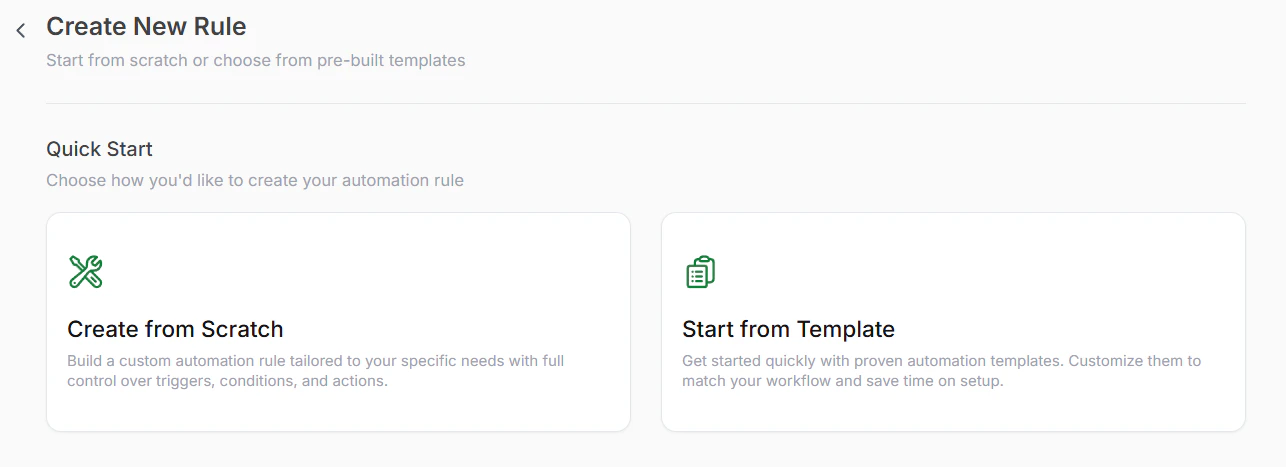
Create from Scratch
Give your rule a clear name. Example: Create Ticket with Thumbs Up or Flag Messages with Heart.Step 2: Name Your Rule
Set the trigger to “New Reaction Added”. This activates your rule whenever anyone adds an emoji reaction to any message.Step 3: Select Your Trigger
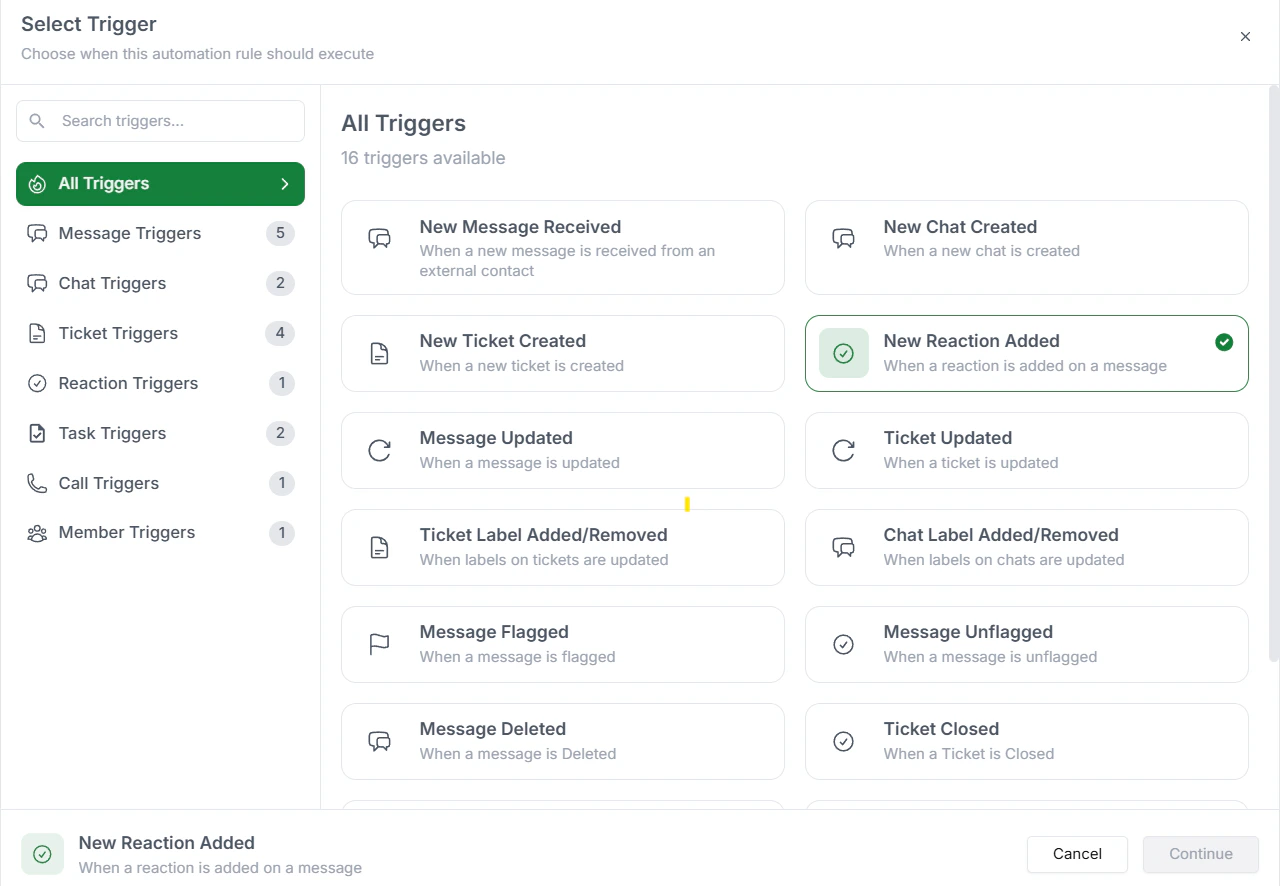
Set up Trigger
Go to Criteria. Add condition and select “Reaction” as your condition and choose which emoji you want to monitor. A few choices include:Step 4: Define Your Condition - Choose the Emoji
- Thumbs up (👍) - Most intuitive for approvals and important messages
- Heart (❤) - Great for favorite customers or priority issues
- Star (⭐) - Perfect for high-priority or critical bugs
- Fire (🔥) - For urgent or trending issues
- Flag (🚩) - For items that need attention
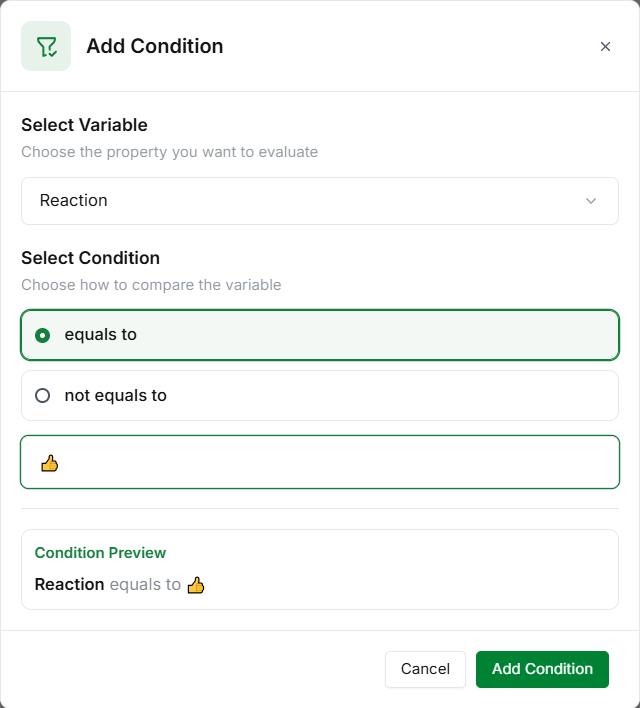
Set up Conditions
You can add multiple conditions, i.e. multiple emojis which would be considered by the rule.
Adjust the Check Conditions After time. This controls how long after someone reacts the rule evaluates. Immediate or 5 seconds is usually best for quick ticket creation.Step 5: Set Evaluation Timing
Go to Actions and select “Create ticket or attach message to latest ticket” When triggered:Step 6: Choose Your Action
- If no existing ticket is found, a new ticket is created.
- If a ticket already exists, the message is attached to the latest ticket instead of creating a duplicate.
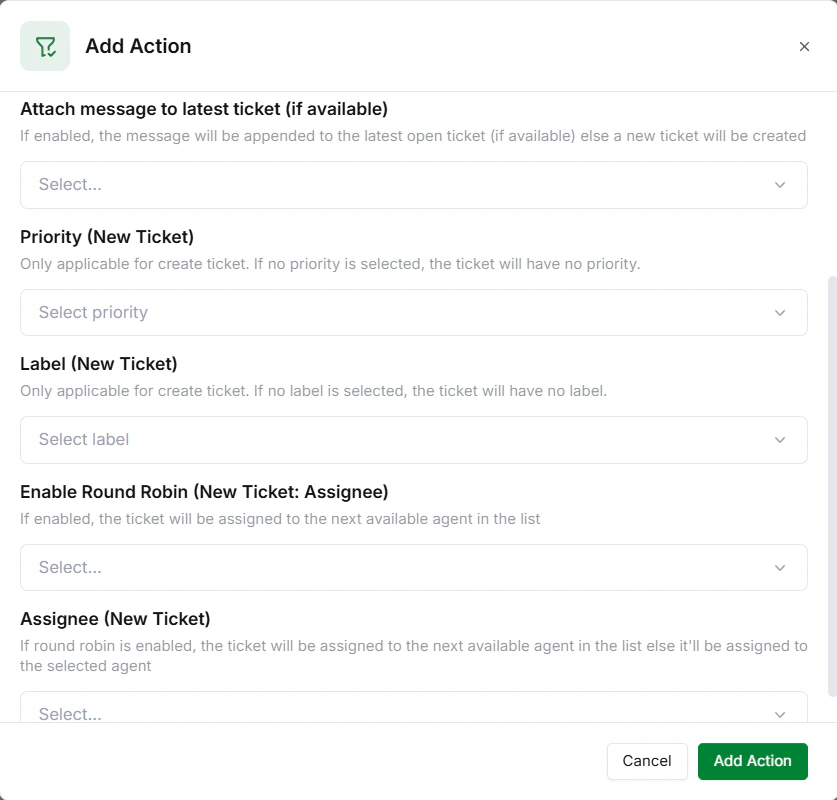
Set up Action
Review your rule. Click Save to store it. Click Publish to activate it. Your emoji ticketing rule is now live.Step 7: Save and Publish

Save & Publish