
Overview
A shared multi-agent inbox enables you to give access to multiple team members to manage, view and respond to messages without being on WhatsApp. This is most valuable for managing customer queries and support requests on WhatsApp groups & 1:1 chats.
Inviting a team member
Navigate to Settings > Team and click on Invite team
string
Enter emails of members you would like to invite. If you want to invite multiple members, enter all email IDs seperated by commas.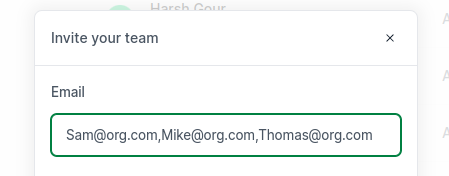
options
You can invite users as either Admins or Members . Admins will have access to all WhatsApp chats and groups that that connected numbers are part of. Members will only have access to the chats or groups that you give them access to either at the time of inviting or later from the Chat List section.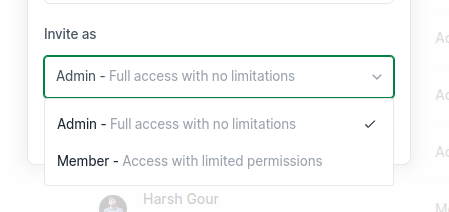
options
This dropdown is only active when you want to invite a user as Member . The member will have access to only those WhatsApp chats and groups that have the labels attached to it. Labels can be selected the dropdown at the time of invitation or later from the Chat List section.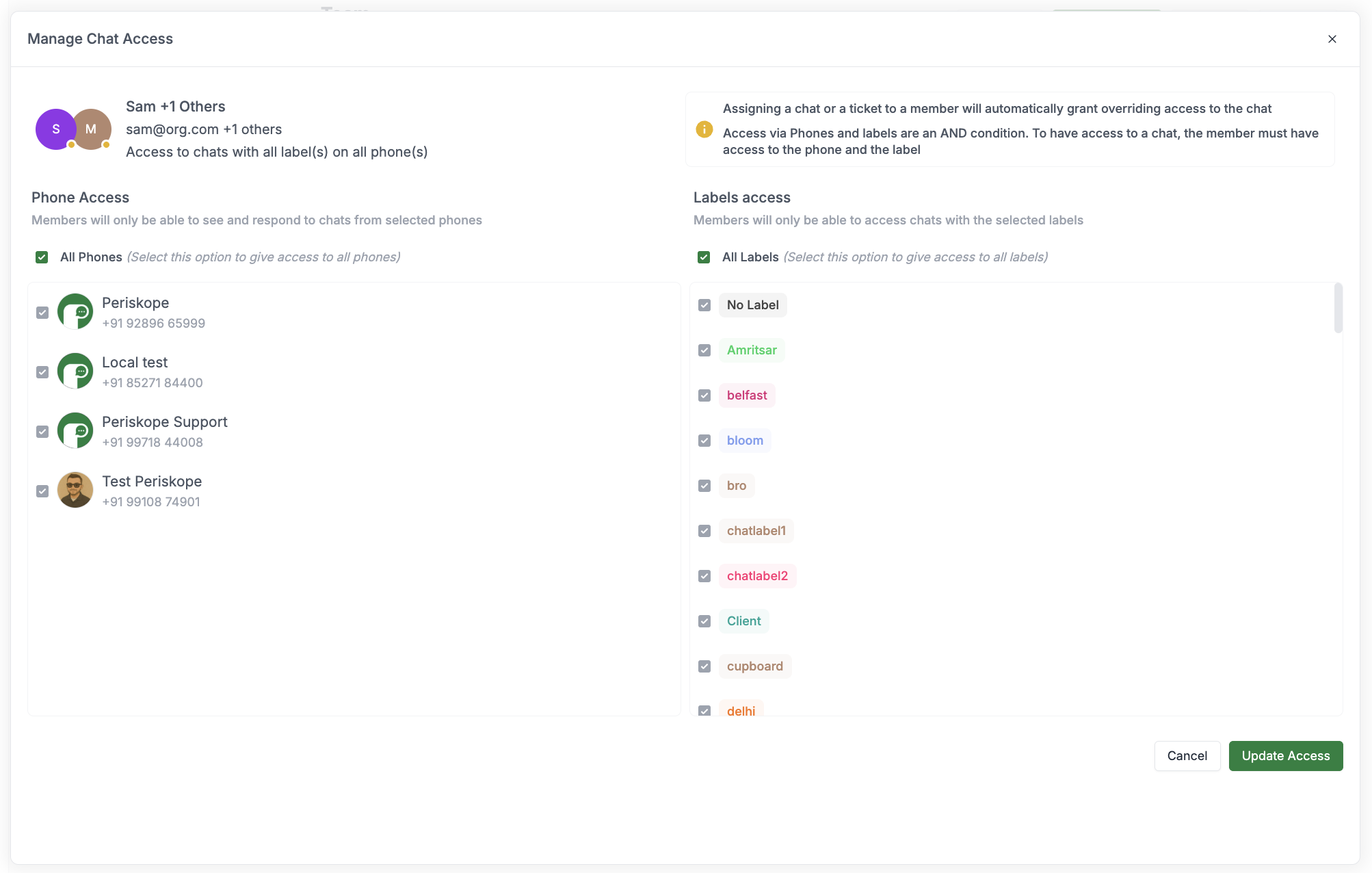
Viewing who has access to a specific group or chat
The dropdown on the top right of any group or chat will show all the users who have access to that group or chat. Admins by default have access to all chats and groups and will show as default selected in the drop down.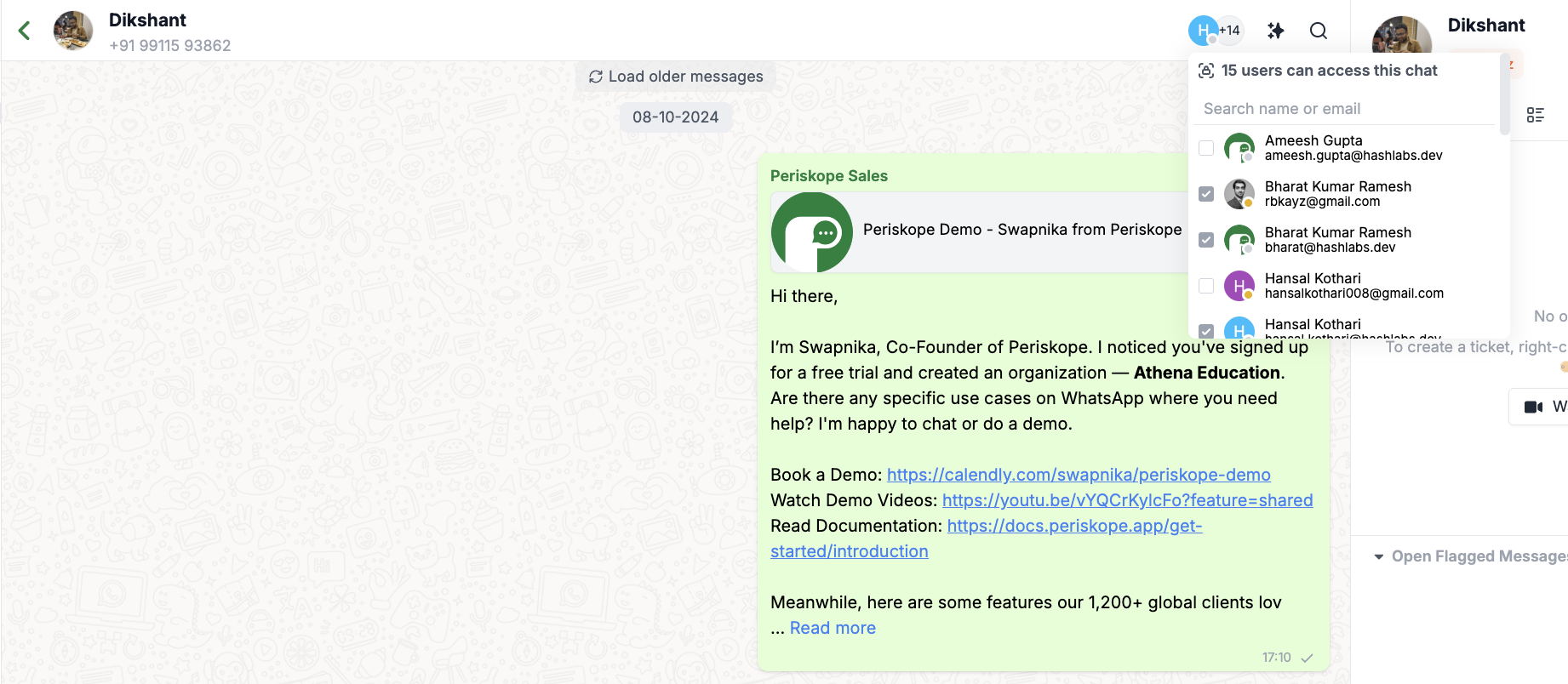
Controlling Chat Access with Labels
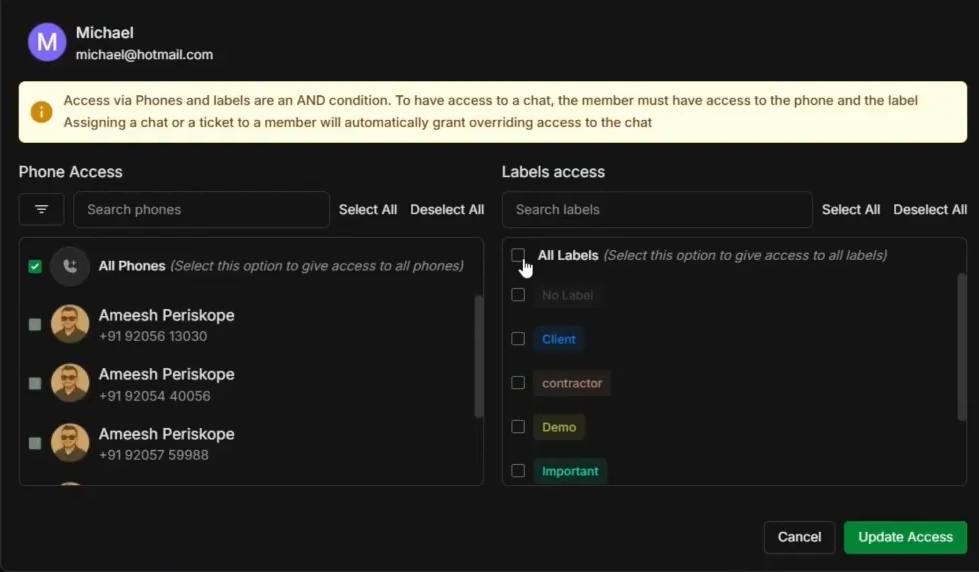
Instead of giving a Member access to your entire inbox, use labels to filter exactly which chats they can see. The Member’s inbox stays empty until you apply a matching label to a chat — giving you precise control over what they work on.- Use the Access to Chats dropdown when inviting a Member.
- Select a specific label (e.g., “Contractor” or “Support”).
- The Member will only see chats that have that label applied.
- To give them access to a new chat, simply add the label to it from the chat panel.
Managing Agent Online/Offline Status and Shift Schedules
Periskope allows you to manage agent availability through both automated shift scheduling and real-time status controls. This helps ensure that chats and tickets are allocated only to agents who are currently available.Setting Agent Online/Offline Status
You can manually set an agent’s status to control their availability for chat and ticket assignments:For Individual Users:
Users can toggle their own status from the sidebar: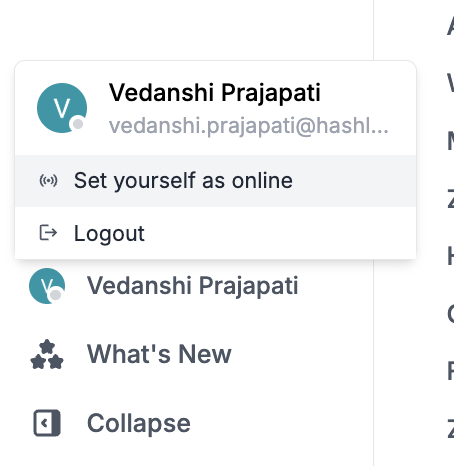
For Team Admins:
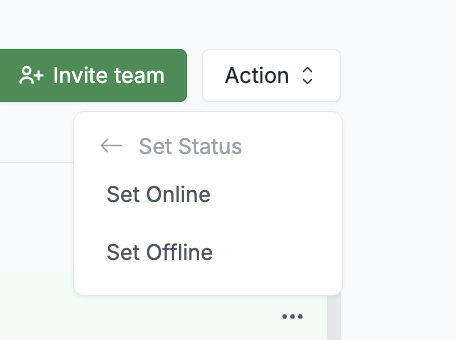
Admins can manage status for multiple team members at once:- Navigate to Settings > Team
- Select one or more team members from the list
- Click the “Action” dropdown button
- Choose “Set Status” from the dropdown
- Select either “Online” or “Offline” from the second-level dropdown
Setting Agent Shift Schedules
Configure recurring work schedules for your team to automate availability:- Navigate to Settings > Team
- Select one or more team members from the list
- Click the “Action” dropdown button
- Choose “Set Schedule” from the dropdown
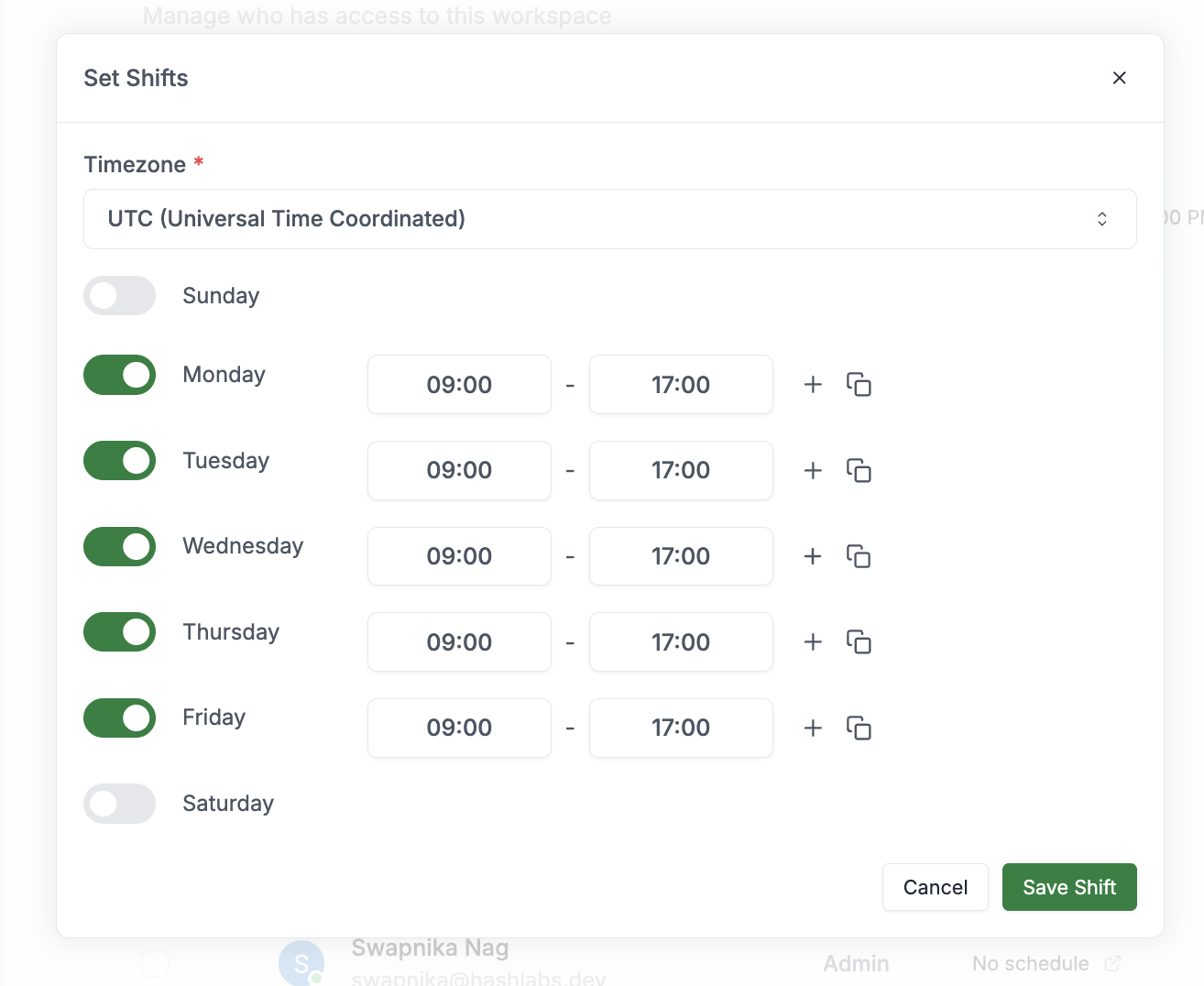
- In the shift timings modal:
- Select the appropriate timezone
- Set specific working hours for each day of the week
- Add up to three shifts per day if needed
- Click “Save” to apply the schedule
How Agent Availability Affects Chat Routing
When using round-robin assignment in your routing rules, you can configure how agent availability is determined:- Consider shift times only: Assigns chats based on the agent’s configured schedule
- Consider online/offline status only: Assigns chats based on the agent’s current manual status
- Consider both shift and status: Assigns chats only when both conditions are met (agent is within their shift time AND manually set to online)