
Overview
As conversations grow, it becomes harder to keep track of which messages actually need attention. With Periskope’s Automated Flagging Templates, you can automatically highlight important messages. Keywords trigger flags. Mentions get marked. Urgent issues surface without manual scanning. Your team focuses on what matters most.How It Works
Automated Flagging Templates are pre-built rules that automatically flag messages based on triggers and conditions. Instead of building automation from scratch, you activate a template and customize what gets flagged.- Select a template from the Automated Flagging category
- Review the pre-configured trigger and flag action
- Optionally customize keywords or conditions
- Configure who sees these flagged messages
- Save and activate the rule
- Important messages are now flagged automatically
Getting Started with Automated Flagging
Step 1: Access Automation Rules and Start from TemplateFrom your Periskope dashboard > go to Automation Rules > Click New Rule > Click Start from Template. You’ll see templates organized by category. Look for the Automated Flagging category.
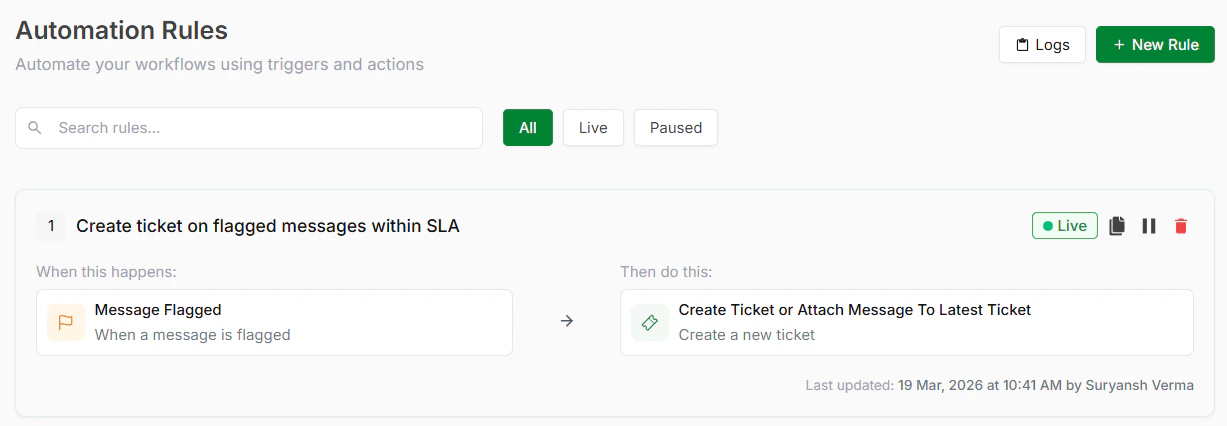
Step 2: Choose a TemplateInside Automated Flagging, select the template that matches your needs. See available templates below.
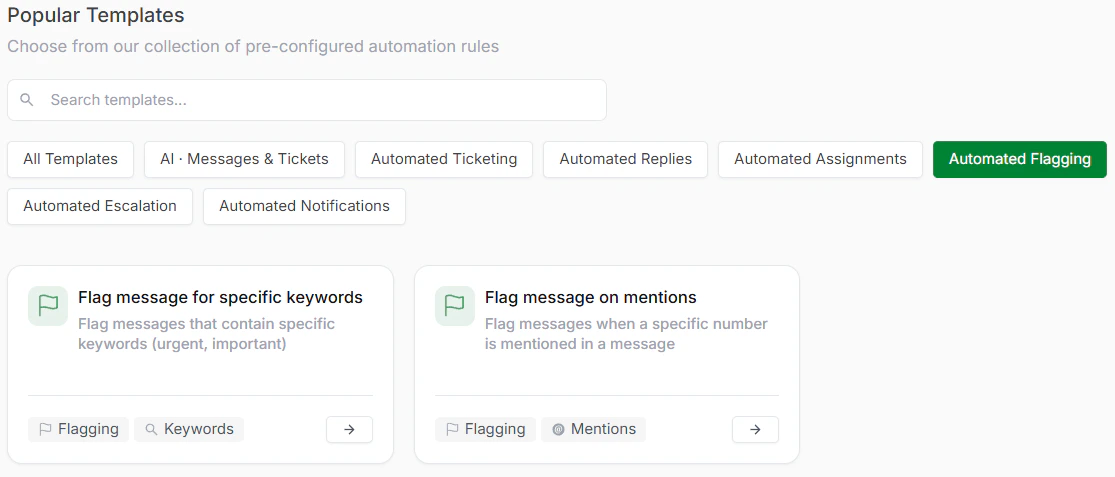
Automated Flagging Templates
Step 3: Review and Optionally CustomizeEach template comes with a trigger and action already configured. Review these to understand how the escalation will work and what conditions will activate it.
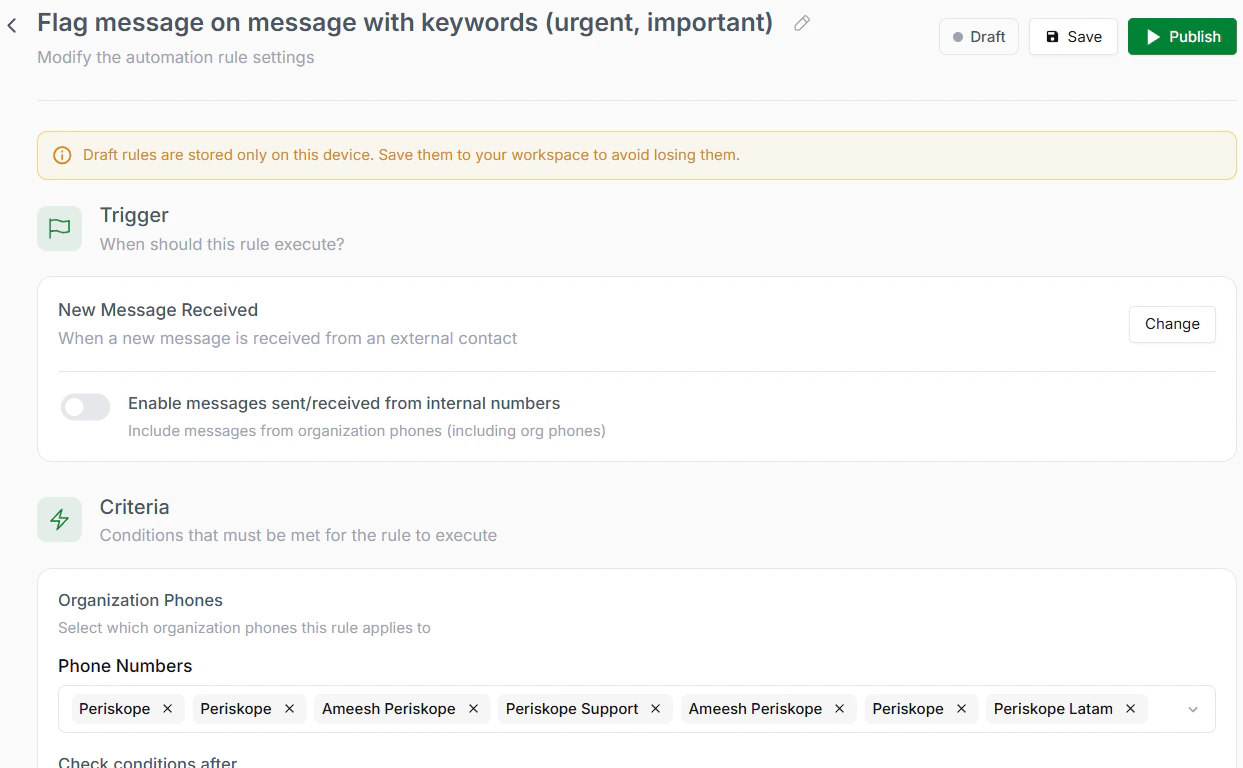
Review the rule
Step 4: Customize ConditionsEdit keywords or other conditions to match what matters to your team. Add, remove, or modify keywords or conditions to better capture what needs flagging.
Step 5: Save and ActivateClick Save to store your rule. Click Activate to turn it live. Messages are now flagged automatically.
Available Automated Flagging Templates
- Flag Messages for Specific Keywords
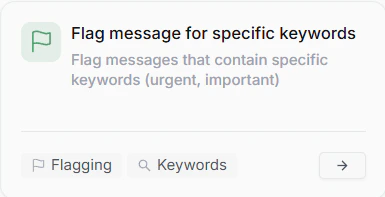
For specific keywords
- Flag Messages on Mentions
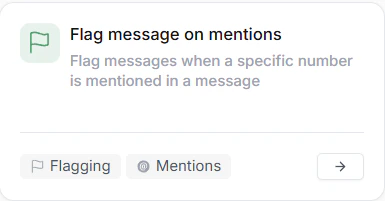
On mentions