
Agent Mode is a full-screen workspace where you tell Periskope what you need, and it does the work. Ask a question about your chats, pull a report, draft an automation rule, or tidy up a hundred chats at once: the agent finds the data, shows each step it takes, and stops to ask you before it changes anything.
It works with the same access you have. A member only sees the chats and tickets they can see on the dashboard, and the agent can’t do anything their permissions don’t allow.
Agent Mode is different from the AI Agent, which replies to your customers on WhatsApp, and from the Org & Chat Assistant, which sit in a side panel. Agent Mode works for your team, in its own screen, and handles bigger jobs from start to finish.
Open Agent Mode
Click Agent in the left sidebar.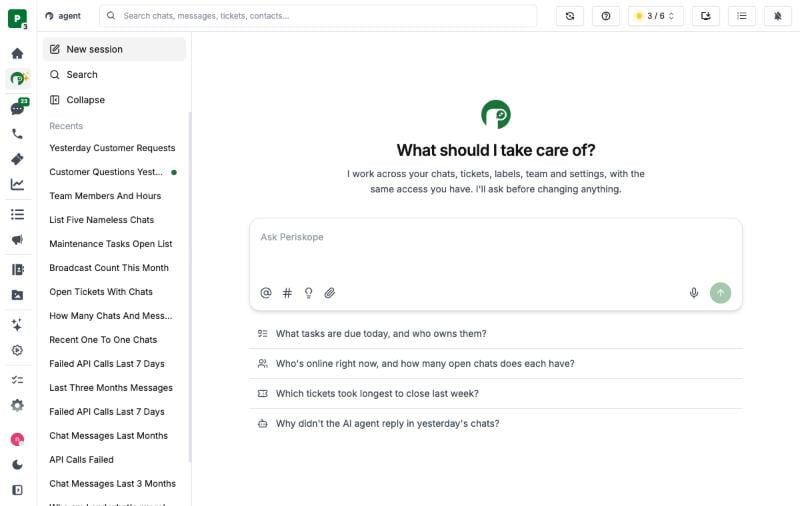
Agent Mode
Ask in Plain Words
Type what you need and press Enter to send (Shift + Enter adds a new line). Be as specific as you’d be with a teammate: dates, labels, people and numbers all help.Tag the exact chat or ticket
Type @ to pick a chat or # to pick a ticket, or use the @ and # buttons under the message box. The agent then works on exactly that chat or ticket instead of guessing from a name.Start from an example
The home screen shows a few examples to start from, and a different set each time you open it. Click one to put it in the message box, change anything you like, then send. For the full list, click the bulb under the message box or type / at the start of the box. Examples are grouped by area (chats, tickets, tasks, analytics, rules, team and more). Keep typing after the / to filter them, for example/ticket. You only see examples you have permission to run.
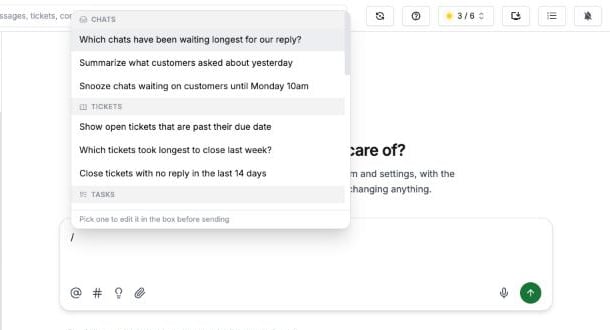
Examples, grouped by area
Picking an example never sends it. It goes into the message box so you can edit it first.
Talk instead of typing
Press and hold the mic button (or hold Alt / ⌥ Option) and speak; let go when you’re done. You can also click the mic once to start and again to stop. What you said appears in the message box, ready to edit and send.Attach files
Click the paperclip or drag files onto the screen. You can attach up to 10 files at a time, 30 MB each:- Sheets (
.csv,.xlsx), for example a list of numbers for a bulk message - Images, video and audio, for example media to send in a bulk message
- PDF and Word documents
Steer it while it works
You don’t have to wait for an answer. Send another message while the agent is working and it reads it at its next step. For example, “only the ones labelled VIP” or “skip the group chats”. To stop it, click Stop (the square button that replaces Send).Follow the Work
While the agent works, you see each step it takes: which tools it opened and what it looked up. When it’s done, the steps fold into one line, such as Worked for 1min 1s. Click it to see the steps again.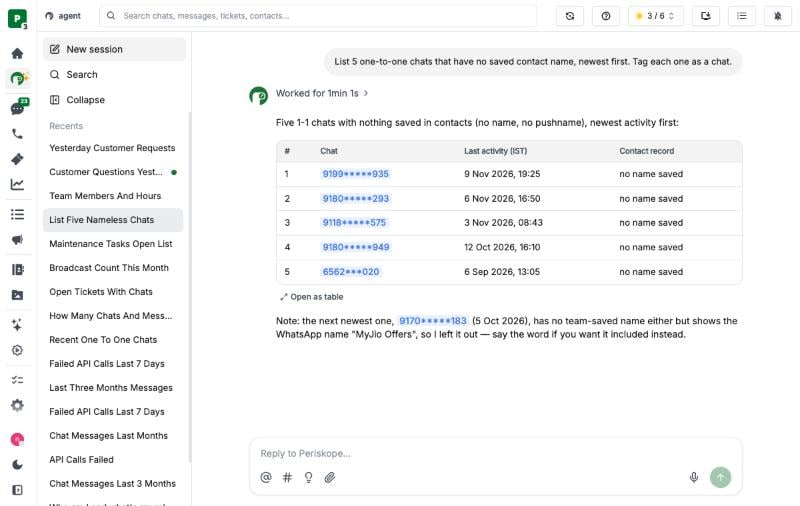
An answer, with the chats it found as links
- Links to chats and tickets. Click one to open it beside the conversation.
- Tables. Click Open as table to sort columns, copy the table, or download it as a CSV.
- Charts. Click Expand to see a chart larger, with its numbers as a table.
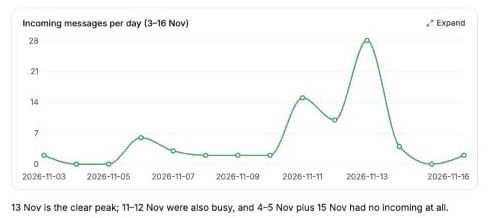
A chart in an answer
Open chats and tickets beside the conversation
Click a chat or ticket link and it opens in a panel on the right. You can read the messages and reply without leaving Agent Mode.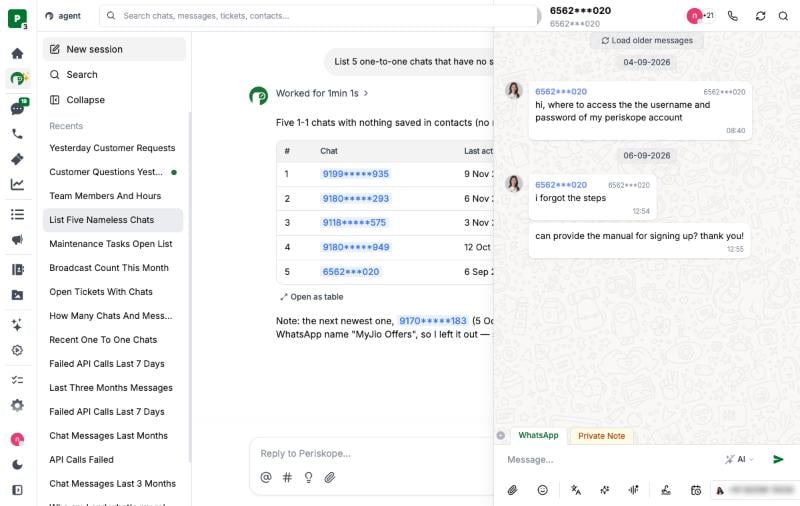
A chat opened beside the conversation
Approve Changes
The agent looks things up on its own, but anything that changes your workspace waits for you: labelling or assigning chats, creating tasks or tickets, sending messages, saving rules and changing settings. It shows exactly what it’s about to do and asks you to choose.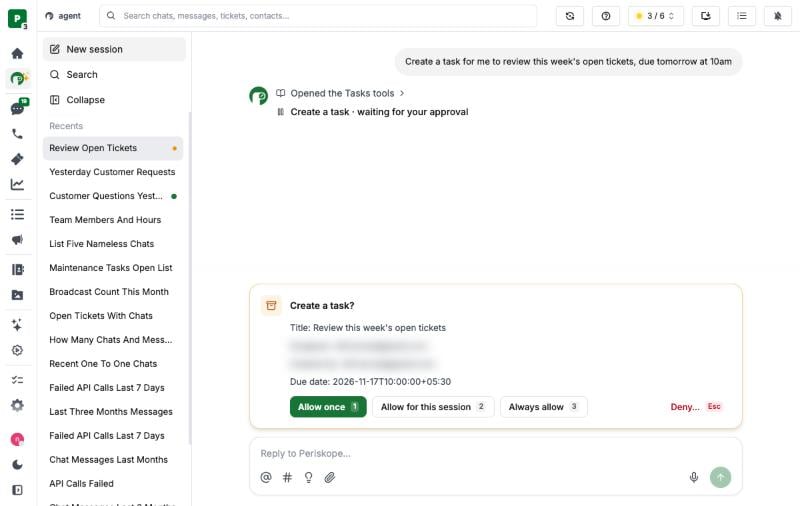
The agent asking before it creates a task
Some actions offer fewer choices, because a mistake costs more:
When an action covers many chats, the card shows how many, for example Confirm 24 chats, so you know the scale before you approve.
Deny with a note
Click Deny… and tell the agent what to do instead. It changes its plan and asks again.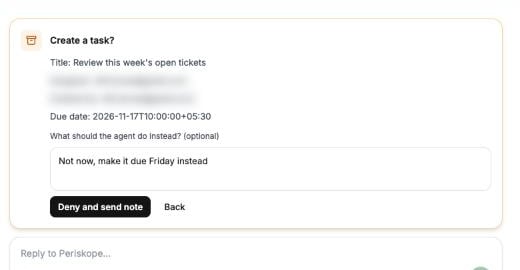
Denying with a note
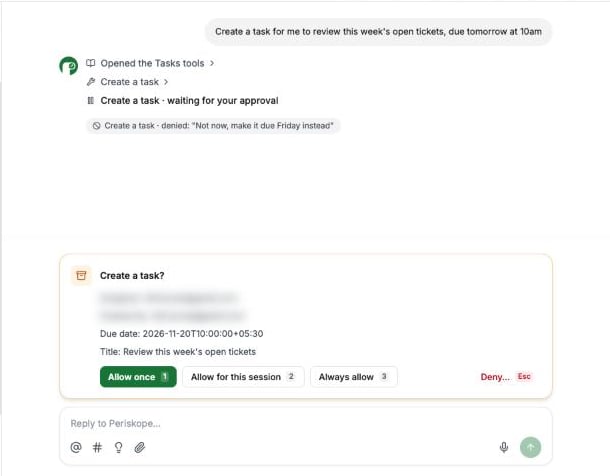
The agent asks again with the change
Keyboard shortcuts
With an approval waiting, press 1, 2 or 3 to pick a choice, or Esc to open Deny. Bulk messages always take a click.Answer the Agent’s Questions
When something is unclear, such as which phone, which date or which of two chats, the agent asks and gives you options to pick from, just above the message box.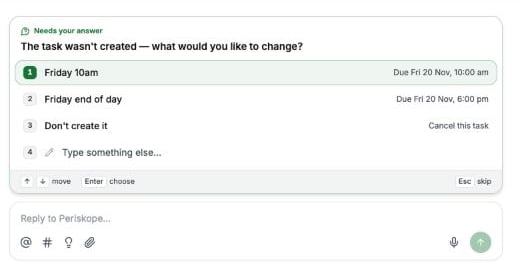
A question with options
What You Can Ask For
The agent can work across most of Periskope. Here’s what you can ask for in each area, with example prompts.
Example prompts:
Build automation rules
Describe the rule you want and the agent drafts it. The draft opens beside the conversation in the same layout as the rule editor, so you can check the trigger, conditions and actions. If something needs fixing, the draft says so.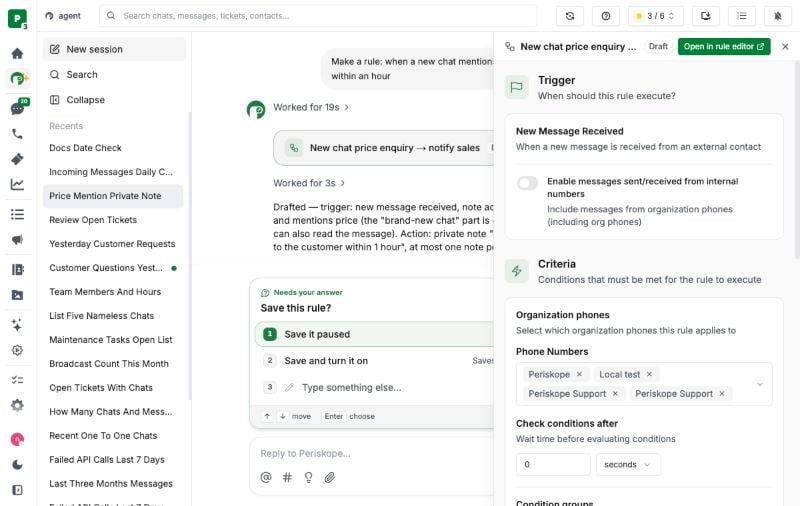
A drafted rule, with the agent asking how to save it
Send bulk messages
Tell the agent who to message and what to say, or attach a sheet of numbers. It builds the recipient list, flags numbers that are invalid or missing a country code so you can fix them, and shows a preview before anything is sent. You can send now, schedule it, or set it to repeat. After sending, the same panel shows delivered, read and failed counts.Exports and background tasks
Exports of chats, messages, tickets, contacts or the knowledge base can take a while, so the agent runs them as background tasks. You can keep working while they run:- A task running pill shows at the top right of the conversation. Click it to see the task’s steps, how long it has been running, and a Stop button.
- When the task finishes, the agent replies with the file to download.
Remember things across sessions
Ask the agent to remember something, such as how your team names labels or which reports you like, and it keeps a note for future sessions. Saving or changing a note needs your approval, and your notes are private to you.Sessions
Each conversation is a session, listed on the left. A dot next to a session shows when the agent is working, waiting for your approval, or has a new reply. Use Search to find an older session.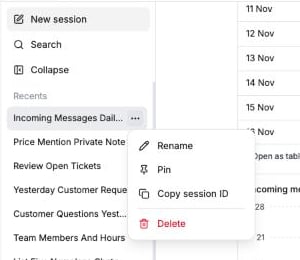
Session options
- Rename it
- Pin it to the top of the list
- Copy session ID, to share with our support team if something goes wrong
- Delete it, with its history
Tips
- Be specific. “Chats from this week labelled VIP with no reply” works better than “VIP chats”.
- Tag what you mean. Use @ for chats and # for tickets instead of typing names.
- Read the approval card. It shows exactly what will change; deny with a note if anything is off.
- Check big jobs first. Ask “how many chats would that be?” before “archive them”.