
Dictation Mode in the Chat
When you’re inside a chat and want to send a reply, click the dictation button to start recording — and click it again when you’re done. You can also use the keyboard shortcut Ctrl+D on Windows or Cmd+D on Mac.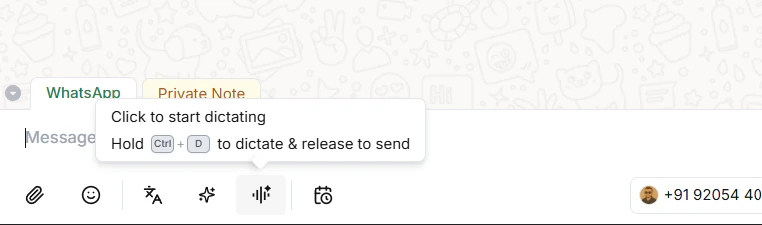
How it works
- Open any chat
- Click the dictation button to start recording (or press Ctrl+D / Cmd+D)
- Speak your instruction — for example:
- Click the dictation button again to stop recording
- The AI generates a reply based on your instruction and the conversation context
- Want to refine it? Click the dictation button again and say:
- The message updates instantly — review and hit send
Tip: You don’t need to dictate the exact reply word for word — just tell the AI what you want to communicate and it handles the wording for you.
Voice with the Org Assistant
The same voice feature works with the Org Assistant too. Instead of typing your instructions, just click the microphone icon in the Org Assistant panel and speak.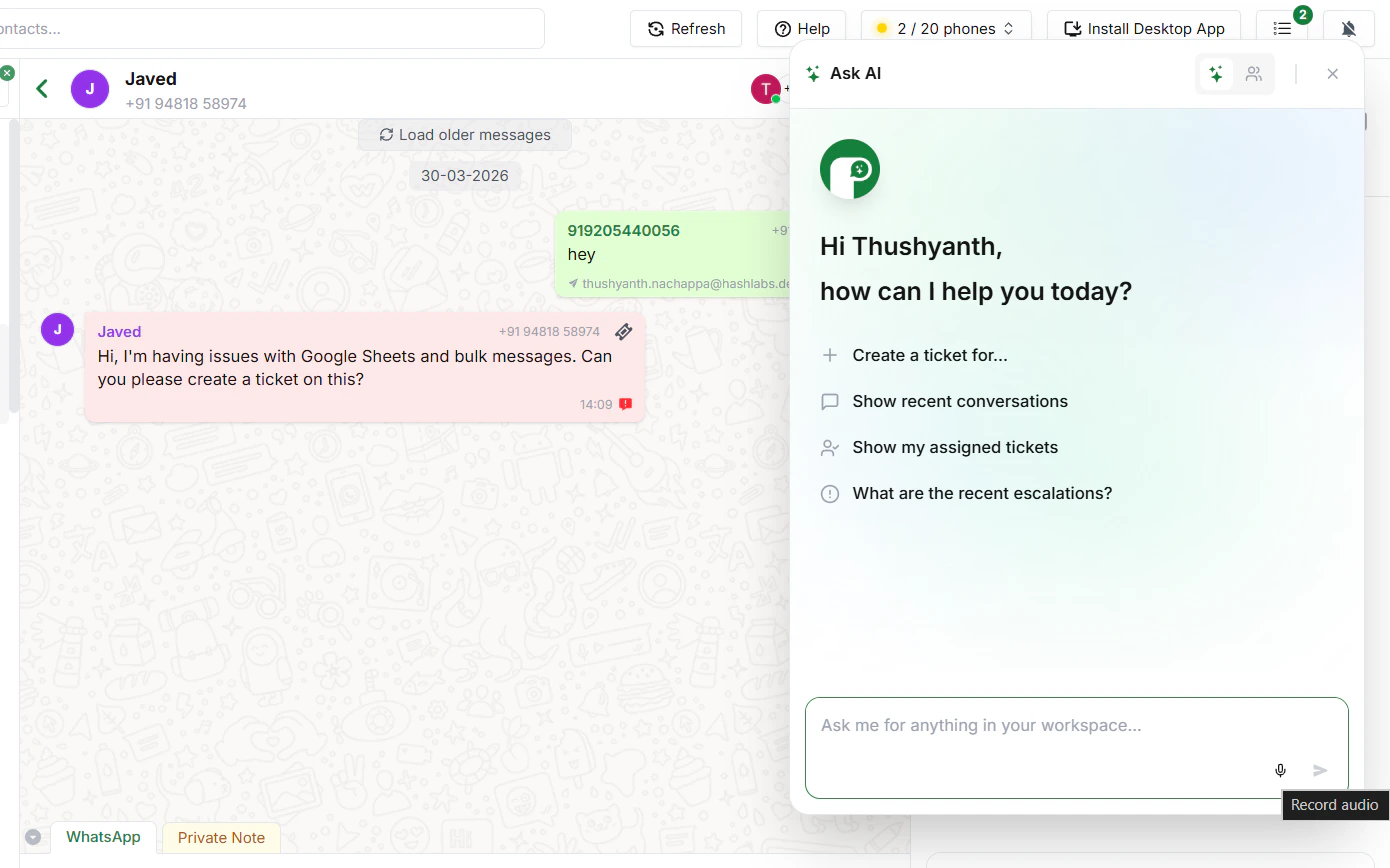
How it works
- Open the Org Assistant from the bottom-right corner of any page
- Click the microphone icon
- Speak your instruction — for example:
- Review what was transcribed
- Click Send — it’s done instantly
Voice with the Chat Assistant
You can use voice with the Chat Assistant as well. Open any chat, click the microphone in the Chat Assistant panel, and ask anything about that conversation — without typing a single word.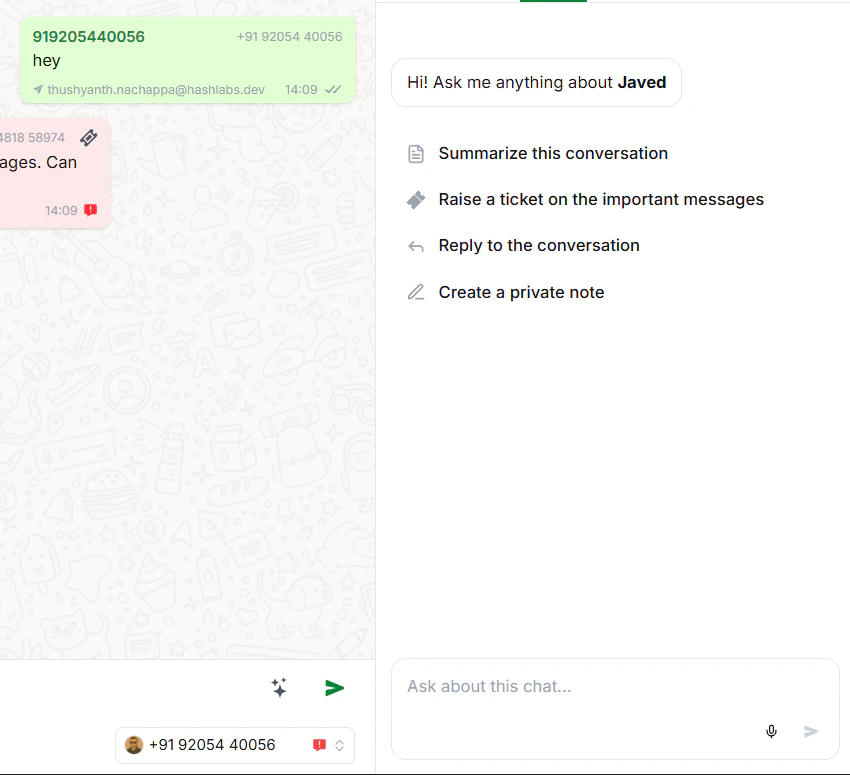
How it works
- Open a chat and go to the AI tab in the right panel
- Click the microphone icon
- Ask anything about the conversation — for example:
- The assistant responds instantly based on the chat context