> ## Documentation Index
> Fetch the complete documentation index at: https://docs.periskope.app/llms.txt
> Use this file to discover all available pages before exploring further.
# Export Tickets
> Guide to export tickets from Periskope
## Overview
You can export selected tickets from Periskope to analyze ticket data or maintain external records.
## Steps to Export Tickets
1. Navigate to the **Tickets** page in Periskope
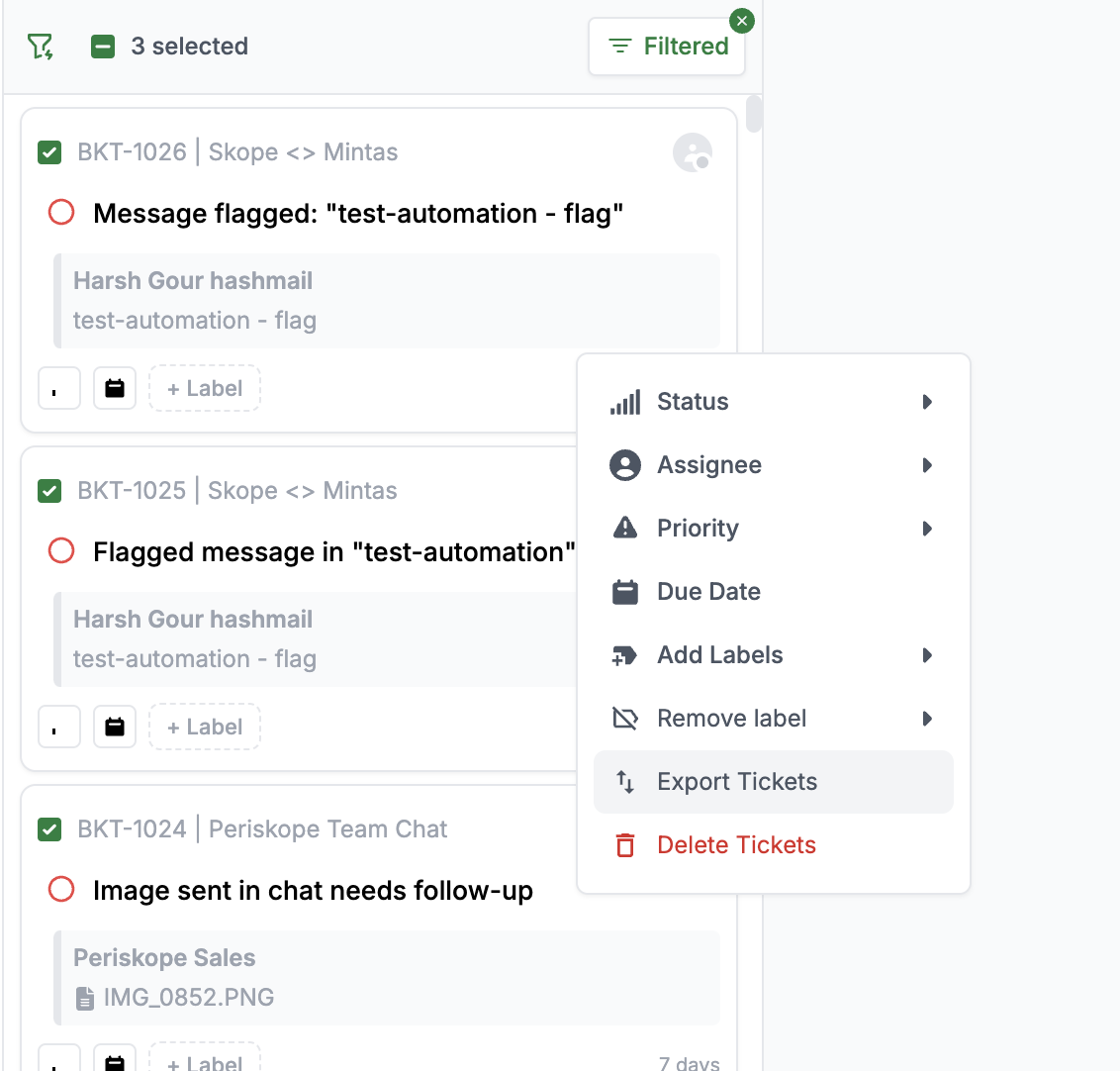
2. Select the tickets you want to export by clicking the checkbox next to each ticket
3. Right-click on any selected ticket to open the context menu
4. Click on **Export Tickets** from the menu options
 ## Export Format
The exported file will be in CSV format and include the following ticket information for each selected ticket:
* Ticket ID
* Created At
* Subject
* Chat ID
* Chat Name
* Message Body
* Message Sender Name
* Message Sender Phone
* Assignee
* Assigned By
* Status
* Priority
* Due Date
* Ticket Labels
* Closed At
* Close Ticket Metadata
* Response Time
* Last Updated At
* Custom Properties
* Hubspot Metadata
* Zoho Desk Metadata
* Freshdesk Metadata
* Description
* Trial Status
* Company
* First Assigned At
## Note
* You can select multiple tickets at once for export
* The exported file will be automatically downloaded to your default downloads folder
## Export Format
The exported file will be in CSV format and include the following ticket information for each selected ticket:
* Ticket ID
* Created At
* Subject
* Chat ID
* Chat Name
* Message Body
* Message Sender Name
* Message Sender Phone
* Assignee
* Assigned By
* Status
* Priority
* Due Date
* Ticket Labels
* Closed At
* Close Ticket Metadata
* Response Time
* Last Updated At
* Custom Properties
* Hubspot Metadata
* Zoho Desk Metadata
* Freshdesk Metadata
* Description
* Trial Status
* Company
* First Assigned At
## Note
* You can select multiple tickets at once for export
* The exported file will be automatically downloaded to your default downloads folder