> ## Documentation Index
> Fetch the complete documentation index at: https://docs.periskope.app/llms.txt
> Use this file to discover all available pages before exploring further.
# Manage Team Access
> Guide to giving restricted access to teams to view and reply on WhatsApp via Periskope
## Overview
All users onboarded as 'members' on Periskope will only be able to view and reply on WhatsApp groups and chats that they have explicitly been given access to. Enabling access at the time of invitation is covered in the [Invite-Team](/settings/invite-team.mdx) section. Read more on enabling access once a user has joined an organisation.
## Enabling access via Chat List
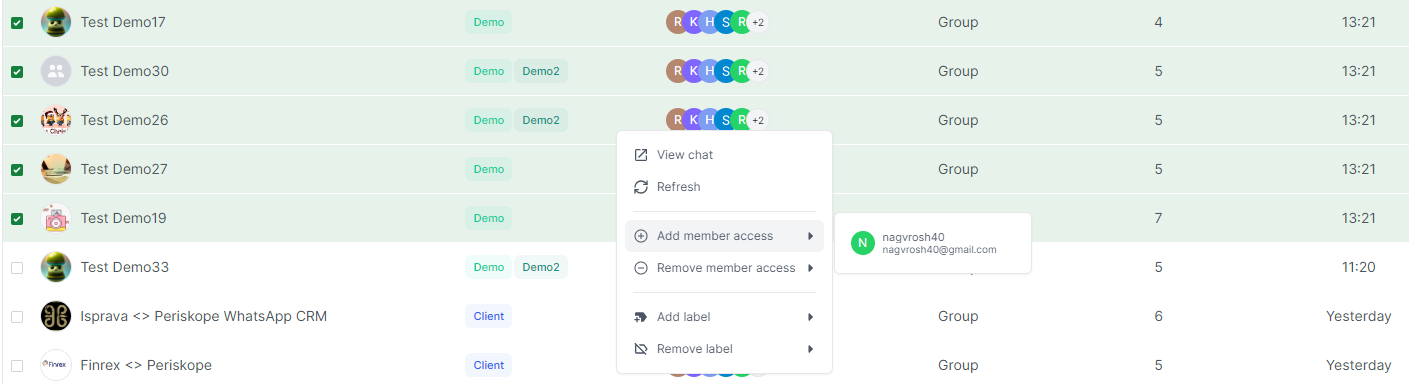
Navigate to the Chat List -> choose the chats and groups that you would like to enable access to -> right click and choose "add member access". Admins by default have access to all chats and groups and will not show in the drop down.
 ## Removing access via Chat List
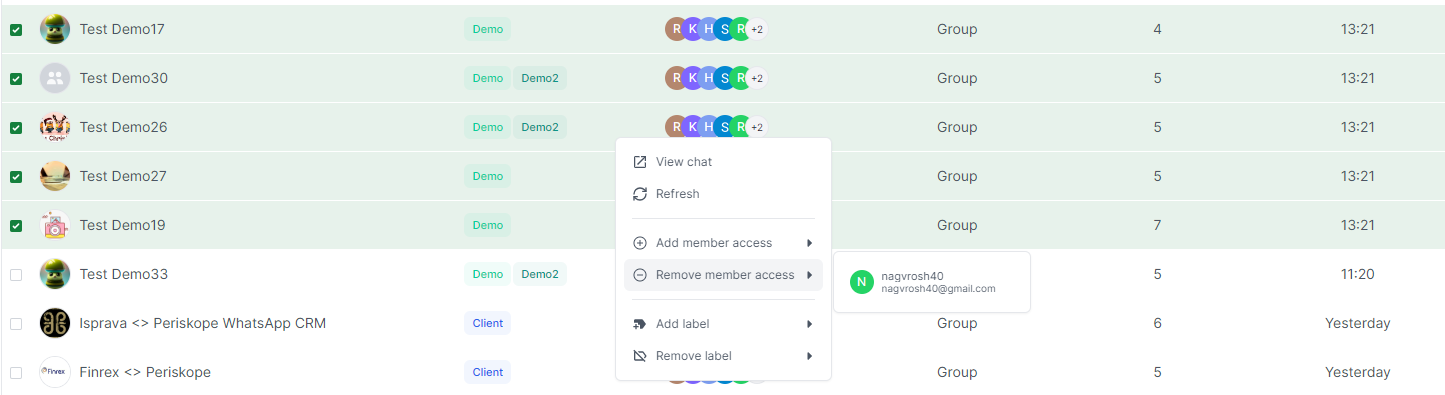
Navigate to the Chat List -> choose the chats and groups that you would like to remove access from -> right click and choose "remove member access". Admins by default have access to all chats and groups and will not show in the drop down.
## Removing access via Chat List
Navigate to the Chat List -> choose the chats and groups that you would like to remove access from -> right click and choose "remove member access". Admins by default have access to all chats and groups and will not show in the drop down.