> ## Documentation Index
> Fetch the complete documentation index at: https://docs.periskope.app/llms.txt
> Use this file to discover all available pages before exploring further.
# Invite Team
> Guide to inviting your team, and provide role-based access to groups
## Overview
Invite team members to Periskope, manage user permissions, and remove users from this section.
## Inviting a team member
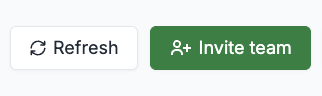
Navigate to Settings > Team and click on Invite team
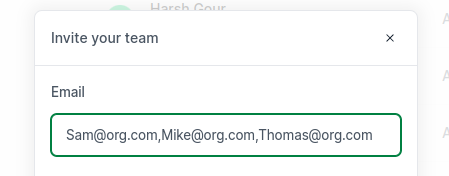
 Enter emails of members you would like to invite. If you want to invite
multiple members, enter all email IDs seperated by commas.
Enter emails of members you would like to invite. If you want to invite
multiple members, enter all email IDs seperated by commas.
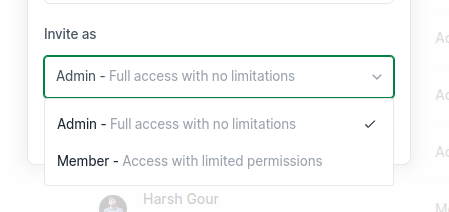
 You can invite users as either Admins or Members . Admins
will have access to all WhatsApp chats and groups that that connected numbers
are part of. Members will only have access to the chats or groups that you
give them access to either at the time of inviting or later from the Chat List
section.
You can invite users as either Admins or Members . Admins
will have access to all WhatsApp chats and groups that that connected numbers
are part of. Members will only have access to the chats or groups that you
give them access to either at the time of inviting or later from the Chat List
section.
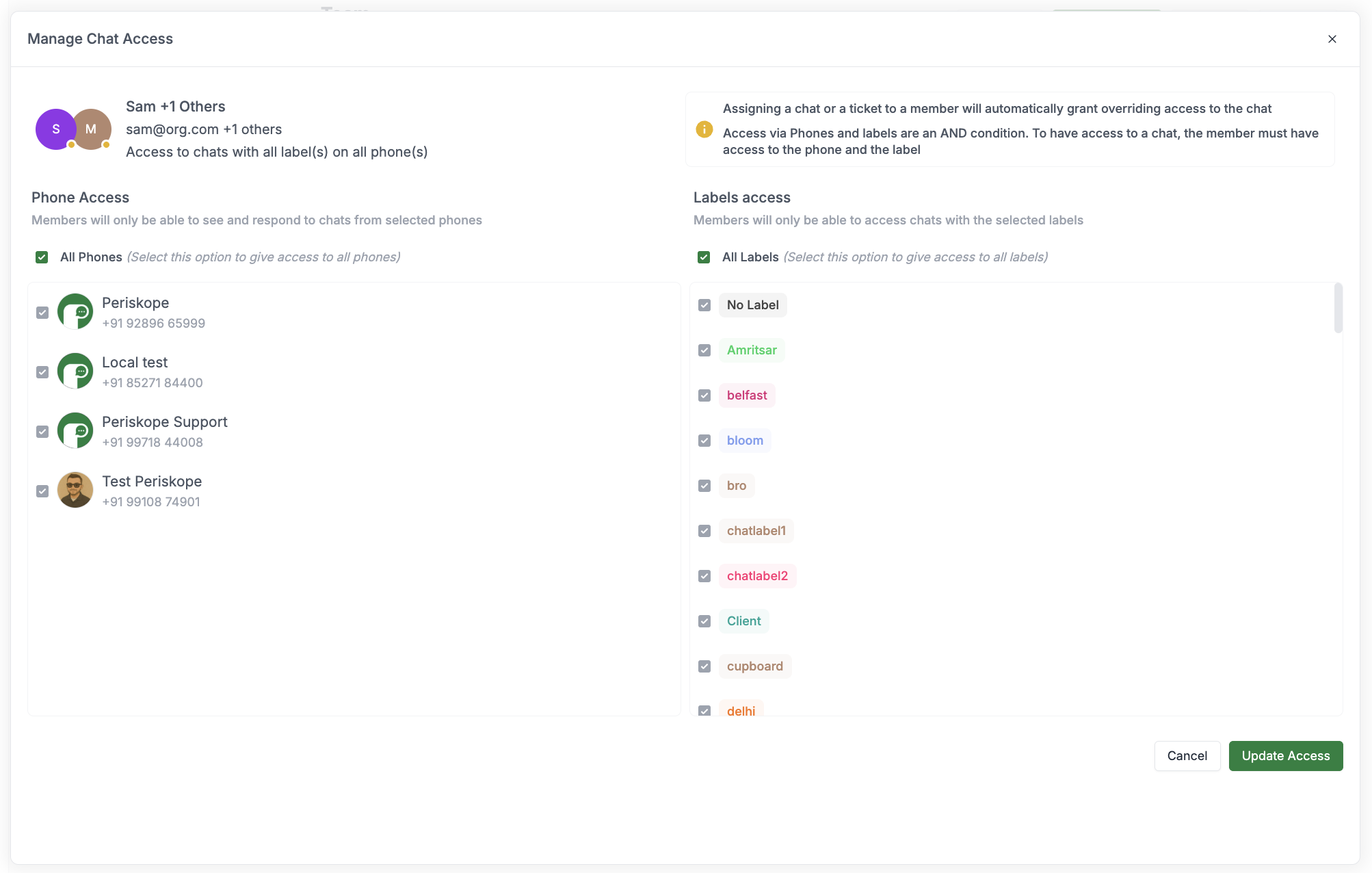
 This dropdown is only active when you want to invite a user as Member
. The member will have access to only those WhatsApp chats and groups that
have the labels attached to it. Labels can be selected the dropdown at the
time of invitation or later from the Chat List section.
This dropdown is only active when you want to invite a user as Member
. The member will have access to only those WhatsApp chats and groups that
have the labels attached to it. Labels can be selected the dropdown at the
time of invitation or later from the Chat List section.
 ## Managing team access
Read more about how you can finetune access to team members [here.](/team/manage-team-access)
## Managing team access
Read more about how you can finetune access to team members [here.](/team/manage-team-access)