> ## Documentation Index
> Fetch the complete documentation index at: https://docs.periskope.app/llms.txt
> Use this file to discover all available pages before exploring further.
# Create Ticket with an Emoji
Automatically create support tickets by reacting to WhatsApp messages with emoji. Fast, intuitive, and requires zero manual work.
## Overview
How often have you missed a customer message on WhatsApp, only to catch it too late? Good news, you don't have to manually create tickets anymore. With Periskope, you can simply react to a message, and a ticket will be created automatically. One emoji reaction. Instant ticket creation. Zero context lost.
## How It Works
The workflow is simple. Set up an automation rule that triggers when someone reacts to a message with a specific emoji (like thumbs up 👍). When that emoji is added, a new ticket is automatically created, or the message is attached to an existing ticket. Here's the complete flow:
* Team member sees an important WhatsApp message
* They react to it with your chosen emoji (e.g., 👍)
* Automation rule triggers immediately
* New ticket is created or message attached to existing ticket
* Ticket appears in dashboard ready for your team to work on
## Setting Up Your Emoji Ticketing Rule
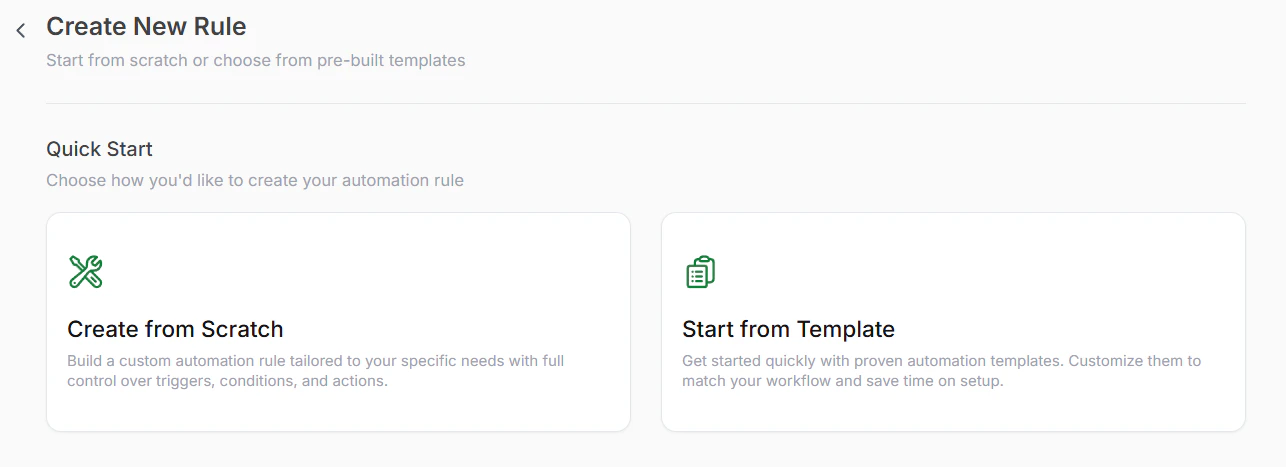
> #### Step 1: Start a New Rule
Go to "Automation Rules" > Click "New Rule"> Select "Create from Scratch" to build a custom rule for your workflow.
> #### Step 2: Name Your Rule
Give your rule a clear name. Example: Create Ticket with Thumbs Up or Flag Messages with Heart.
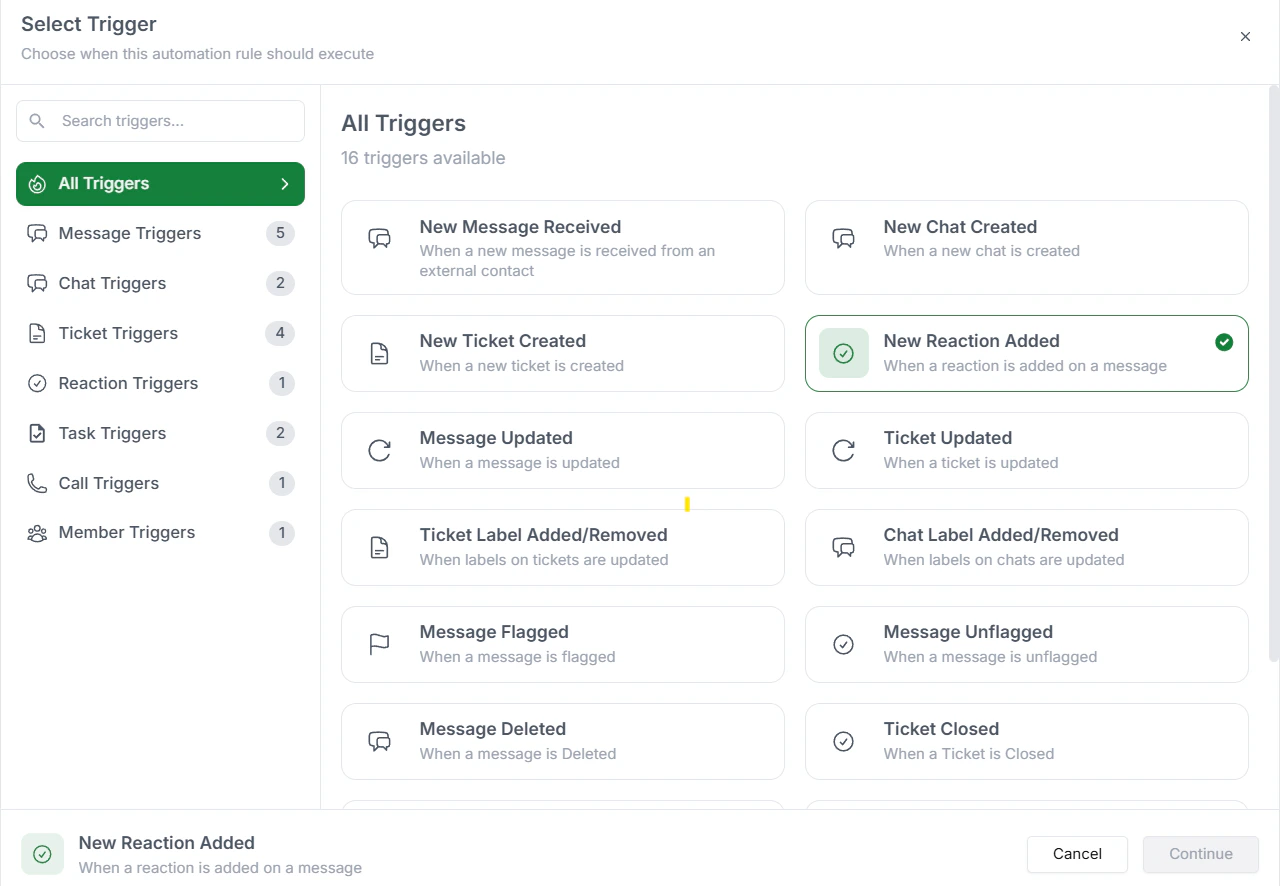
> #### Step 3: Select Your Trigger
Set the trigger to "New Reaction Added". This activates your rule whenever anyone adds an emoji reaction to any message.
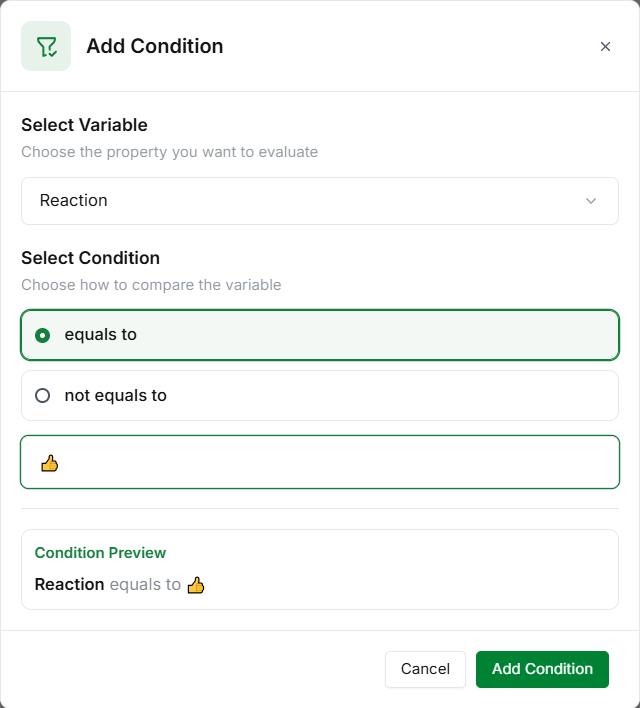
> #### Step 4: Define Your Condition - Choose the Emoji
Go to Criteria. Add condition and select "Reaction" as your condition and choose which emoji you want to monitor. A few choices include:
* Thumbs up (👍) - Most intuitive for approvals and important messages
* Heart (❤) - Great for favorite customers or priority issues
* Star (⭐) - Perfect for high-priority or critical bugs
* Fire (🔥) - For urgent or trending issues
* Flag (🚩) - For items that need attention
You can add multiple conditions, i.e. multiple emojis which would be considered by the rule.
> #### Step 5: Set Evaluation Timing
Adjust the Check Conditions After time. This controls how long after someone reacts the rule evaluates. Immediate or 5 seconds is usually best for quick ticket creation.
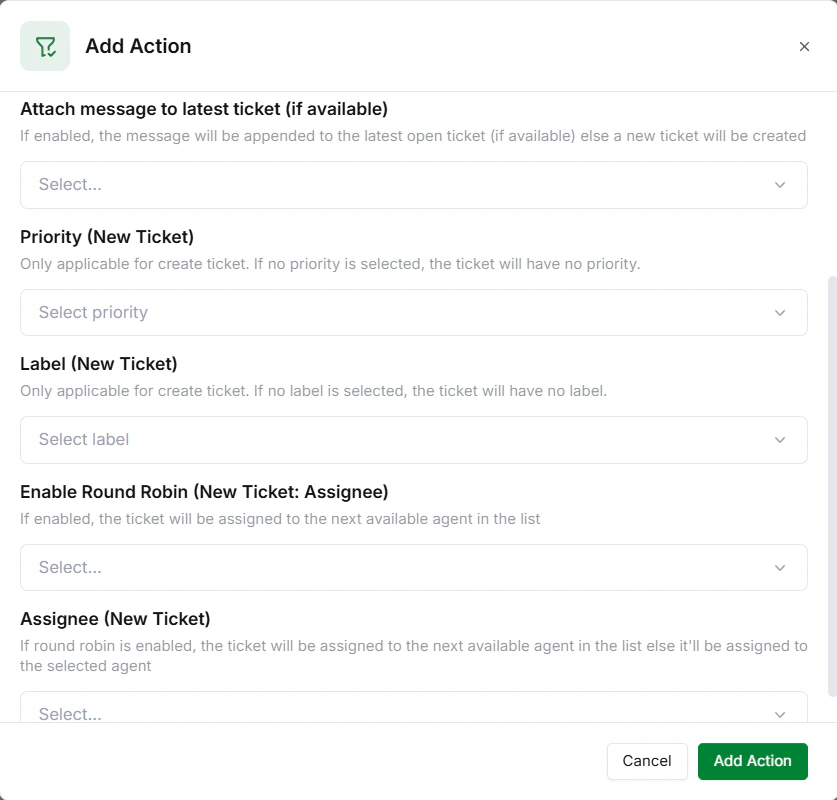
> #### Step 6: Choose Your Action
Go to Actions and select "Create ticket or attach message to latest ticket"
When triggered:
* If no existing ticket is found, a new ticket is created.
* If a ticket already exists, the message is attached to the latest ticket instead of creating a duplicate.
This helps prevent duplicate tickets while keeping related issues grouped together. You can also choose a specific assignee or distribute tickets automatically using a round-robin method.
> #### Step 7: Save and Publish
Review your rule. Click Save to store it. Click Publish to activate it. Your emoji ticketing rule is now live.
 > #### Step 2: Name Your Rule
Give your rule a clear name. Example: Create Ticket with Thumbs Up or Flag Messages with Heart.
> #### Step 3: Select Your Trigger
Set the trigger to "New Reaction Added". This activates your rule whenever anyone adds an emoji reaction to any message.
> #### Step 2: Name Your Rule
Give your rule a clear name. Example: Create Ticket with Thumbs Up or Flag Messages with Heart.
> #### Step 3: Select Your Trigger
Set the trigger to "New Reaction Added". This activates your rule whenever anyone adds an emoji reaction to any message.
 > #### Step 4: Define Your Condition - Choose the Emoji
Go to Criteria. Add condition and select "Reaction" as your condition and choose which emoji you want to monitor. A few choices include:
* Thumbs up (👍) - Most intuitive for approvals and important messages
* Heart (❤) - Great for favorite customers or priority issues
* Star (⭐) - Perfect for high-priority or critical bugs
* Fire (🔥) - For urgent or trending issues
* Flag (🚩) - For items that need attention
> #### Step 4: Define Your Condition - Choose the Emoji
Go to Criteria. Add condition and select "Reaction" as your condition and choose which emoji you want to monitor. A few choices include:
* Thumbs up (👍) - Most intuitive for approvals and important messages
* Heart (❤) - Great for favorite customers or priority issues
* Star (⭐) - Perfect for high-priority or critical bugs
* Fire (🔥) - For urgent or trending issues
* Flag (🚩) - For items that need attention
 > #### Step 7: Save and Publish
Review your rule. Click Save to store it. Click Publish to activate it. Your emoji ticketing rule is now live.
> #### Step 7: Save and Publish
Review your rule. Click Save to store it. Click Publish to activate it. Your emoji ticketing rule is now live.
