> ## Documentation Index
> Fetch the complete documentation index at: https://docs.periskope.app/llms.txt
> Use this file to discover all available pages before exploring further.
# Zoho CRM
> Guide to connect your Zoho CRM account with Periskope
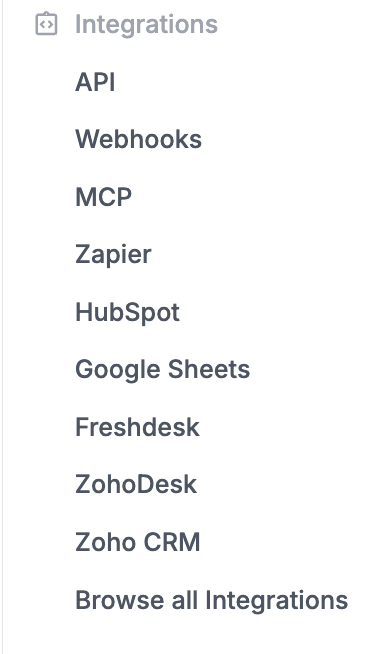
> Periskope integration for Zoho CRM is currently under review. In order to use Periskope integration with Zoho CRM, you can connect with Zoho CRM from [Periskope Zoho CRM settings](https://console.periskope.app/settings/integrations/zohocrm)
***
## Prerequisites 📜
* A [Zoho CRM](https://www.zoho.com/crm/) account
* A [Periskope account](https://console.periskope.app)
## Steps to connect Periskope with Zoho CRM 🔧
1. To connect your Zoho CRM, you must have a Periskope account. Once logged into the account, visit [here](https://console.periskope.app/settings/integrations/zohocrm) to connect Zoho CRM.
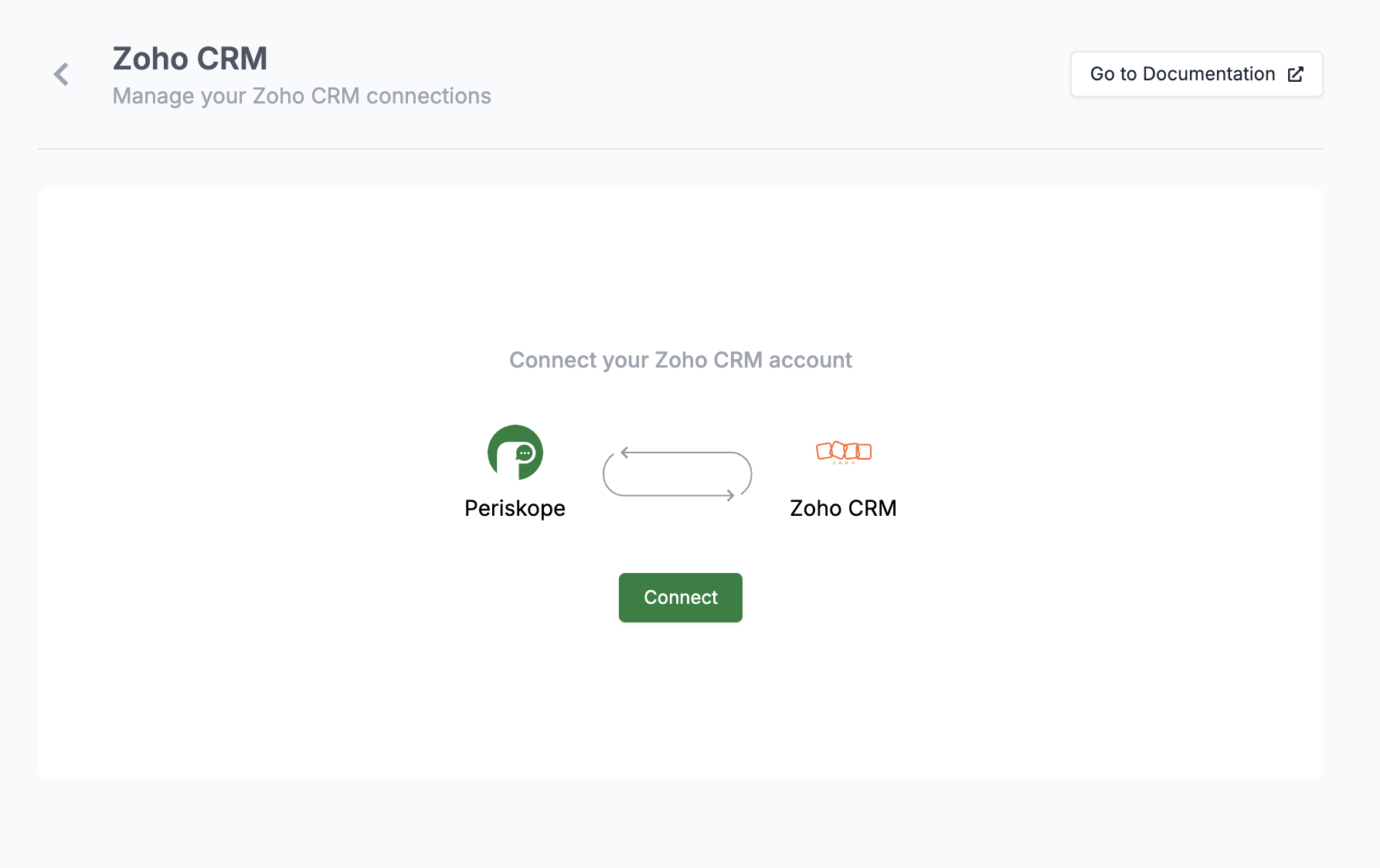
2. Click on **connect**
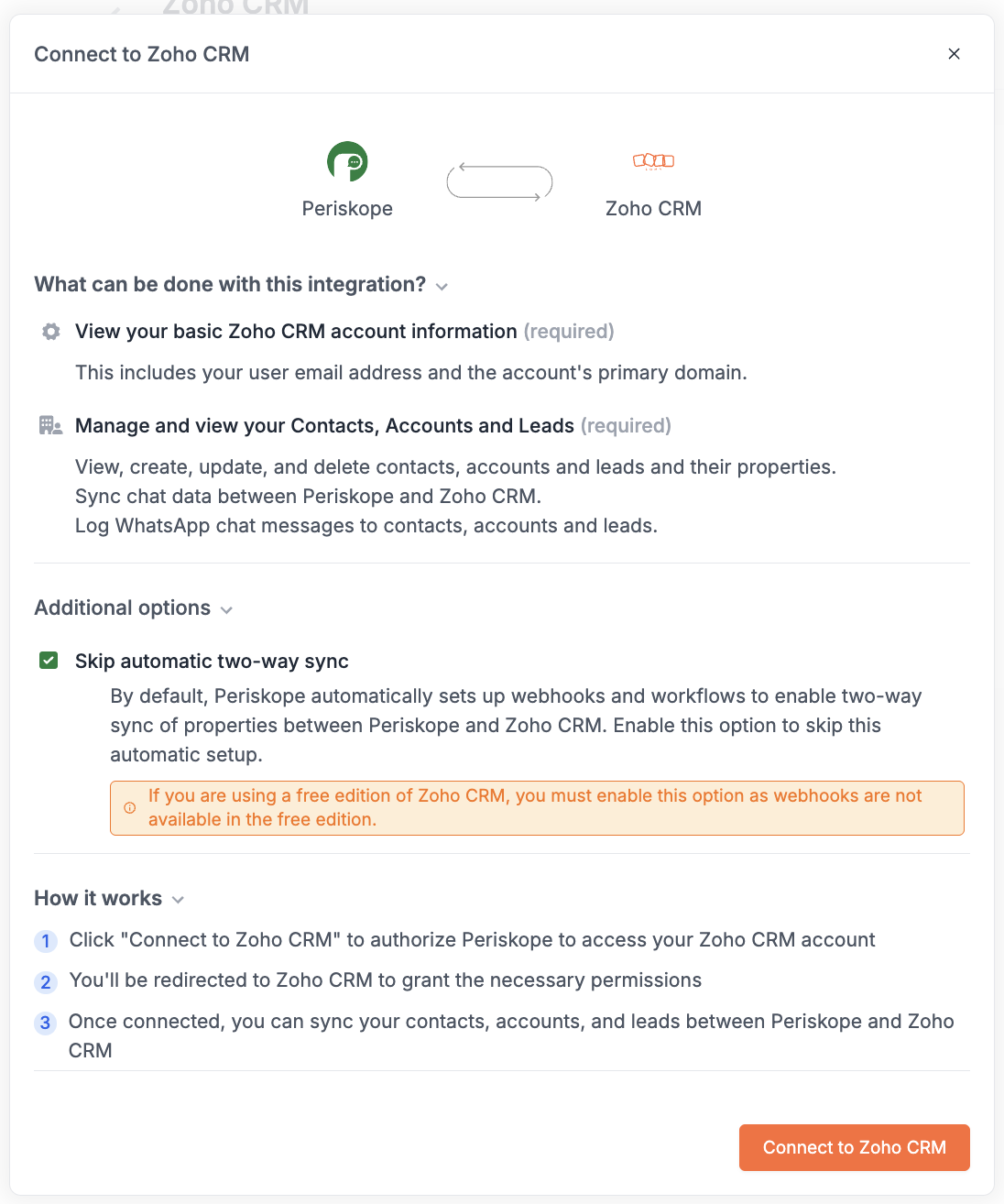
**Important:** If you are using the free version of Zoho CRM without any active trials, make sure to check **"Skip automatic two-way sync"** in the connect modal. This is because the connection creates webhooks at the backend, and the free edition of Zoho CRM doesn't support webhooks.
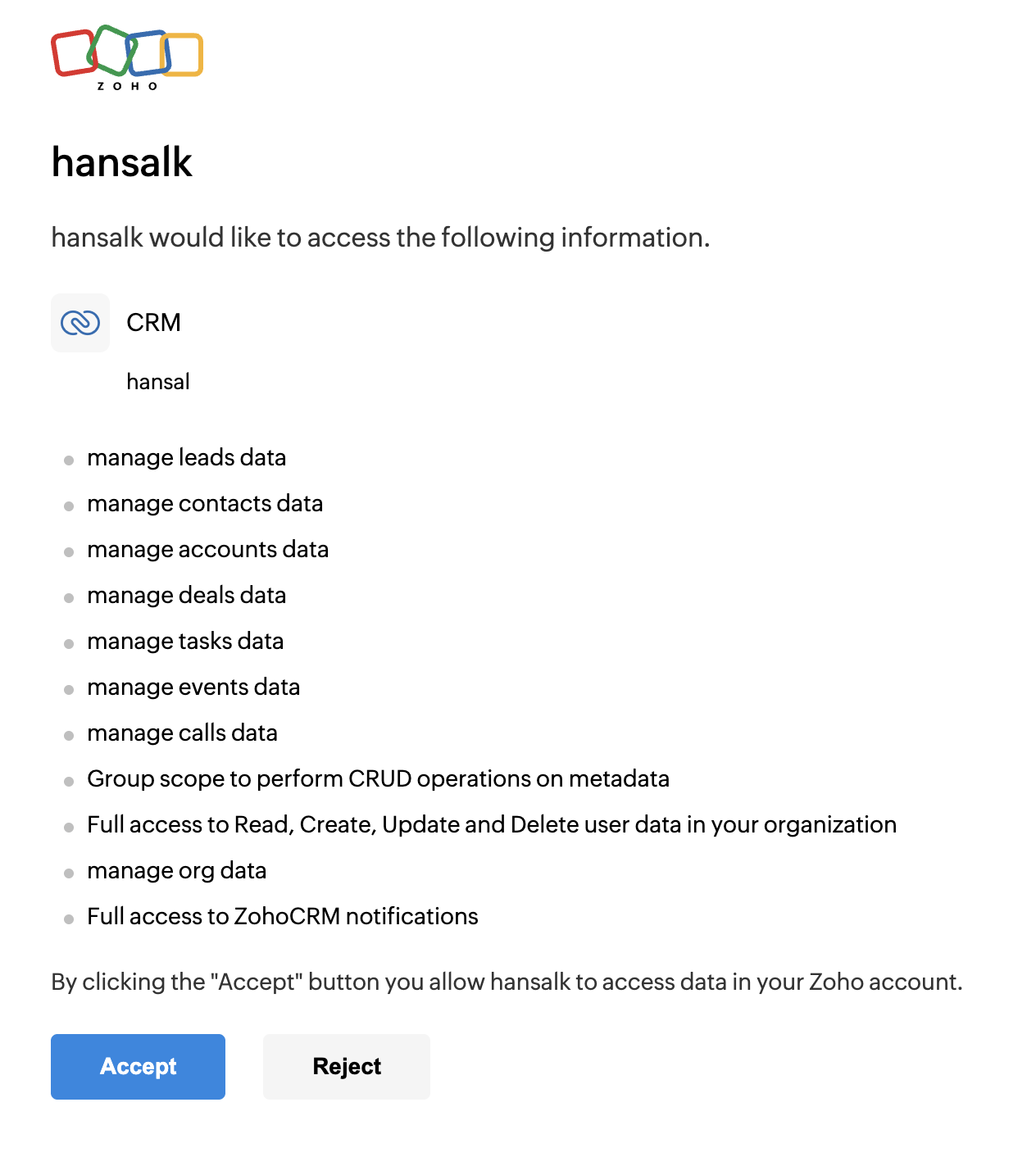
Once you click on connect, you will be redirected to Zoho CRM connect page. Click on **Accept** to connect your Zoho CRM account with Periskope.
Now you have successfully connected your Zoho CRM account with Periskope. You can now use the integration to link chats on Periskope with contacts, accounts or leads on Zoho CRM.
## What can be done with the integration ? 📃
You can perform multiple actions between Periskope and Zoho CRM. Here are some of the actions that can be performed with the integration.
### 1. Linking chats to Zoho CRM 🔗
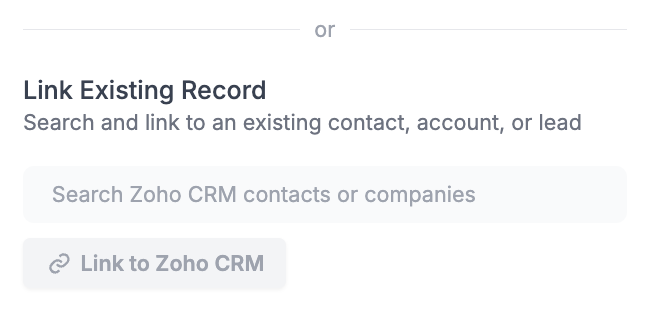
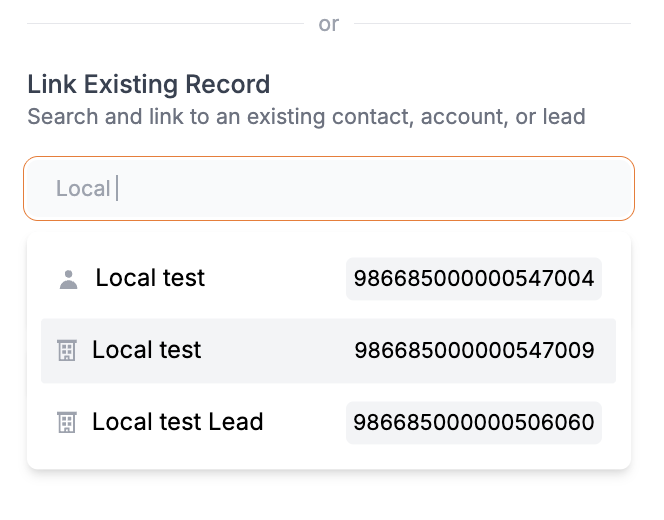
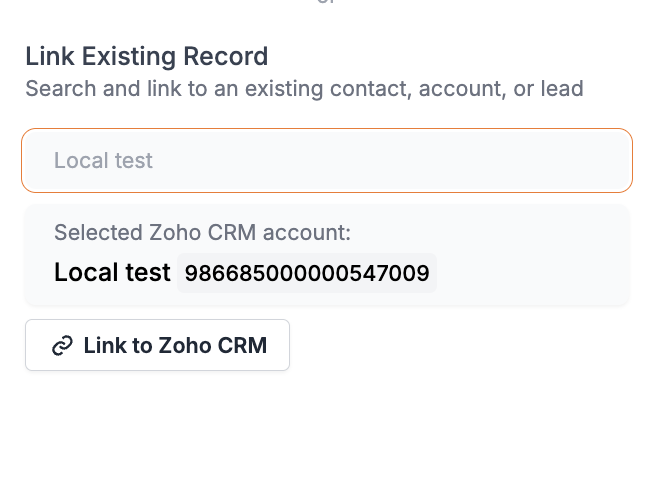
1. You can **link chats** on Periskope to contacts/accounts/leads on Zoho CRM. This will help you to track the contact/account details of the user you are chatting with on Periskope.
->->
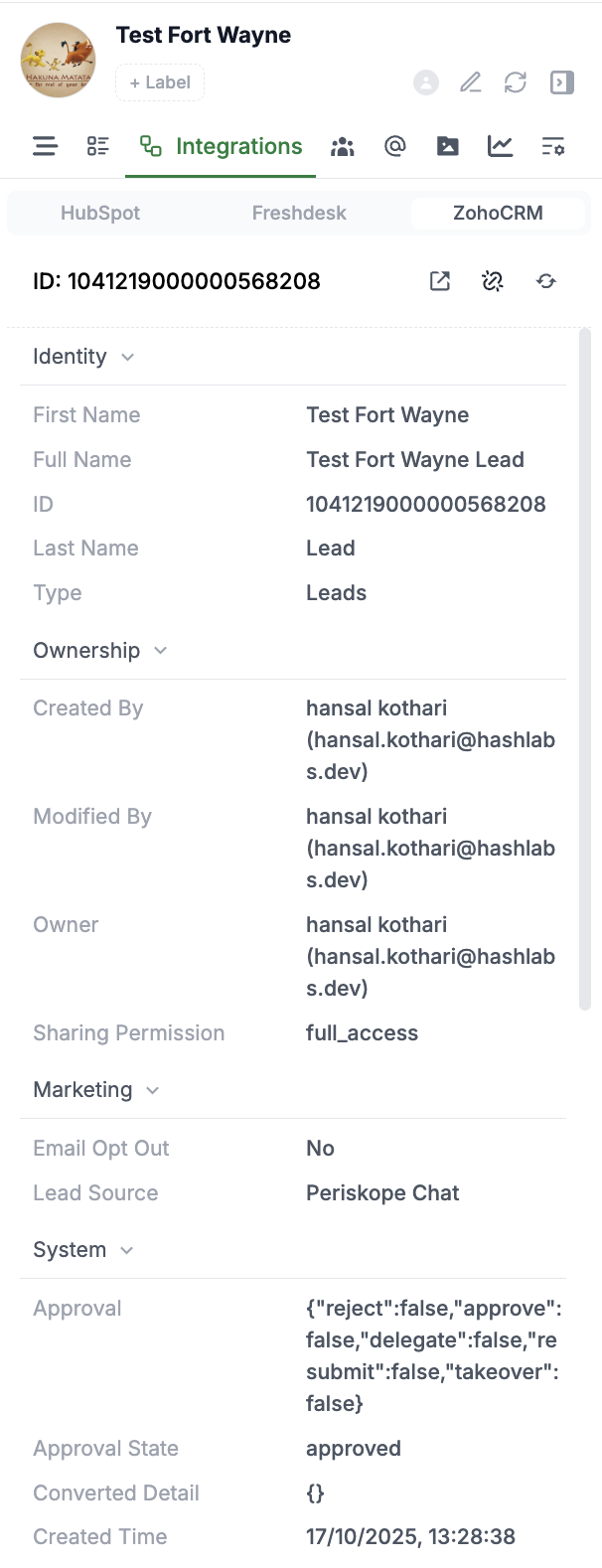
2. Now you can **view** all details of the **linked contact/account** on the chat sidepanel on Periskope.
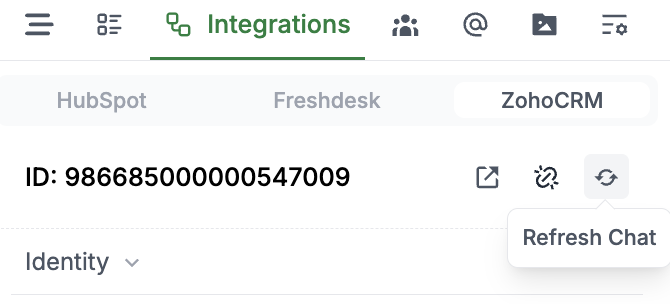
3. All the properties are **automatically synced** from Zoho CRM. But, you can also **refresh** or **unlink** the Zoho CRM properties manually from the chat sidepanel.
### 2. Syncing WhatsApp messages to Zoho CRM 💬
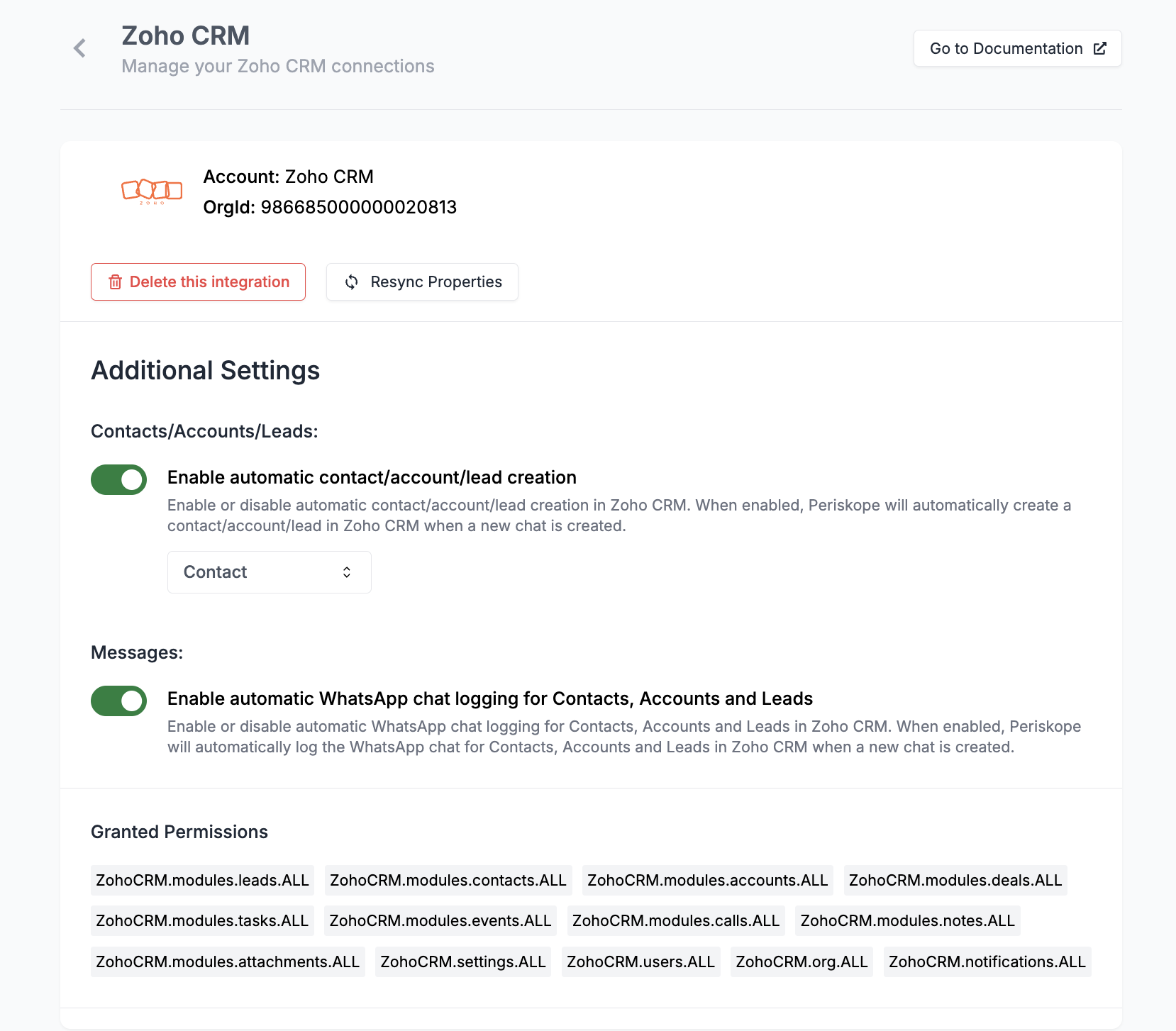
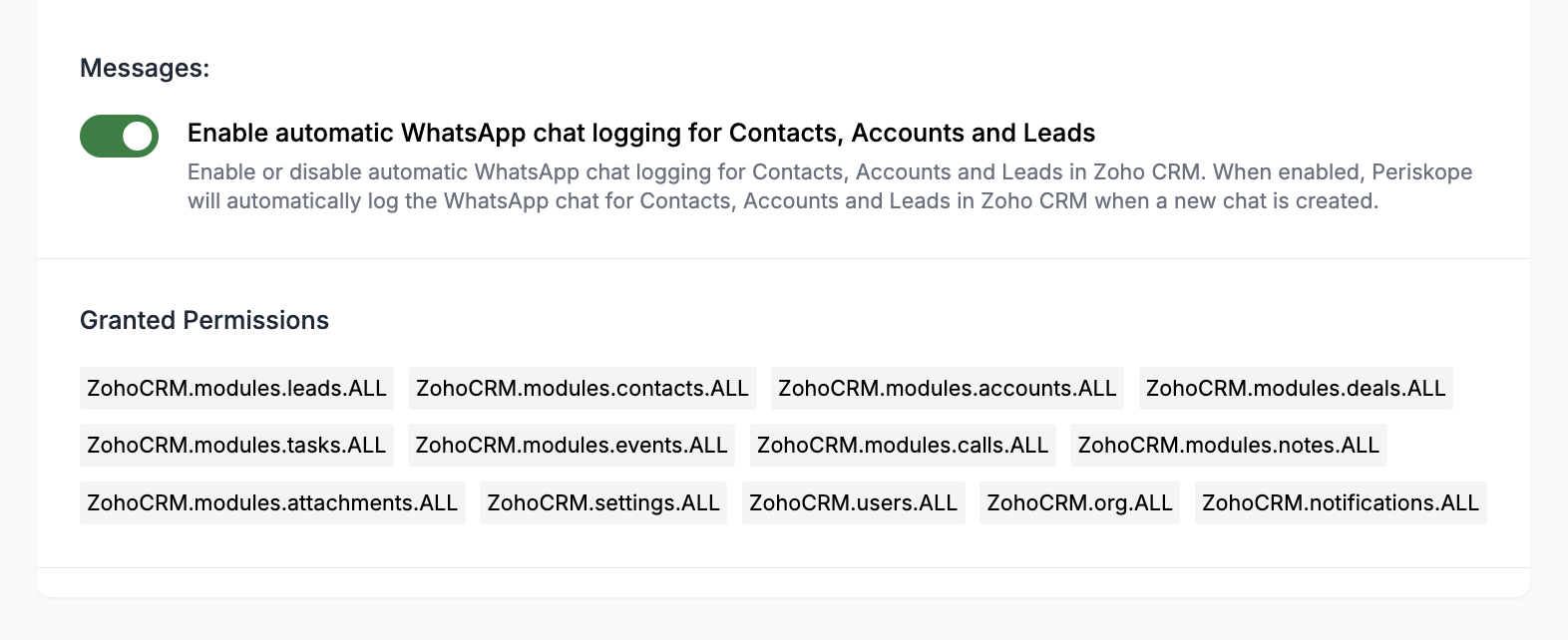
Once you have turned on [**Enable automatic WhatsApp chat logging for Contacts, Accounts and Leads**](https://console.periskope.app/settings/integrations/zohocrm) in Zoho CRM settings, all the WhatsApp messages will be logged to Zoho CRM for the linked contact/account/lead.
Only new messages will be logged to Zoho CRM from when the integration option is turned on. The historical messages will not be logged to Zoho CRM.
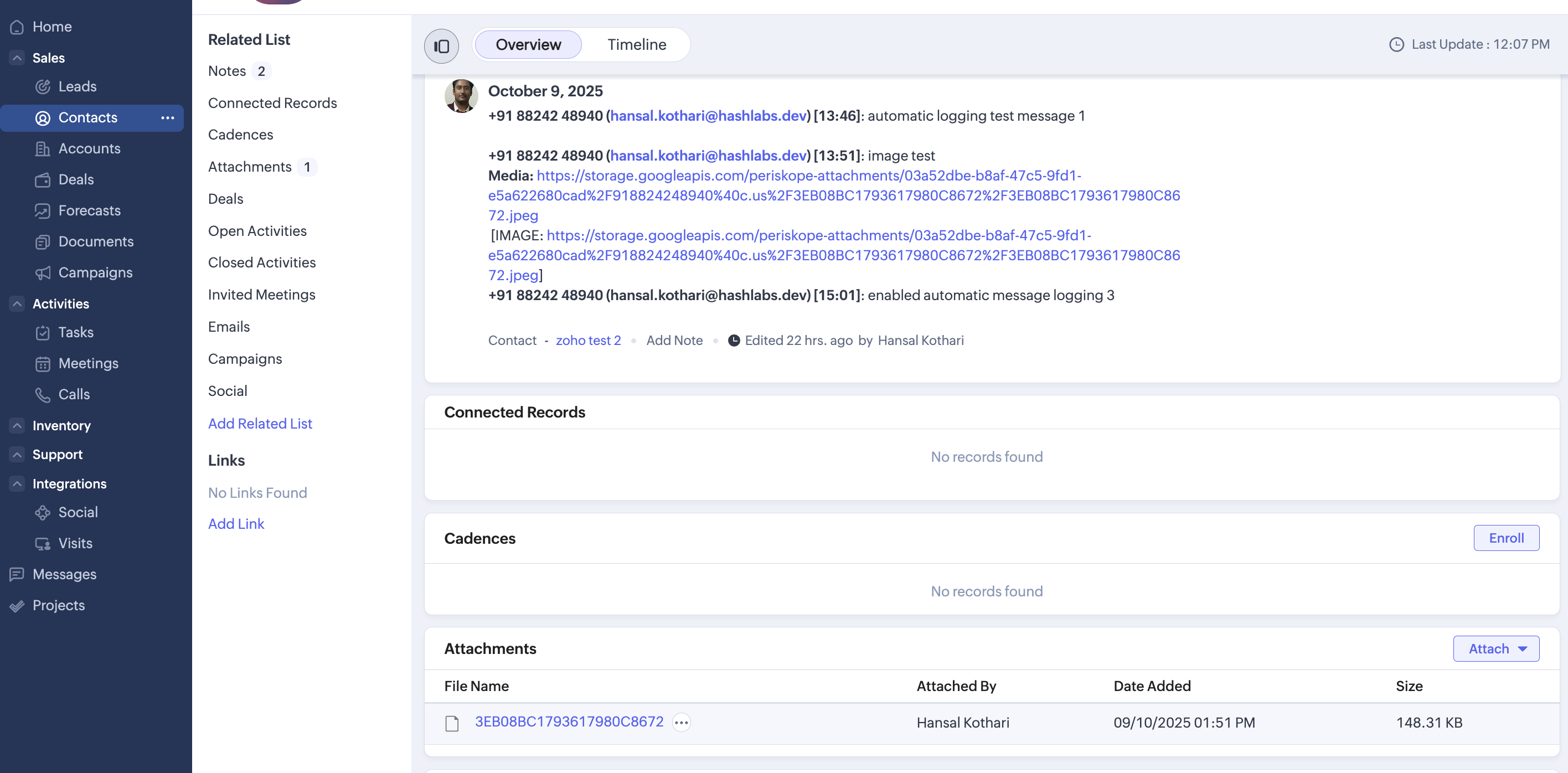
You can view the WhatsApp messages logged to Zoho CRM on the contact/account/lead page.
### 4. Auto-create contacts and accounts on Zoho CRM 👤
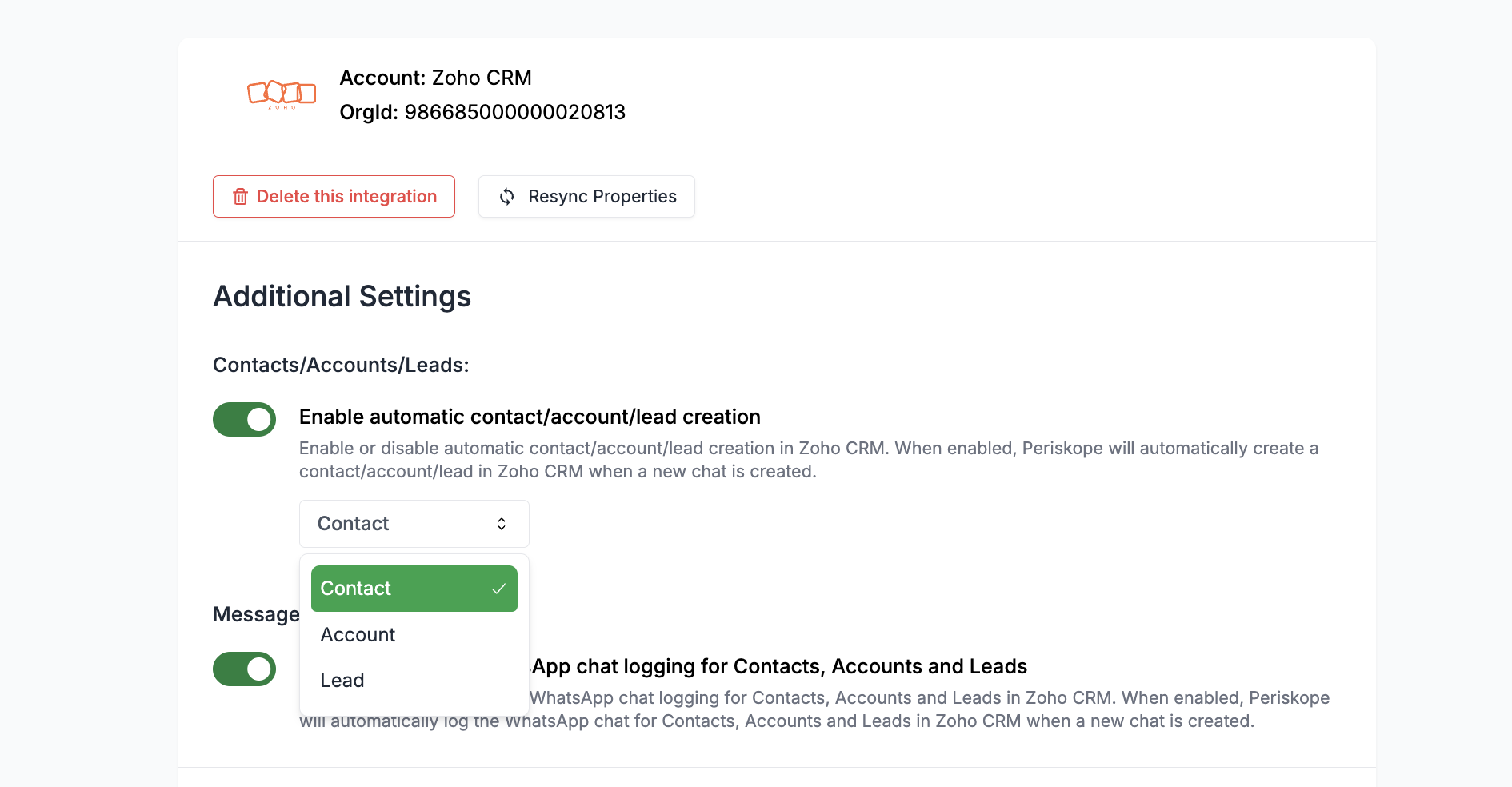
Once you have turned on [**Enable automatic contact/account creation**](https://console.periskope.app/settings/integrations/zohocrm) in Zoho CRM settings, whenever a new chat is created on Periskope, a new contact/account will be created on Zoho CRM.
## Done 🎉
You've now successfully integrated Zoho CRM with Periskope.
For any queries, reach out to us [here](https://what.sapp.link/periskope)
## FAQs ❓
### 1. How to view Periskope properties on Zoho CRM?
When you do integration for the first time, the properties will be created on Zoho. Once you link a chat to a contact/account on Zoho CRM, the properties will be synced to Zoho CRM.
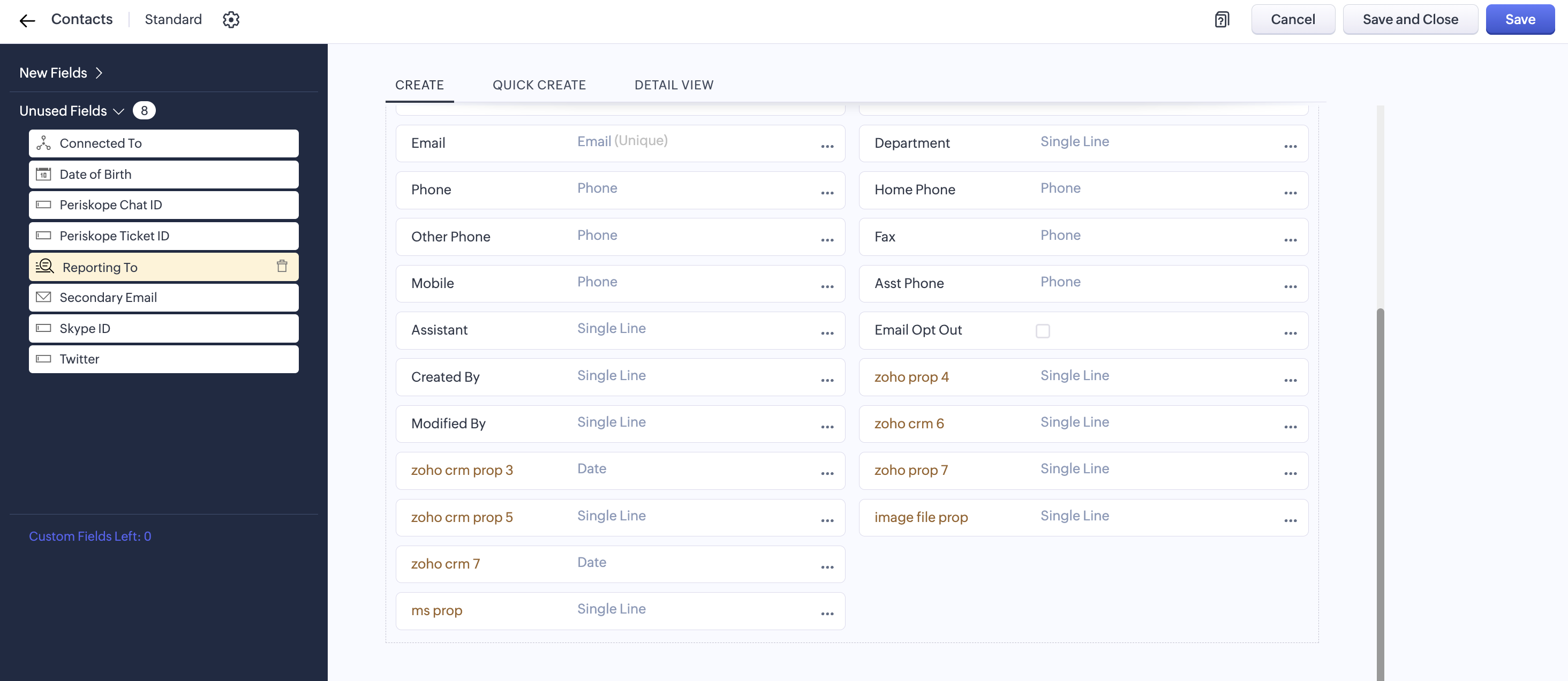
To view properties on Zoho CRM, you can customize properties on the contact/account/tickets page to change the visibility.
You can choose the properties you want to view on the contact/account/tickets page. The image below shows how we can add/remove properties from the contacts.
### 2. Resyncing Periskope properties on Zoho CRM
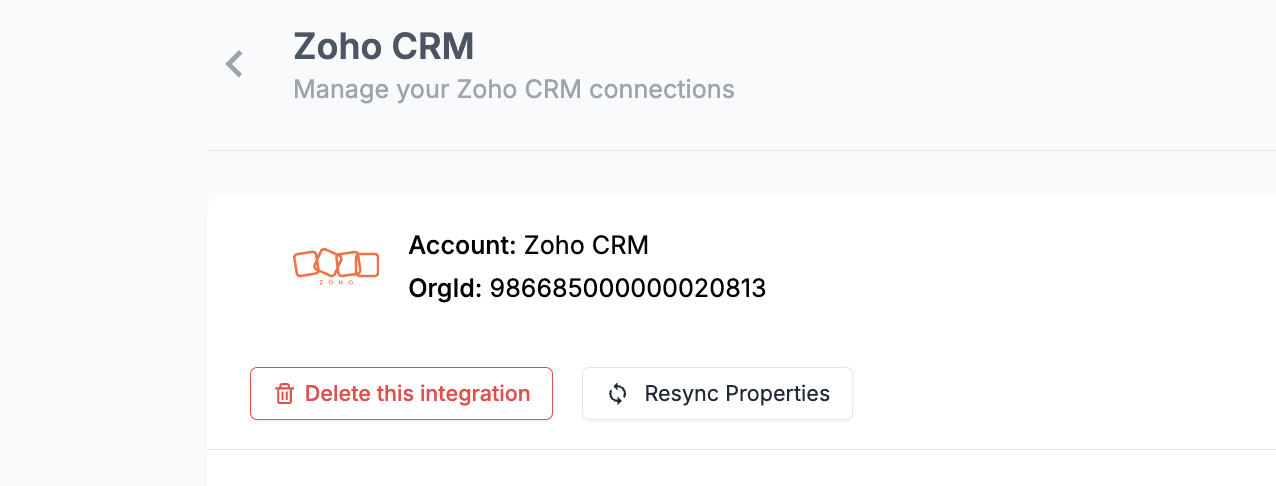
In case you add new team members or new properties on Periskope, you can refresh the properties on Zoho CRM. To resync the properties, you can click on the **Resync properties** button in settings.
### 3. Deleting the integration
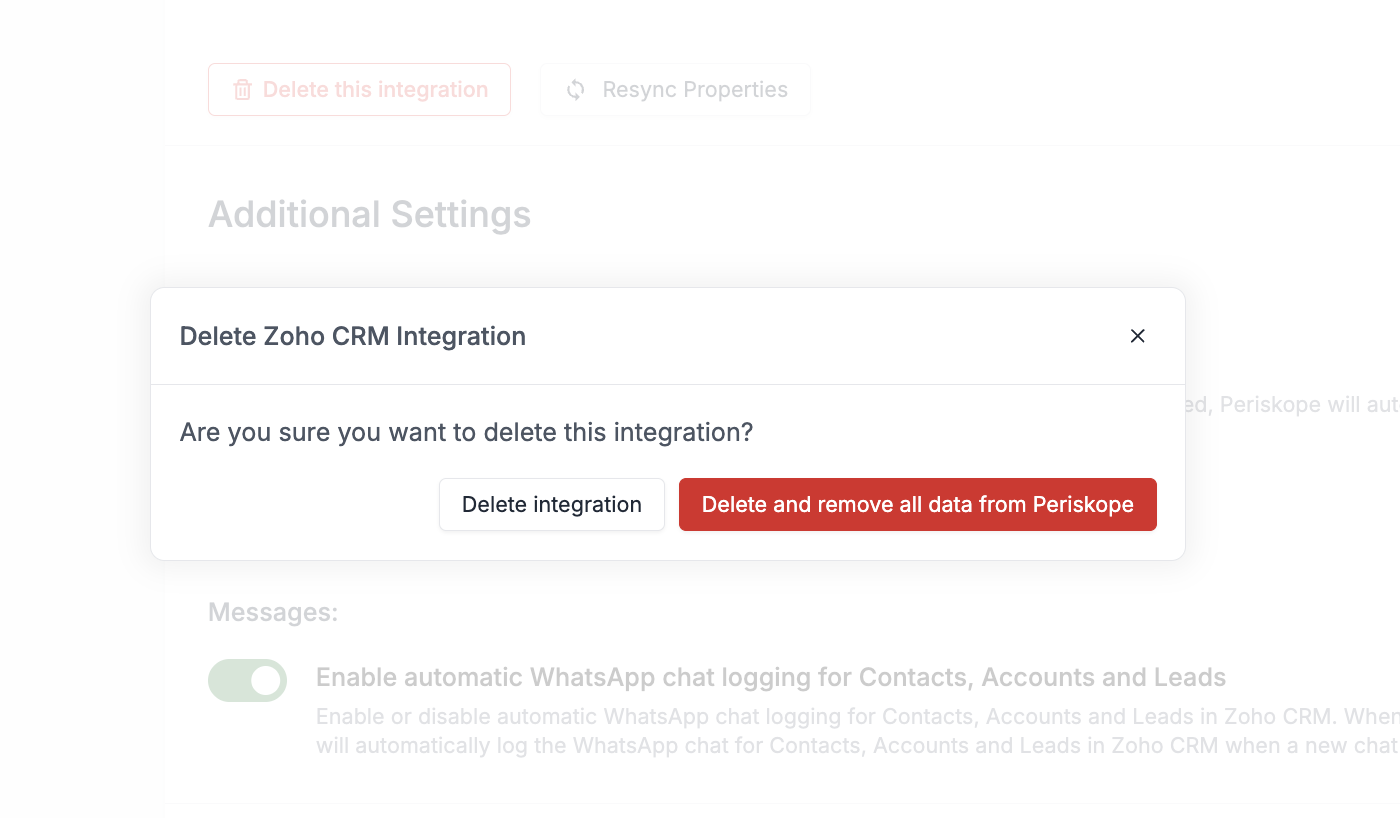
To delete the integration, you can visit the [Periskope settings page](https://console.periskope.app/settings/integrations/zohocrm) and click on **Delete**. You can choose to delete with or without data.
 2. Click on **connect**
 ## Prerequisites 📜
* A [Zoho CRM](https://www.zoho.com/crm/) account
* A [Periskope account](https://console.periskope.app)
## Steps to connect Periskope with Zoho CRM 🔧
## Prerequisites 📜
* A [Zoho CRM](https://www.zoho.com/crm/) account
* A [Periskope account](https://console.periskope.app)
## Steps to connect Periskope with Zoho CRM 🔧
 ->
->
 ->
->
 2. Now you can **view** all details of the **linked contact/account** on the chat sidepanel on Periskope.
 3. All the properties are **automatically synced** from Zoho CRM. But, you can also **refresh** or **unlink** the Zoho CRM properties manually from the chat sidepanel.
 ### 2. Syncing WhatsApp messages to Zoho CRM 💬
Once you have turned on [**Enable automatic WhatsApp chat logging for Contacts, Accounts and Leads**](https://console.periskope.app/settings/integrations/zohocrm) in Zoho CRM settings, all the WhatsApp messages will be logged to Zoho CRM for the linked contact/account/lead.
### 2. Syncing WhatsApp messages to Zoho CRM 💬
Once you have turned on [**Enable automatic WhatsApp chat logging for Contacts, Accounts and Leads**](https://console.periskope.app/settings/integrations/zohocrm) in Zoho CRM settings, all the WhatsApp messages will be logged to Zoho CRM for the linked contact/account/lead.
 You can view the WhatsApp messages logged to Zoho CRM on the contact/account/lead page.
 ### 4. Auto-create contacts and accounts on Zoho CRM 👤
Once you have turned on [**Enable automatic contact/account creation**](https://console.periskope.app/settings/integrations/zohocrm) in Zoho CRM settings, whenever a new chat is created on Periskope, a new contact/account will be created on Zoho CRM.
### 4. Auto-create contacts and accounts on Zoho CRM 👤
Once you have turned on [**Enable automatic contact/account creation**](https://console.periskope.app/settings/integrations/zohocrm) in Zoho CRM settings, whenever a new chat is created on Periskope, a new contact/account will be created on Zoho CRM.
 ## Done 🎉
You've now successfully integrated Zoho CRM with Periskope.
For any queries, reach out to us [here](https://what.sapp.link/periskope)
## FAQs ❓
### 1. How to view Periskope properties on Zoho CRM?
When you do integration for the first time, the properties will be created on Zoho. Once you link a chat to a contact/account on Zoho CRM, the properties will be synced to Zoho CRM.
To view properties on Zoho CRM, you can customize properties on the contact/account/tickets page to change the visibility.
## Done 🎉
You've now successfully integrated Zoho CRM with Periskope.
For any queries, reach out to us [here](https://what.sapp.link/periskope)
## FAQs ❓
### 1. How to view Periskope properties on Zoho CRM?
When you do integration for the first time, the properties will be created on Zoho. Once you link a chat to a contact/account on Zoho CRM, the properties will be synced to Zoho CRM.
To view properties on Zoho CRM, you can customize properties on the contact/account/tickets page to change the visibility.
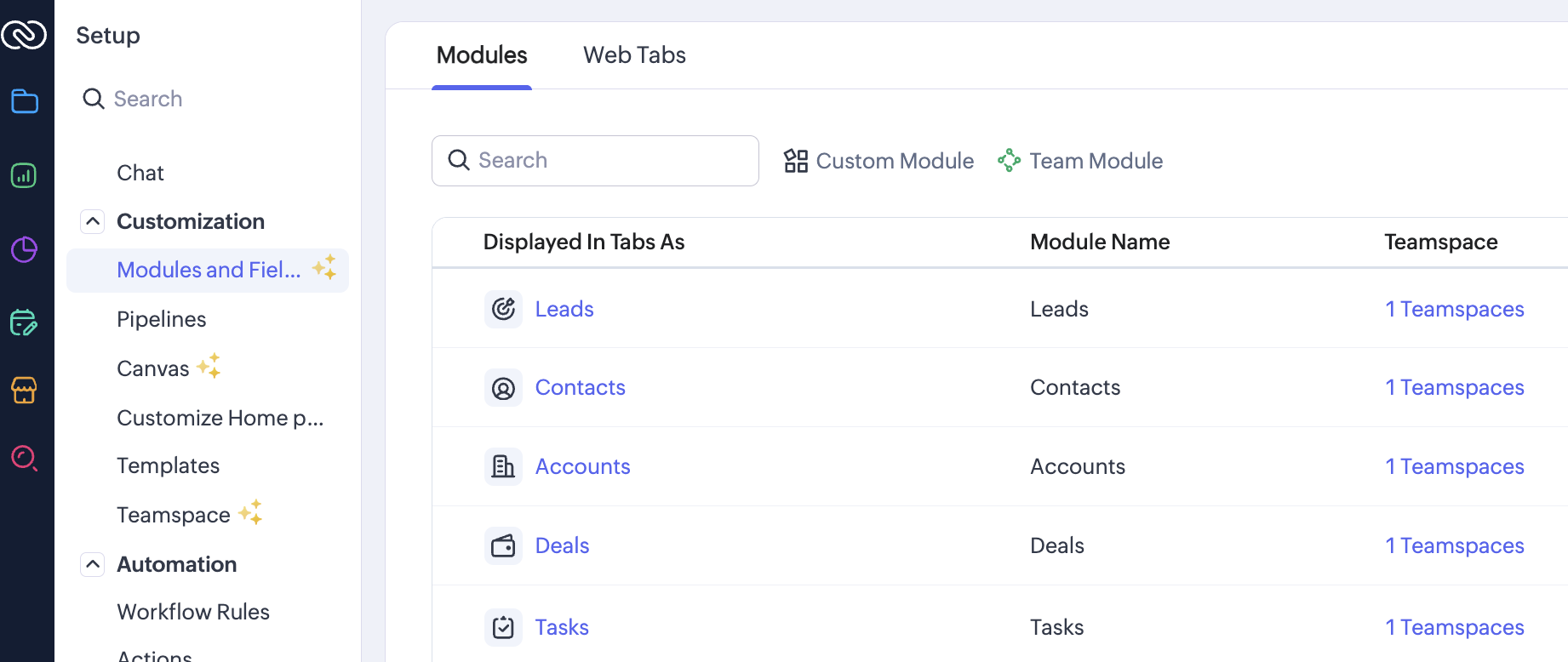 You can choose the properties you want to view on the contact/account/tickets page. The image below shows how we can add/remove properties from the contacts.
 ### 2. Resyncing Periskope properties on Zoho CRM
In case you add new team members or new properties on Periskope, you can refresh the properties on Zoho CRM. To resync the properties, you can click on the **Resync properties** button in settings.
### 2. Resyncing Periskope properties on Zoho CRM
In case you add new team members or new properties on Periskope, you can refresh the properties on Zoho CRM. To resync the properties, you can click on the **Resync properties** button in settings.
 ### 3. Deleting the integration
To delete the integration, you can visit the [Periskope settings page](https://console.periskope.app/settings/integrations/zohocrm) and click on **Delete**. You can choose to delete with or without data.
### 3. Deleting the integration
To delete the integration, you can visit the [Periskope settings page](https://console.periskope.app/settings/integrations/zohocrm) and click on **Delete**. You can choose to delete with or without data.