> ## Documentation Index
> Fetch the complete documentation index at: https://docs.periskope.app/llms.txt
> Use this file to discover all available pages before exploring further.
# Zapier
> Guide to setup zapier triggers on Periskope
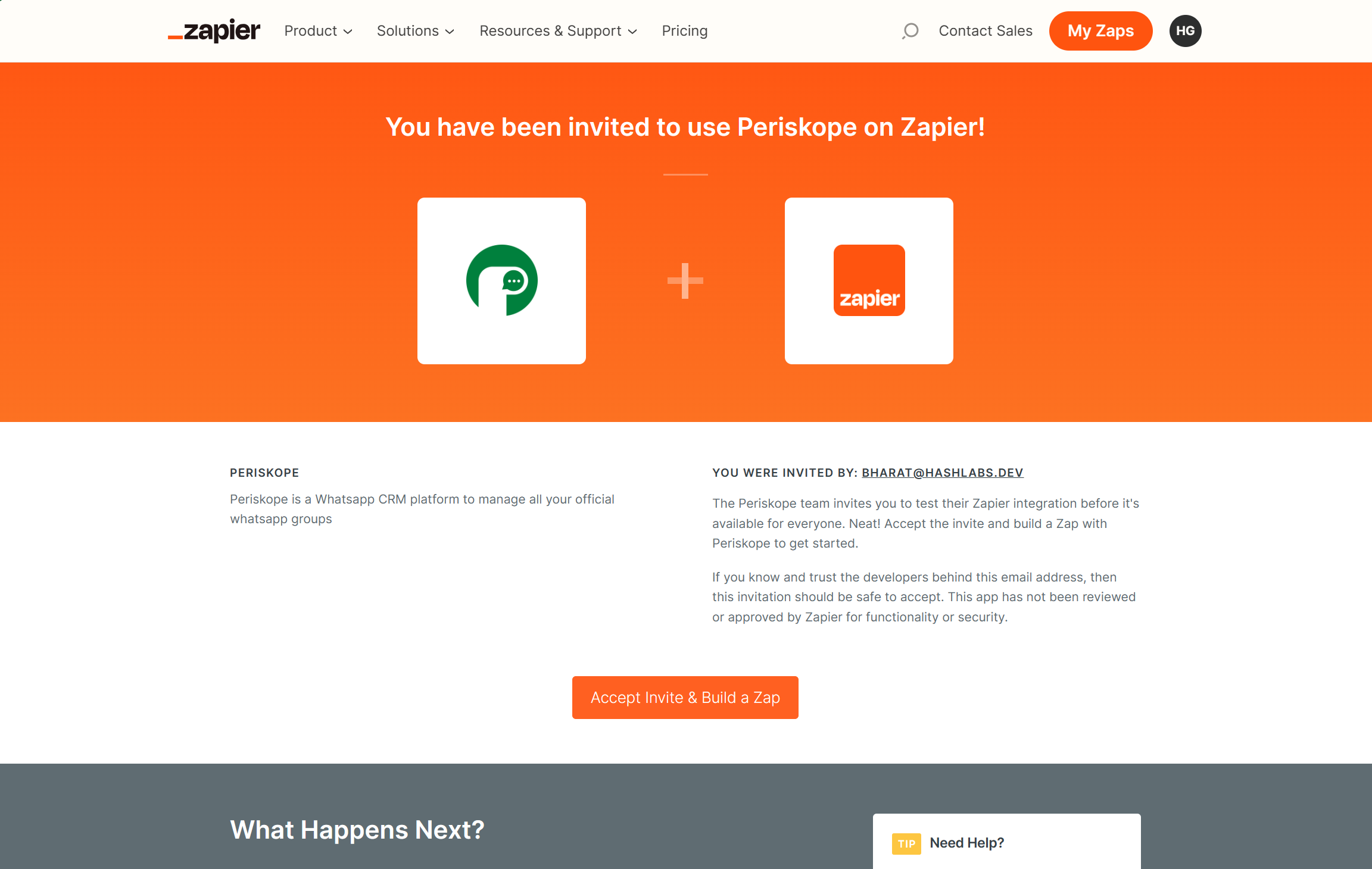
> Periskope integration for zapier is currently in private mode. In order to use periskope triggers in your zaps please [click here to obtain access](https://zapier.com/developer/public-invite/217966/ff590dfcc26be42cf2e51df10516d6a9/) to the private beta in zapier
***
## Prerequisites
* A [Zapier](https://zapier.com/) account
* Access to the Periskope app in Zapier [request here](https://zapier.com/developer/public-invite/217966/ff590dfcc26be42cf2e51df10516d6a9/)
* A [Periskope account](https://console.periskope.app)
## Setting up the Zapier integration on Periskope
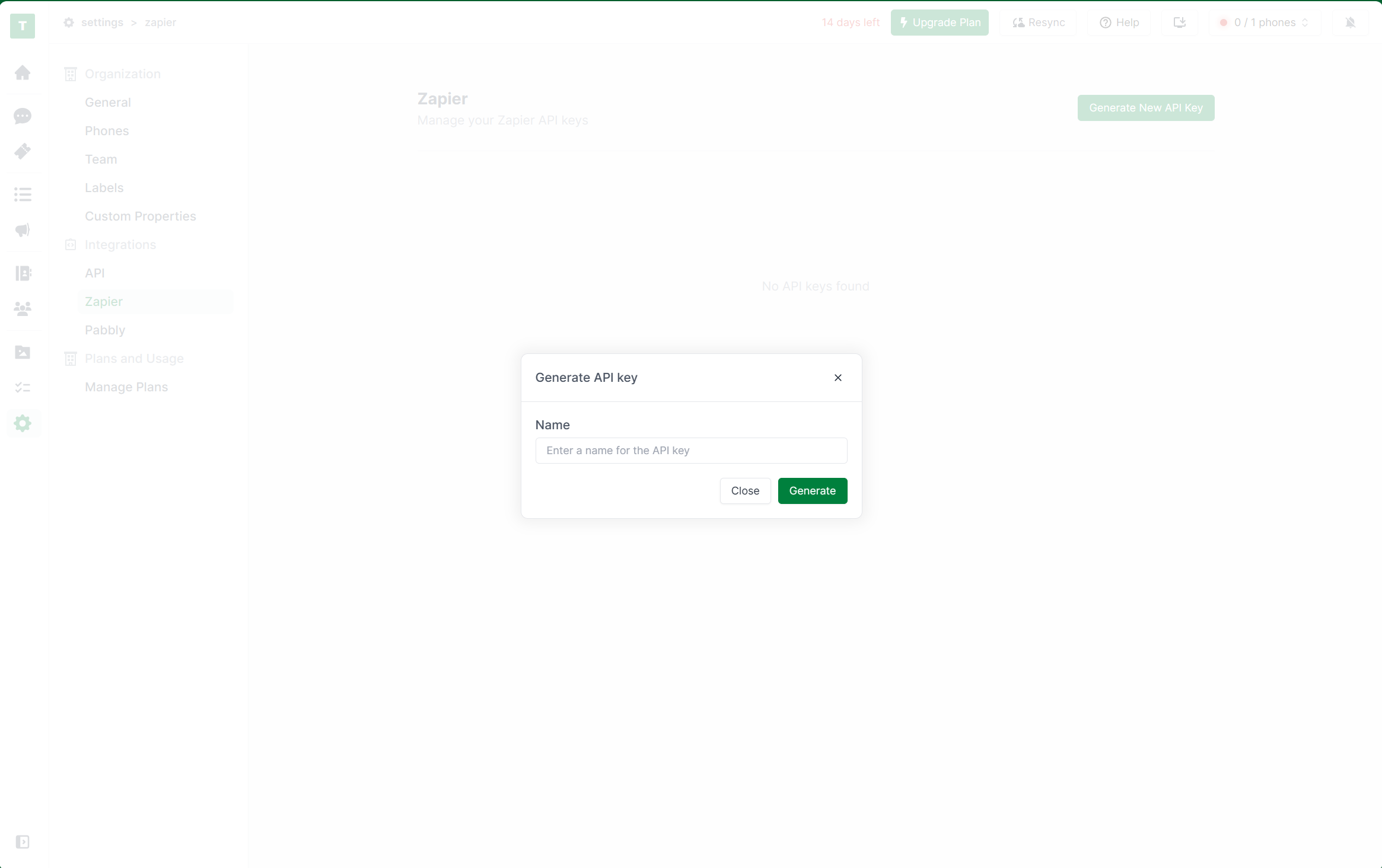
To generate an API key for your zap, you must have a Periskope account.
Once logged into the account, visit [here](https://console.periskope.app/settings/integrations/zapier) to generate an API key. API key can only be revealed once, so please keep this API key safe and at a secure place.
Periskope zapier integration currently is in private mode. In order to get access click [here](https://zapier.com/developer/public-invite/217966/ff590dfcc26be42cf2e51df10516d6a9/)
## Steps to setup a trigger
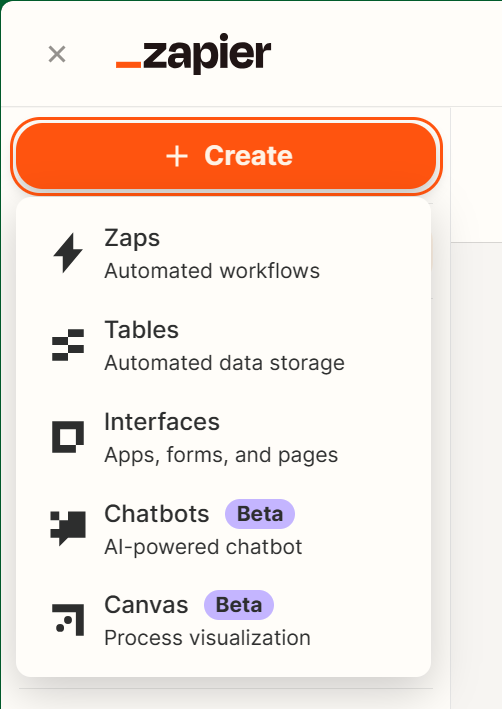
Go to [zapier dashboard](https://zapier.com/app/dashboard). And click on `Create`
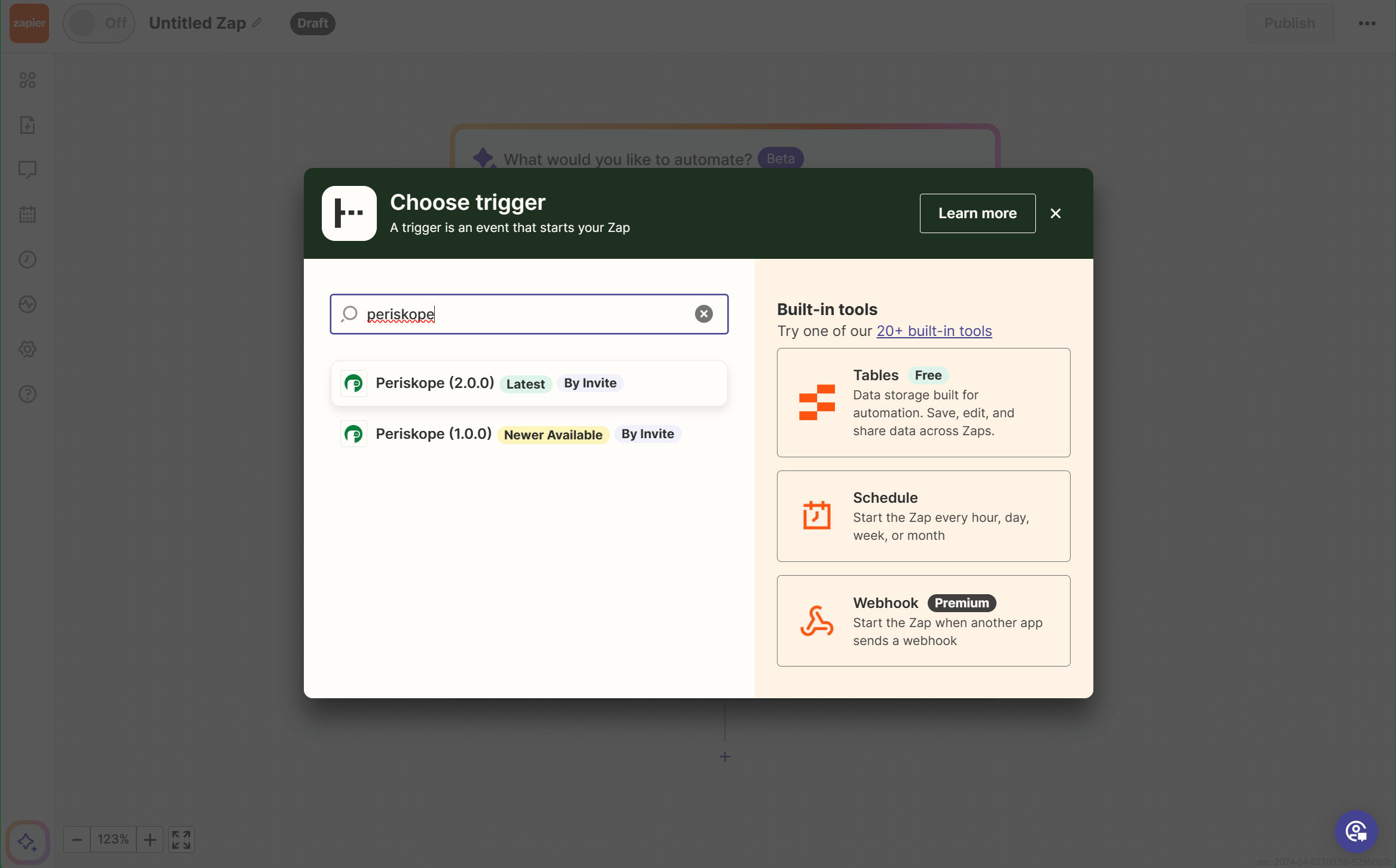
Once you've created a new zap. Click on Add trigger. Search for `periskope`
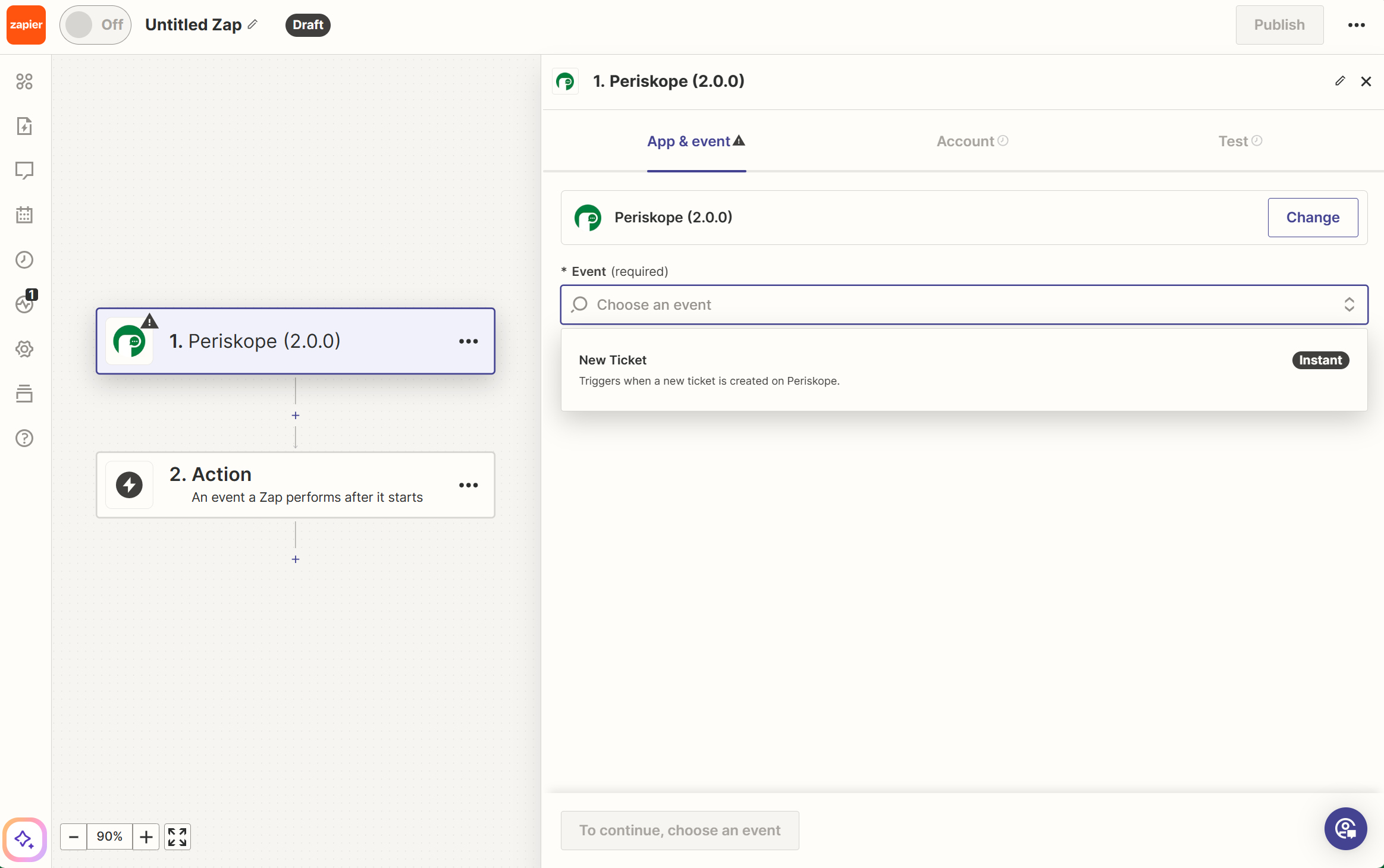
Currently we support following events.
1. [New ticket created](#new_ticket) - Triggers every time a new ticket is created on periskope
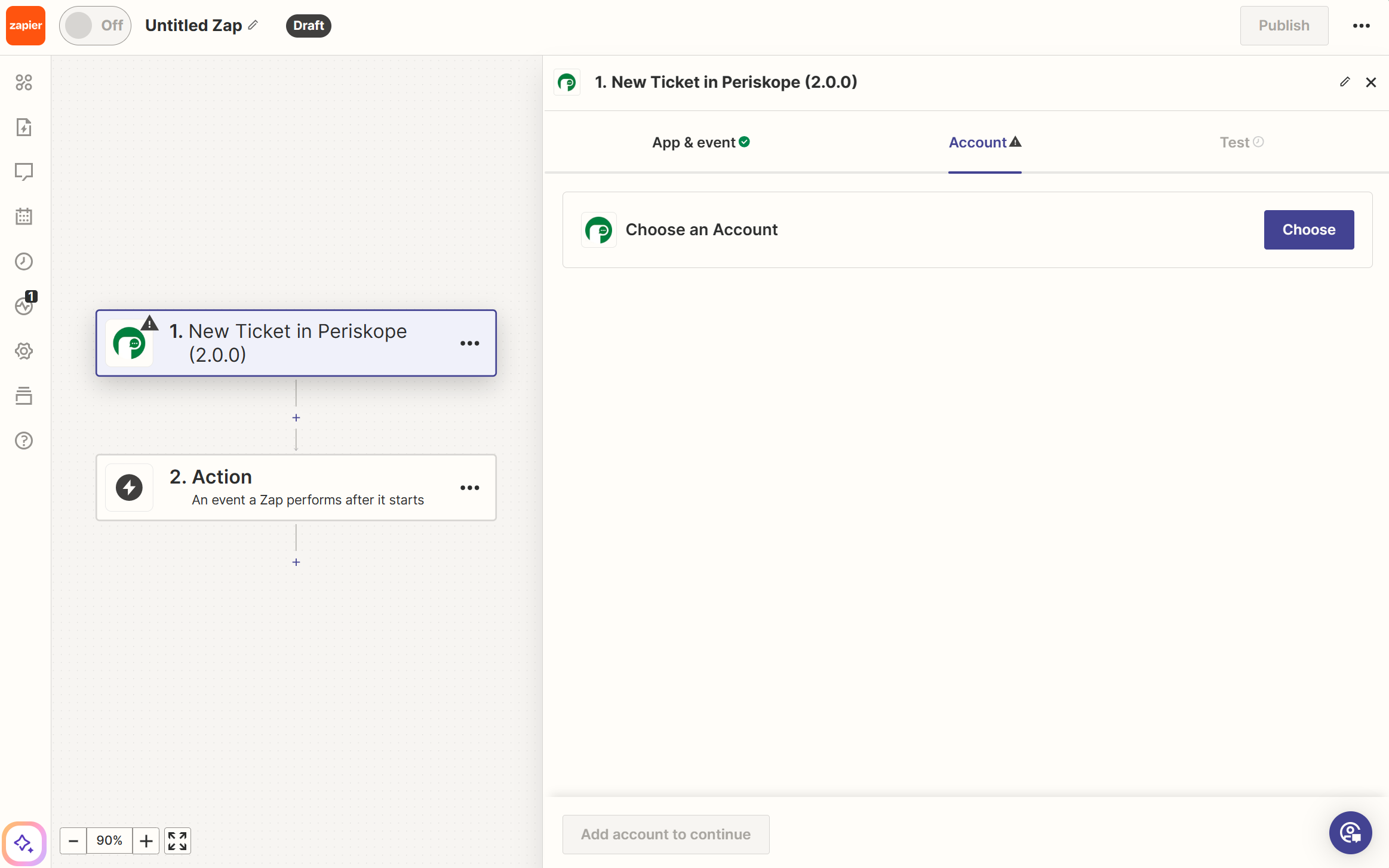
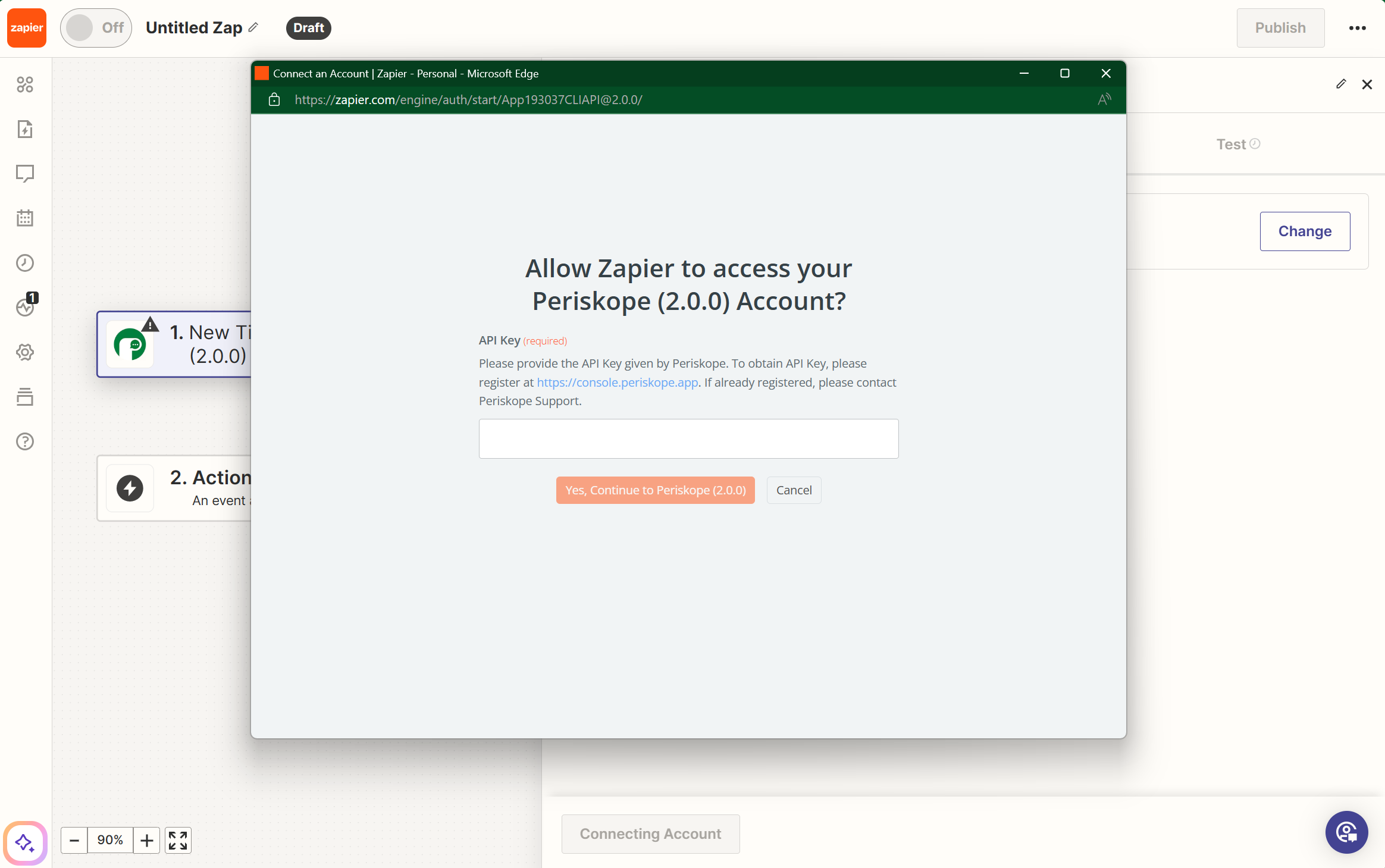
Create a new account and authenticate with API key generated on periskope
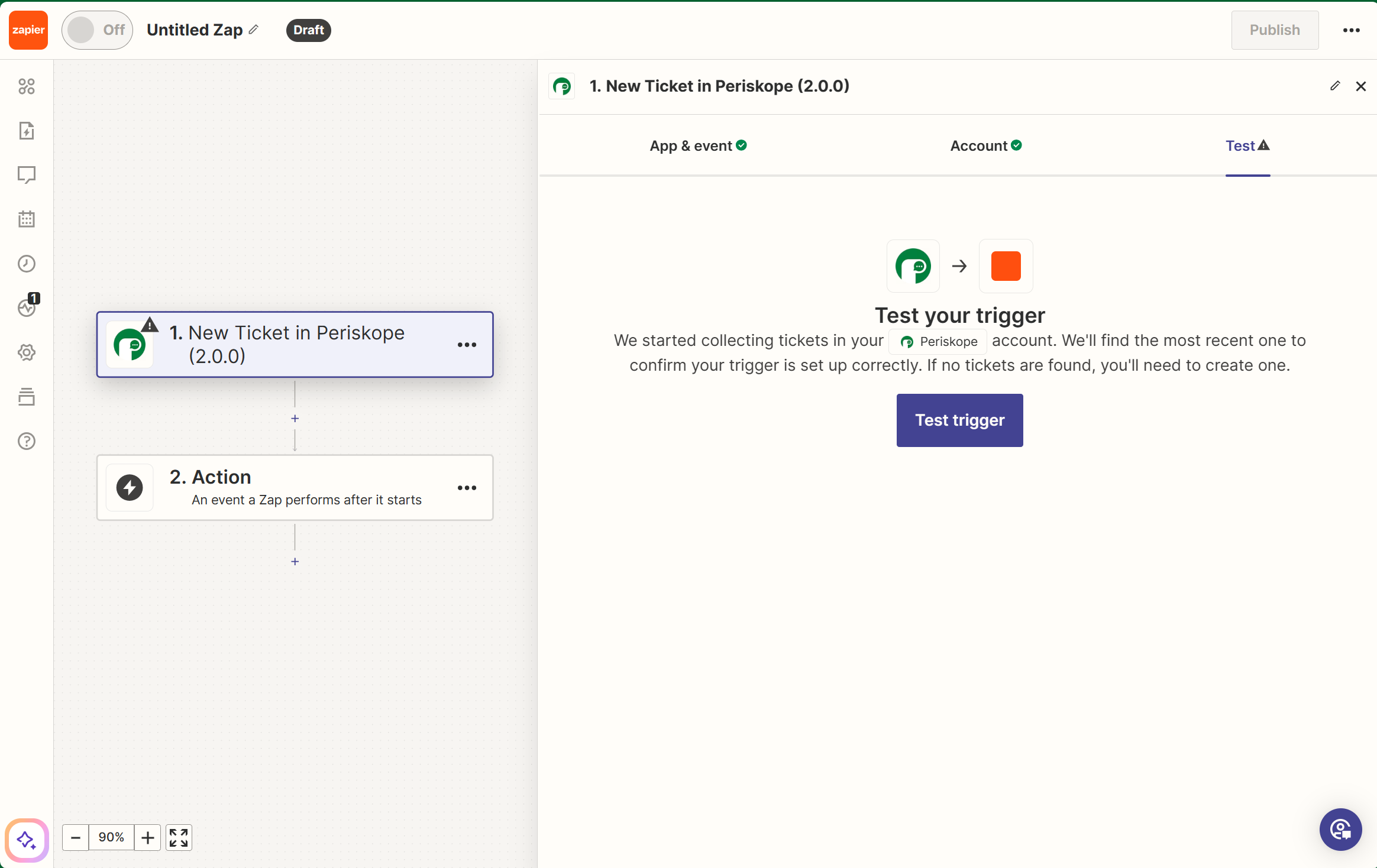
In order to initially pull a new records with all the fields that you'll be receiving from periskope. Click on test your trigger.
## Result 🚀
* Now your zap trigger is connected to your periskope account and you can add any action of your choice to stream the data from periskope to your application.
* Once the action has been setup you can test the step and publish your zap to subscribe to the trigger.
That's it! You have now added Zapier integration on Periskope. You can now trigger zap from periskope for chosen event.
# Events
Currently we support following events for zapier.
1. 👥 chat.created [🔗](/api-reference/objects/the-chat-object)
2. 💬 message.created [🔗](/api-reference/objects/the-message-object)
3. 💬 message.updated [🔗](/api-reference/objects/the-message-object)
4. 💬 message.deleted [🔗](/api-reference/objects/the-message-object)
5. 💬 message.ack.updated [🔗](/api-reference/objects/the-message-object)
6. 💬 message.ticket.attached [🔗](/api-reference/objects/the-message-object)
7. 😀 reaction.created [🔗](/api-reference/objects/the-reaction-object)
8. 🏷️ ticket.created [🔗](/api-reference/objects/the-ticket-info-object)
9. 🏷️ ticket.updated [🔗](/api-reference/objects/the-ticket-info-object)
10. 🏷️ ticket.deleted [🔗](/api-reference/objects/the-ticket-info-object)
-1.png?fit=max&auto=format&n=HnicmFneIaXkDnL3&q=85&s=44c92357c87d375d74d0e3afdcfdd589 "Untitled Design (1)") ## Prerequisites
* A [Zapier](https://zapier.com/) account
* Access to the Periskope app in Zapier [request here](https://zapier.com/developer/public-invite/217966/ff590dfcc26be42cf2e51df10516d6a9/)
* A [Periskope account](https://console.periskope.app)
## Setting up the Zapier integration on Periskope
## Prerequisites
* A [Zapier](https://zapier.com/) account
* Access to the Periskope app in Zapier [request here](https://zapier.com/developer/public-invite/217966/ff590dfcc26be42cf2e51df10516d6a9/)
* A [Periskope account](https://console.periskope.app)
## Setting up the Zapier integration on Periskope