> ## Documentation Index
> Fetch the complete documentation index at: https://docs.periskope.app/llms.txt
> Use this file to discover all available pages before exploring further.
# HubSpot
> Guide to connect your HubSpot account with Periskope
> Periskope integration for HubSpot is currently under review. In order to use Periskope integration with HubSpot, you can connect with HubSpot from [Periskope HubSpot settings](https://console.periskope.app/settings/integrations/hubspot)
***
## Prerequisites 📜
* A [HubSpot](https://hubspot.com/) account
* A [Periskope account](https://console.periskope.app)
## Steps to connect Periskope with HubSpot 🔧
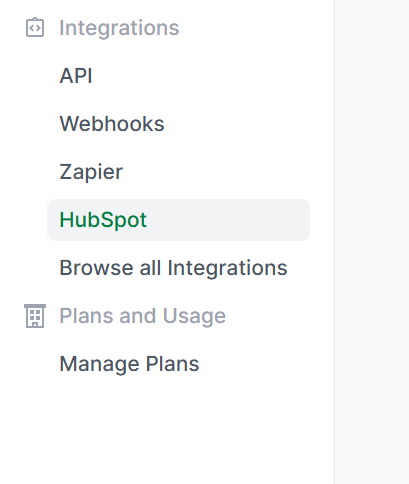
1. To connect your HubSpot, you must have a Periskope account. Once logged into the account, visit [here](https://console.periskope.app/settings/integrations/hubspot) to connect HubSpot.
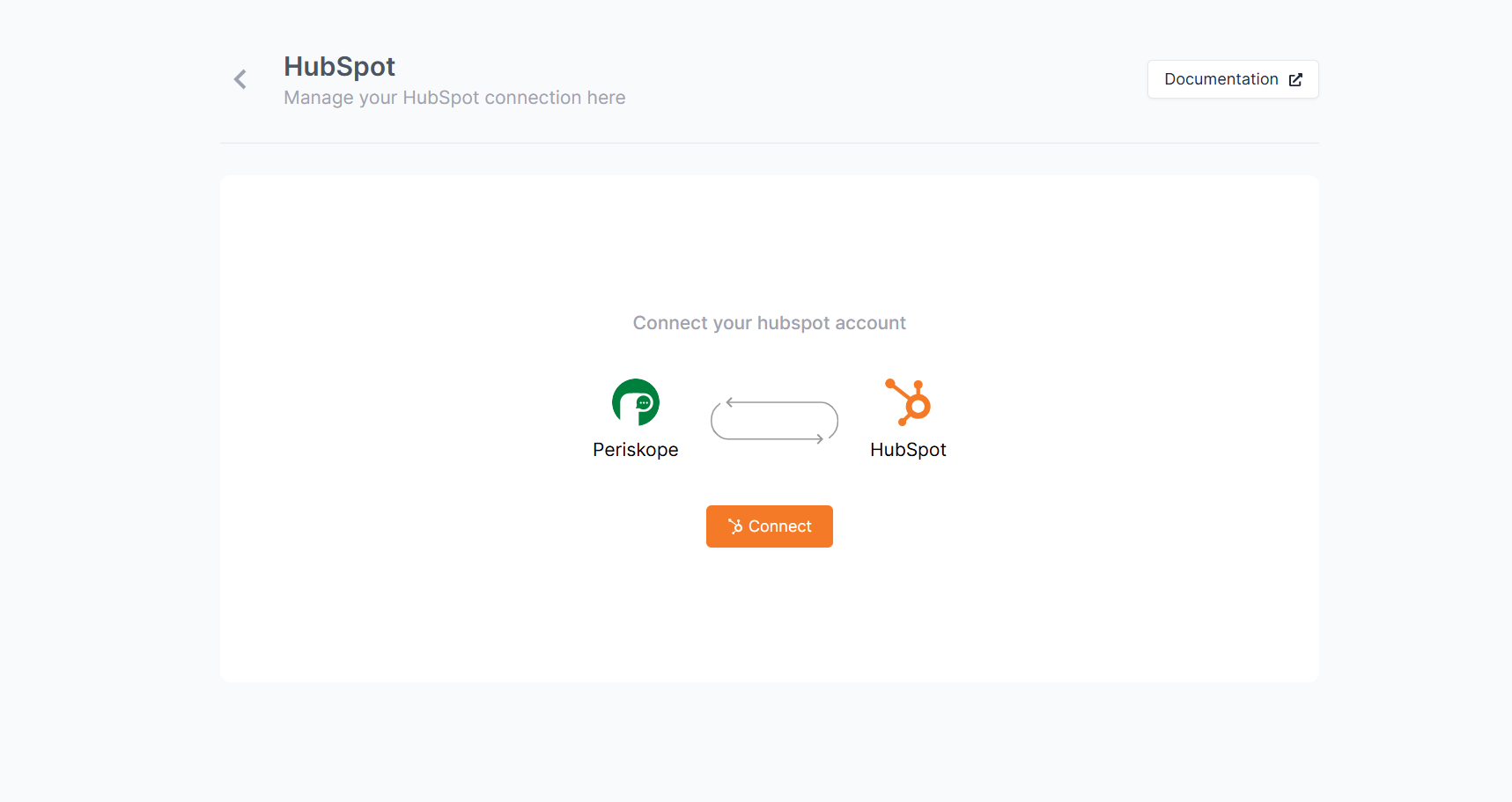
2. Click on **connect**
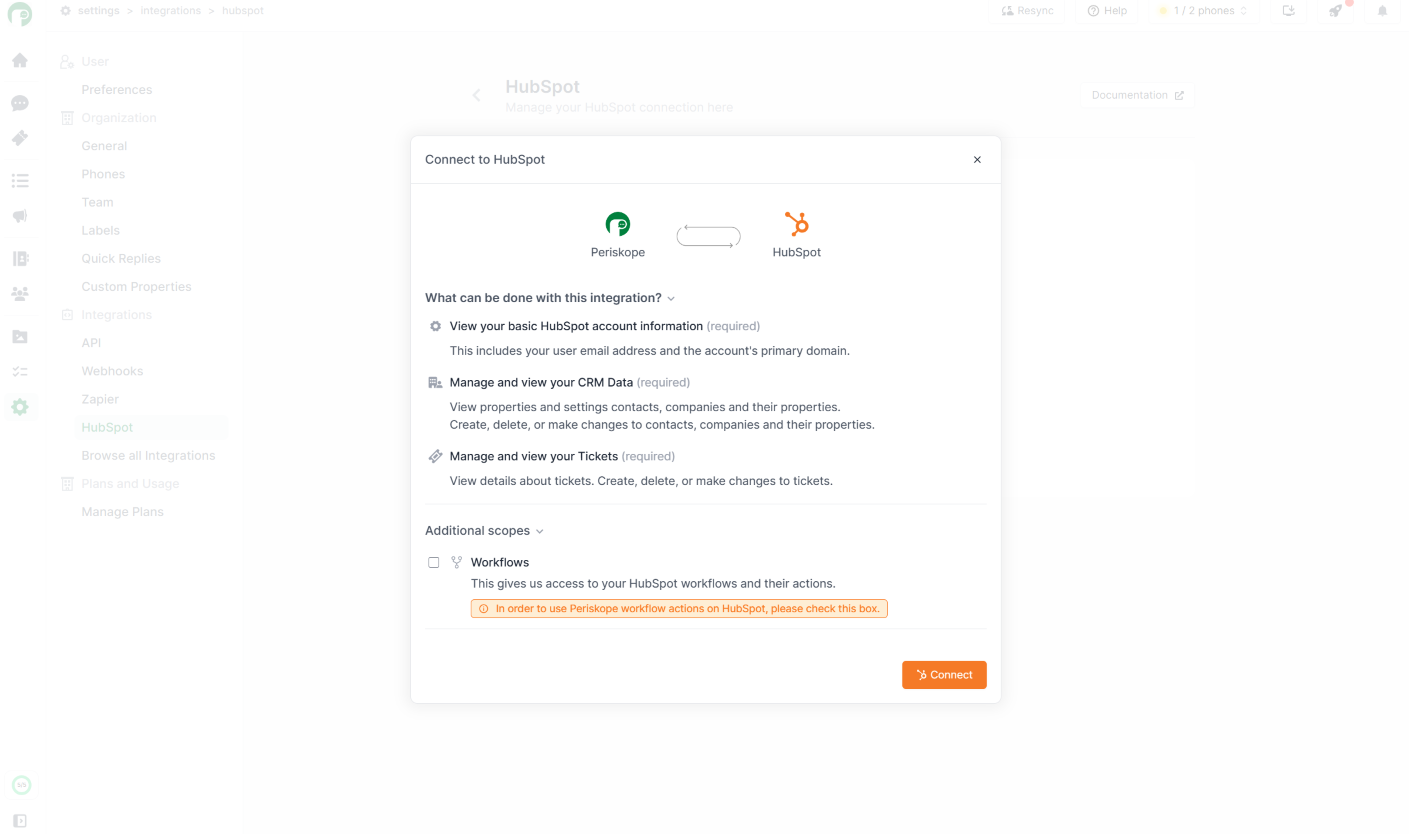
In order to use Periskope workflow automations on HubSpot, check the workflow checkbox in HubSpot Connect Modal
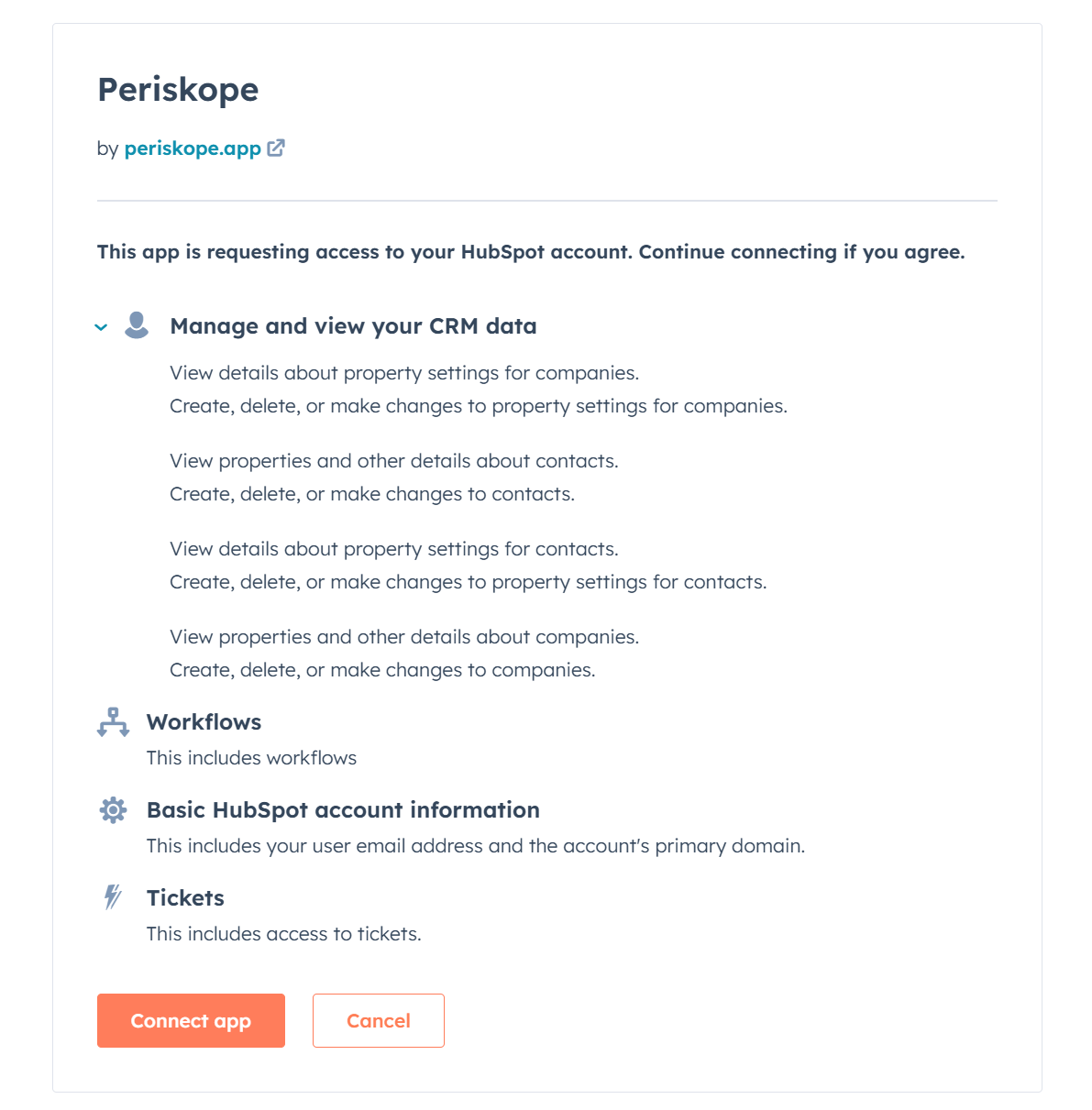
Once you click on connect, you will be redirected to HubSpot connect page. Click on **Connect App** to connect your HubSpot account with Periskope.
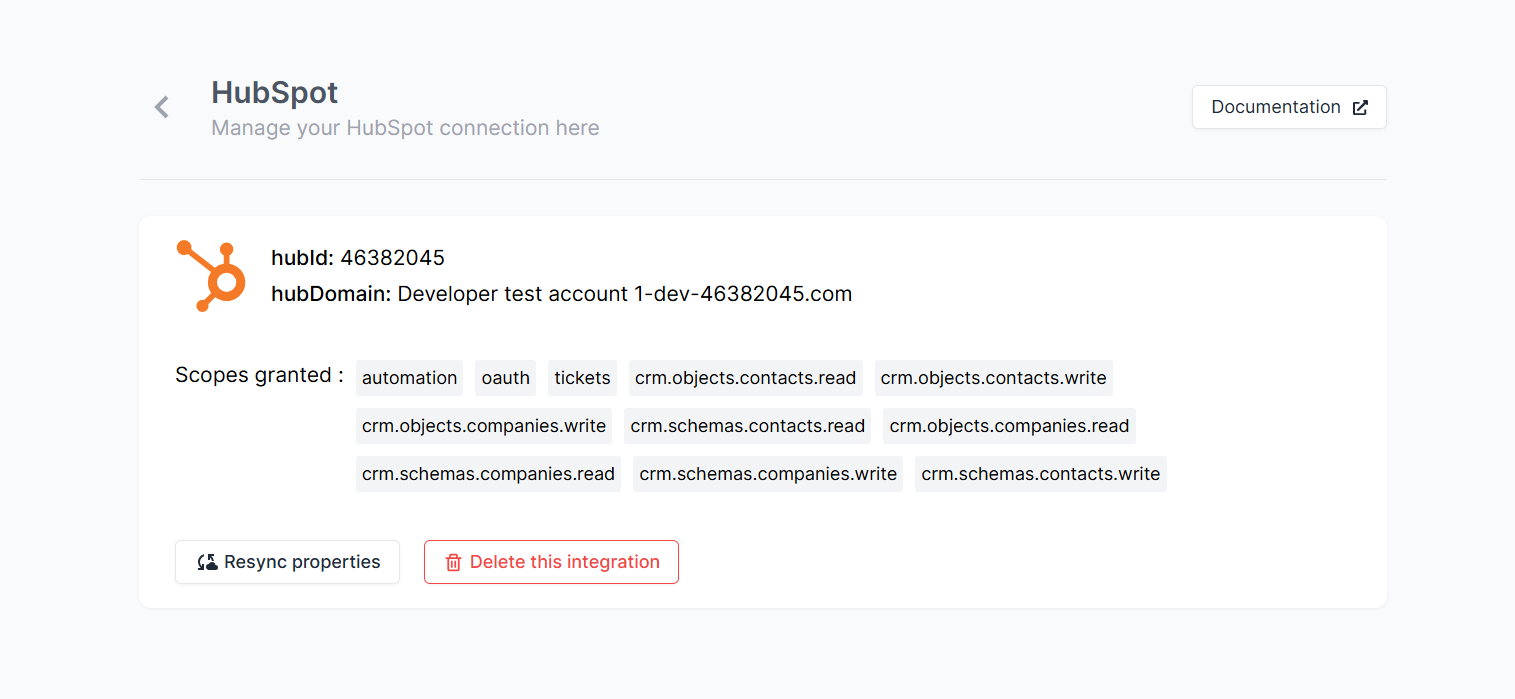
Now you have successfully connected your HubSpot account with Periskope. You can now use the integration to link chats on Periskope with contacts/companies on HubSpot. And, also sync tickets on Periskope to HubSpot.
## What can be done with the integration ? 📃
You can perform multiple actions between Periskope and HubSpot. Here are some of the actions that can be performed with the integration.
### 1. Linking chats to HubSpot 🔗
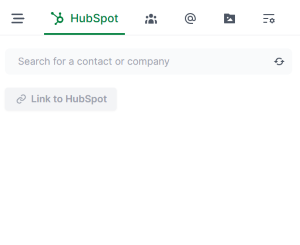
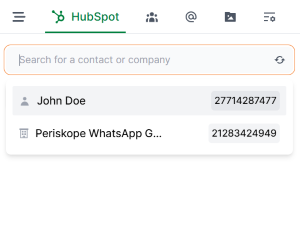
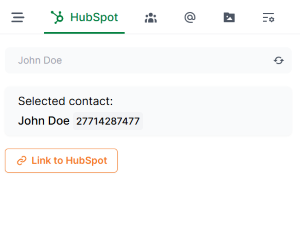
1. You can **link chats** on Periskope to contacts/companies on HubSpot. This will help you to track the contact/company details of the user you are chatting with on Periskope.
->->
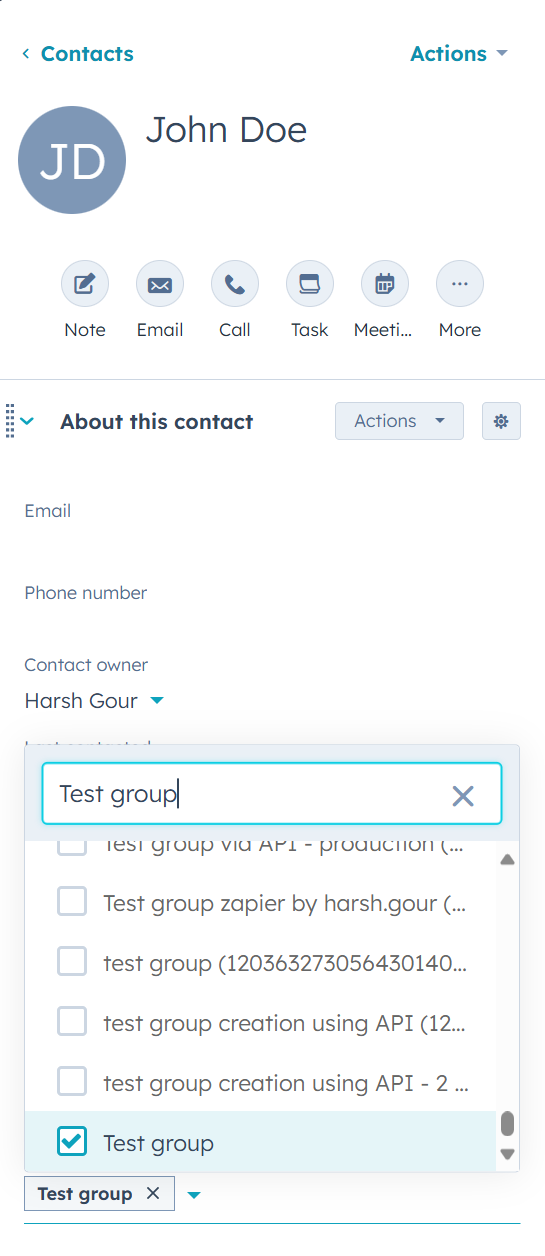
You can also link chats to contacts/companies from the HubSpot.
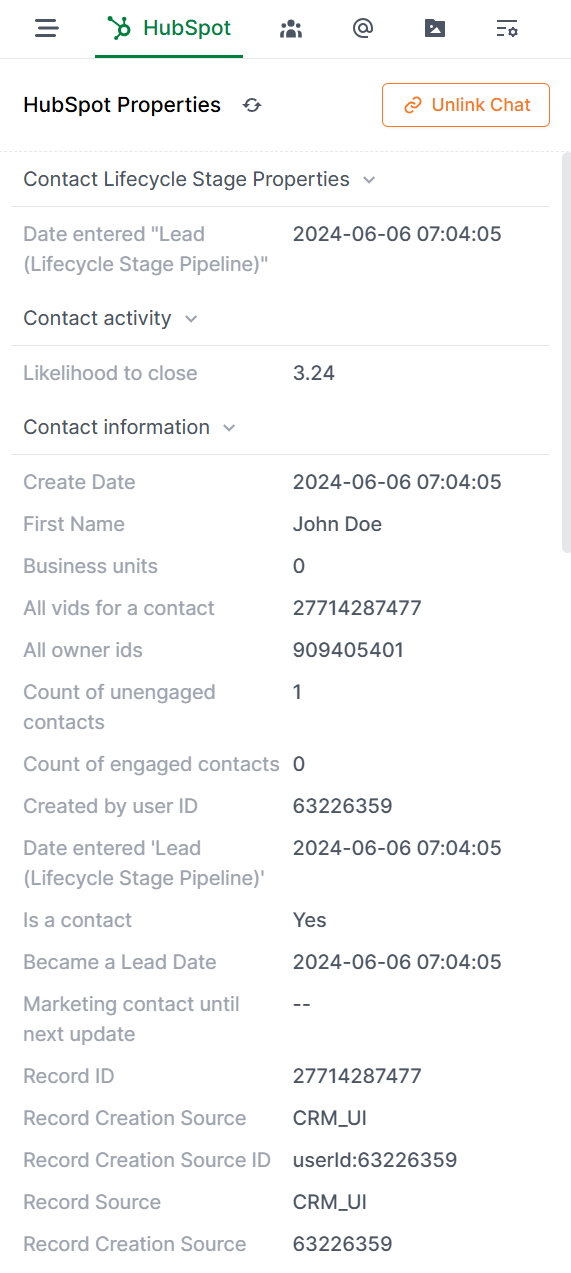
2. Now you can **view** all details of the **linked contact/company** on the chat sidepanel on Periskope.
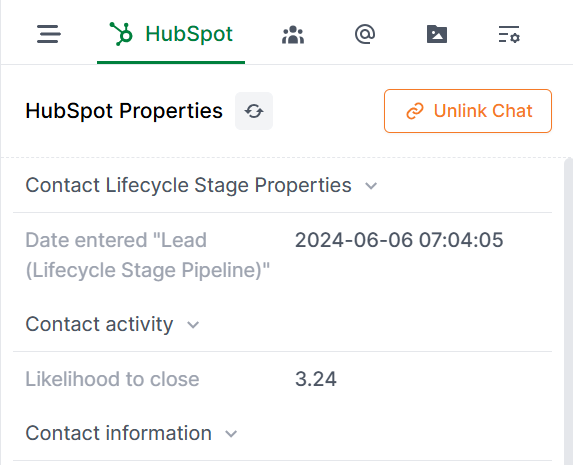
3. All the properties are **automatically synced** from HubSpot. But, you can also **refresh** or **unlink** the HubSpot properties manually from the chat sidepanel.
### 2. Syncing WhatsApp messages to HubSpot 💬
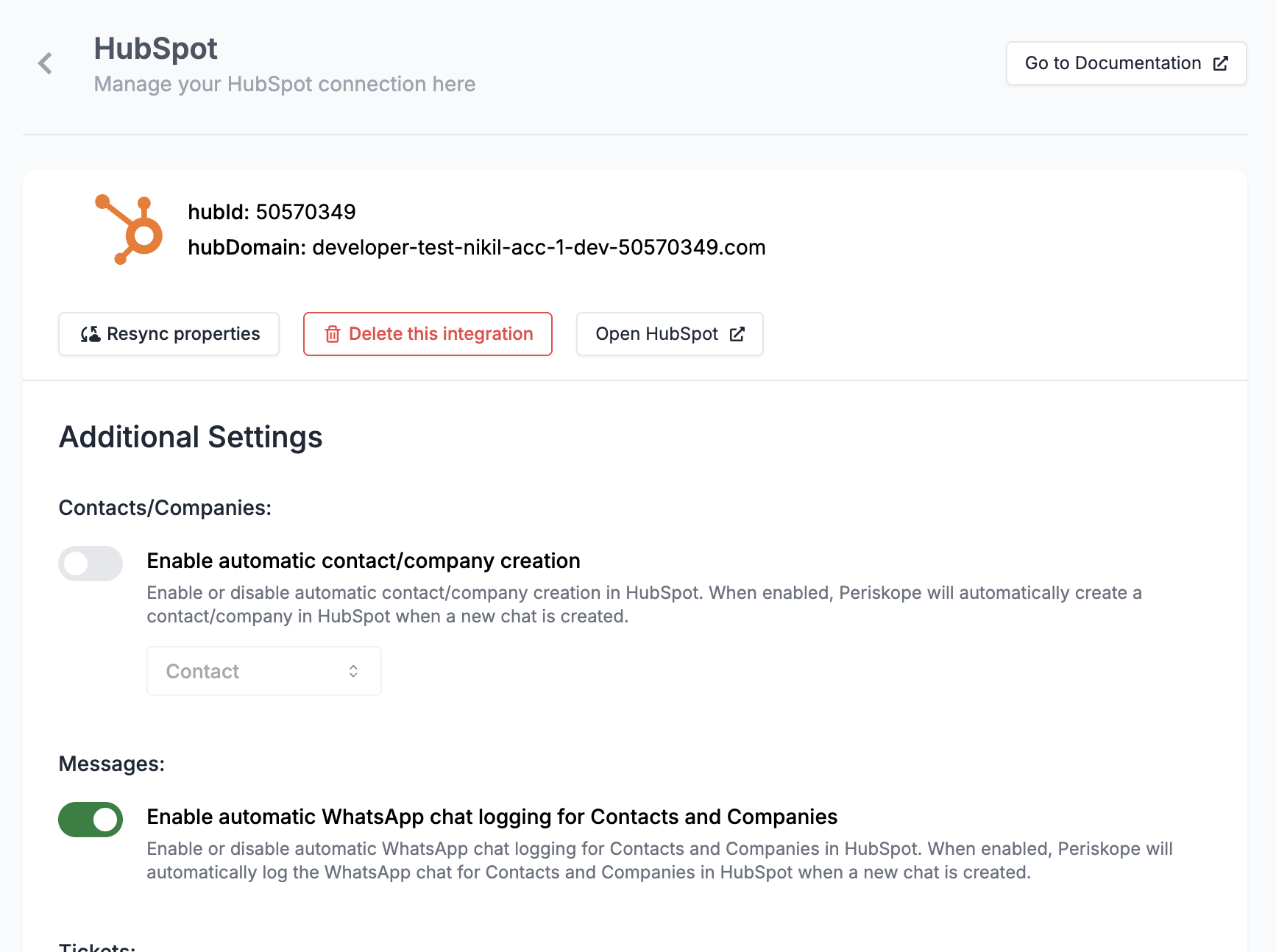
Once you have turned on [**Enable automatic WhatsApp chat logging for Contacts and Companies**](https://console.periskope.app/settings/integrations/hubspot) in HubSpot settings, all the WhatsApp messages will be logged to HubSpot for the linked contact/company.
Only new messages will be logged to HubSpot from when the integration option is turned on. The historical messages will not be logged to HubSpot.
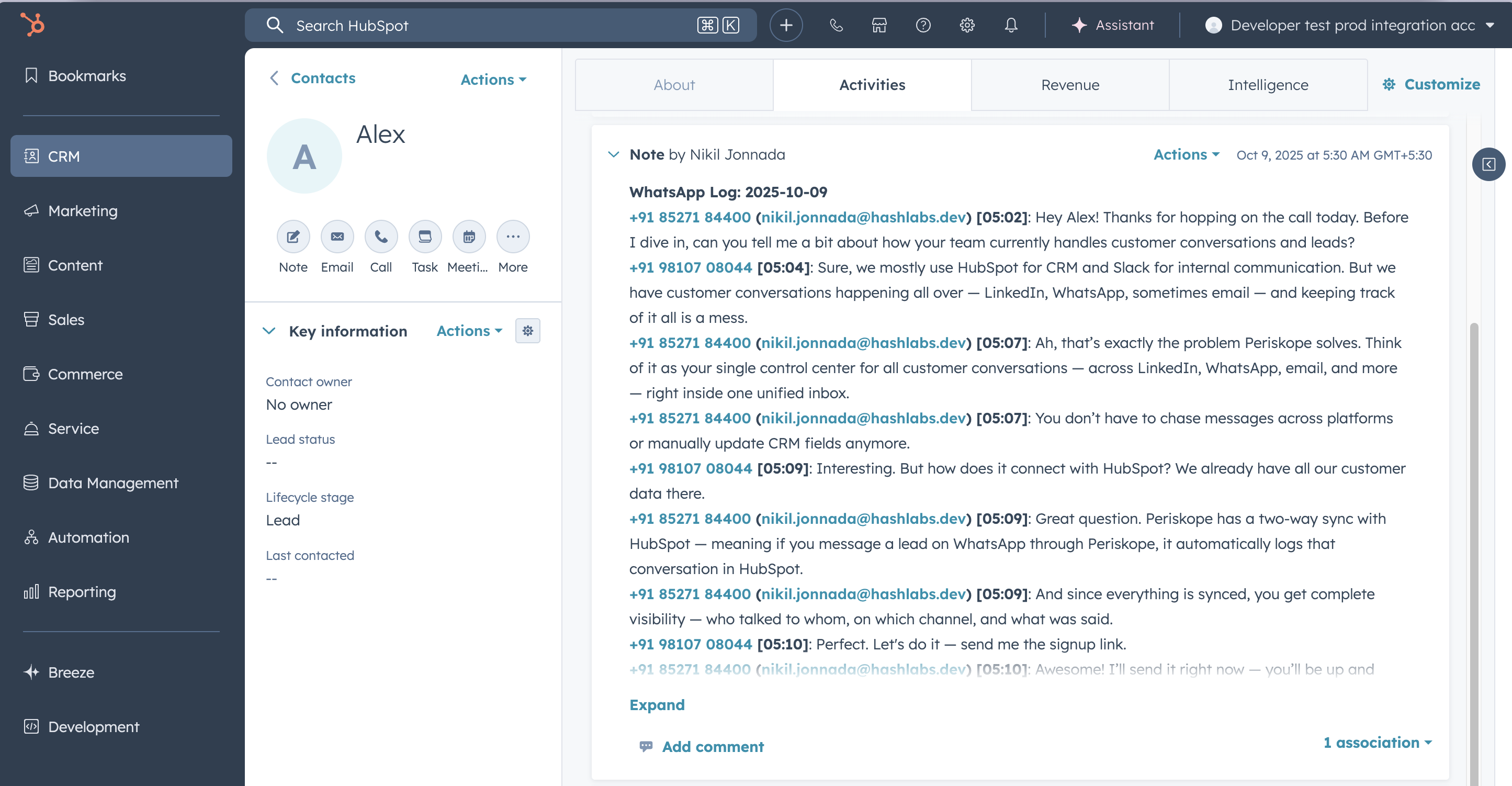
You can view the WhatsApp messages logged to HubSpot on the contact/company page.
### 3. Syncing tickets to HubSpot 🎟️
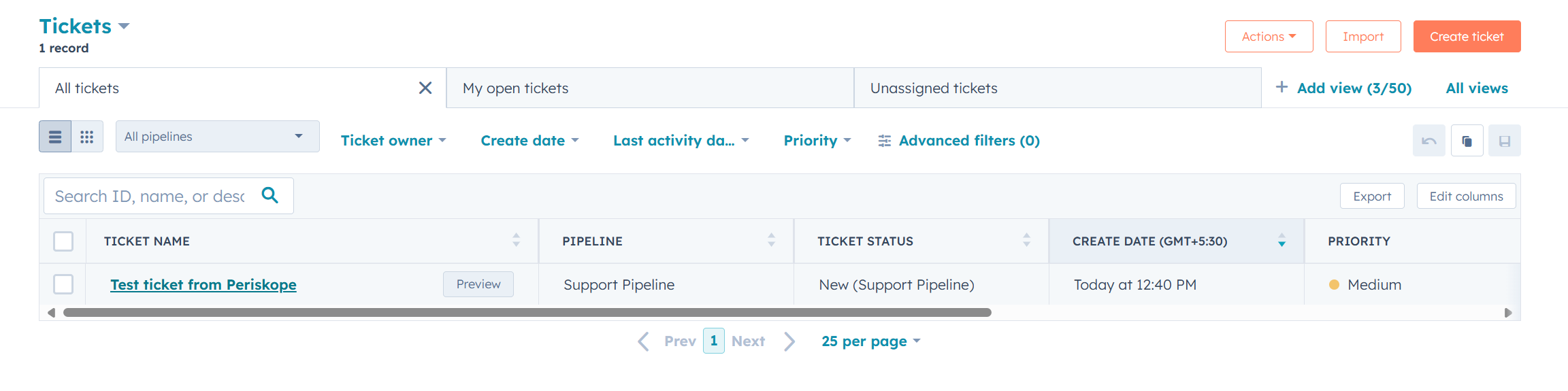
1. Once you have linked your HubSpot account with Periskope. The tickets created on Periskope will be **automatically synced** to HubSpot.
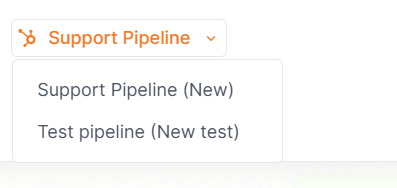
2. You can choose to switch between `pipelines` on HubSpot to view the ticket in the respective pipeline.
If any new pipeline is created on HubSpot, you can **resync** the properties to view the new pipeline on Periskope.
Ticket created on Periskope is synced to HubSpot.
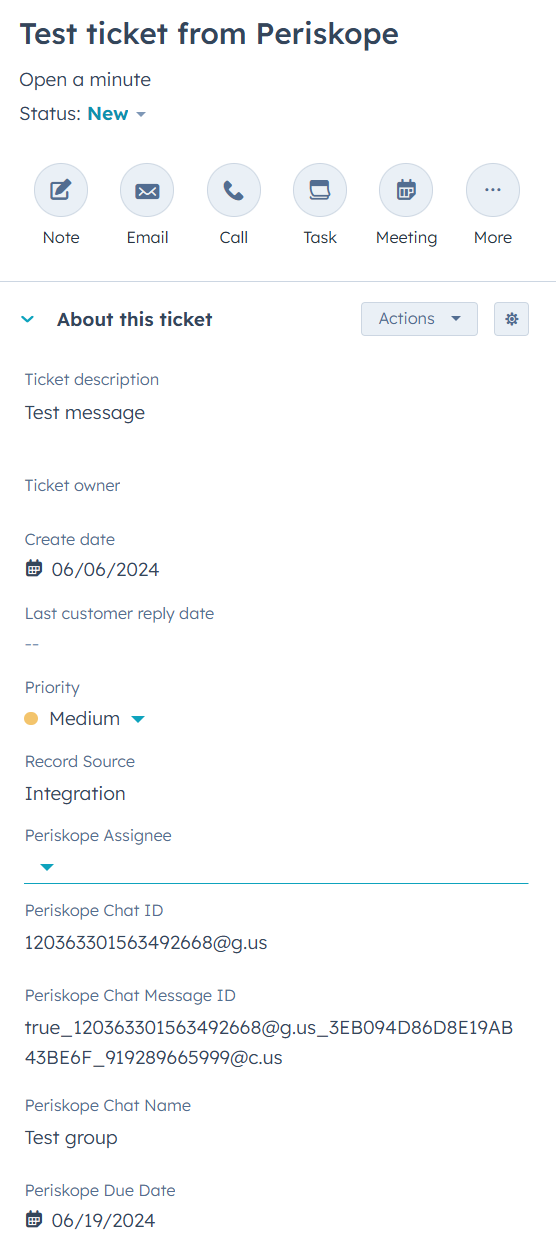
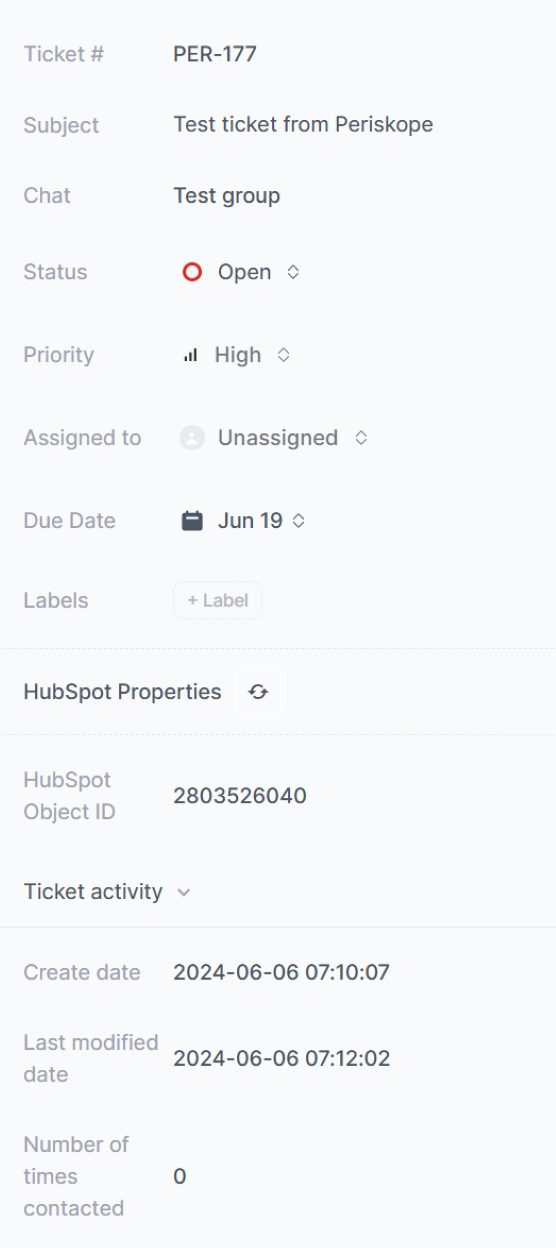
3. You can also **view details** of the **linked ticket** on the sidepanel of both the platforms.
Syncing of the details of already linked tickets between Periskope and HubSpot is `bi-directional`. But, you can only create tickets on Periskope and sync them to HubSpot.
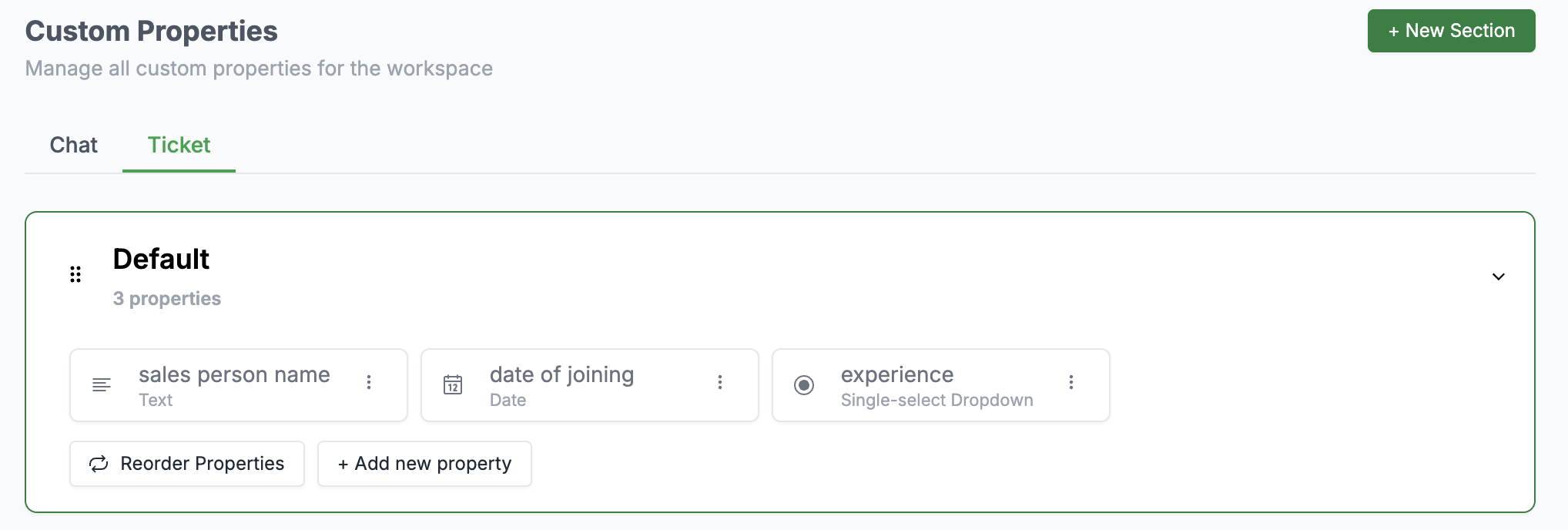
4. You can also sync the **Ticket custom properties** of Periskope to HubSpot.
Create the ticket custom properties on Periskope and [**re-sync**](https://console.periskope.app/settings/integrations/hubspot) them to HubSpot.
The custom properties will be synced only in **uni-directional** manner. You can't sync the custom properties from HubSpot to Periskope.
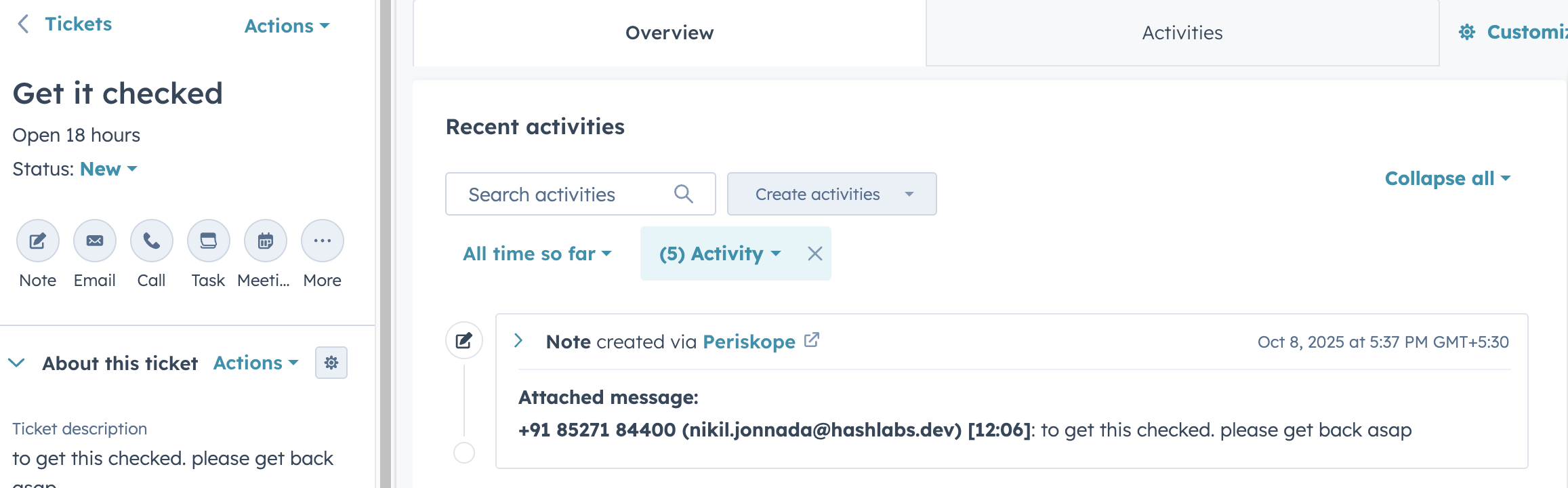
5. Attached Message to a ticket
You can view the attached messages to a ticket on HubSpot.
### 4. Auto-create contacts and companies on HubSpot 👤
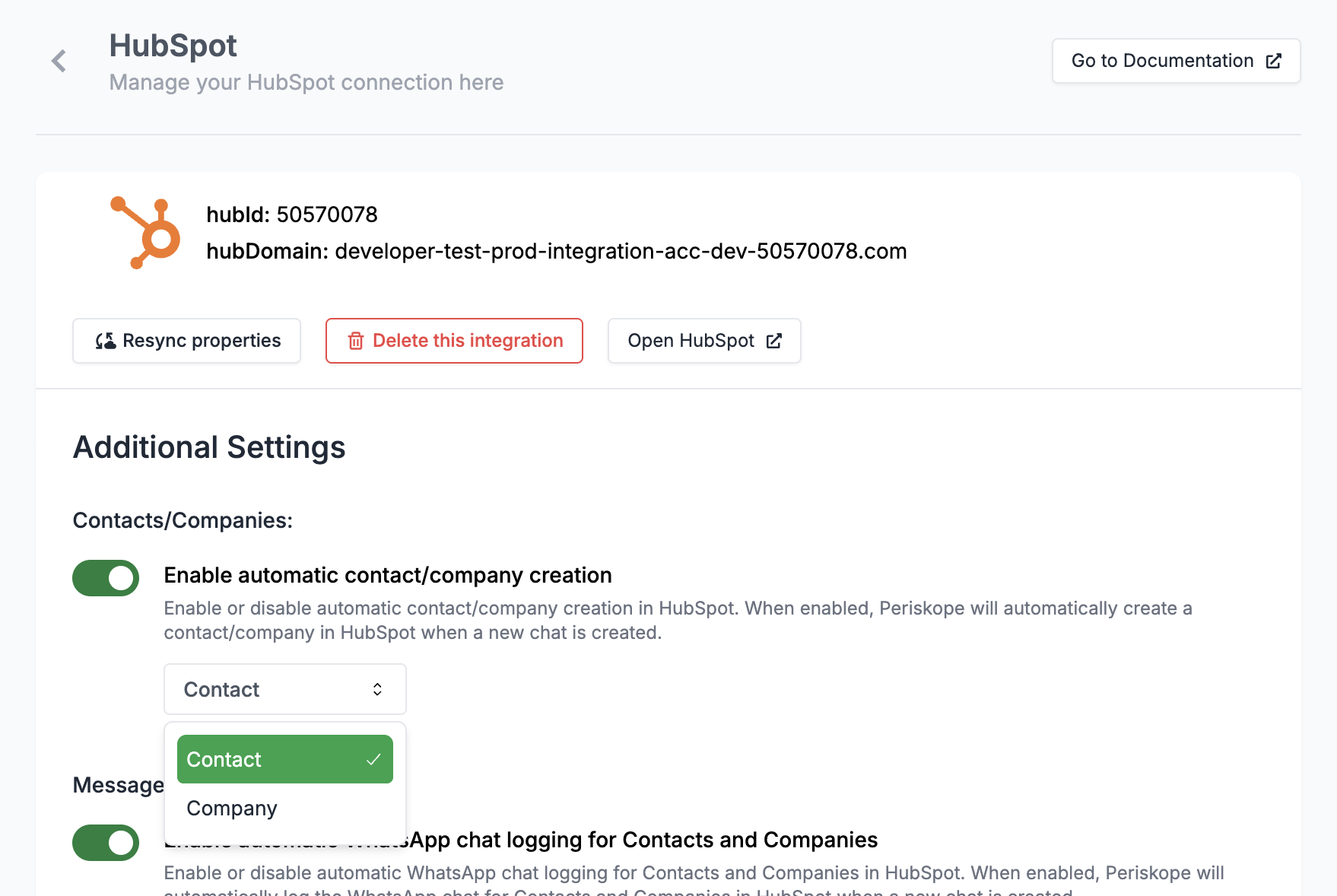
Once you have turned on [**Enable automatic contact/company creation**](https://console.periskope.app/settings/integrations/hubspot) in HubSpot settings, whenever a new chat is created on Periskope, a new contact/company will be created on HubSpot.
### 5. Sending a message using HubSpot workflow actions 📩
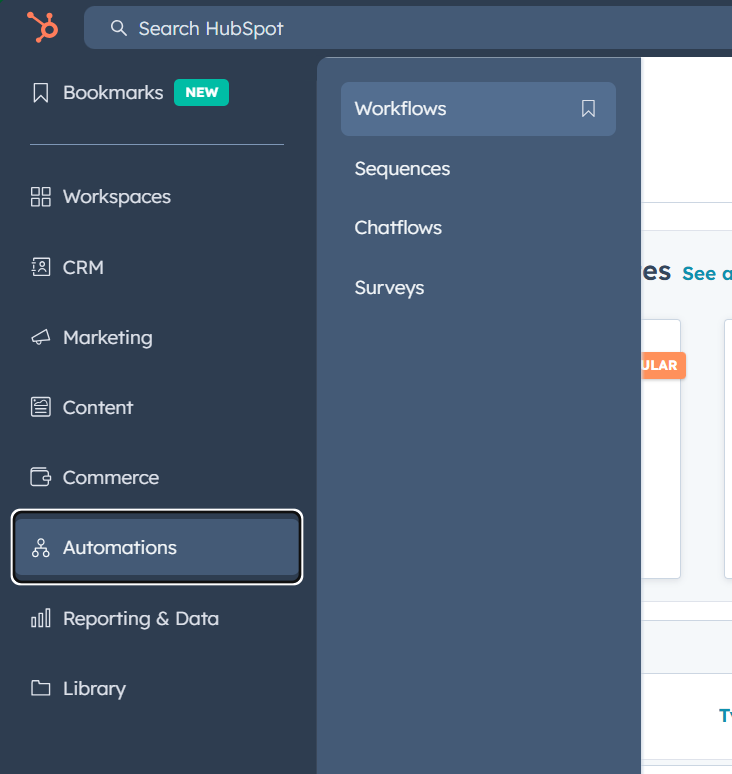
You can send a message to chats on Periskope using HubSpot workflow actions.
1. Click on **Create workflow** to create a new workflow.
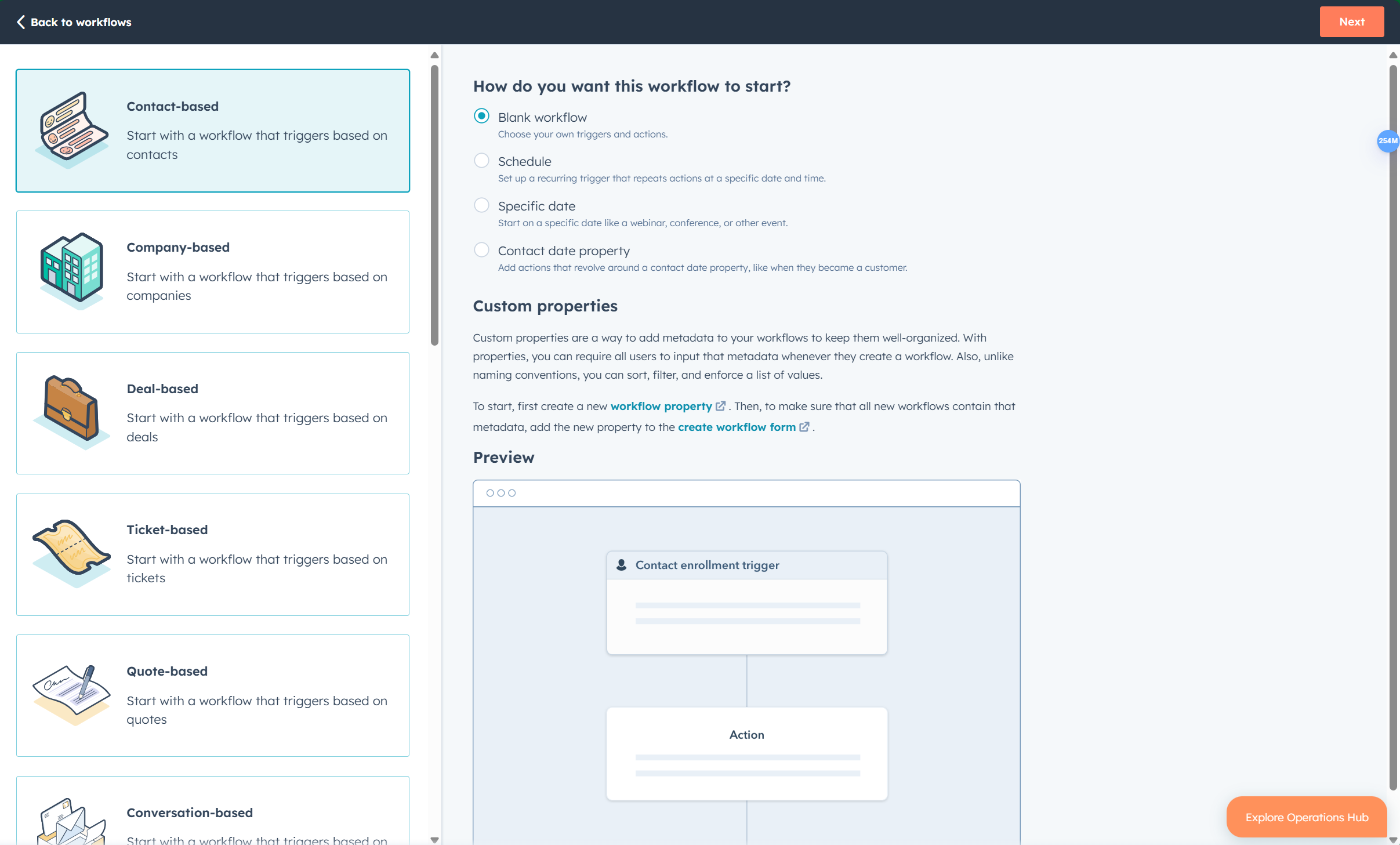
2. Select the **Type of workflow** you want to create. You can choose from the following options: `Contact-based`, `Company-based`, `Ticket-based`
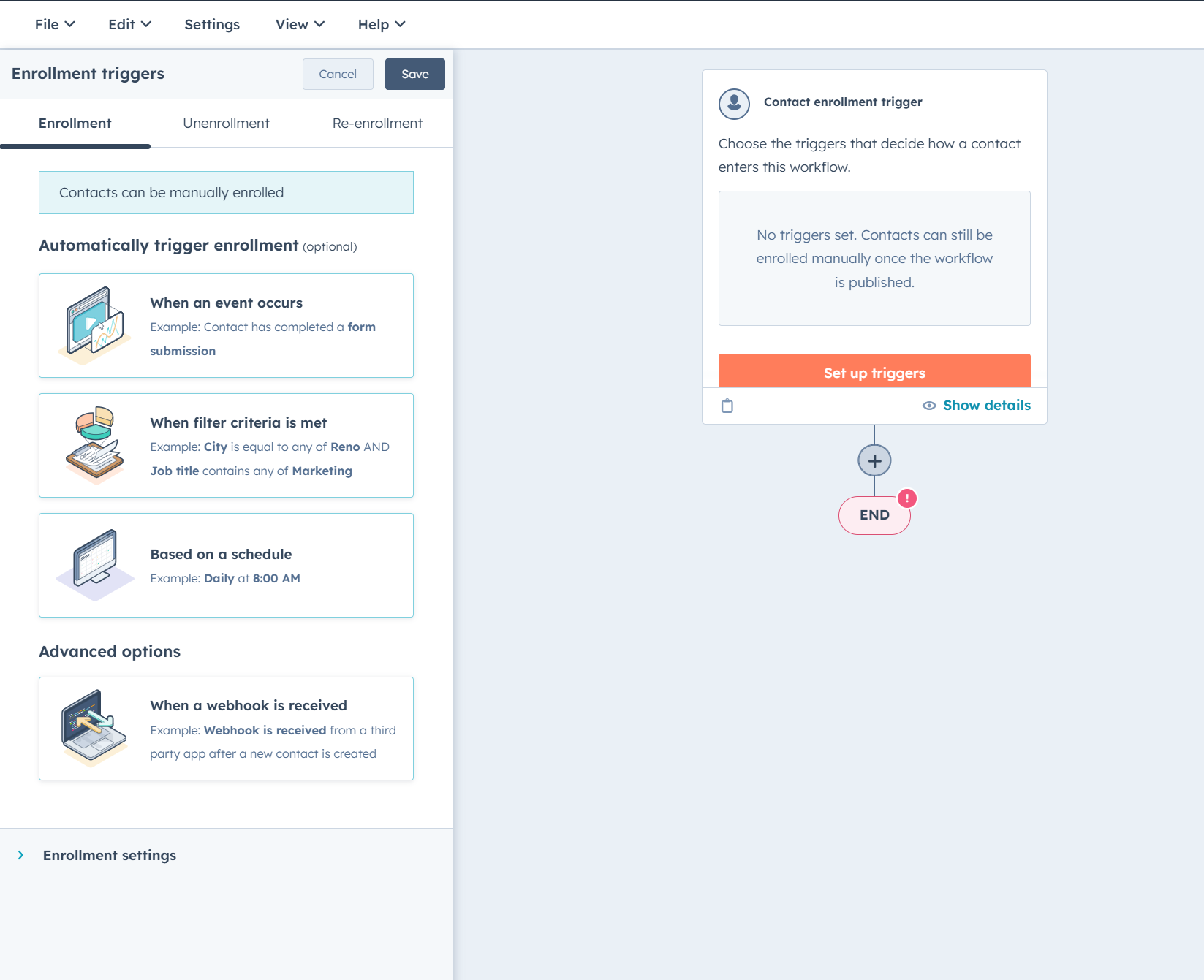
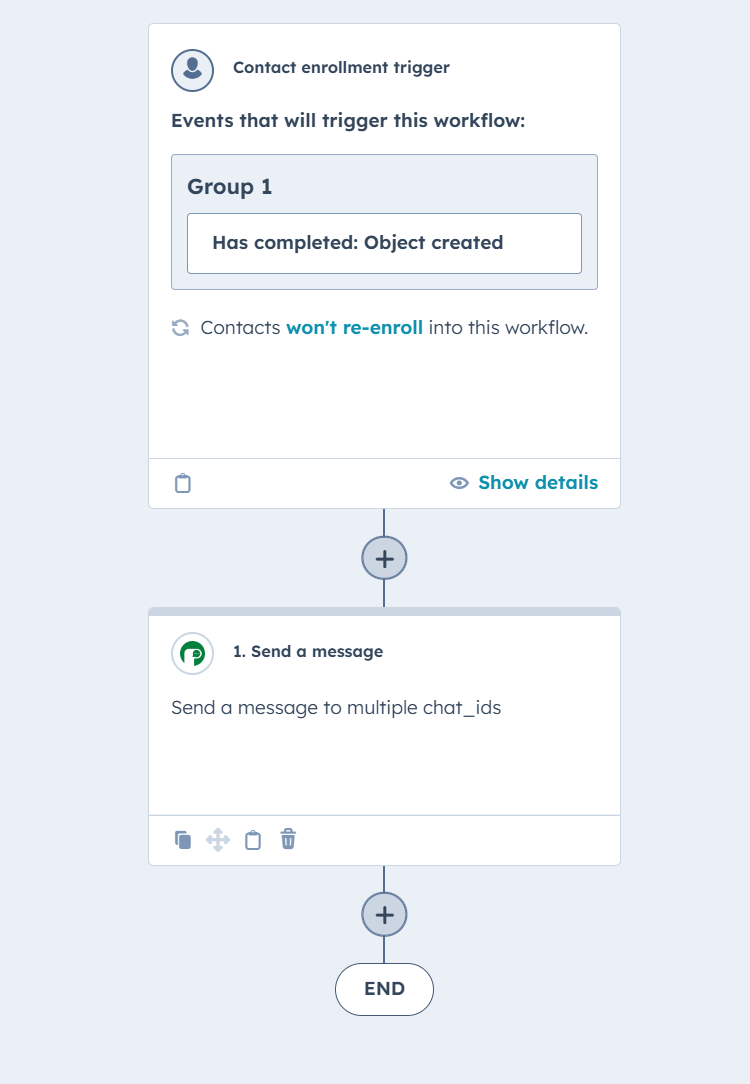
Click on **Set up triggers** and add a trigger event.
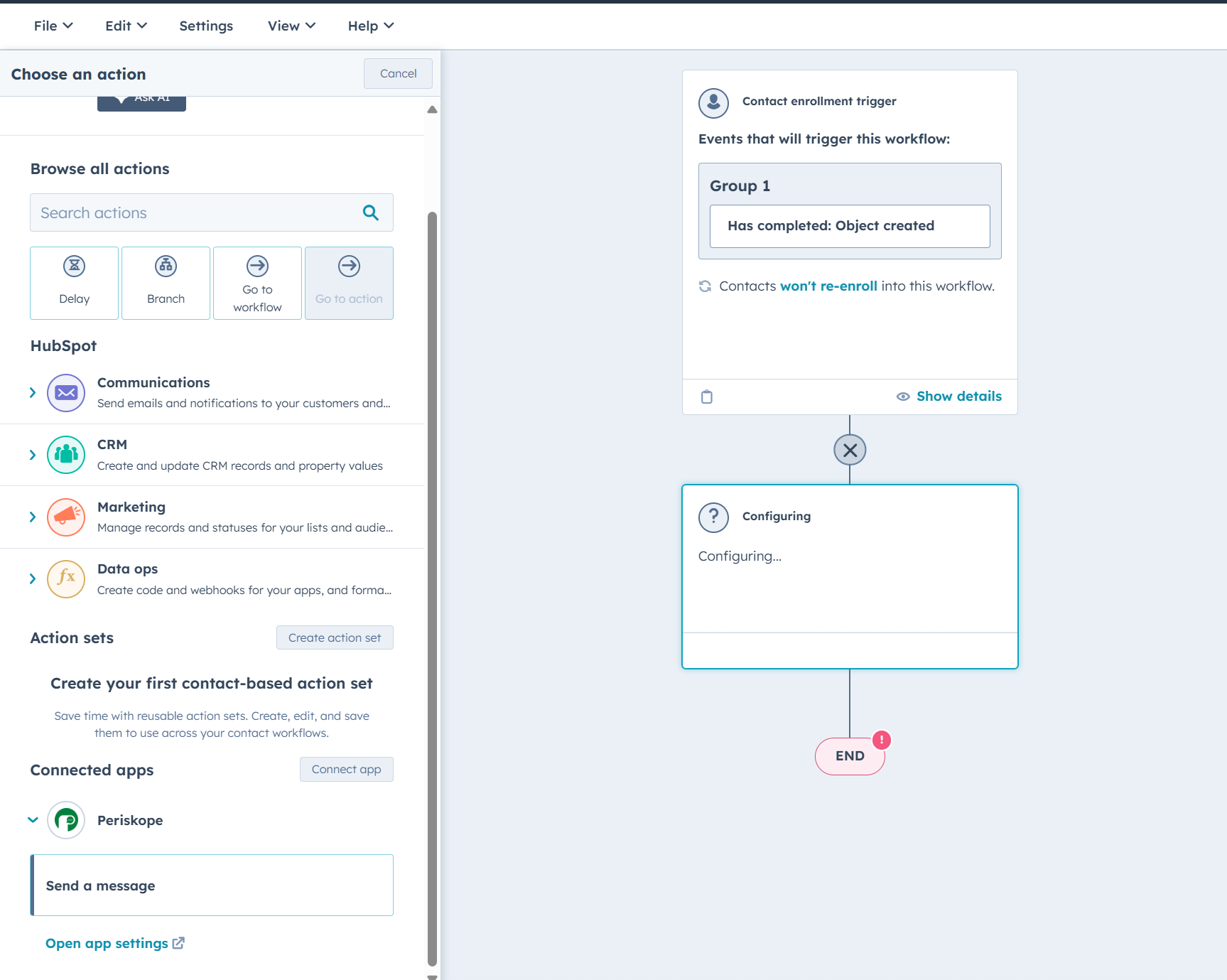
1. Click on **+** button to add an action.
2. Click on **Periskope** under Connected apps on the LHS sidepanel and choose `Send a message` action.
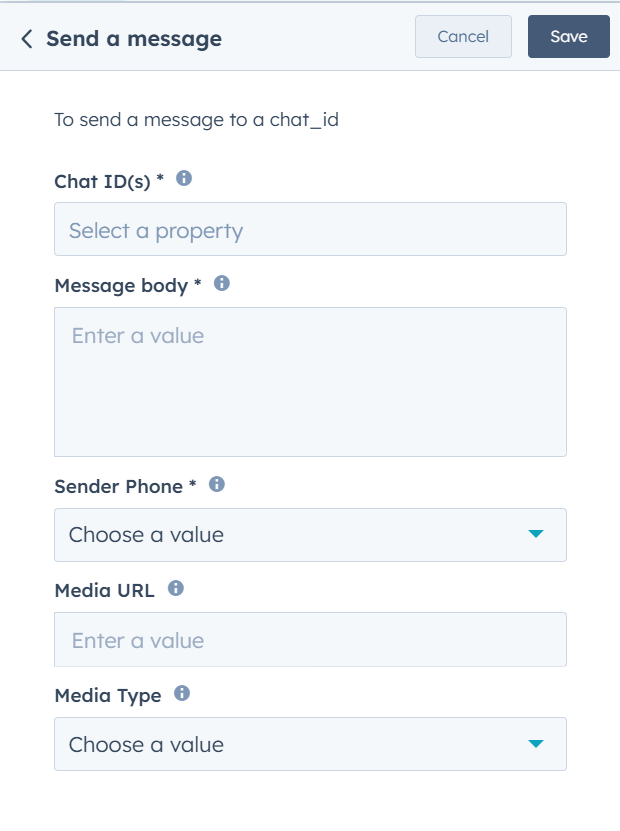
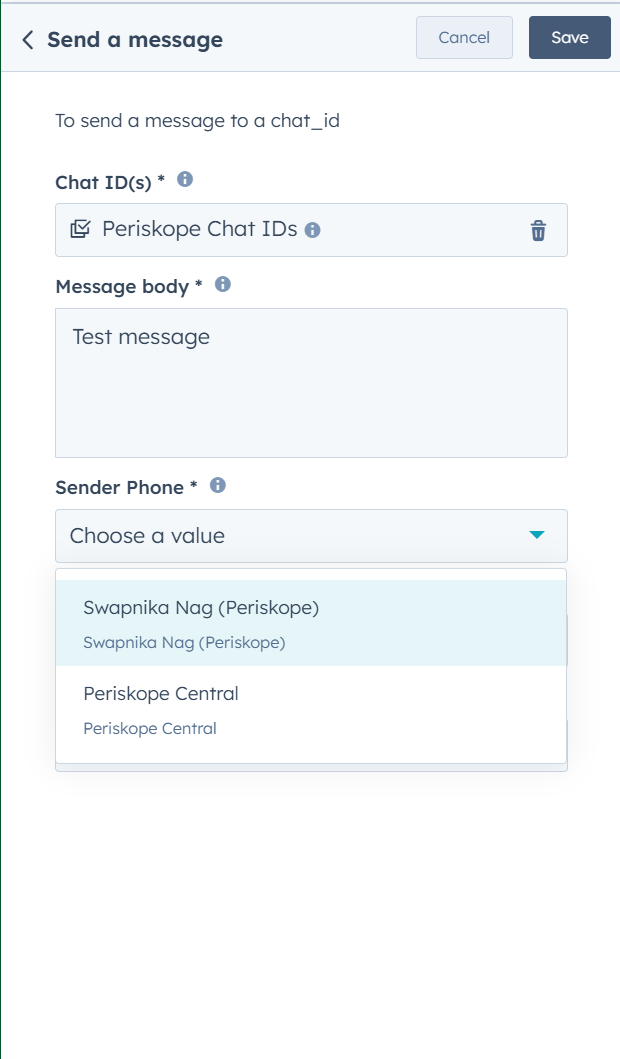
In order to send message to one or multiple Chat IDs, you need to fill the form with the following details:
#### Form fields -
Supports the Chat Id(s) to which you want to send the message. You can enter multiple Chat Ids separated by semi-colon.
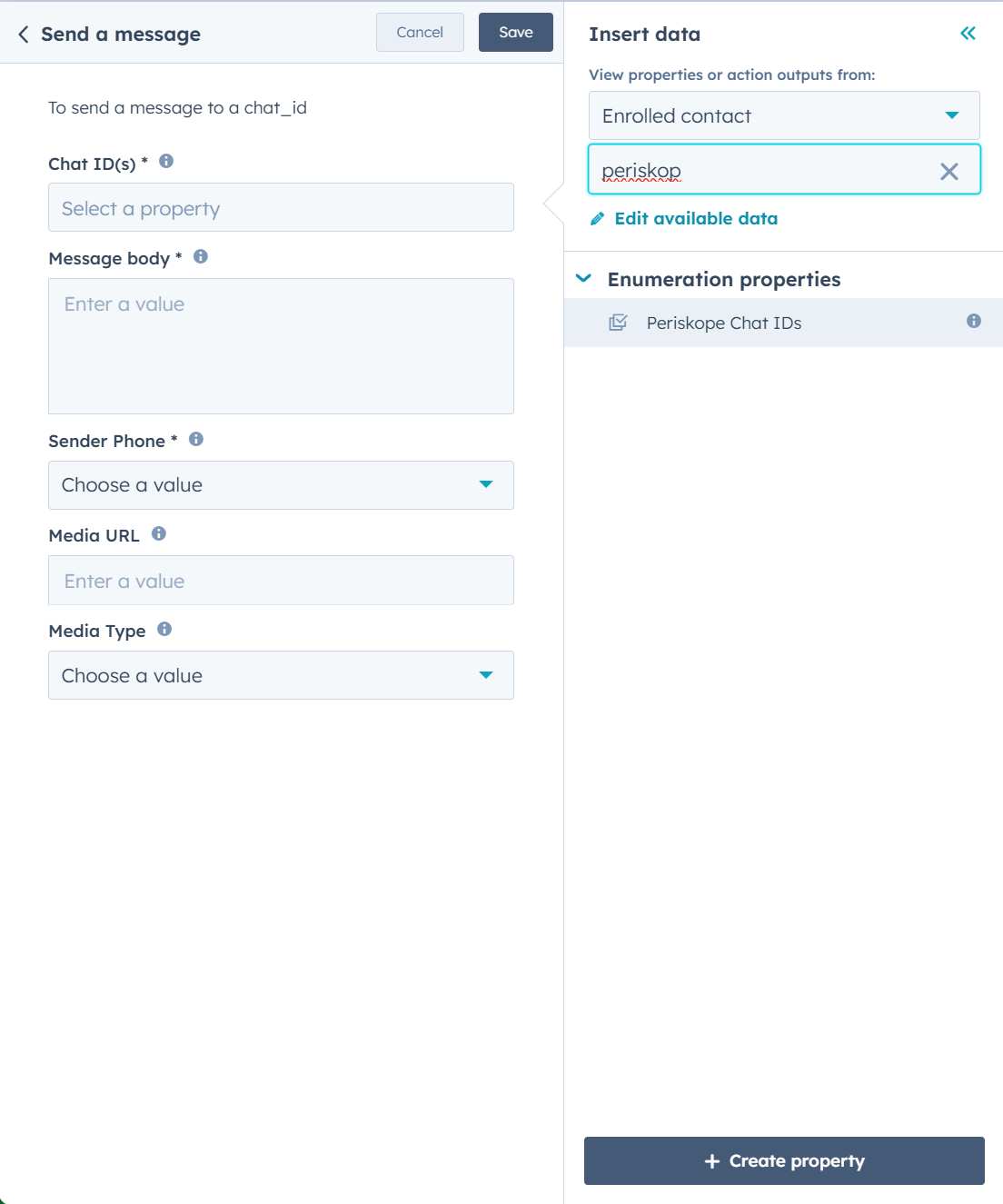
Properties supported for this field are -
1. **Contact Properties** > `Periskope Chat IDs`
2. **Company Properties** > `Periskope Chat IDs`
3. **Ticket Properties** > `Periskope Chat ID`
Chat ID example -
1. Group Chat - `12036329726967XXXX@g.us`
2. Individual Chat - `9190043XXXXX@c.us`
Enter the message you want to send to the selected Chat ID(s).
Choose the sender phone number from the dropdown. The message will be sent from this organization number if active on Periskope at the time of trigger.
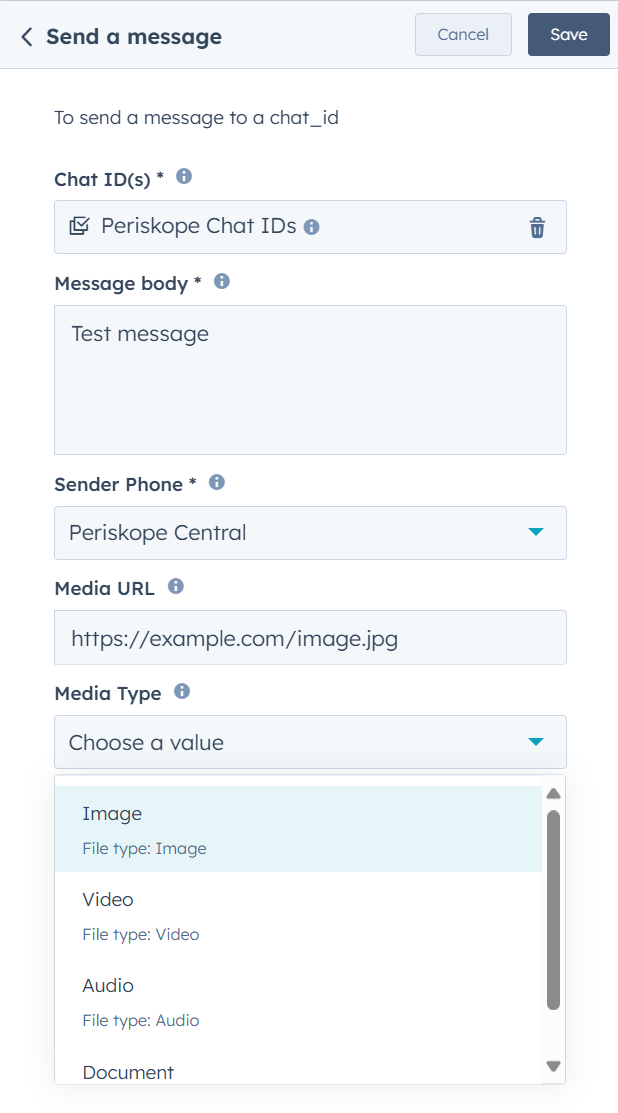
Send message action supports sending attachments to the Chat IDs.
You can add the public hosted URL of the media file you want to send as an attachment. You'll also need to specify type of media being sent.
Choose the media type from the dropdown.
Supported values are - `image`, `video`, `document`, `audio`.
Now you've successfully created a workflow on HubSpot to send a message to chats on Periskope. You can now test the workflow and publish it to send messages to chats on Periskope.
## Done 🎉
You've now successfully integrated HubSpot with Periskope.
For any queries, reach out to us [here](https://what.sapp.link/periskope)
## FAQs ❓
### 1. How to view Periskope properties on HubSpot?
Initially, you won't be able to view Periskope properties on HubSpot. But, once you link a chat to a contact/company on HubSpot, the properties will be synced to HubSpot.
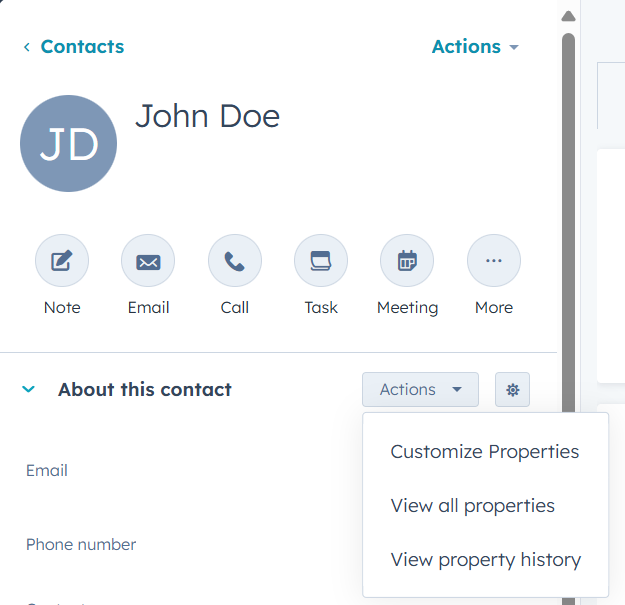
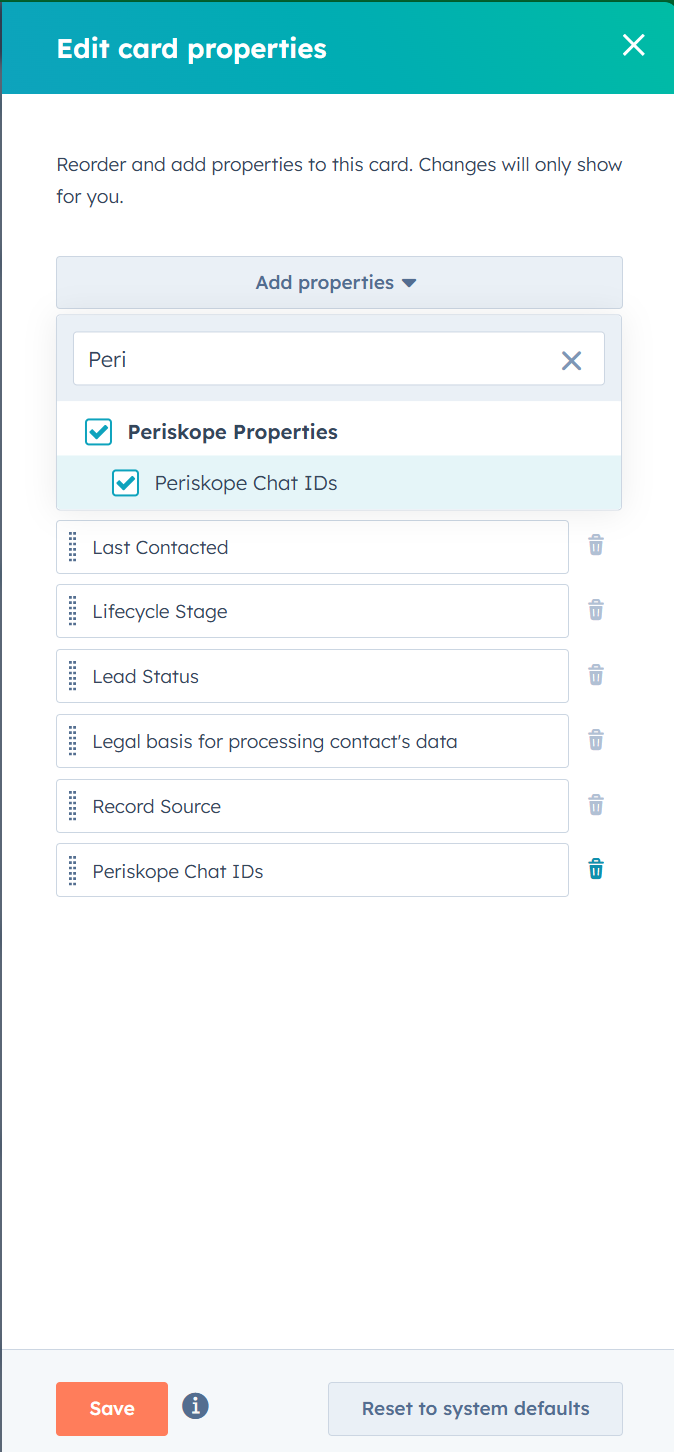
To view properties on HubSpot, you can customize properties on the contact/company/tickets page to change the visibility.
You can choose the properties you want to view on the contact/company/tickets page.
### 2. Resyncing Periskope properties on HubSpot
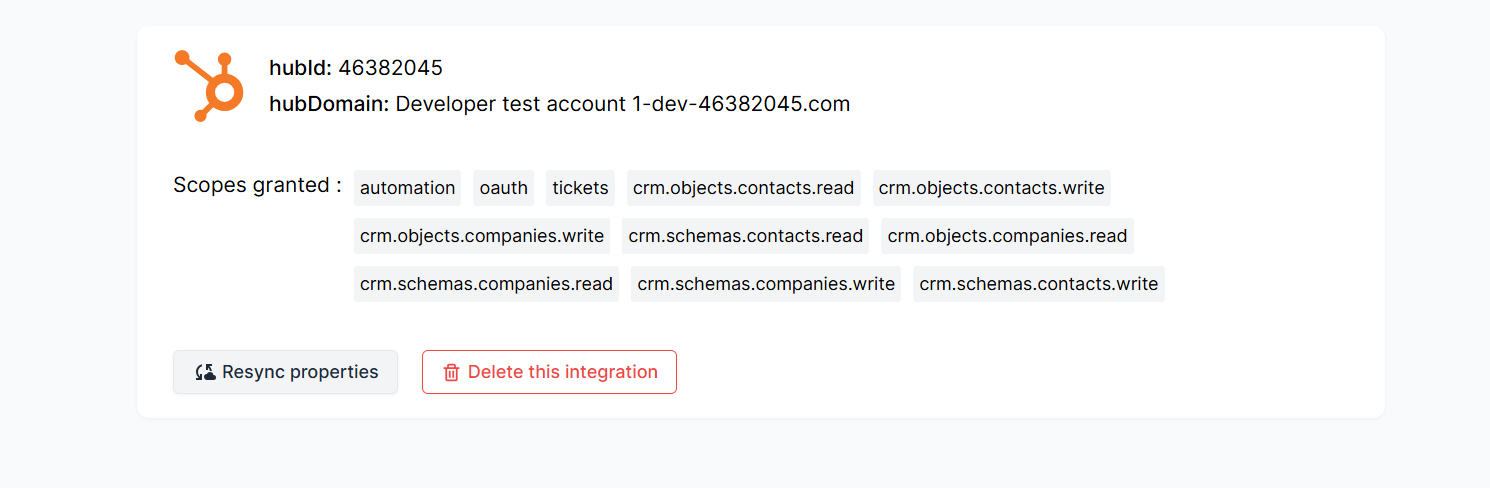
In case you add new team members or new properties on Periskope, you can refresh the properties on HubSpot. To resync the properties, you can click on the **Resync properties** button in settings.
### 3. Updating scope of the integration
In case you want to add any available scope of the integration after connecting,
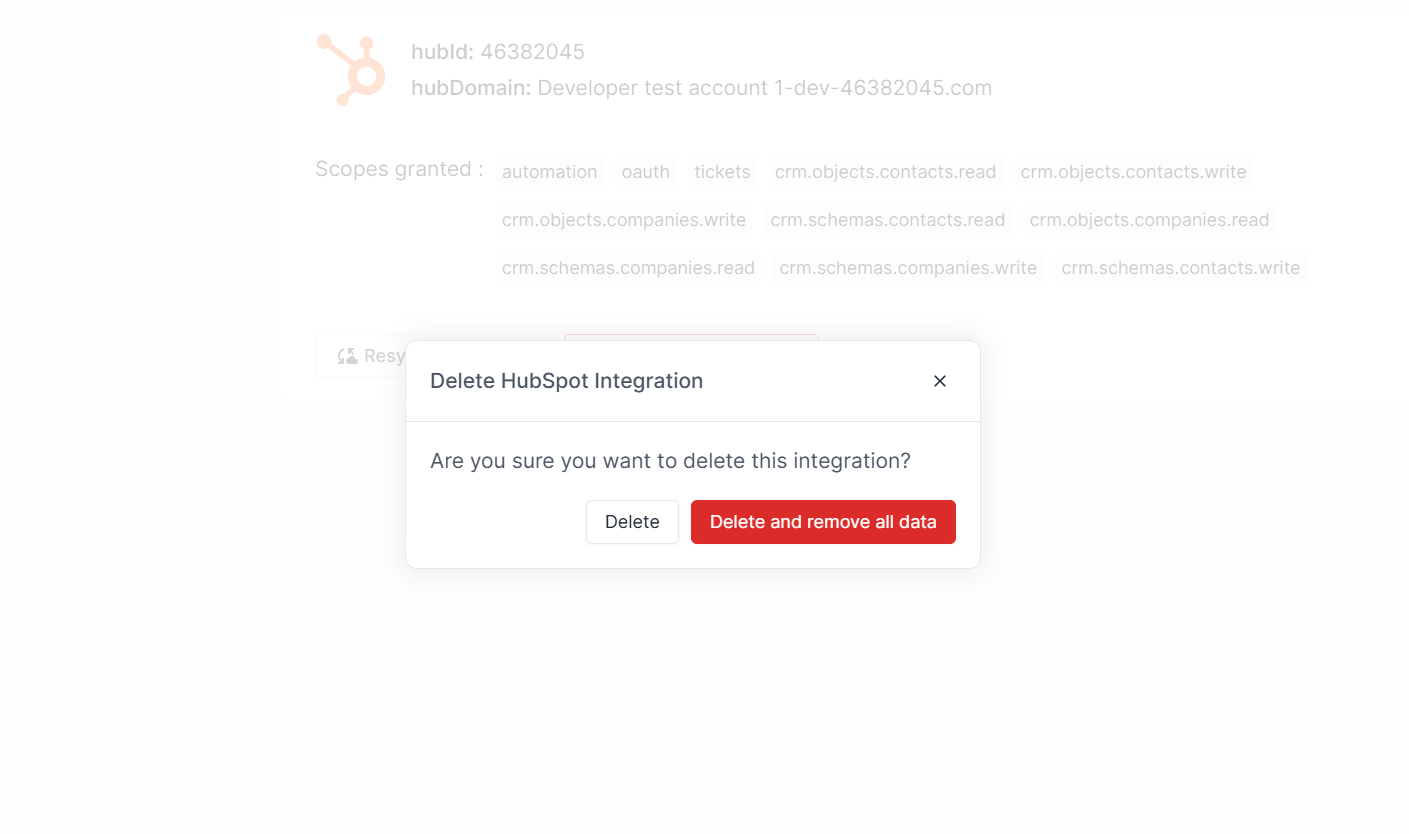
1. You can visit the [Periskope settings page](https://console.periskope.app/settings/integrations/hubspot) and click on **Delete**.
2. Choose to delete without removing data.
3. Reconnect the integrationg with added scope.
Currently we support only `workflows` as an additional scope.
### 4. Deleting the integration
To delete the integration, you can visit the [Periskope settings page](https://console.periskope.app/settings/integrations/hubspot) and click on **Delete**. You can choose to delete with or without data.
 2. Click on **connect**
 ## Prerequisites 📜
* A [HubSpot](https://hubspot.com/) account
* A [Periskope account](https://console.periskope.app)
## Steps to connect Periskope with HubSpot 🔧
## Prerequisites 📜
* A [HubSpot](https://hubspot.com/) account
* A [Periskope account](https://console.periskope.app)
## Steps to connect Periskope with HubSpot 🔧
 ->
->
 ->
->
 You can also link chats to contacts/companies from the HubSpot.
 2. Now you can **view** all details of the **linked contact/company** on the chat sidepanel on Periskope.
 3. All the properties are **automatically synced** from HubSpot. But, you can also **refresh** or **unlink** the HubSpot properties manually from the chat sidepanel.
 ### 2. Syncing WhatsApp messages to HubSpot 💬
Once you have turned on [**Enable automatic WhatsApp chat logging for Contacts and Companies**](https://console.periskope.app/settings/integrations/hubspot) in HubSpot settings, all the WhatsApp messages will be logged to HubSpot for the linked contact/company.
### 2. Syncing WhatsApp messages to HubSpot 💬
Once you have turned on [**Enable automatic WhatsApp chat logging for Contacts and Companies**](https://console.periskope.app/settings/integrations/hubspot) in HubSpot settings, all the WhatsApp messages will be logged to HubSpot for the linked contact/company.
 You can view the WhatsApp messages logged to HubSpot on the contact/company page.
 ### 3. Syncing tickets to HubSpot 🎟️
1. Once you have linked your HubSpot account with Periskope. The tickets created on Periskope will be **automatically synced** to HubSpot.
### 3. Syncing tickets to HubSpot 🎟️
1. Once you have linked your HubSpot account with Periskope. The tickets created on Periskope will be **automatically synced** to HubSpot.
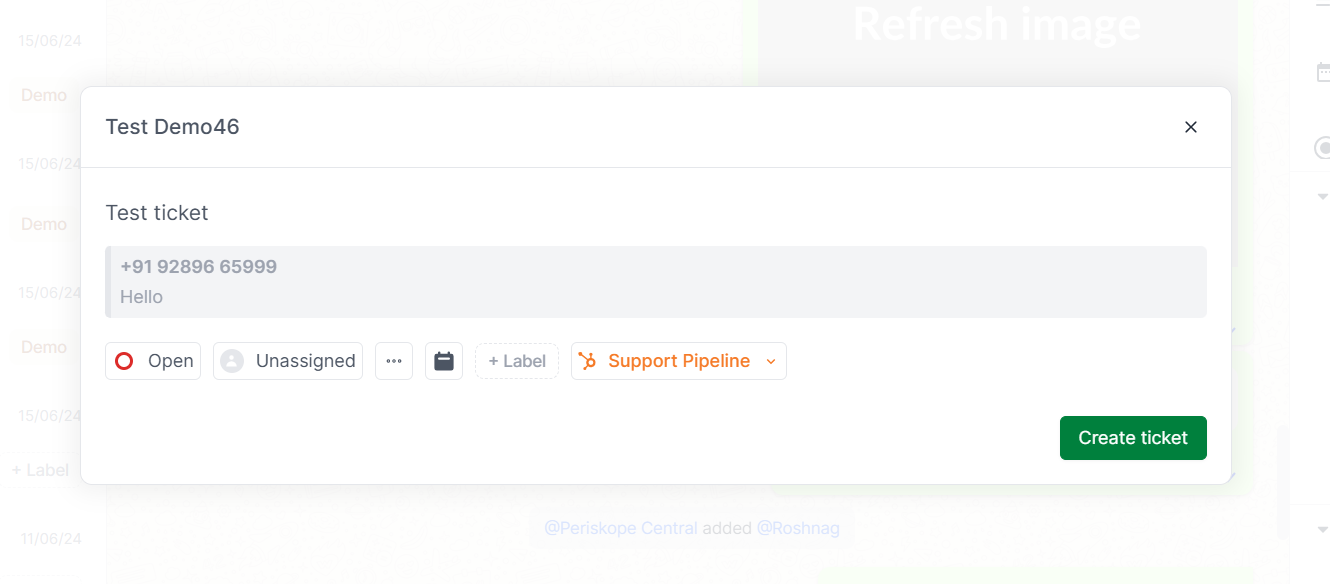 2. You can choose to switch between `pipelines` on HubSpot to view the ticket in the respective pipeline.
 3. You can also **view details** of the **linked ticket** on the sidepanel of both the platforms.
 4. You can also sync the **Ticket custom properties** of Periskope to HubSpot.
Create the ticket custom properties on Periskope and [**re-sync**](https://console.periskope.app/settings/integrations/hubspot) them to HubSpot.
4. You can also sync the **Ticket custom properties** of Periskope to HubSpot.
Create the ticket custom properties on Periskope and [**re-sync**](https://console.periskope.app/settings/integrations/hubspot) them to HubSpot.
 5. Attached Message to a ticket
You can view the attached messages to a ticket on HubSpot.
5. Attached Message to a ticket
You can view the attached messages to a ticket on HubSpot.
 ### 4. Auto-create contacts and companies on HubSpot 👤
Once you have turned on [**Enable automatic contact/company creation**](https://console.periskope.app/settings/integrations/hubspot) in HubSpot settings, whenever a new chat is created on Periskope, a new contact/company will be created on HubSpot.
### 4. Auto-create contacts and companies on HubSpot 👤
Once you have turned on [**Enable automatic contact/company creation**](https://console.periskope.app/settings/integrations/hubspot) in HubSpot settings, whenever a new chat is created on Periskope, a new contact/company will be created on HubSpot.
 ### 5. Sending a message using HubSpot workflow actions 📩
You can send a message to chats on Periskope using HubSpot workflow actions.
### 5. Sending a message using HubSpot workflow actions 📩
You can send a message to chats on Periskope using HubSpot workflow actions.
 #### Form fields -
 You can choose the properties you want to view on the contact/company/tickets page.
 ### 2. Resyncing Periskope properties on HubSpot
In case you add new team members or new properties on Periskope, you can refresh the properties on HubSpot. To resync the properties, you can click on the **Resync properties** button in settings.
### 2. Resyncing Periskope properties on HubSpot
In case you add new team members or new properties on Periskope, you can refresh the properties on HubSpot. To resync the properties, you can click on the **Resync properties** button in settings.
 ### 3. Updating scope of the integration
In case you want to add any available scope of the integration after connecting,
1. You can visit the [Periskope settings page](https://console.periskope.app/settings/integrations/hubspot) and click on **Delete**.
2. Choose to delete without removing data.
### 3. Updating scope of the integration
In case you want to add any available scope of the integration after connecting,
1. You can visit the [Periskope settings page](https://console.periskope.app/settings/integrations/hubspot) and click on **Delete**.
2. Choose to delete without removing data.