> ## Documentation Index
> Fetch the complete documentation index at: https://docs.periskope.app/llms.txt
> Use this file to discover all available pages before exploring further.
# Google Sheets
> Connect Whatsapp to Google Sheets
### Introduction
This guide explains how to connect your Periskope platform directly to Google Sheets, allowing you to automatically sync your WhatsApp data for real-time reporting and analysis.
***
### Overview
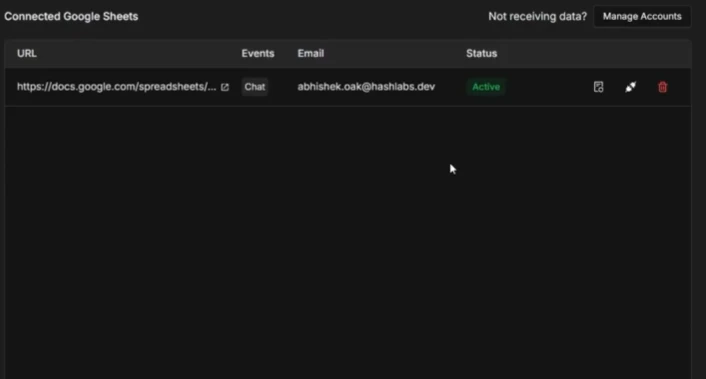
Periskope’s Google Sheets integration eliminates manual data entry by piping events—such as new chats, incoming messages, and ticket updates—directly into your spreadsheets. You can monitor sync status and manage multiple data streams from a single dashboard.\\
***
### Prerequisites
Before you begin, ensure you have:
* A Google Account.
* A Periskope Account.
* A Google Sheet created and ready for data.
***
### Step-by-Step Setup
Follow these steps to authorize your account and start syncing data.
#### Step 1: Authorize Google Access
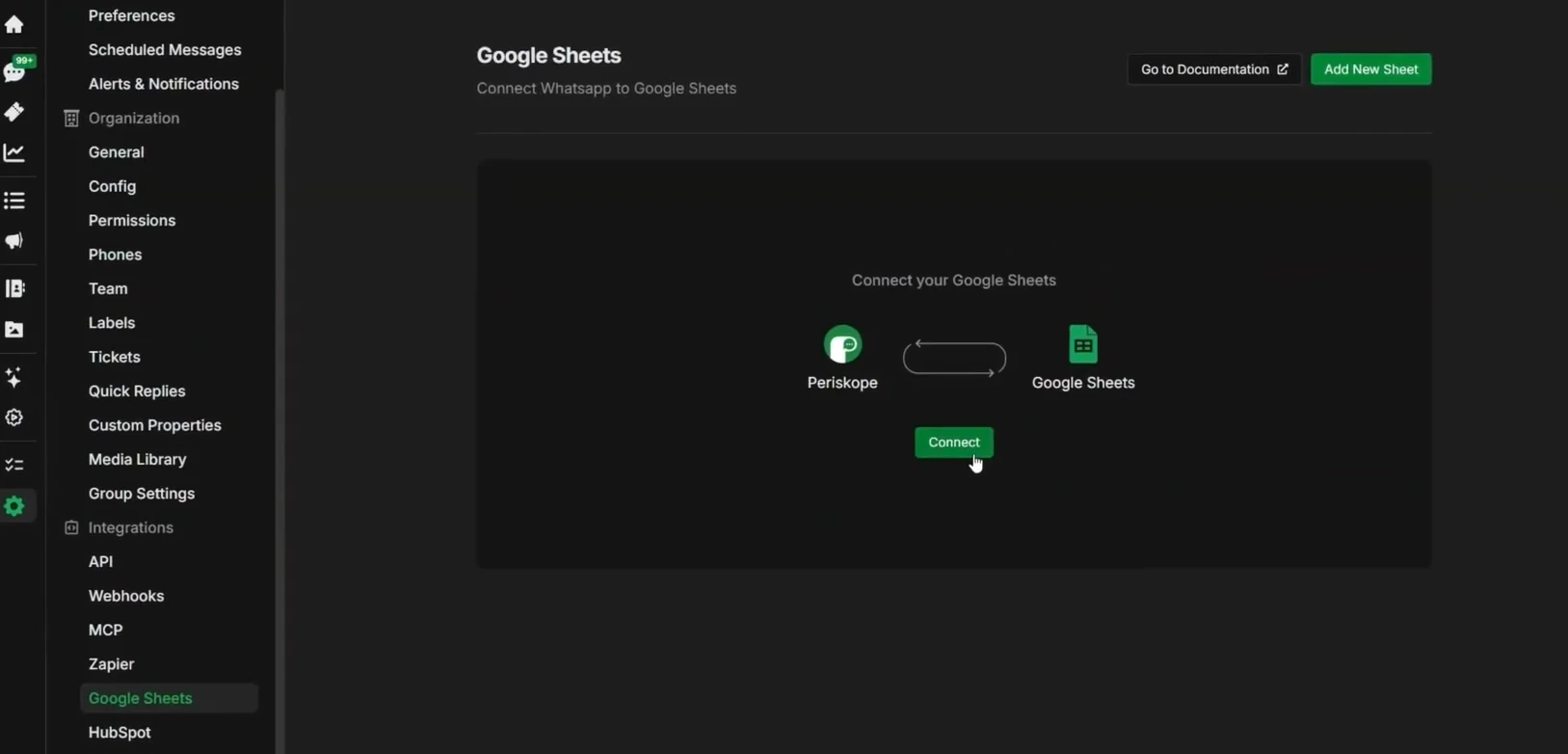
* Navigate to **Settings** and open the **Integrations** panel.
* Select **Google Sheets** from the list and click **Connect**.
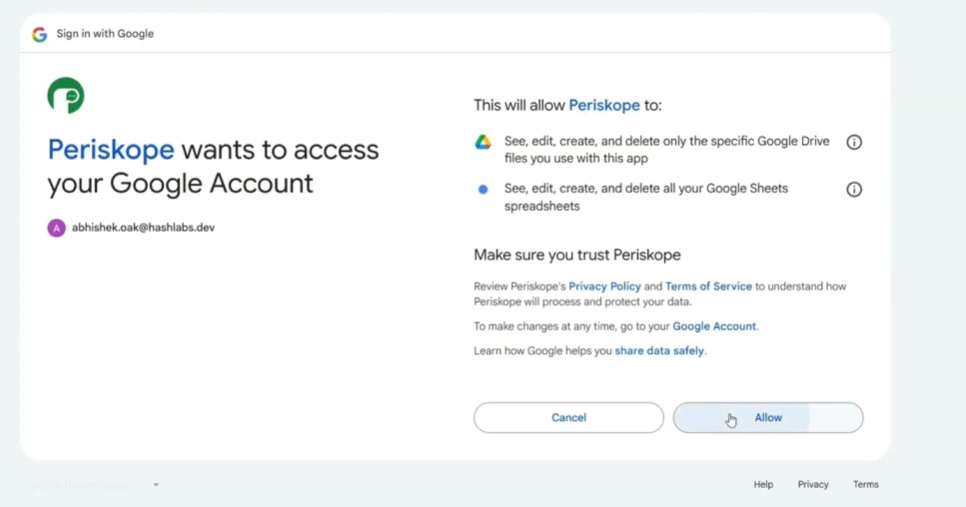
* You will be redirected to the Google sign-in page; select the Google account you want to use.
* **Review Permissions:** Periskope will request access to see, edit, create, and delete specific Google Drive files and spreadsheets. Click **Allow**.
#### Step 2: Link Your Spreadsheet
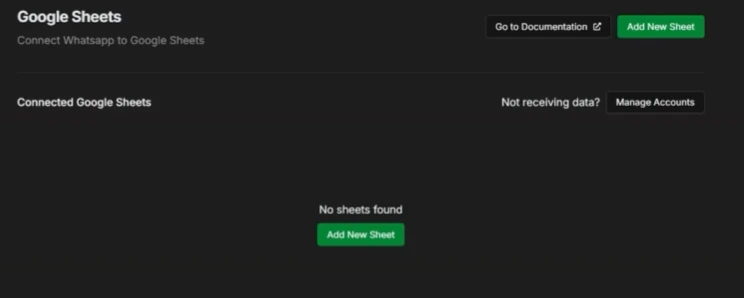
* Once connected, click the **Add New Sheet** button.
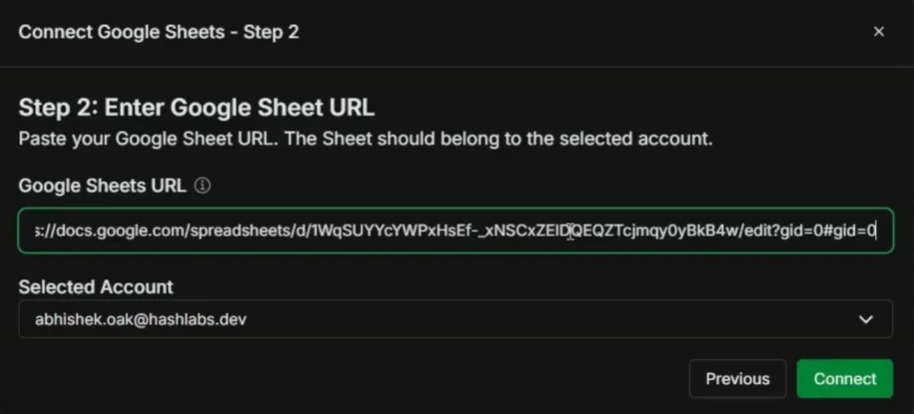
* **Copy and Paste URL:** Open your target Google Sheet, copy the URL from your browser, and paste it into the URL field in Periskope.
* **Validation:** Ensure the sheet belongs to the same Google account you authorized in Step 1.
#### Step 3: Select Events & Subscribe
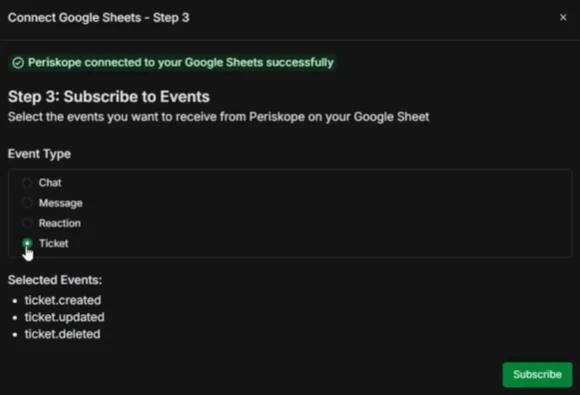
* Select the specific WhatsApp events you want to track in this sheet:
* **New Chats:** Logs whenever a new conversation starts.
* **Incoming Messages:** Captures all incoming text and media.
* **Ticket Updates:** Tracks changes in support ticket status.
* **Reactions:** Logs emoji reactions to messages.\
\
**Events** Currently, we support the following events for Google Sheets integration.
1. 👥 chat.created [**🔗**](https://docs.periskope.app/api-reference/objects/the-chat-object)
2. 💬 message.created [**🔗**](https://docs.periskope.app/api-reference/objects/the-message-object)
3. 💬 message.updated [**🔗**](https://docs.periskope.app/api-reference/objects/the-message-object)
4. 💬 message.deleted [**🔗**](https://docs.periskope.app/api-reference/objects/the-message-object)
5. 💬 message.ack.updated [**🔗**](https://docs.periskope.app/api-reference/objects/the-message-object)
6. 💬 message.ticket.attached [**🔗**](https://docs.periskope.app/api-reference/objects/the-message-object)
7. 😀 reaction.created [**🔗**](https://docs.periskope.app/api-reference/objects/the-reaction-object)
8. 😀 reaction.updated [**🔗**](https://docs.periskope.app/api-reference/objects/the-reaction-object)
9. 🏷️ ticket.created [**🔗**](https://docs.periskope.app/api-reference/objects/the-ticket-object)
10. 🏷️ ticket.updated [**🔗**](https://docs.periskope.app/api-reference/objects/the-ticket-object)
11. 🏷️ ticket.deleted [**🔗**](https://docs.periskope.app/api-reference/objects/the-ticket-object)
* Click **Subscribe** to finalize the connection.\\
***
## Troubleshooting
If you're not receiving data:
Verify that your Google Sheets connection is active in Periskope
Ensure you've granted all necessary permissions to Periskope
Confirm your Google account has sufficient access rights. Make your sheet access public to avoid any further issues.
If issues persist, reach out to our support team
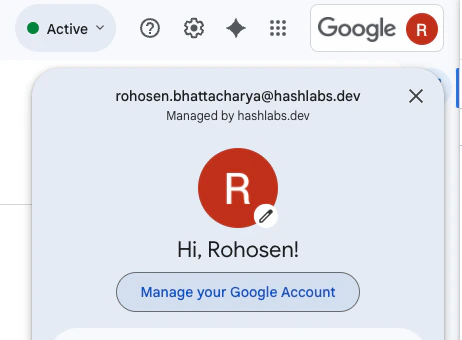
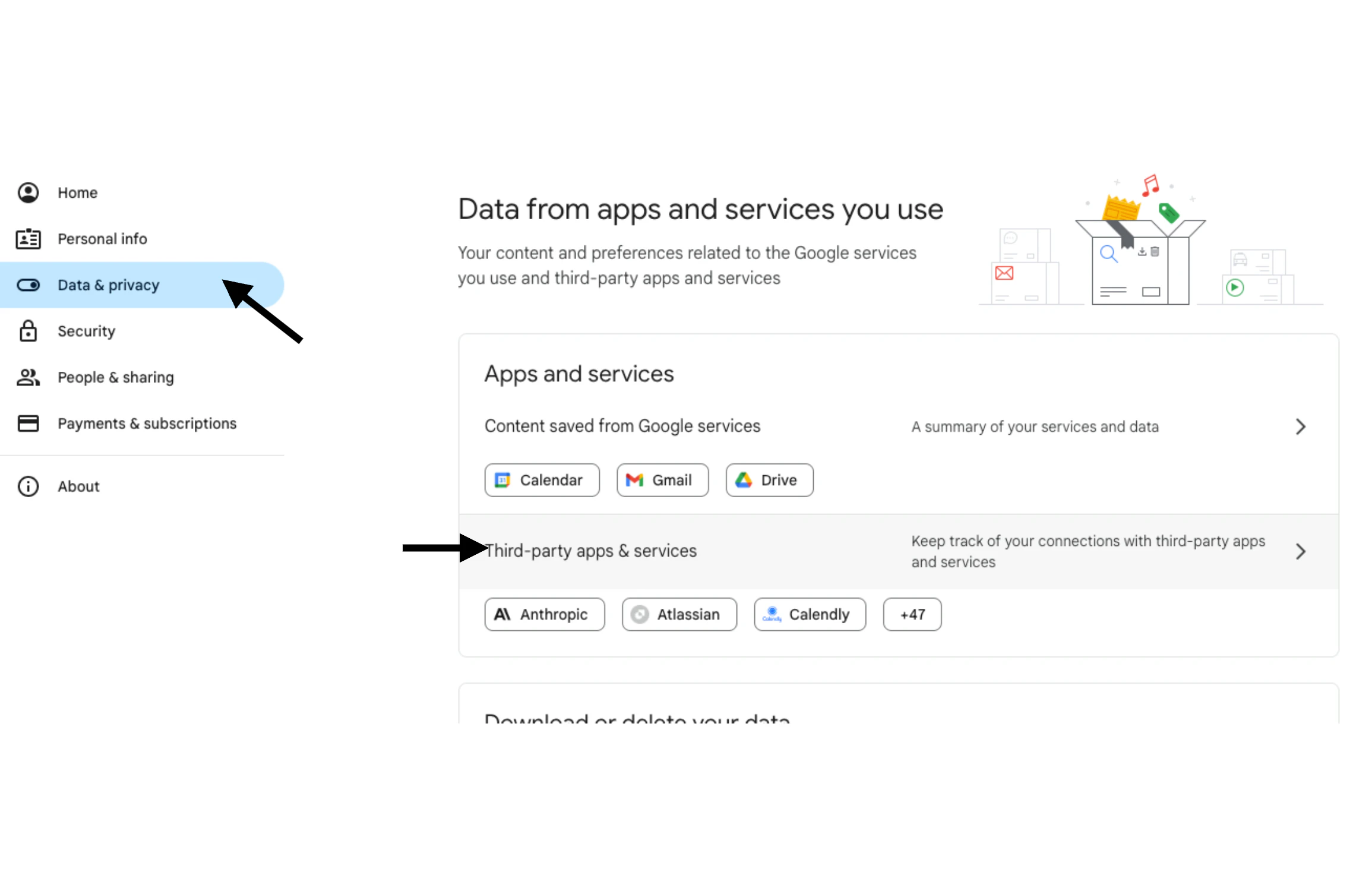
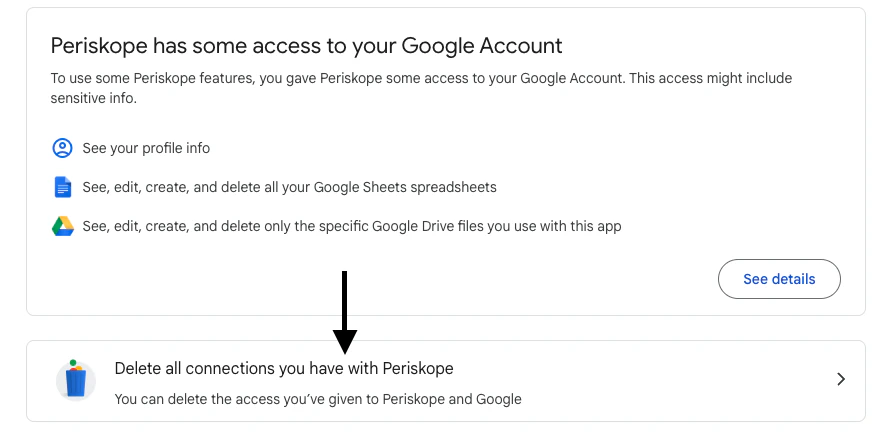
### Revoking access manually for a fresh connection
If you're not receiving any data, your token might have been revoked from Google and will require you to do a fresh integration.
This should properly reset all your connection with Periskope. You can now reconnect your Google Sheet account with Periskope.
## Security and Permissions
Periskope maintains secure access to your Google Sheets through OAuth 2.0. You can review and revoke access at any time through your Google Account settings. Periskope only asks for limited permissions to your Google Sheet and Google Drive:
1. Read, Edit, Create and Delete only specific files on Google Drive that were shared with Periskope (via the URL)
2. See, Edit, Create and Delete your spreadsheets. (Only those via shared via the URL)
***
That's it! Your Periskope account is now connected to Google Sheets, and your selected data will automatically sync to your spreadsheets.See, Edit, Create and Delete your spreadsheets. (Only those via shared via the URL)

 #### Step 2: Link Your Spreadsheet
* Once connected, click the **Add New Sheet** button.
* **Copy and Paste URL:** Open your target Google Sheet, copy the URL from your browser, and paste it into the URL field in Periskope.
* **Validation:** Ensure the sheet belongs to the same Google account you authorized in Step 1.
#### Step 2: Link Your Spreadsheet
* Once connected, click the **Add New Sheet** button.
* **Copy and Paste URL:** Open your target Google Sheet, copy the URL from your browser, and paste it into the URL field in Periskope.
* **Validation:** Ensure the sheet belongs to the same Google account you authorized in Step 1.
 #### Step 3: Select Events & Subscribe
* Select the specific WhatsApp events you want to track in this sheet:
* **New Chats:** Logs whenever a new conversation starts.
* **Incoming Messages:** Captures all incoming text and media.
* **Ticket Updates:** Tracks changes in support ticket status.
* **Reactions:** Logs emoji reactions to messages.\
\
**Events** Currently, we support the following events for Google Sheets integration.
1. 👥 chat.created [**🔗**](https://docs.periskope.app/api-reference/objects/the-chat-object)
2. 💬 message.created [**🔗**](https://docs.periskope.app/api-reference/objects/the-message-object)
3. 💬 message.updated [**🔗**](https://docs.periskope.app/api-reference/objects/the-message-object)
4. 💬 message.deleted [**🔗**](https://docs.periskope.app/api-reference/objects/the-message-object)
5. 💬 message.ack.updated [**🔗**](https://docs.periskope.app/api-reference/objects/the-message-object)
6. 💬 message.ticket.attached [**🔗**](https://docs.periskope.app/api-reference/objects/the-message-object)
7. 😀 reaction.created [**🔗**](https://docs.periskope.app/api-reference/objects/the-reaction-object)
8. 😀 reaction.updated [**🔗**](https://docs.periskope.app/api-reference/objects/the-reaction-object)
9. 🏷️ ticket.created [**🔗**](https://docs.periskope.app/api-reference/objects/the-ticket-object)
10. 🏷️ ticket.updated [**🔗**](https://docs.periskope.app/api-reference/objects/the-ticket-object)
11. 🏷️ ticket.deleted [**🔗**](https://docs.periskope.app/api-reference/objects/the-ticket-object)
* Click **Subscribe** to finalize the connection.\\
#### Step 3: Select Events & Subscribe
* Select the specific WhatsApp events you want to track in this sheet:
* **New Chats:** Logs whenever a new conversation starts.
* **Incoming Messages:** Captures all incoming text and media.
* **Ticket Updates:** Tracks changes in support ticket status.
* **Reactions:** Logs emoji reactions to messages.\
\
**Events** Currently, we support the following events for Google Sheets integration.
1. 👥 chat.created [**🔗**](https://docs.periskope.app/api-reference/objects/the-chat-object)
2. 💬 message.created [**🔗**](https://docs.periskope.app/api-reference/objects/the-message-object)
3. 💬 message.updated [**🔗**](https://docs.periskope.app/api-reference/objects/the-message-object)
4. 💬 message.deleted [**🔗**](https://docs.periskope.app/api-reference/objects/the-message-object)
5. 💬 message.ack.updated [**🔗**](https://docs.periskope.app/api-reference/objects/the-message-object)
6. 💬 message.ticket.attached [**🔗**](https://docs.periskope.app/api-reference/objects/the-message-object)
7. 😀 reaction.created [**🔗**](https://docs.periskope.app/api-reference/objects/the-reaction-object)
8. 😀 reaction.updated [**🔗**](https://docs.periskope.app/api-reference/objects/the-reaction-object)
9. 🏷️ ticket.created [**🔗**](https://docs.periskope.app/api-reference/objects/the-ticket-object)
10. 🏷️ ticket.updated [**🔗**](https://docs.periskope.app/api-reference/objects/the-ticket-object)
11. 🏷️ ticket.deleted [**🔗**](https://docs.periskope.app/api-reference/objects/the-ticket-object)
* Click **Subscribe** to finalize the connection.\\
 ***
## Troubleshooting
If you're not receiving data:
***
## Troubleshooting
If you're not receiving data: