> ## Documentation Index
> Fetch the complete documentation index at: https://docs.periskope.app/llms.txt
> Use this file to discover all available pages before exploring further.
# Freshdesk
> Guide to setup Freshdesk Integration on Periskope
## Prerequisites 📜
* A [Freshdesk](https://www.freshworks.com/freshdesk/) account
* A [Periskope account](https://console.periskope.app)
## Steps to connect Periskope with Freshdesk 🔧
1. To connect your Freshdesk, you must have a Periskope account. Once logged into the account, visit [here](https://console.periskope.app/settings/freshdesk) to connect Freshdesk.
2. Click on **connect**
In order to connect your Freshdesk account, you need to provide the following details:
1. **Freshdesk Domain**: Enter your Freshdesk domain. For example, `https://example.freshdesk.com`.
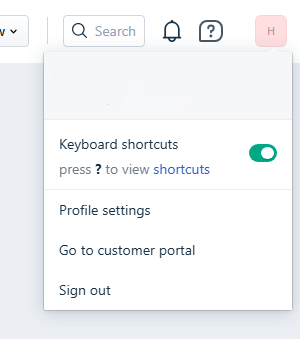
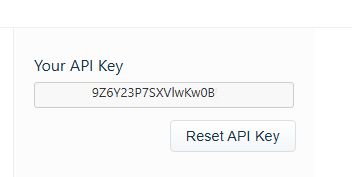
2. **API Key**: To get the API key, log in to your Freshdesk account and navigate to `Profile Settings` > `Your API Key`.
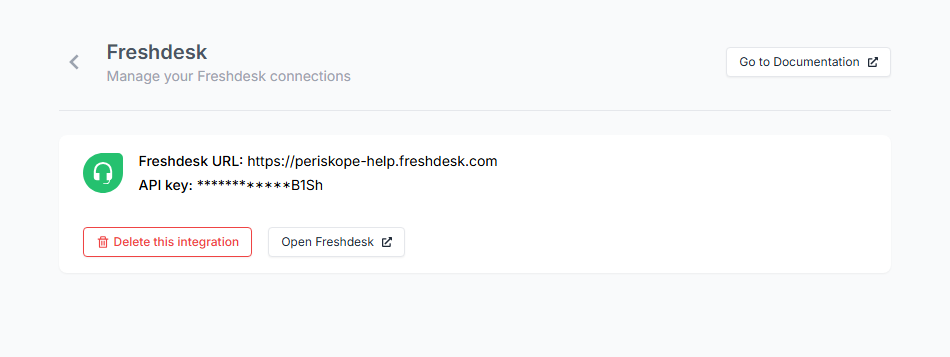
Now you have successfully connected your Freshdesk account with Periskope. You can now use the integration to sync tickets on Periskope to Freshdesk.
## Done 🎉
You've now successfully integrated Freshdesk with Periskope. Now you can sync tickets on Periskope to Freshdesk.
For any queries, reach out to us [here](https://what.sapp.link/periskope)
 ## Prerequisites 📜
* A [Freshdesk](https://www.freshworks.com/freshdesk/) account
* A [Periskope account](https://console.periskope.app)
## Steps to connect Periskope with Freshdesk 🔧
## Prerequisites 📜
* A [Freshdesk](https://www.freshworks.com/freshdesk/) account
* A [Periskope account](https://console.periskope.app)
## Steps to connect Periskope with Freshdesk 🔧
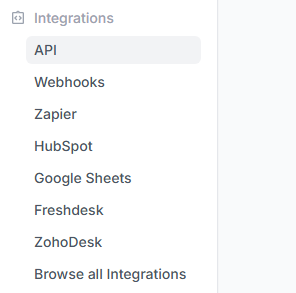 2. Click on **connect**
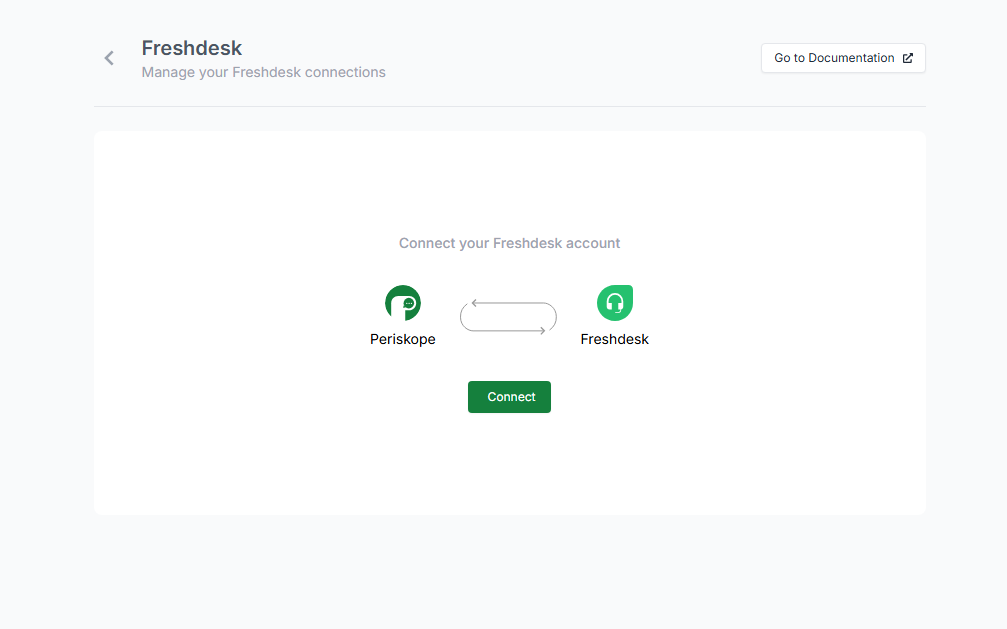 In order to connect your Freshdesk account, you need to provide the following details:
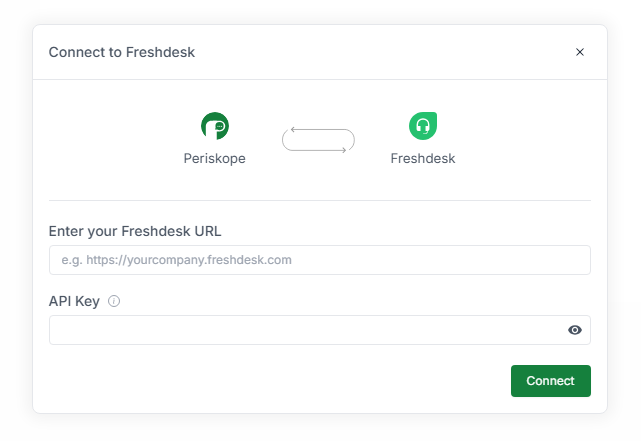 1. **Freshdesk Domain**: Enter your Freshdesk domain. For example, `https://example.freshdesk.com`.
2. **API Key**: To get the API key, log in to your Freshdesk account and navigate to `Profile Settings` > `Your API Key`.
1. **Freshdesk Domain**: Enter your Freshdesk domain. For example, `https://example.freshdesk.com`.
2. **API Key**: To get the API key, log in to your Freshdesk account and navigate to `Profile Settings` > `Your API Key`.