> ## Documentation Index
> Fetch the complete documentation index at: https://docs.periskope.app/llms.txt
> Use this file to discover all available pages before exploring further.
# Connect WhatsApp to Periskope
> Guide to connecting your WhatsApp numbers to Periskope
## Overview
You can connect Periskope to any normal or business WhatsApp number that you use for your official business communication.
**WhatsApp API numbers** cannot be linked to Periskope.
Once connected, Periskope will sync all chats and groups that this number is part of. You can then manage these chats and groups from the Periskope dashboard.
In order to perform any bulk actions like adding or removing members from a group, the connected WhatsApp number must be an admin on that group.
## Connecting WhatsApp to Periskope account
1. A phone number that you will use to manage all your official WhatsApp chats, groups and communities logged in on WhatsApp.
2. A Periskope account. If you don't have one, you can [sign up here](https://periskope.app/login).
Once logged into Periskope, you will see a Getting started screen with a `Scan QR` option as shown below.
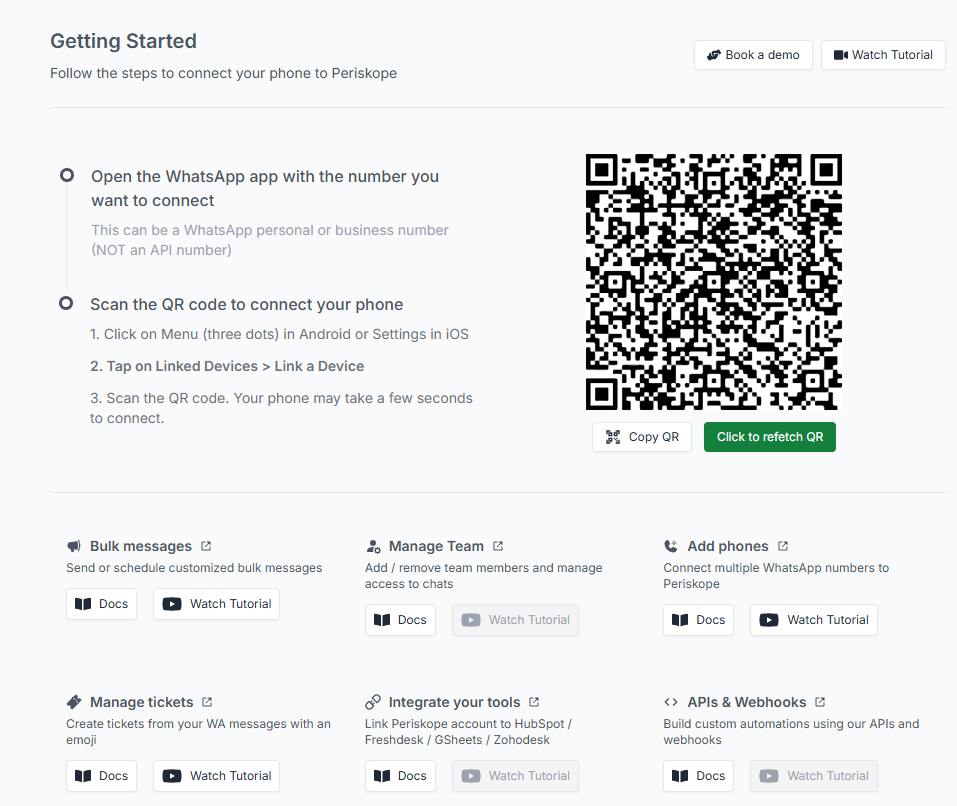 1. Open Settings on your WhatsApp App and click on **Link device**
2. Now scan the QR code on the screem
If you face any errors, click on **refetch QR** to fetch a new QR code.
Once you're successfully connected to WhatsApp, you will see following screen on Periskope.
1. Open Settings on your WhatsApp App and click on **Link device**
2. Now scan the QR code on the screem
If you face any errors, click on **refetch QR** to fetch a new QR code.
Once you're successfully connected to WhatsApp, you will see following screen on Periskope.
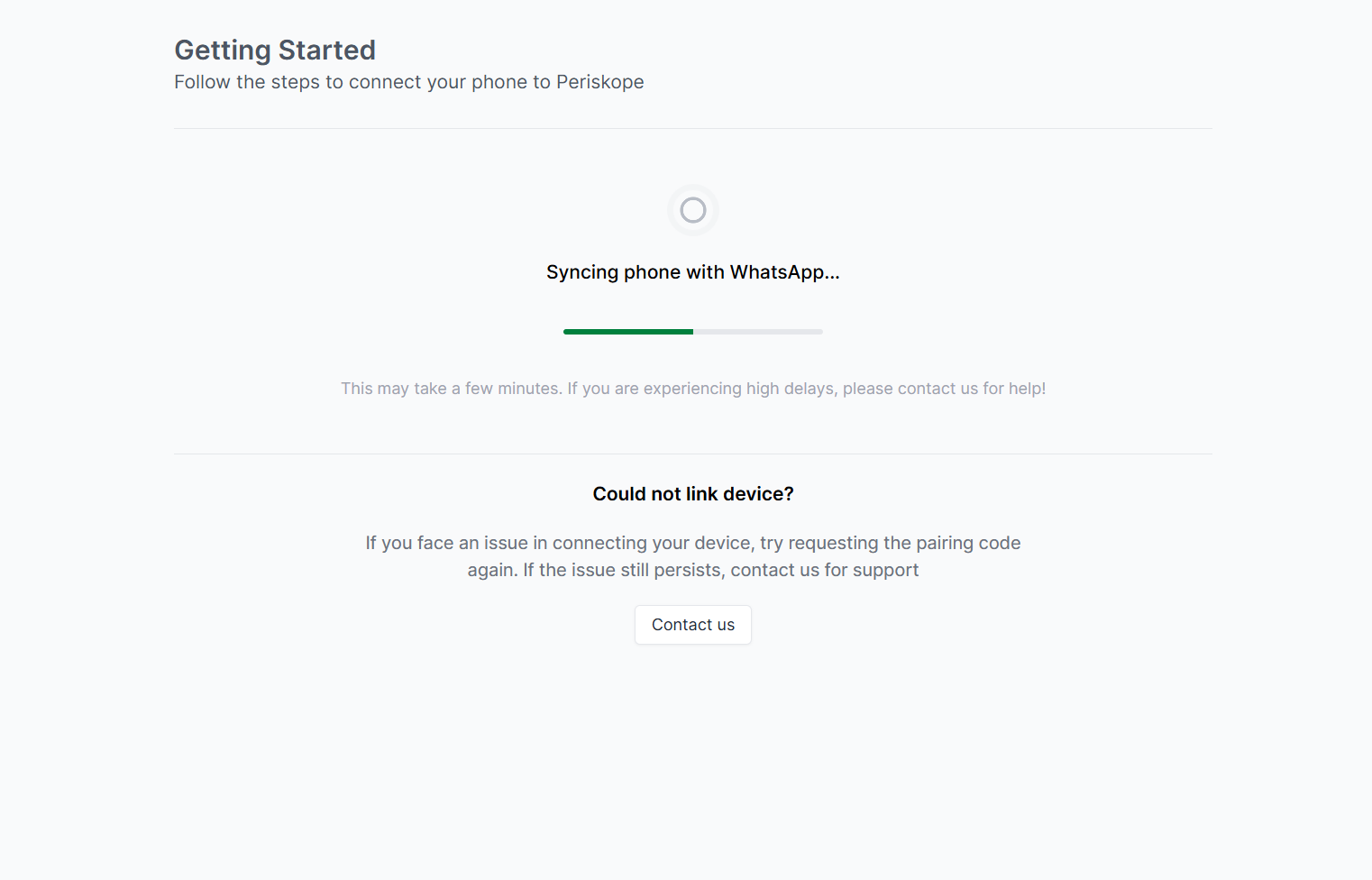 After the sync is performed, you'll be able to see the metrics and chats on Periskope.
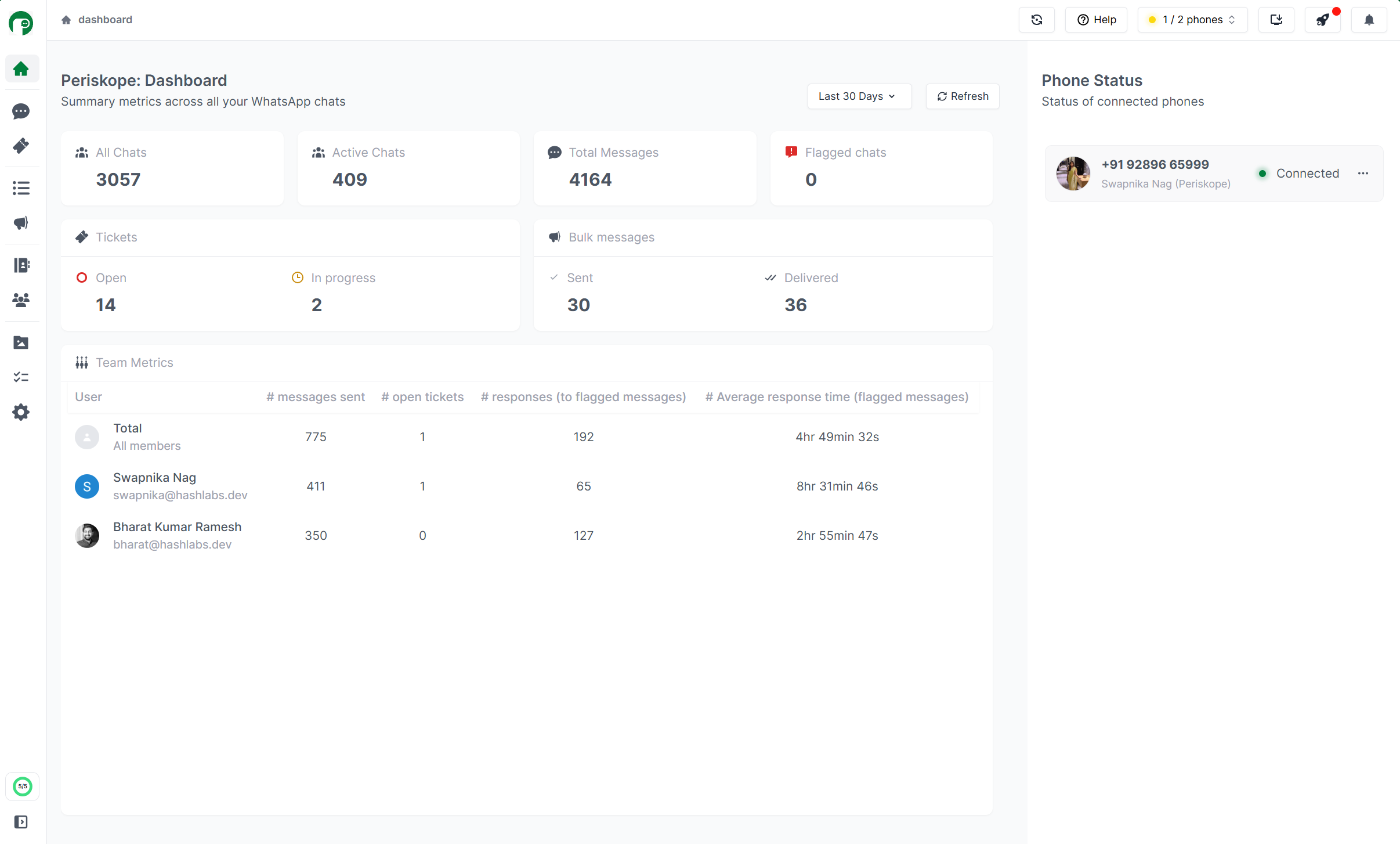 To perform any action regarding your phone (such as restart, resync, delete), you can visit [here](https://periskope.app/settings/phones).
To add more phones, you can visit [here](https://periskope.app/settings/phones).
To perform any action regarding your phone (such as restart, resync, delete), you can visit [here](https://periskope.app/settings/phones).
To add more phones, you can visit [here](https://periskope.app/settings/phones).