> ## Documentation Index
> Fetch the complete documentation index at: https://docs.periskope.app/llms.txt
> Use this file to discover all available pages before exploring further.
# Workspace Metrics
> View and understand message, ticket, and team performance metrics across your Periskope workspace
## Overview
Once you have connected your WhatsApp numbers to Periskope, you can view and understand the metrics on the dashboard.
## Understanding the metrics
Periskope dashboard consists primarily of two sections:
1. **Metrics**: This section consists of the key metrics for your WhatsApp numbers and team.
2. **Connected Phones**: This section lists all the connected WhatsApp numbers. You can see the status of the phone and also perform actions on it.
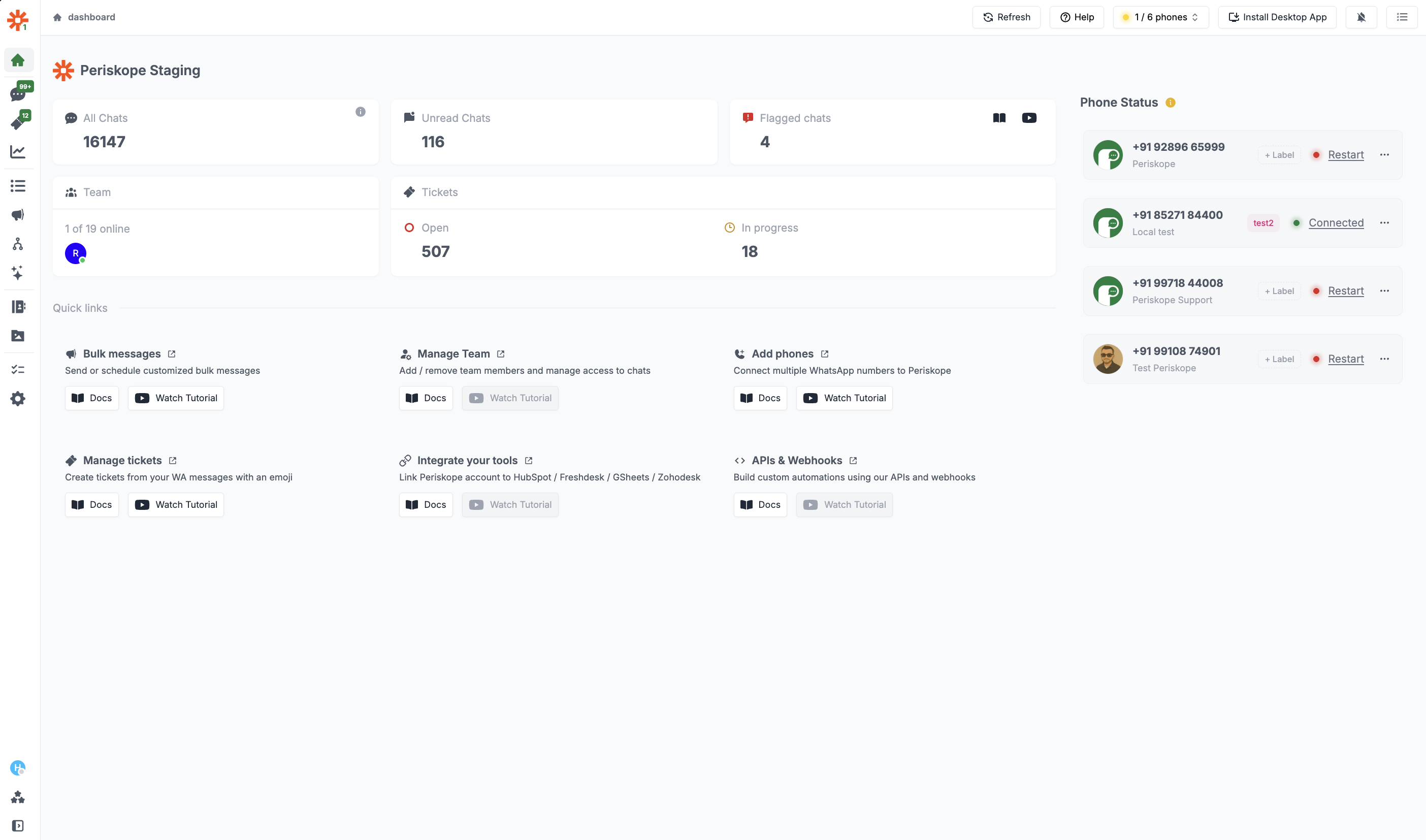 The dashboard metrics section provides a summary of the key metrics for your WhatsApp numbers. Here's a quick overview of the metrics:
1. **All Chats**: The total number of chats that the connected WhatsApp number is part of.
2. **Unread Chats** : The total number of chats that are unread by the team members.
3. **Flagged chats**: Total number of chats that are **flagged as important** by AI and team members based on selected days filter.
4. **Tickets**: The number of tickets that are **open** and are **in progress**.
5. **Team**: The number of team members that are online.
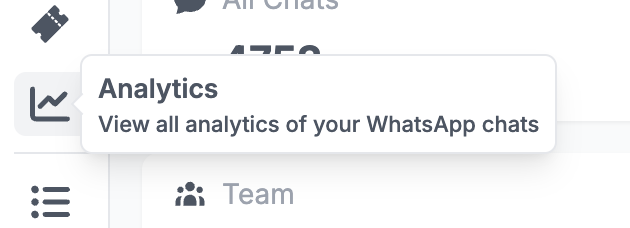
To know more about your WhatsApp metrics navigate to the `Analytics` page by clicking the Analytics button on the left hand side of the side panel.
The dashboard metrics section provides a summary of the key metrics for your WhatsApp numbers. Here's a quick overview of the metrics:
1. **All Chats**: The total number of chats that the connected WhatsApp number is part of.
2. **Unread Chats** : The total number of chats that are unread by the team members.
3. **Flagged chats**: Total number of chats that are **flagged as important** by AI and team members based on selected days filter.
4. **Tickets**: The number of tickets that are **open** and are **in progress**.
5. **Team**: The number of team members that are online.
To know more about your WhatsApp metrics navigate to the `Analytics` page by clicking the Analytics button on the left hand side of the side panel.
 Metrics are divided into `three sections`:
#### 1. Message metrics 💬
Metrics are divided into `three sections`:
#### 1. Message metrics 💬
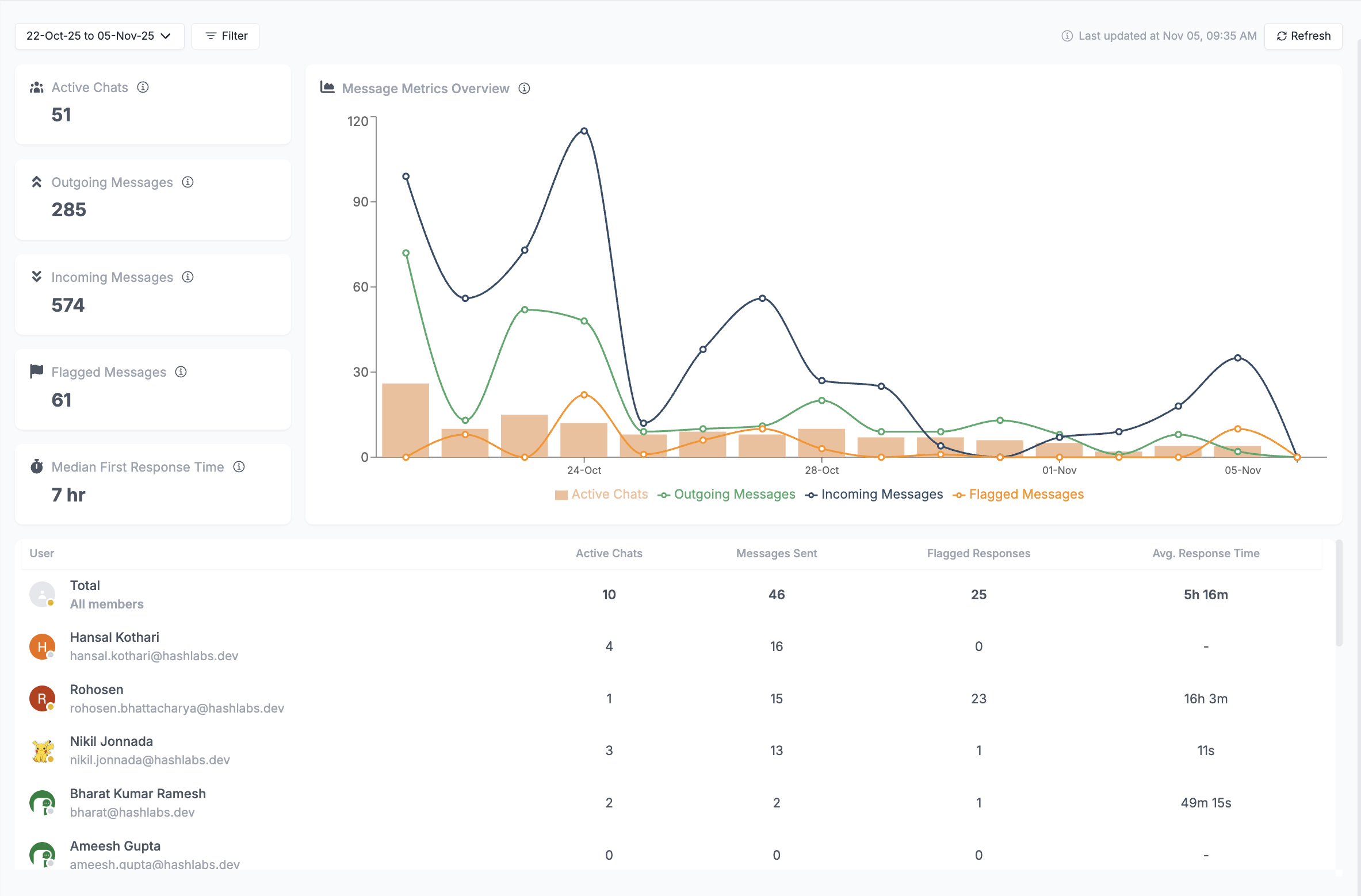 Message metrics provide insights into your WhatsApp messages of your team. Here's a quick overview of the messages metrics:
1. **Messages statics over the selected time period**:
* **Active chats**: The total number of unique active chats.
* **Outgoing messages**: The total number of messages sent by your team members.
* **Incoming messages**: The total number of messages received by your WhatsApp number(s).
* **Flagged messages**: The total number of messages that are flagged as important by AI and team members.
* **Median first response time**: The median time taken by the team to respond to a message.
Message metrics provide insights into your WhatsApp messages of your team. Here's a quick overview of the messages metrics:
1. **Messages statics over the selected time period**:
* **Active chats**: The total number of unique active chats.
* **Outgoing messages**: The total number of messages sent by your team members.
* **Incoming messages**: The total number of messages received by your WhatsApp number(s).
* **Flagged messages**: The total number of messages that are flagged as important by AI and team members.
* **Median first response time**: The median time taken by the team to respond to a message.
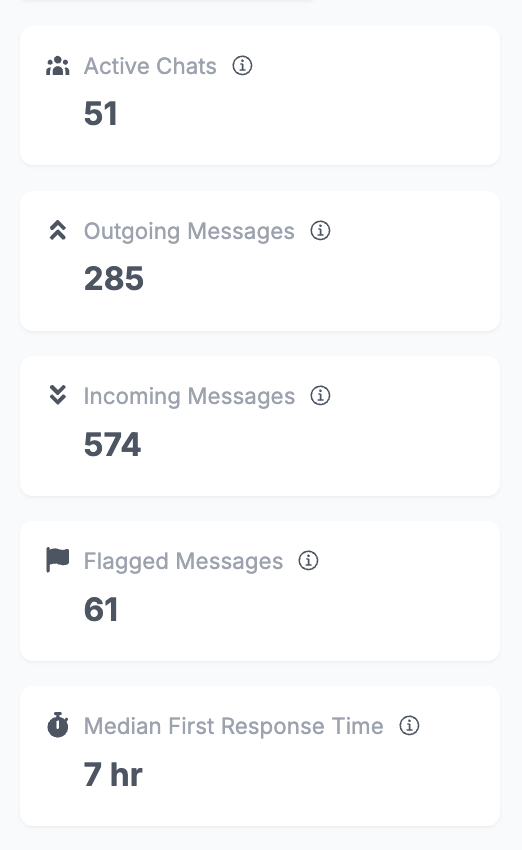 2. **Message Metrics Overview Graph**:
* Shows the number of flagged, incoming, outgoing and active chats over the selected time and filters applied.
2. **Message Metrics Overview Graph**:
* Shows the number of flagged, incoming, outgoing and active chats over the selected time and filters applied.
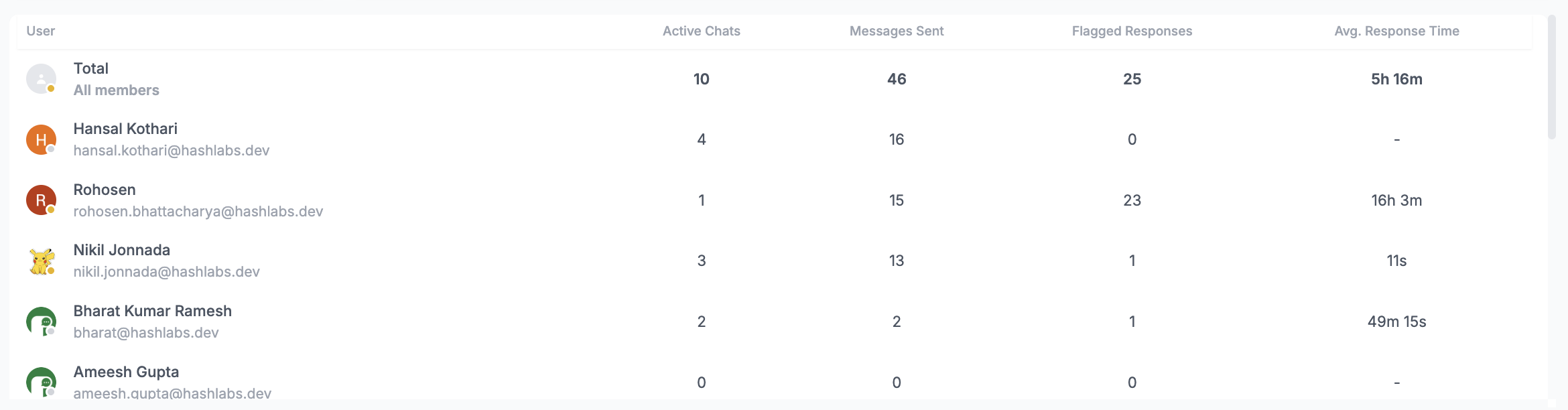
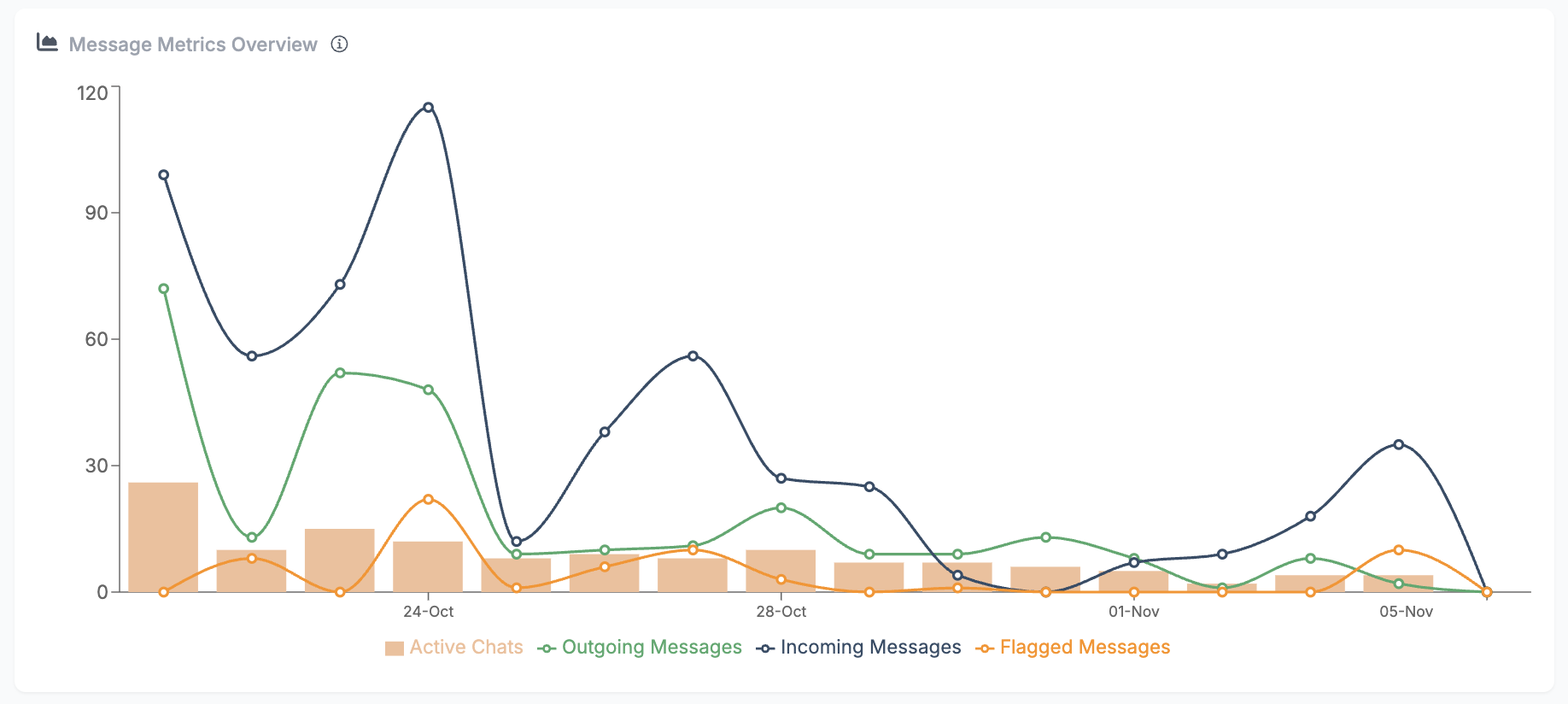 3. **Team Message Metrics**:
* Shows you the list of all the members with their active chats, messages sent and flagged responses over the selected time period and filters applied.
3. **Team Message Metrics**:
* Shows you the list of all the members with their active chats, messages sent and flagged responses over the selected time period and filters applied.
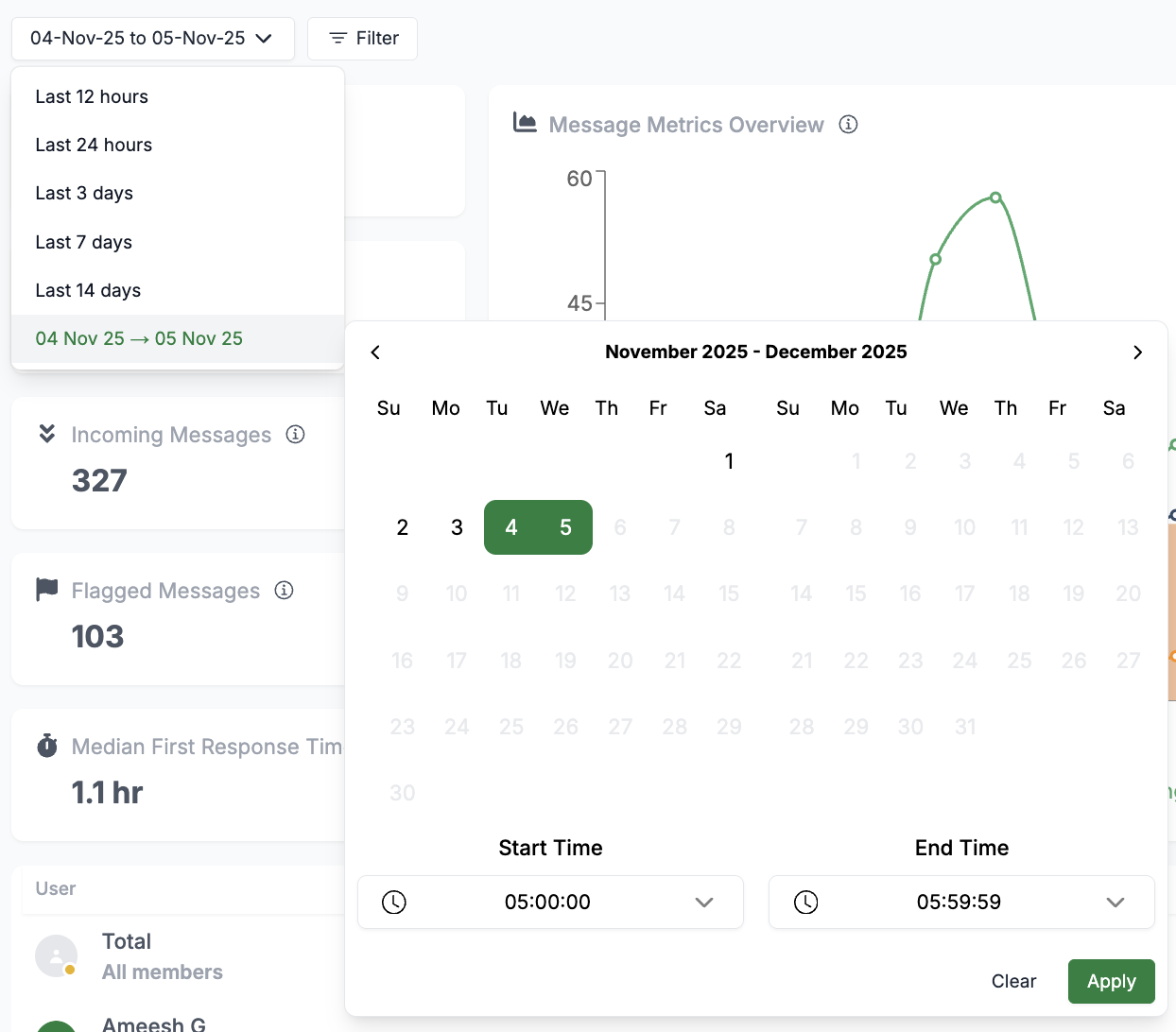
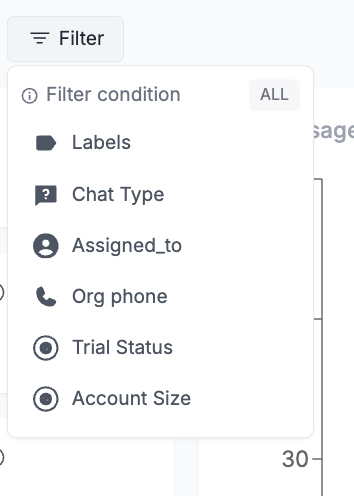
 You can filter out data based on your requirements. The default filter is set to Last 7 days with no labels selected.
#### 2. Ticket metrics 🏷️
You can filter out data based on your requirements. The default filter is set to Last 7 days with no labels selected.
#### 2. Ticket metrics 🏷️
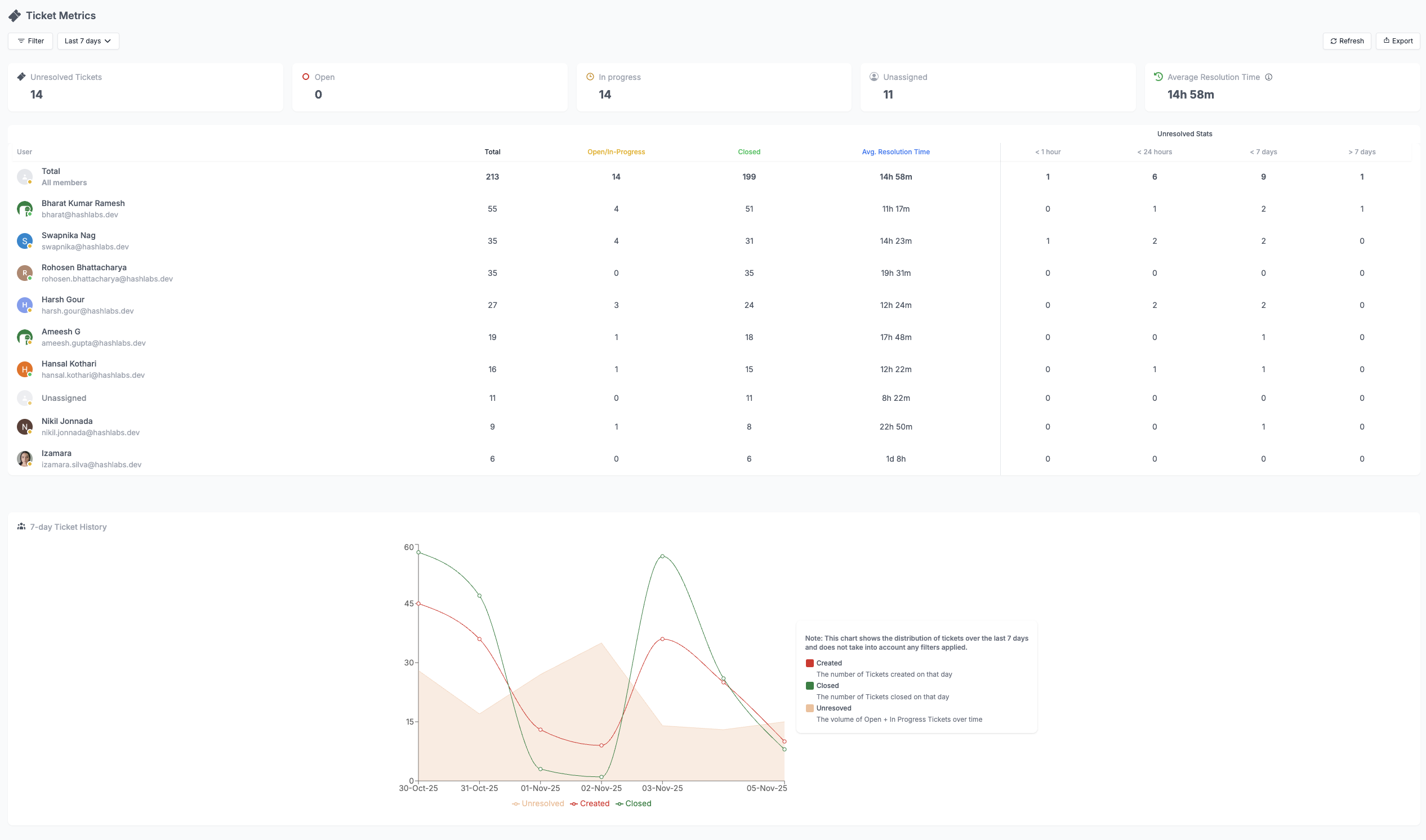 Ticket metrics provide insights into the performance of your team members using a metric table. Here's a quick overview of the metrics:
1. **Tickets**:
* **Un-resolved Tickets**: The number of tickets that are open or in progress.
* **Open Tickets**: The number of tickets that are open and not resolved.
* **In progress**: The number of tickets that are in the process of being resolved.
* **Unassigned Tickets**: The number of tickets that are not assigned to any team member.
* **Average Resolution Time**: The average time taken to resolve/close a ticket.
Ticket metrics provide insights into the performance of your team members using a metric table. Here's a quick overview of the metrics:
1. **Tickets**:
* **Un-resolved Tickets**: The number of tickets that are open or in progress.
* **Open Tickets**: The number of tickets that are open and not resolved.
* **In progress**: The number of tickets that are in the process of being resolved.
* **Unassigned Tickets**: The number of tickets that are not assigned to any team member.
* **Average Resolution Time**: The average time taken to resolve/close a ticket.
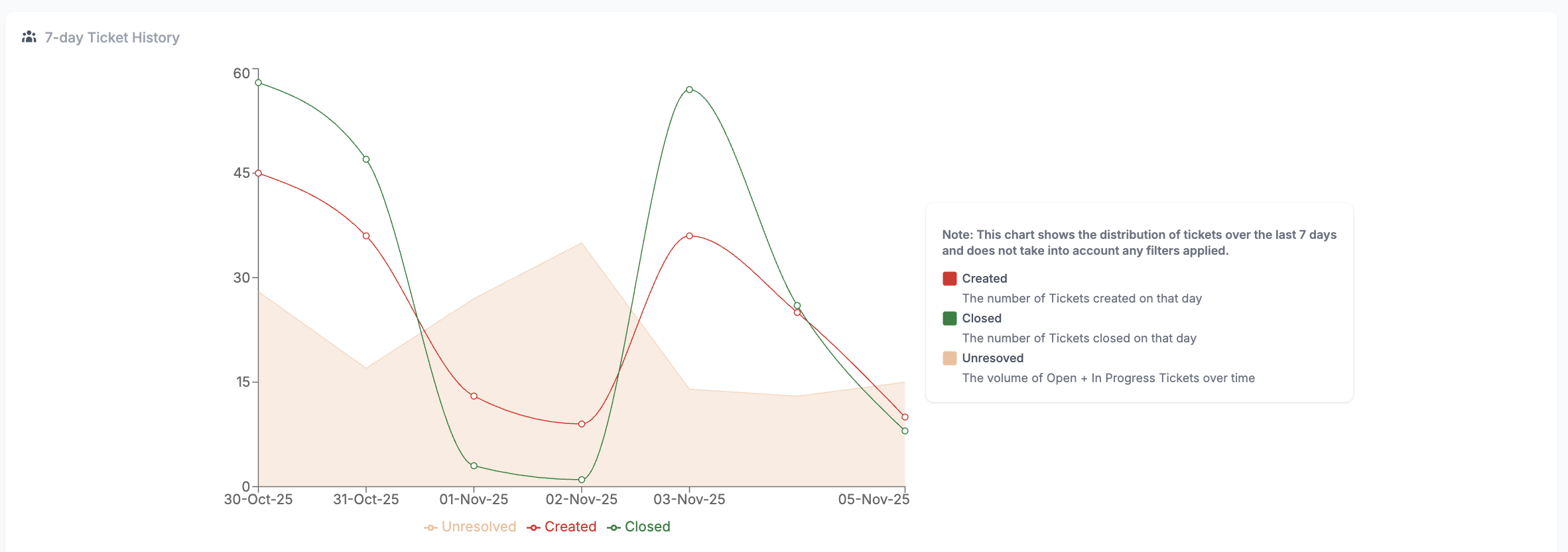
 2. **Tickets Graph History**:
* Shows the number of tickets created, closed and unresolved over a period of 7 days.
2. **Tickets Graph History**:
* Shows the number of tickets created, closed and unresolved over a period of 7 days.
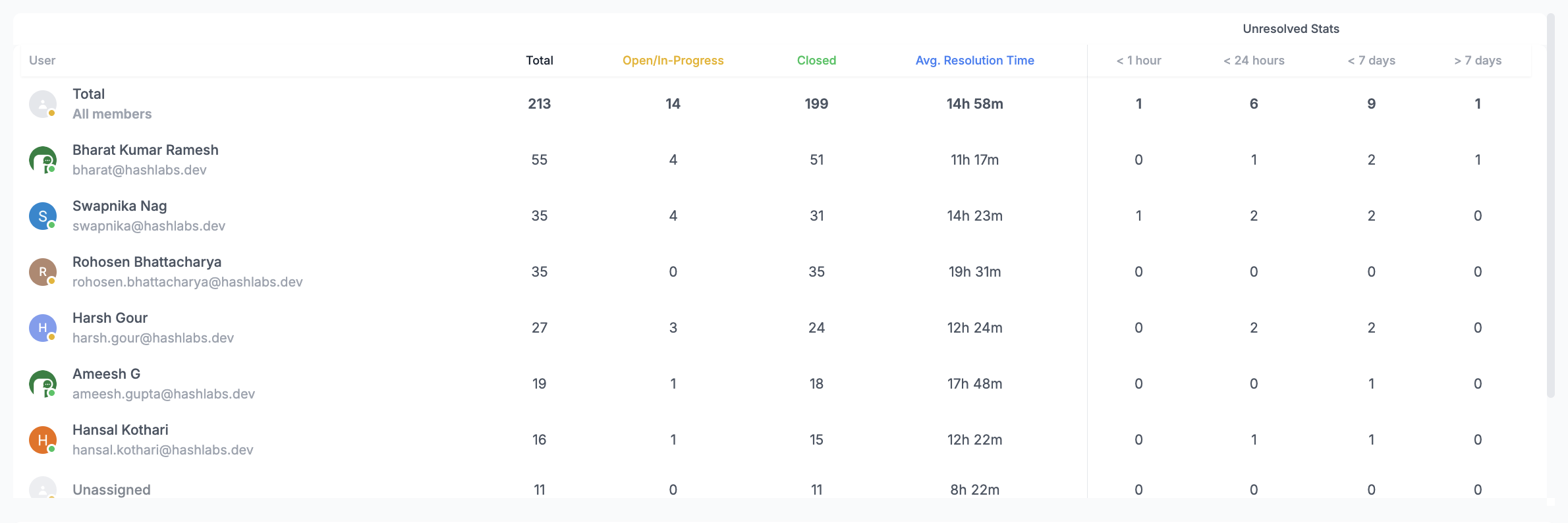
 3. **Team Members Tickets Metrics**
* Shows the number of tickets assigned to each team member and the number of tickets resolved by each team member over the last 7 days.
3. **Team Members Tickets Metrics**
* Shows the number of tickets assigned to each team member and the number of tickets resolved by each team member over the last 7 days.
 #### 3. Team analytics 👥
Team metrics provide insights into the performance of your team members using a metric table. Here's a quick overview of the metrics:
1. **Chats assigned**: The total number of chats assigned to a team member.
2. **Messages sent**: The total number of messages sent by a team member.
3. **Open tickets**: The total number of open tickets assigned to a team member.
4. **Responses**: The total number of responses sent to flagged messages by a team member.
5. **Average response time**: The average time taken by a team member to respond to a flagged message.
6. **User uptime**: The total time (in hours) the user was online on the platform.
#### 3. Team analytics 👥
Team metrics provide insights into the performance of your team members using a metric table. Here's a quick overview of the metrics:
1. **Chats assigned**: The total number of chats assigned to a team member.
2. **Messages sent**: The total number of messages sent by a team member.
3. **Open tickets**: The total number of open tickets assigned to a team member.
4. **Responses**: The total number of responses sent to flagged messages by a team member.
5. **Average response time**: The average time taken by a team member to respond to a flagged message.
6. **User uptime**: The total time (in hours) the user was online on the platform.
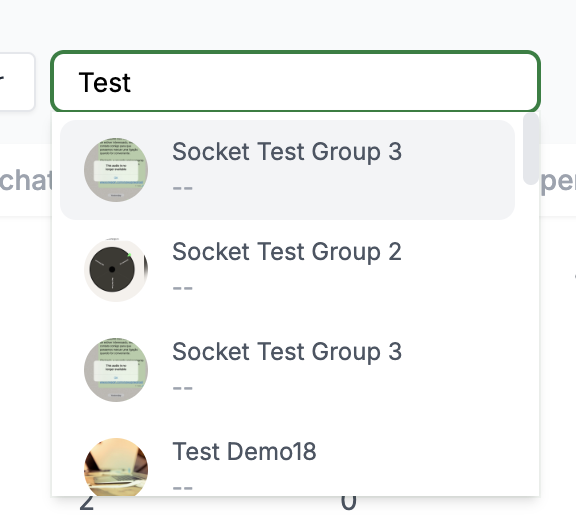
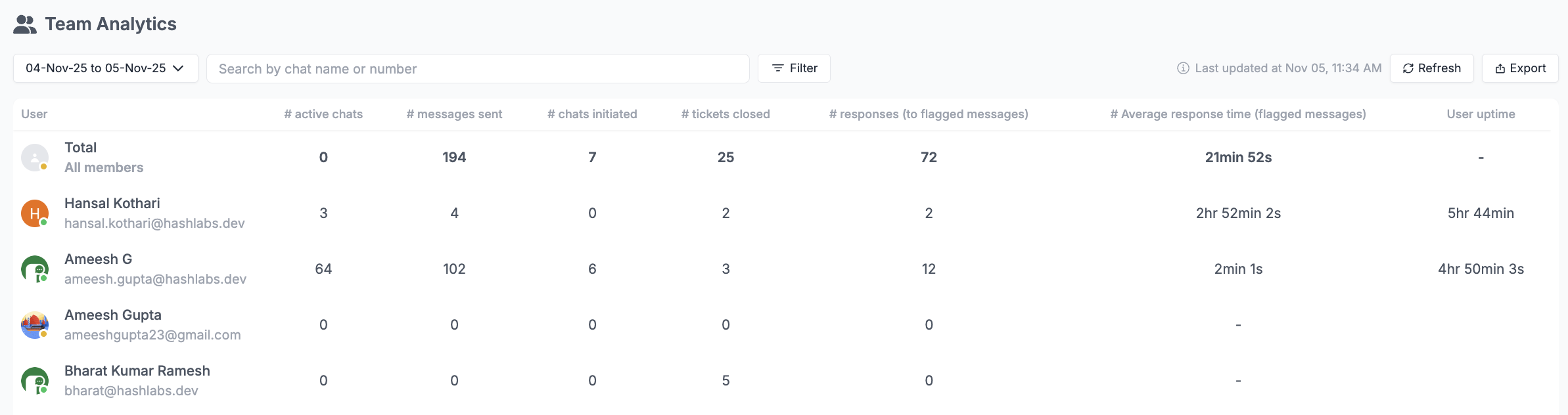 You can filter out data based on your requirements. The default filter is set to Last 7 days with no labels selected, you can also filter out by a specific chat/group.
For any queries or help, reach out to us [here](https://what.sapp.link/periskope)
You can filter out data based on your requirements. The default filter is set to Last 7 days with no labels selected, you can also filter out by a specific chat/group.
For any queries or help, reach out to us [here](https://what.sapp.link/periskope)