> ## Documentation Index
> Fetch the complete documentation index at: https://docs.periskope.app/llms.txt
> Use this file to discover all available pages before exploring further.
# Scheduled & Recurring Messages
> Schedule one-time and recurring messages to be sent automatically to your customers
## Overview
Periskope allows you to schedule messages to be sent at a future date and time. You can also set up recurring scheduled messages that repeat at regular intervals. This feature is perfect for sending reminders, follow-ups, and regular updates to your customers without manual intervention.
## Types of Scheduled Messages
### One-time Scheduled Messages
Messages that are scheduled to be sent once at a specific date and time.
### Recurring Scheduled Messages
Messages that are scheduled to be sent repeatedly at regular intervals (daily, weekly, monthly, etc.).
## One-time Scheduled Messages
One-time scheduled messages allow you to compose a message now and have it delivered at a specific date and time in the future. This is ideal for appointment reminders, follow-ups, or any time-sensitive communication.
### Steps to Schedule a One-time Message
In any WhatsApp chat, compose your message as usual in the message input box.
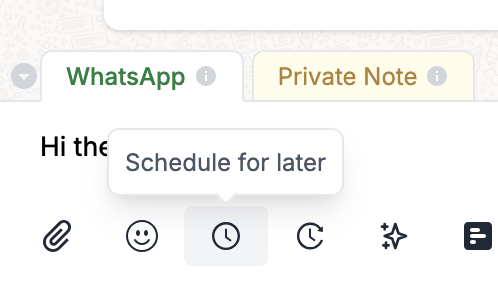
Click on the schedule icon (clock) next to the send button to open the scheduling options.
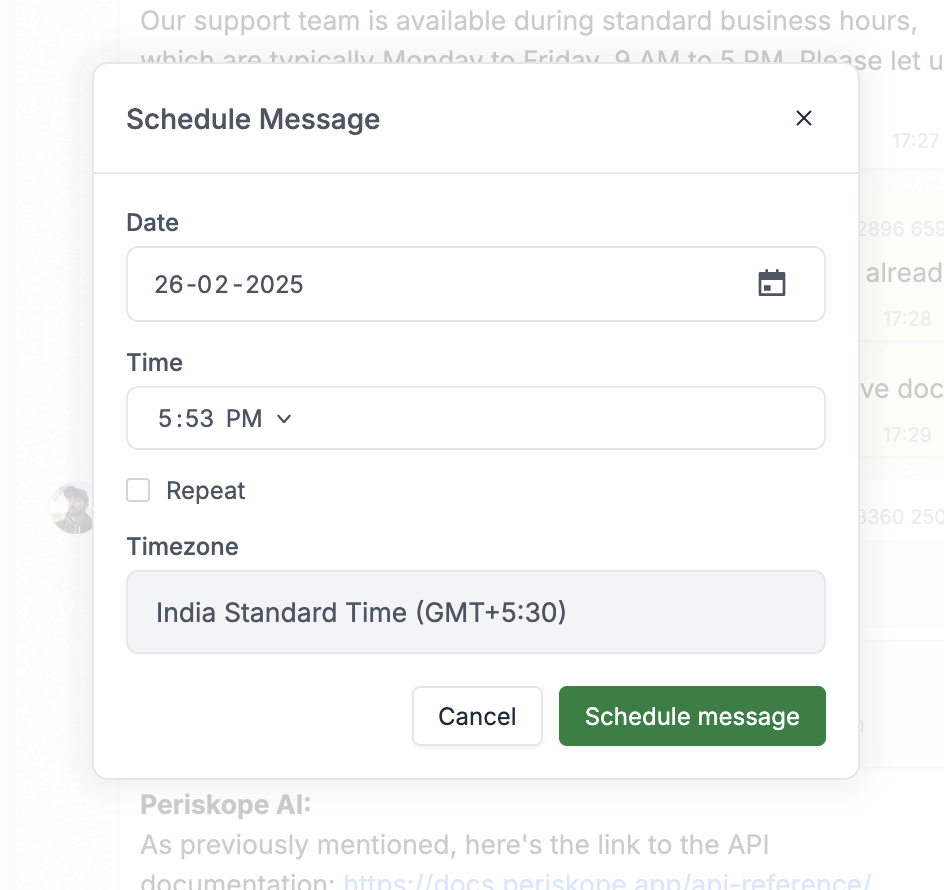
 1. Select the date for your message using the calendar picker
2. Set the specific time for delivery
3. Ensure the "Repeat" toggle is turned OFF for a one-time message
4. Click "Schedule" to confirm
1. Select the date for your message using the calendar picker
2. Set the specific time for delivery
3. Ensure the "Repeat" toggle is turned OFF for a one-time message
4. Click "Schedule" to confirm
 ## Recurring Scheduled Messages
Recurring scheduled messages allow you to set up messages that will be sent automatically at regular intervals. This is perfect for periodic reminders, regular updates, or any communication that needs to happen on a consistent schedule.
### Steps to Setup a Recurring Message
In any WhatsApp chat, compose your message as usual in the message input box.
Click on the schedule icon (clock) next to the send button to open the scheduling options.
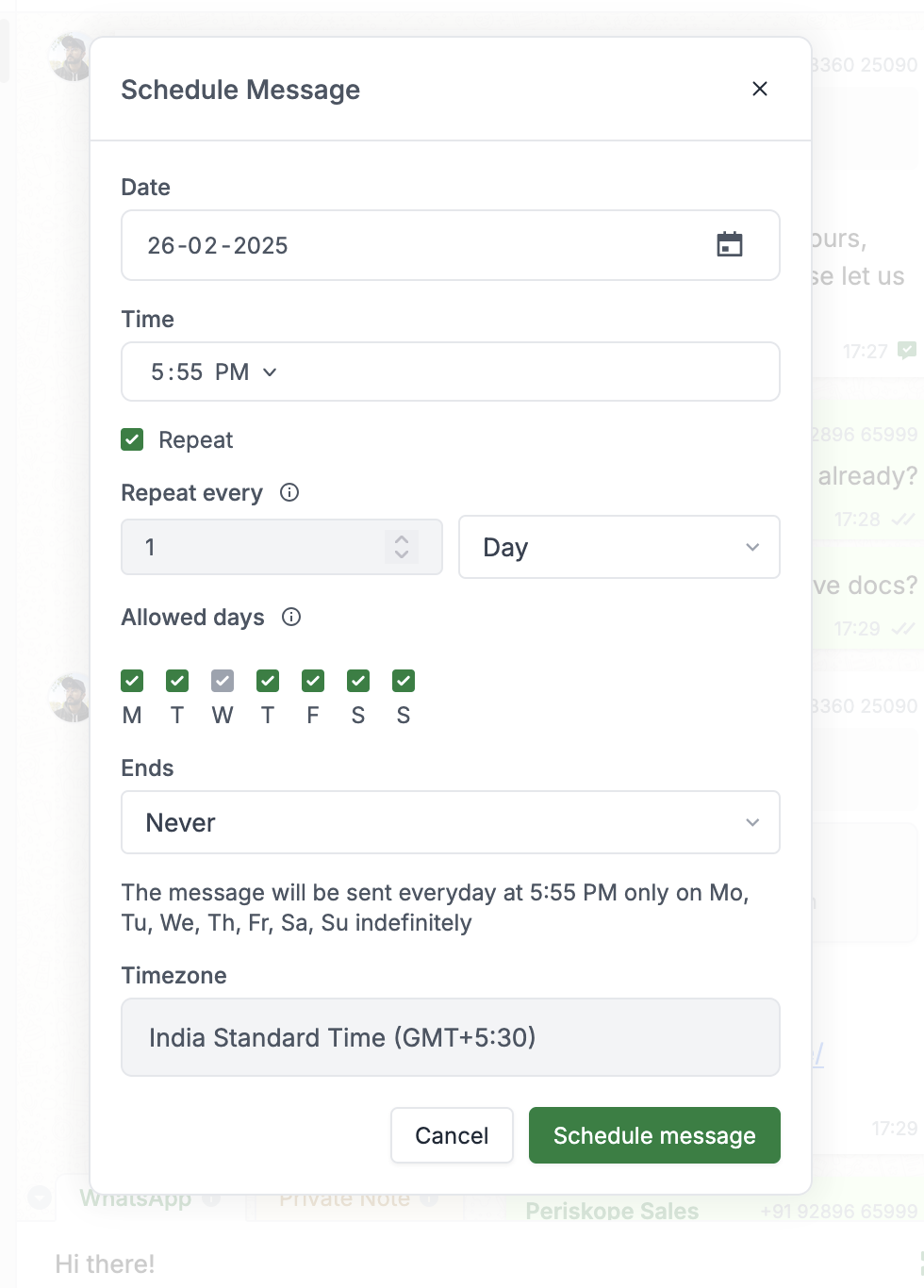
1. Click on the Repeat option to make this message recurring.
2. Select the start date and time for your recurring message
3. Choose your preferred frequency:
* Daily: Specific days of the week
* Weekly: Choose one day of the week
* Monthly: Select specific date(s) of the month
4. Choose your gap - select a number in font of the frequency
to set how often you want to repeat the message in the specified interval.
* e.g. Once every two weeks, Once every day
5. Choose allowed days (daily):
* For messages repeating daily, uncheck the box for the days you do not want the message to deliver.
6. Set an end date (optional) or leave it open-ended
7. Click "Schedule message" to confirm
## Recurring Scheduled Messages
Recurring scheduled messages allow you to set up messages that will be sent automatically at regular intervals. This is perfect for periodic reminders, regular updates, or any communication that needs to happen on a consistent schedule.
### Steps to Setup a Recurring Message
In any WhatsApp chat, compose your message as usual in the message input box.
Click on the schedule icon (clock) next to the send button to open the scheduling options.
1. Click on the Repeat option to make this message recurring.
2. Select the start date and time for your recurring message
3. Choose your preferred frequency:
* Daily: Specific days of the week
* Weekly: Choose one day of the week
* Monthly: Select specific date(s) of the month
4. Choose your gap - select a number in font of the frequency
to set how often you want to repeat the message in the specified interval.
* e.g. Once every two weeks, Once every day
5. Choose allowed days (daily):
* For messages repeating daily, uncheck the box for the days you do not want the message to deliver.
6. Set an end date (optional) or leave it open-ended
7. Click "Schedule message" to confirm
 ## Managing Scheduled Messages
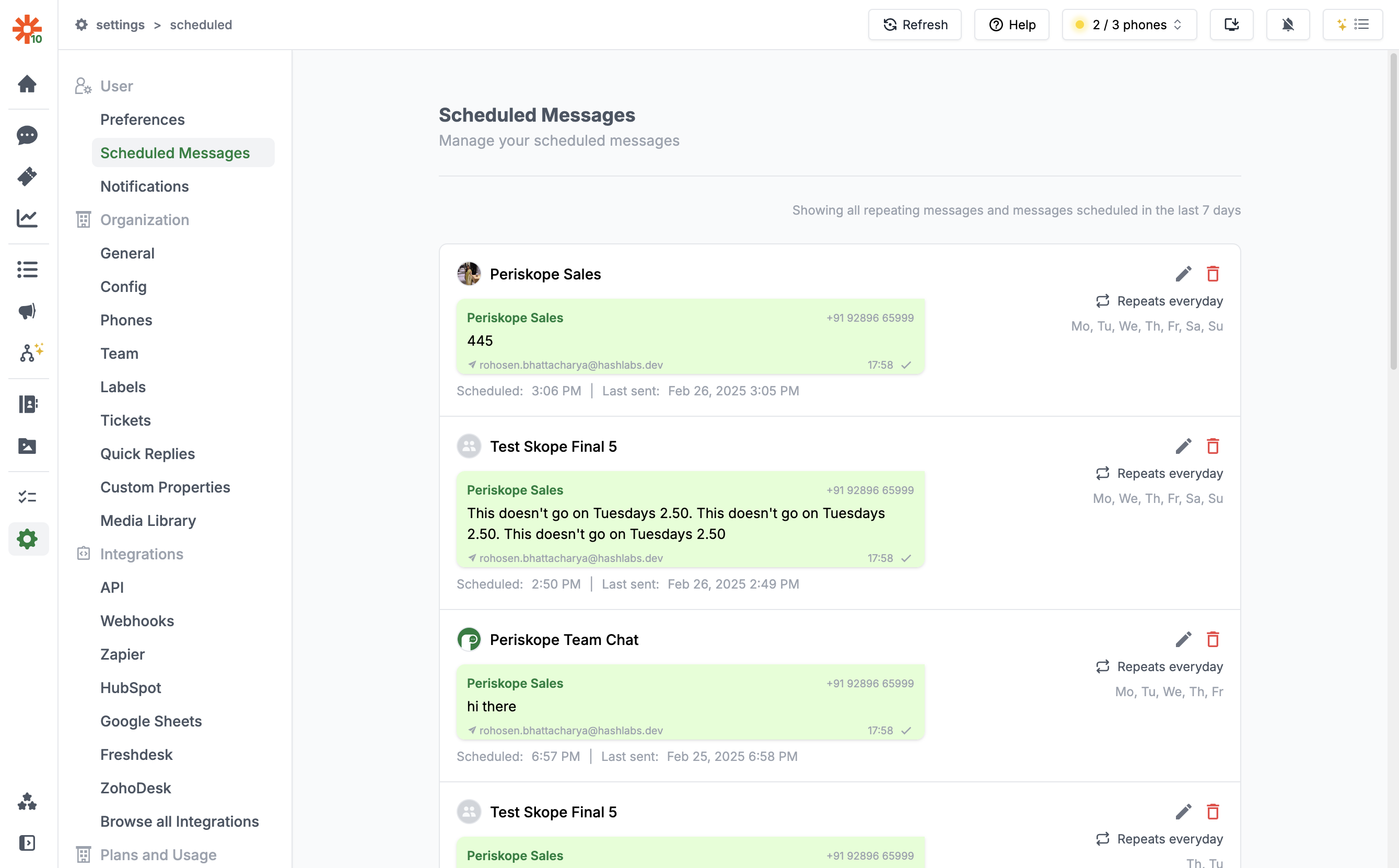
Both one-time and recurring scheduled messages can be managed through the Scheduled Message History interface.
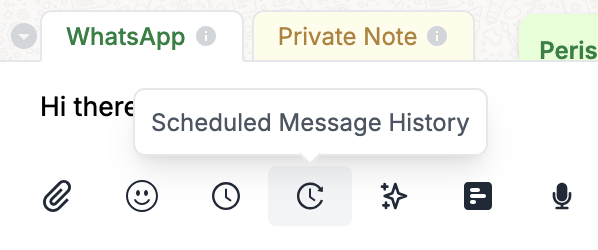
Click on the scheduled message history icon next to the schedule button to view all your scheduled messages for the current chat.
Click the settings icon (gear) on any message to edit it.
## Managing Scheduled Messages
Both one-time and recurring scheduled messages can be managed through the Scheduled Message History interface.
Click on the scheduled message history icon next to the schedule button to view all your scheduled messages for the current chat.
Click the settings icon (gear) on any message to edit it.
 In the Scheduled Message History modal, you can:
1. View all pending scheduled messages
2. See which messages are one-time or recurring
3. Modify the schedule time, frequency, or message content
4. Delete scheduled messages that are no longer needed
In the Scheduled Message History modal, you can:
1. View all pending scheduled messages
2. See which messages are one-time or recurring
3. Modify the schedule time, frequency, or message content
4. Delete scheduled messages that are no longer needed
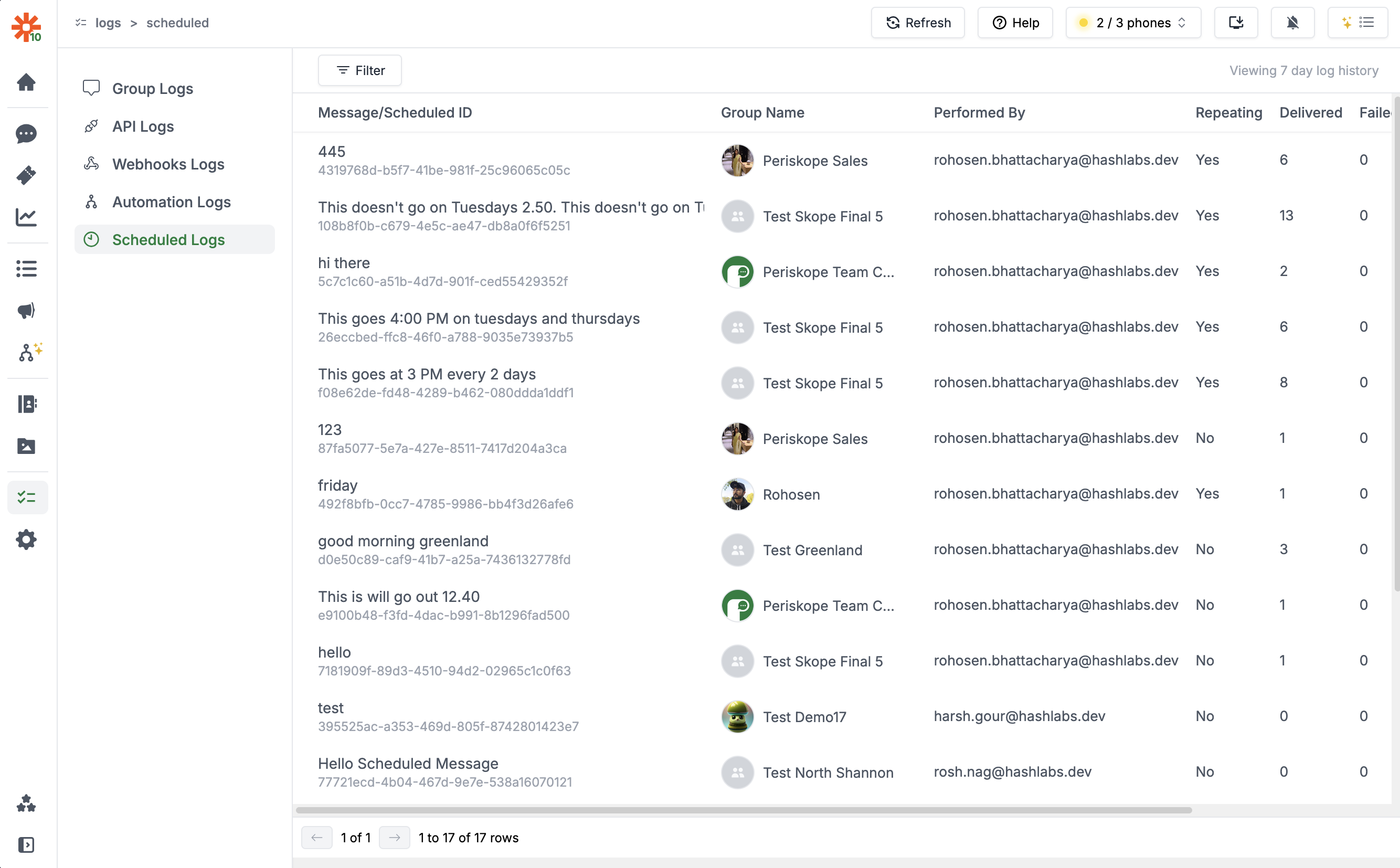
 To see a complete history of all scheduled messages across all chats:
1. Navigate to Logs > Scheduled Logs in the main menu
2. Filter by one-time or recurring messages
3. View delivery status, timestamps, and message details
To see a complete history of all scheduled messages across all chats:
1. Navigate to Logs > Scheduled Logs in the main menu
2. Filter by one-time or recurring messages
3. View delivery status, timestamps, and message details
 ## Best Practices for Scheduled Messages
* **Timing Consideration**: Be mindful of when you schedule your messages. Scheduling messages during business hours is recommended.
* **Frequency Management**: For recurring messages, be mindful of frequency to avoid spamming
## Best Practices for Scheduled Messages
* **Timing Consideration**: Be mindful of when you schedule your messages. Scheduling messages during business hours is recommended.
* **Frequency Management**: For recurring messages, be mindful of frequency to avoid spamming