> ## Documentation Index
> Fetch the complete documentation index at: https://docs.periskope.app/llms.txt
> Use this file to discover all available pages before exploring further.
# Quick Replies
Does your team find themselves typing out the same responses over and over again? With Quick Replies in Periskope, you can create shortcuts for your most common messages — and send them in seconds.
***
## Setting Up a Quick Reply
### 1. Go to Settings → Quick Replies
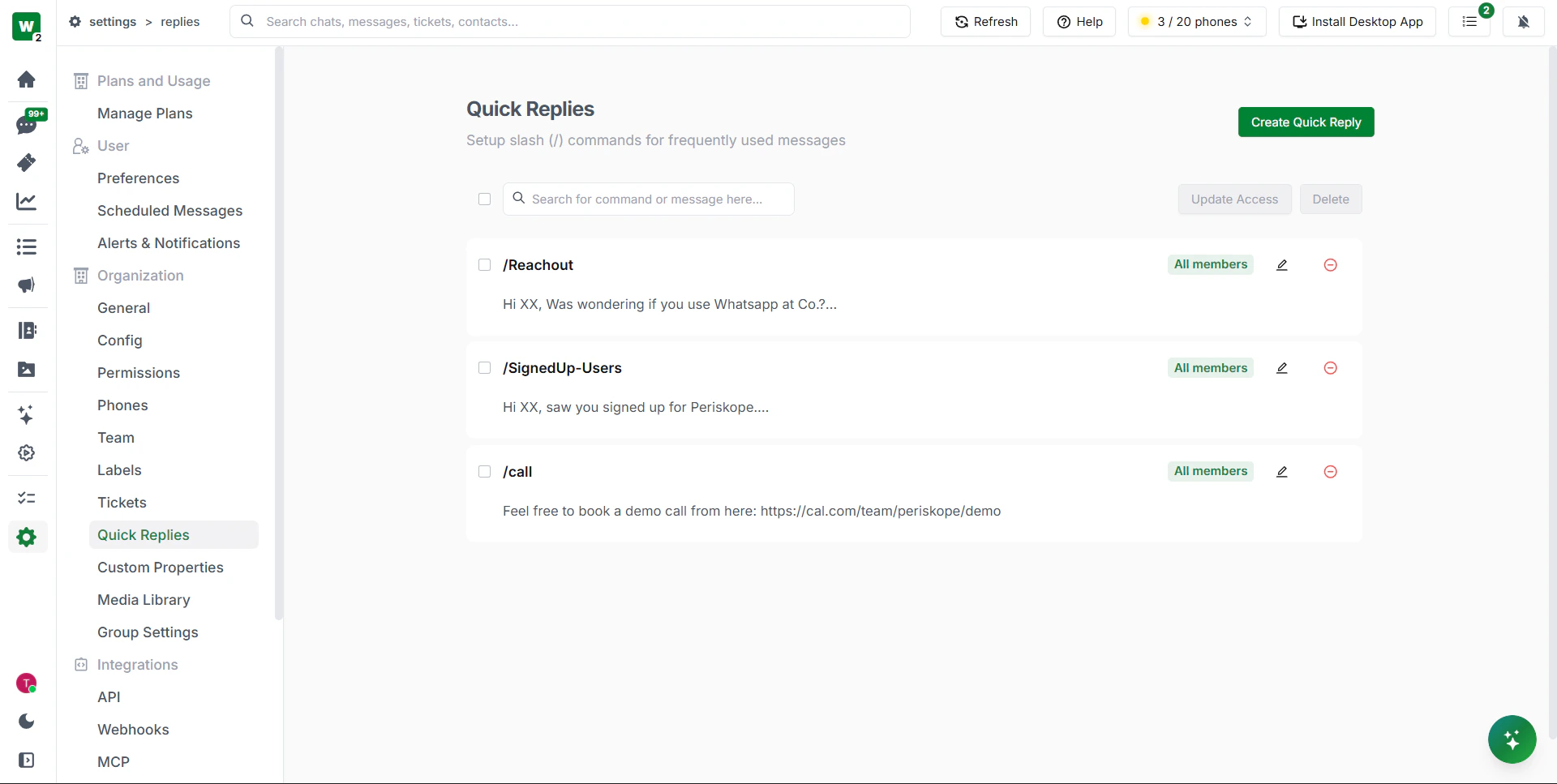
Go to **Settings** from the left sidebar and click **Quick Replies** under the Organisation section.
***
### 2. Create a new Quick Reply
Click **Create Quick Reply** in the top right.
***
### 3. Enter a command
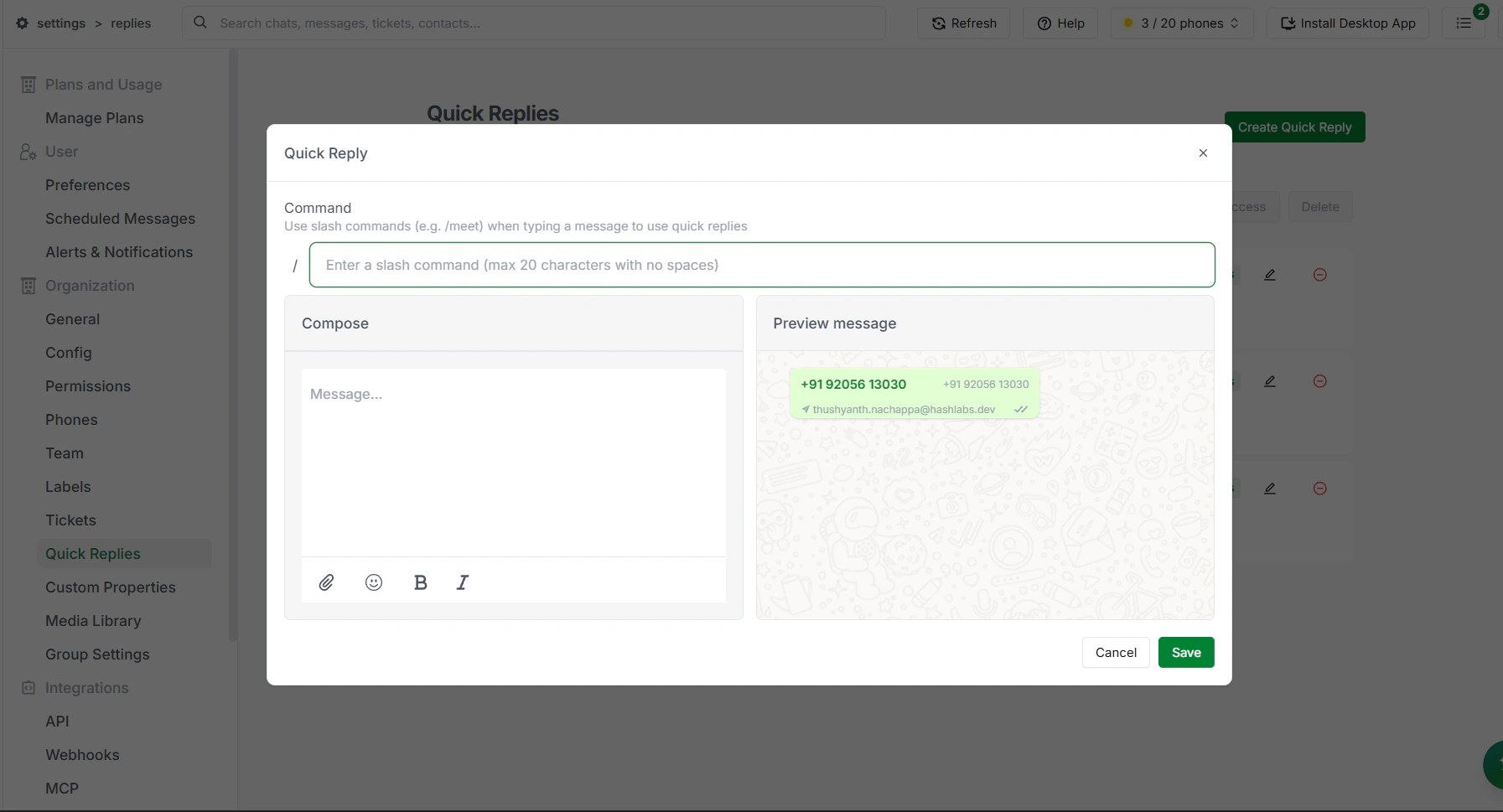
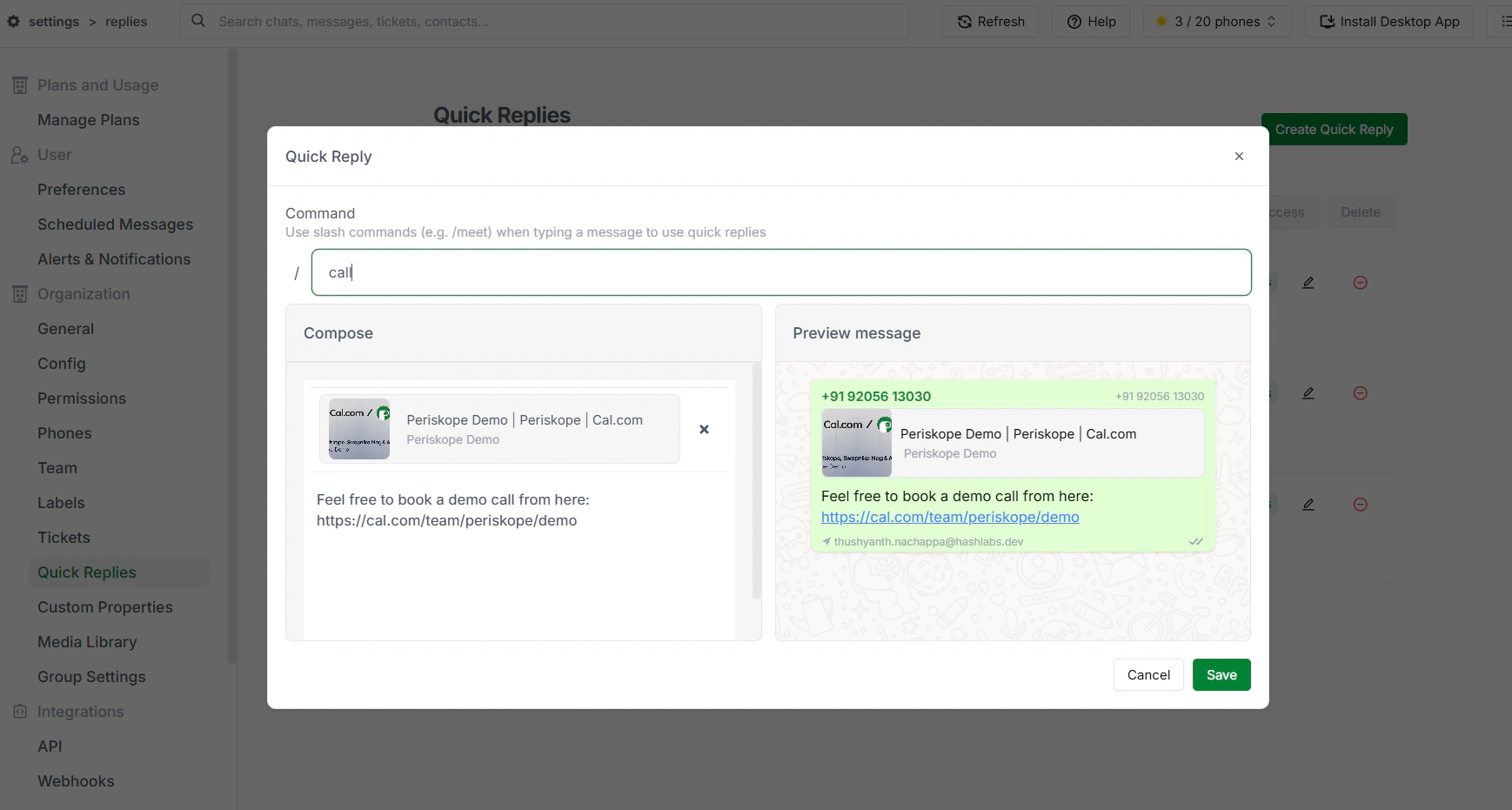
Enter a **command** — for example, `/call`. This is the shortcut your team will type in the message box to trigger the quick reply.
> **Tip:** Keep commands short and memorable — your team will be typing these in the middle of live conversations, so something like `/call`, `/pricing`, or `/refund` works better than something long.
***
### 4. Write the message
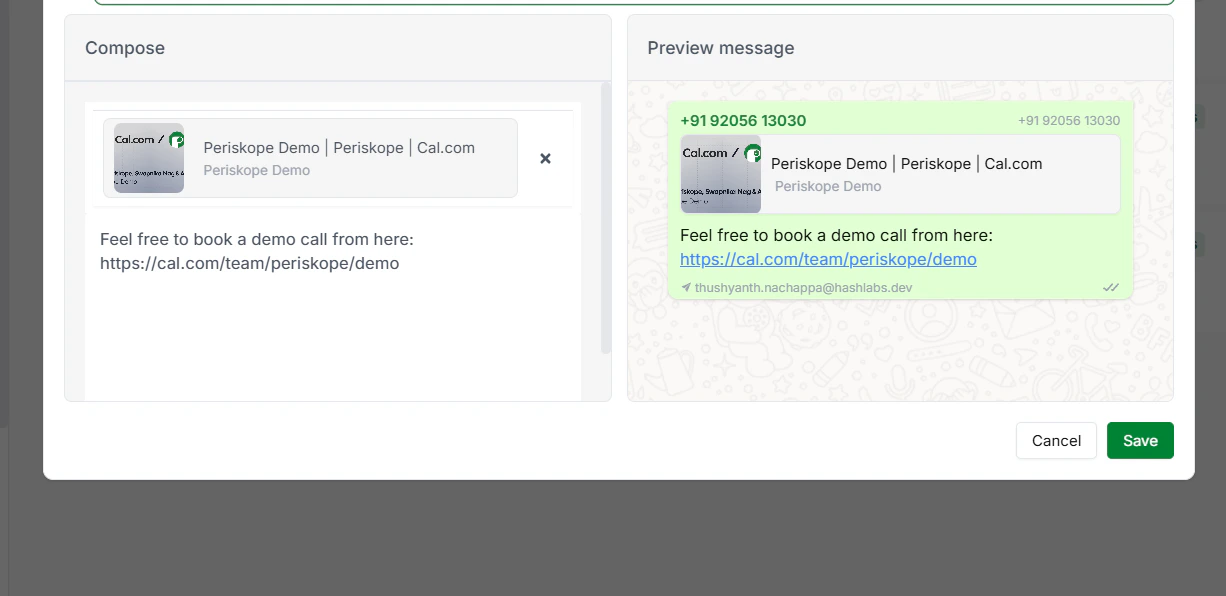
In the **Compose** section, type the message you want to send. For example:
```text theme={null}
Feel free to book a demo call from here — [your demo link]
```
Once done, click **Save**.
Your quick reply is now available to every member of your team across all chats.
***
## Using a Quick Reply in a Chat
1. Open any chat
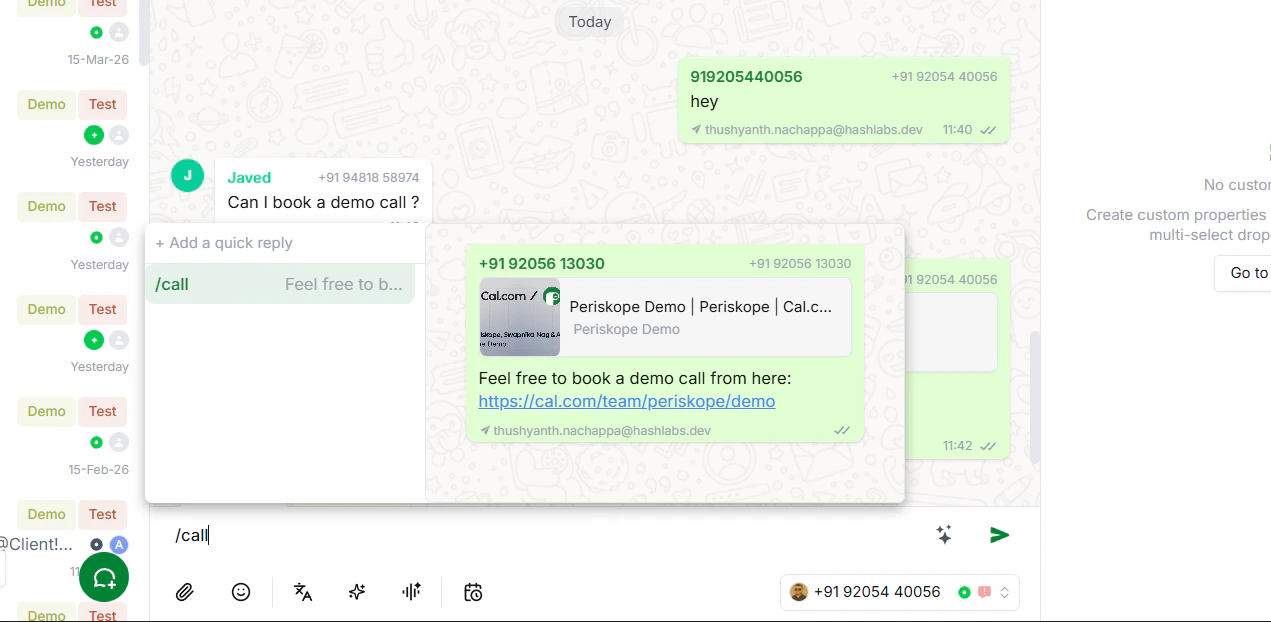
2. In the message box, type your command — for example, `/call`
3. The quick reply appears instantly as a suggestion
4. Click it to populate the message box
5. Hit send
The customer receives your full message — without your team having to type a single word.
***
## Best Practices
**Create replies for your most common messages** — Think about what your team types repeatedly every day: demo links, pricing info, refund policies, onboarding steps. Each one is a good candidate for a quick reply.
**Use clear command names** — Make commands intuitive so your team doesn't have to remember obscure shortcuts. `/pricing`, `/demo`, `/support` are all easy to recall.
**Keep messages up to date** — If a link changes or your messaging evolves, go back to Settings → Quick Replies and update the relevant entries so your team is always sending the right thing.
**Train your team** — Make sure everyone knows which quick replies exist and what commands to use. A shared list in your team's internal notes can help.
***
 ***
### 2. Create a new Quick Reply
Click **Create Quick Reply** in the top right.
***
### 2. Create a new Quick Reply
Click **Create Quick Reply** in the top right.
 ***
### 3. Enter a command
Enter a **command** — for example, `/call`. This is the shortcut your team will type in the message box to trigger the quick reply.
***
### 3. Enter a command
Enter a **command** — for example, `/call`. This is the shortcut your team will type in the message box to trigger the quick reply.
 > **Tip:** Keep commands short and memorable — your team will be typing these in the middle of live conversations, so something like `/call`, `/pricing`, or `/refund` works better than something long.
***
### 4. Write the message
In the **Compose** section, type the message you want to send. For example:
```text theme={null}
Feel free to book a demo call from here — [your demo link]
```
Once done, click **Save**.
> **Tip:** Keep commands short and memorable — your team will be typing these in the middle of live conversations, so something like `/call`, `/pricing`, or `/refund` works better than something long.
***
### 4. Write the message
In the **Compose** section, type the message you want to send. For example:
```text theme={null}
Feel free to book a demo call from here — [your demo link]
```
Once done, click **Save**.
 Your quick reply is now available to every member of your team across all chats.
***
## Using a Quick Reply in a Chat
1. Open any chat
2. In the message box, type your command — for example, `/call`
3. The quick reply appears instantly as a suggestion
4. Click it to populate the message box
5. Hit send
Your quick reply is now available to every member of your team across all chats.
***
## Using a Quick Reply in a Chat
1. Open any chat
2. In the message box, type your command — for example, `/call`
3. The quick reply appears instantly as a suggestion
4. Click it to populate the message box
5. Hit send
 The customer receives your full message — without your team having to type a single word.
***
## Best Practices
**Create replies for your most common messages** — Think about what your team types repeatedly every day: demo links, pricing info, refund policies, onboarding steps. Each one is a good candidate for a quick reply.
**Use clear command names** — Make commands intuitive so your team doesn't have to remember obscure shortcuts. `/pricing`, `/demo`, `/support` are all easy to recall.
**Keep messages up to date** — If a link changes or your messaging evolves, go back to Settings → Quick Replies and update the relevant entries so your team is always sending the right thing.
**Train your team** — Make sure everyone knows which quick replies exist and what commands to use. A shared list in your team's internal notes can help.
***
The customer receives your full message — without your team having to type a single word.
***
## Best Practices
**Create replies for your most common messages** — Think about what your team types repeatedly every day: demo links, pricing info, refund policies, onboarding steps. Each one is a good candidate for a quick reply.
**Use clear command names** — Make commands intuitive so your team doesn't have to remember obscure shortcuts. `/pricing`, `/demo`, `/support` are all easy to recall.
**Keep messages up to date** — If a link changes or your messaging evolves, go back to Settings → Quick Replies and update the relevant entries so your team is always sending the right thing.
**Train your team** — Make sure everyone knows which quick replies exist and what commands to use. A shared list in your team's internal notes can help.
***