> ## Documentation Index
> Fetch the complete documentation index at: https://docs.periskope.app/llms.txt
> Use this file to discover all available pages before exploring further.
# Labels
> Create and use labels to organise and filter chats, contacts, and tickets across your workspace.
## Overview
Labels help you categorise and manage chats, contacts, and tickets. Apply multiple labels to any item, filter your inbox by label, and use labels to control which chats team members can access.
***
## Creating a Label
Labels are created from your organisation settings.
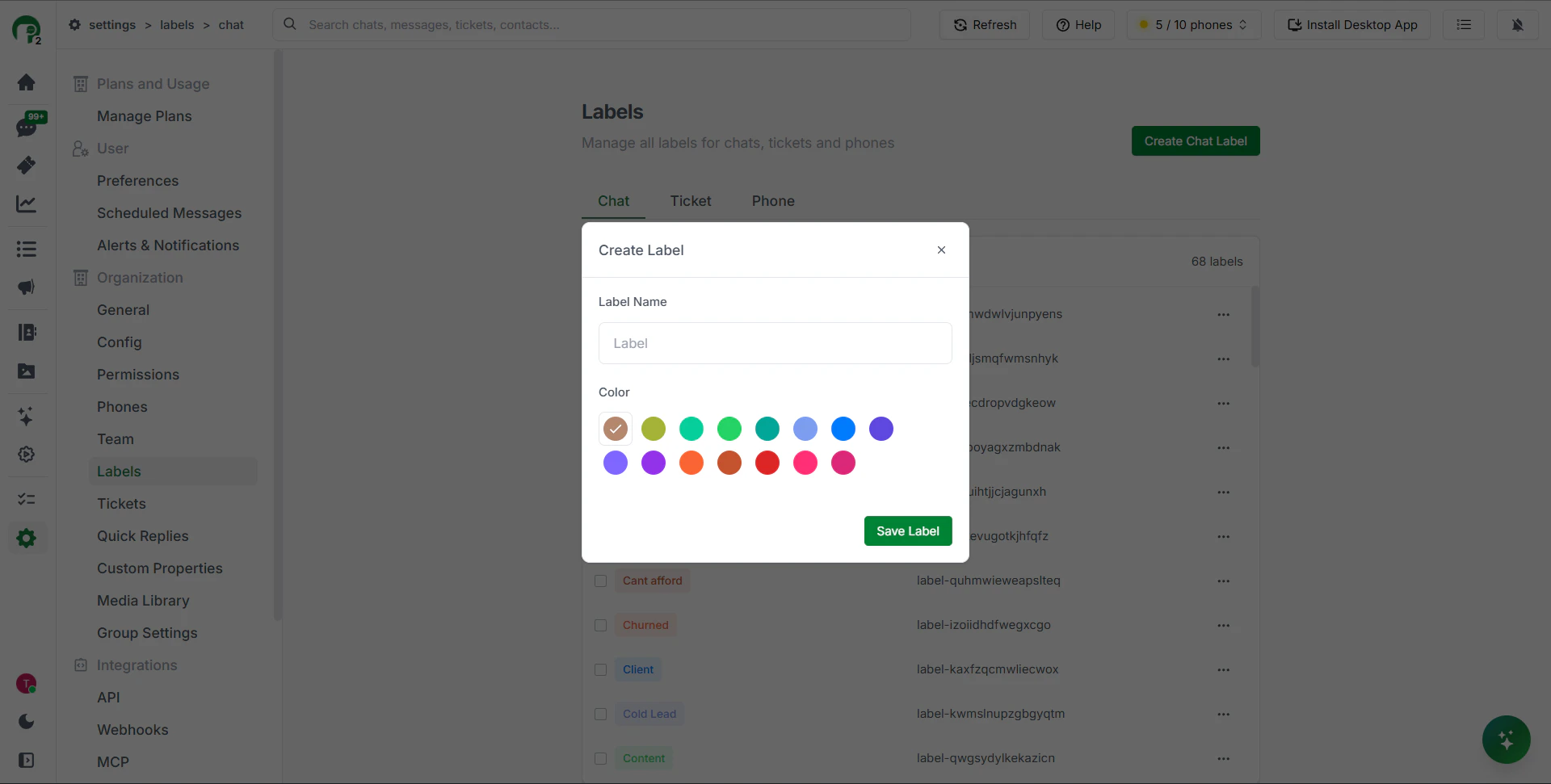
1. Go to **Settings** from the left sidebar
2. Under the **Organisation** section, click **Labels**
3. Click **Create Chat Label**
4. Enter a **name** and choose a **colour**
5. Click **Save Label**
You can also create labels on the fly — type a new label name anywhere labels are applied and click **Create label**.
***
## Applying Labels
### To a Chat
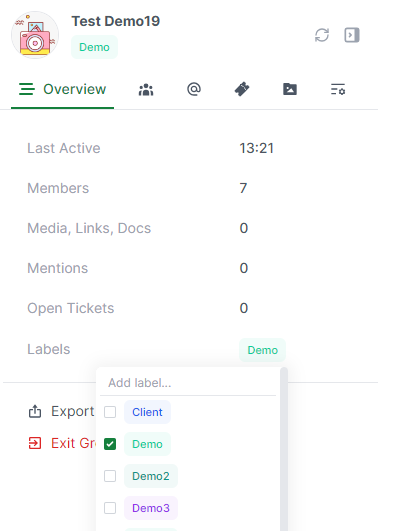
Open any chat and click **Add label** in the right-hand panel. You can apply multiple labels to the same chat.
### To a Contact
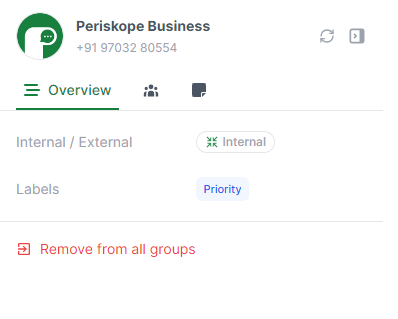
Navigate to **Contacts**, select a contact, and click **Add label** on the right-hand panel.
### To a Ticket
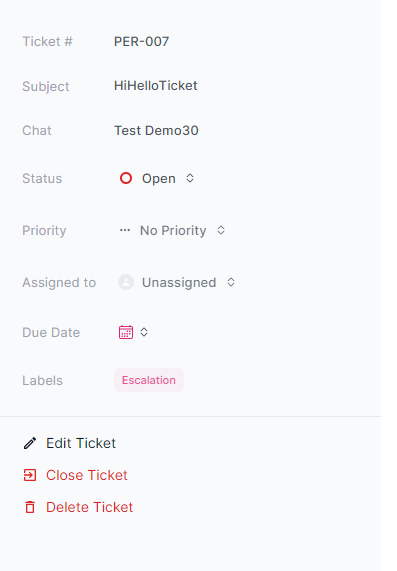
Navigate to **Tickets**, select a ticket, and click **Add label** on the right-hand panel.
***
## Filtering by Label
Once labels are applied, use them to filter your inbox.
1. Go to **Chats**
2. Click the **Filter** icon at the top of the chat list
3. Under **Filter condition**, select **Labels**
4. Choose the label to filter by
Only chats with that label will appear — useful for focusing on a specific group like "VIP" or "Renewal".
***
## Managing Labels
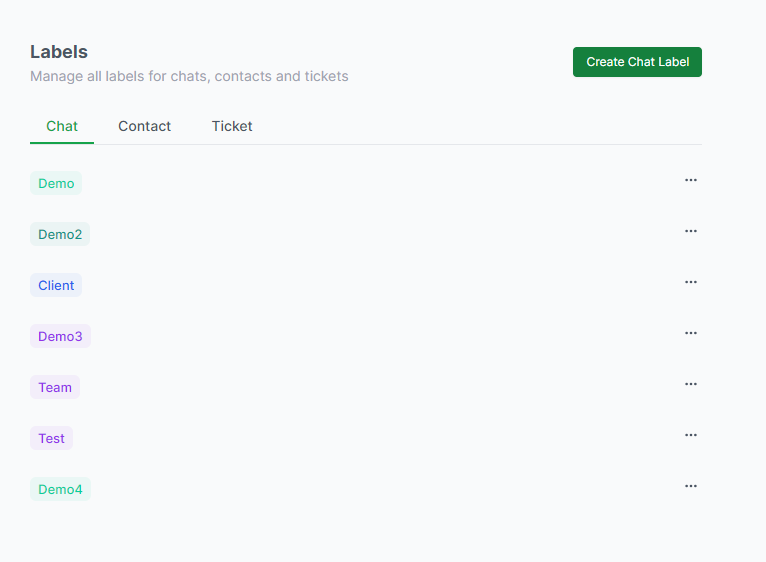
Go to **Settings > Labels** to view, rename, or delete any label. Click on a label to edit it.
***
## Using Labels with the Org Assistant
Instead of updating chats one by one, instruct the Org Assistant to act on all chats with a specific label at once.
**Example prompts:**
```text theme={null}
Assign all chats labelled "Demo" to Rahul.
```
```text theme={null}
Send a private note to all chats labelled "Renewal" saying "Follow up before Friday."
```
```text theme={null}
Add the label "Escalated" to all open chats assigned to Priya.
```
 ### To a Contact
Navigate to **Contacts**, select a contact, and click **Add label** on the right-hand panel.
### To a Contact
Navigate to **Contacts**, select a contact, and click **Add label** on the right-hand panel.
 ### To a Ticket
Navigate to **Tickets**, select a ticket, and click **Add label** on the right-hand panel.
### To a Ticket
Navigate to **Tickets**, select a ticket, and click **Add label** on the right-hand panel.
 ***
## Filtering by Label
Once labels are applied, use them to filter your inbox.
1. Go to **Chats**
2. Click the **Filter** icon at the top of the chat list
3. Under **Filter condition**, select **Labels**
4. Choose the label to filter by
***
## Filtering by Label
Once labels are applied, use them to filter your inbox.
1. Go to **Chats**
2. Click the **Filter** icon at the top of the chat list
3. Under **Filter condition**, select **Labels**
4. Choose the label to filter by
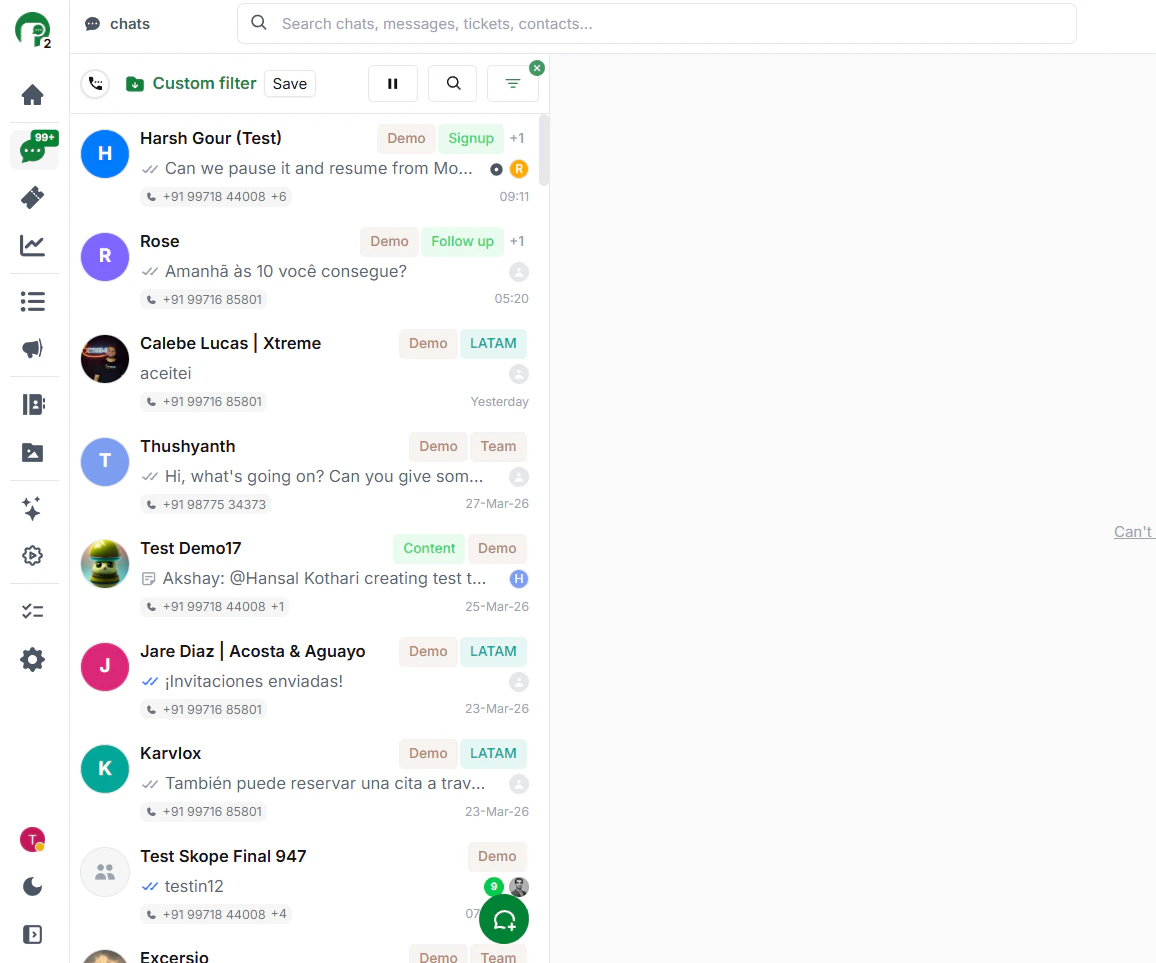 Only chats with that label will appear — useful for focusing on a specific group like "VIP" or "Renewal".
***
## Managing Labels
Go to **Settings > Labels** to view, rename, or delete any label. Click on a label to edit it.
Only chats with that label will appear — useful for focusing on a specific group like "VIP" or "Renewal".
***
## Managing Labels
Go to **Settings > Labels** to view, rename, or delete any label. Click on a label to edit it.
 ***
## Using Labels with the Org Assistant
Instead of updating chats one by one, instruct the Org Assistant to act on all chats with a specific label at once.
**Example prompts:**
```text theme={null}
Assign all chats labelled "Demo" to Rahul.
```
```text theme={null}
Send a private note to all chats labelled "Renewal" saying "Follow up before Friday."
```
```text theme={null}
Add the label "Escalated" to all open chats assigned to Priya.
```
***
## Using Labels with the Org Assistant
Instead of updating chats one by one, instruct the Org Assistant to act on all chats with a specific label at once.
**Example prompts:**
```text theme={null}
Assign all chats labelled "Demo" to Rahul.
```
```text theme={null}
Send a private note to all chats labelled "Renewal" saying "Follow up before Friday."
```
```text theme={null}
Add the label "Escalated" to all open chats assigned to Priya.
```