> ## Documentation Index
> Fetch the complete documentation index at: https://docs.periskope.app/llms.txt
> Use this file to discover all available pages before exploring further.
# Custom Properties
> Create custom fields to organise and track information across your WhatsApp chats and groups.
***
## Overview
Custom Properties allow you to add additional data fields to your WhatsApp chats and tickets in Periskope. These properties appear in the **Properties tab** of the right side panel in any chat or ticket, enabling your team to capture and view important information for each conversation.
Properties are organised into **sections**, and you can create different properties for chats and tickets independently.
## Setting Up Custom Properties
### 1. Go to Settings → Custom Properties
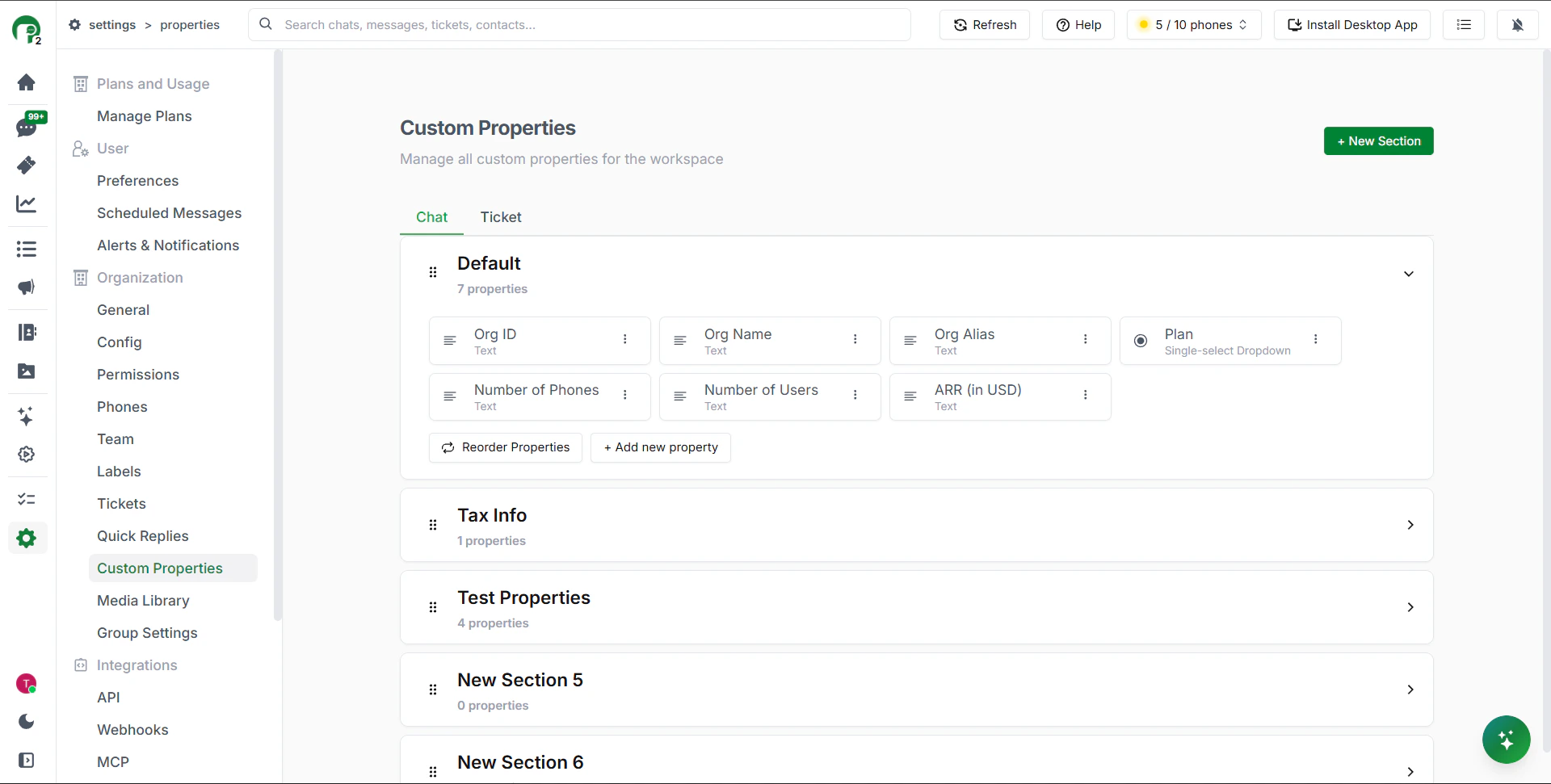
Go to **Settings** from the left sidebar and click **Custom Properties** under the Organisation section.
***
### 2. Select the Chat or Ticket tab
You'll see two tabs at the top — **Chat** and **Ticket**. Select the tab depending on where you want the property to appear.
You'll see existing sections like **Default**, which already includes properties like Org ID, Org Name, Plan, and more.
***
### 3. Create a new section
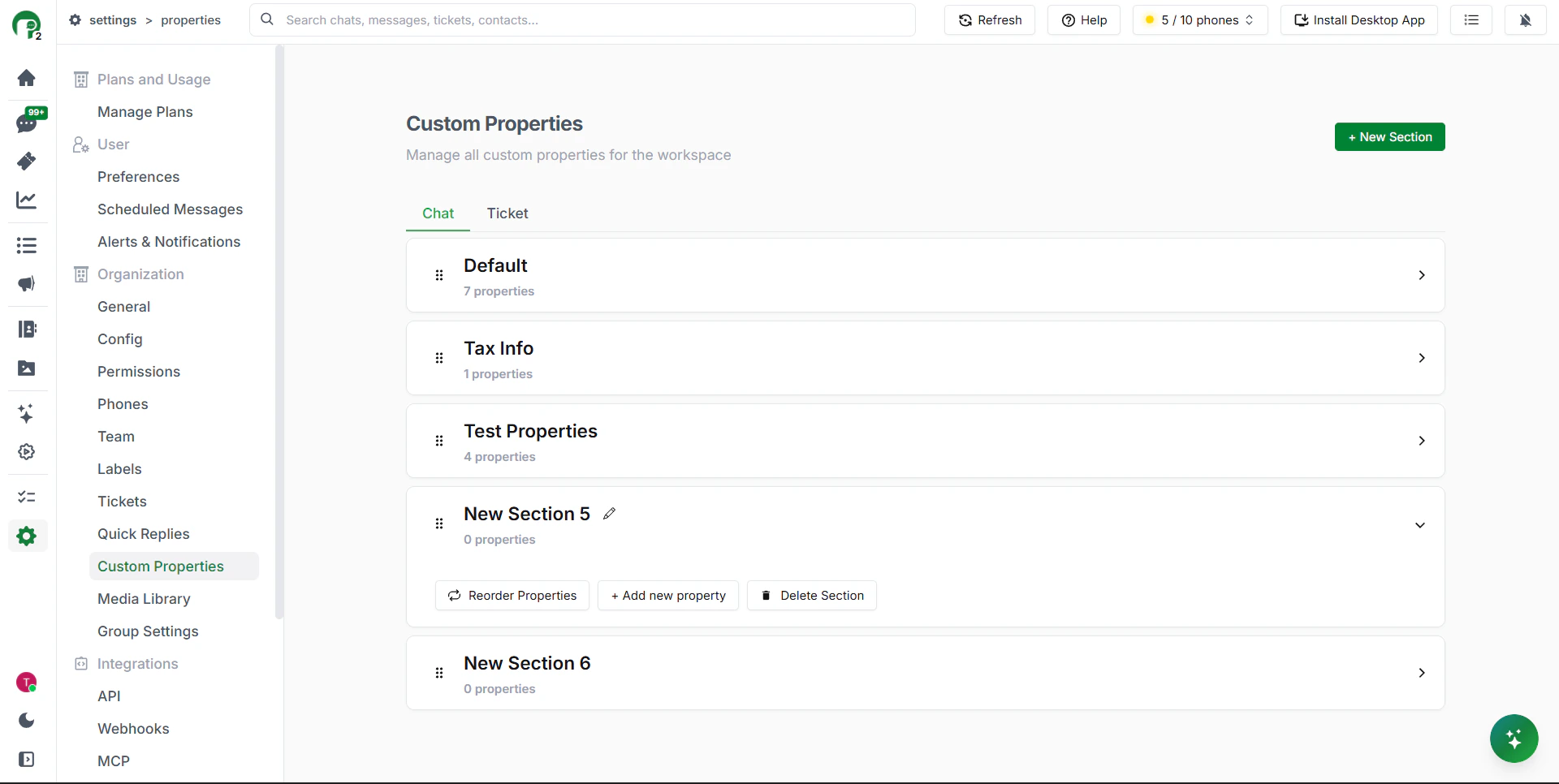
Properties are organised into sections. To create one:
1. Click **+ New Section** in the top right
2. Give the section a name — for example, "Tax Info" or "Account Details"
***
### 4. Add a property to the section
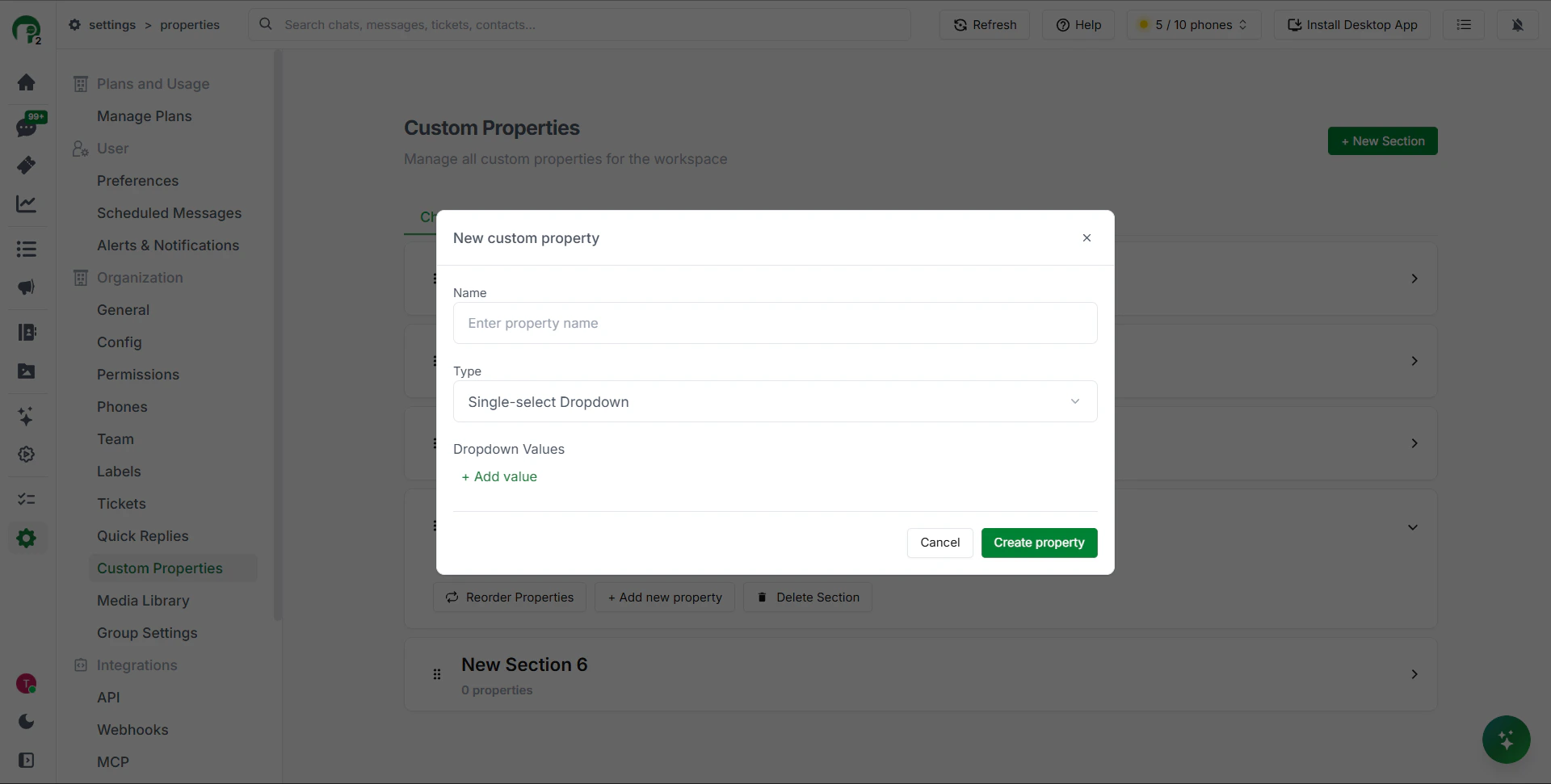
1. Click on the section to open it
2. Click **+ Add New Property**
3. Enter a property name
4. Select a property type
5. Configure any additional settings based on the type selected
6. Click **Create Property**
Your property is now available across all chats or tickets in your workspace.
> **Note:** For tickets, you can mark certain properties as **mandatory** — ensuring your team always captures critical information before closing a ticket.
***
## Types of Custom Properties
Periskope offers six property types to cover different business needs:
| Type | What it's for |
| :--------------------- | :----------------------------------------------------- |
| Text | Free-form information — names, notes, account details |
| Date | Date picker — renewal dates, sign-up dates |
| File Upload | Attach files or documents directly to a chat or ticket |
| Single-Select Dropdown | Pick one option from a predefined list |
| Multi-Select Dropdown | Pick multiple options from a predefined list |
| Dependent Dropdown | Hierarchical selection — up to three levels deep |
***
## Viewing and Filling in Custom Properties in a Chat
Once properties are created, your team can view and fill them in from any chat or ticket.
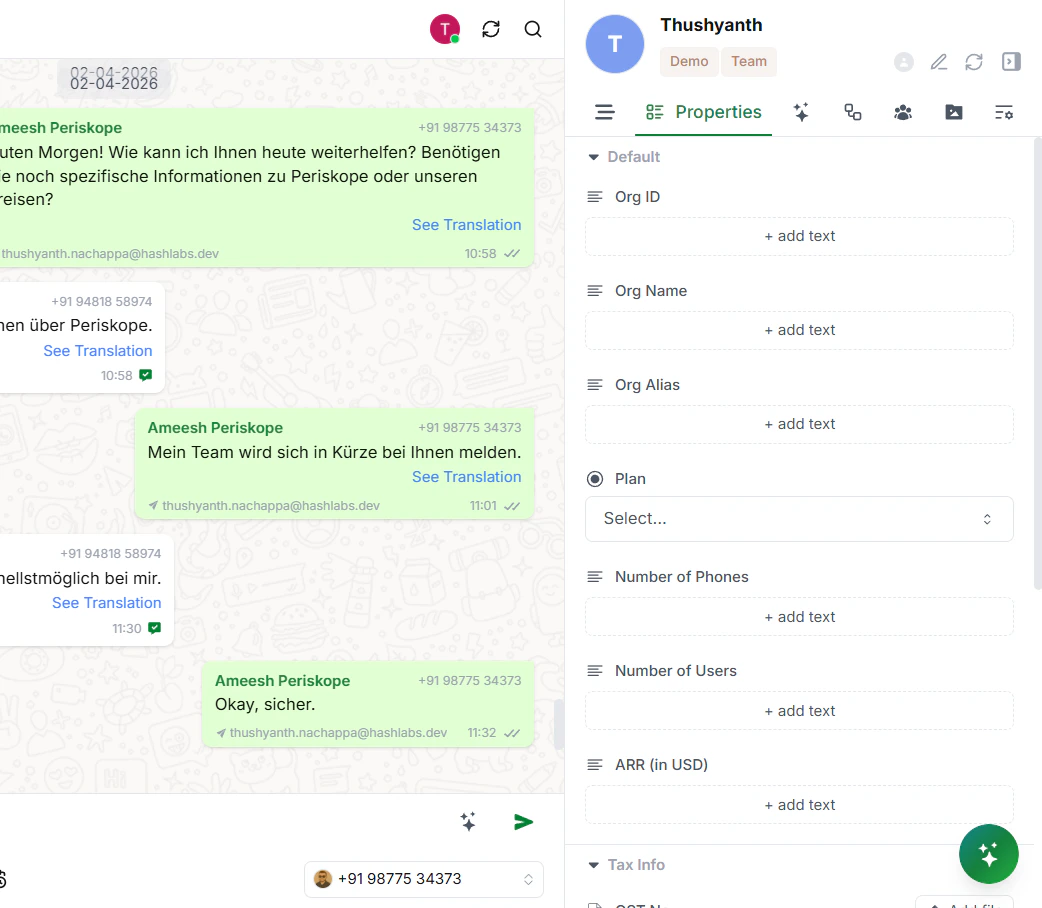
1. Open any chat
2. In the right-side panel, click the **Properties** tab
3. You'll see all your sections listed — like Tax Info, ARR, or any custom ones you've created
4. Click any field to fill it in or update it
> **Tip:** Custom properties filled in here — like `org_id` — can also be used by the Org Assistant to look up customer details and run Custom Tool actions without you needing to open the chat.
***
## Managing Custom Properties
### Moving properties between sections
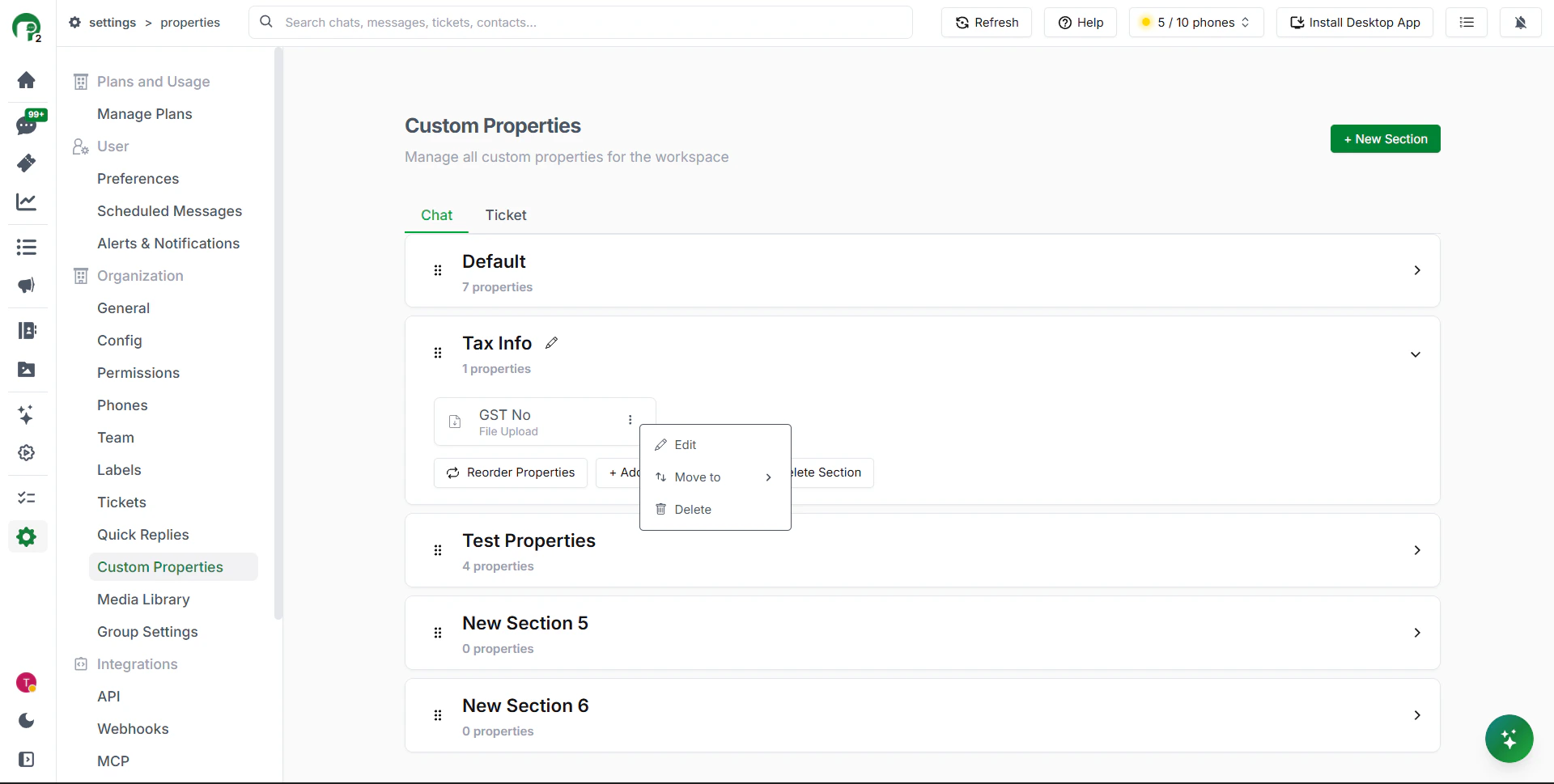
You can move a property from one section to another at any time to reorganise your structure.
### Reordering and deleting sections and properties
Sections and properties can be reordered or deleted as your needs change.
### Filtering chats and tickets by custom properties
You can filter your chat or ticket inbox based on custom property values — for example, showing only chats where Plan is "Enterprise" or where a specific dropdown value is selected.
***
## Best Practices
**Keep it organised** — Group related properties into logical sections so your team can find what they need quickly.
**Use clear naming** — Make property names self-explanatory so there's no confusion about what to fill in.
**Start with essentials** — Begin with the most important properties and add more as needed, rather than creating everything at once.
**Review regularly** — Periodically check your properties to make sure they're still relevant and remove any that aren't being used.
**Train your team** — Make sure everyone knows how and when to fill in custom properties, especially any that are marked mandatory for tickets.
***
 ***
### 2. Select the Chat or Ticket tab
You'll see two tabs at the top — **Chat** and **Ticket**. Select the tab depending on where you want the property to appear.
***
### 2. Select the Chat or Ticket tab
You'll see two tabs at the top — **Chat** and **Ticket**. Select the tab depending on where you want the property to appear.
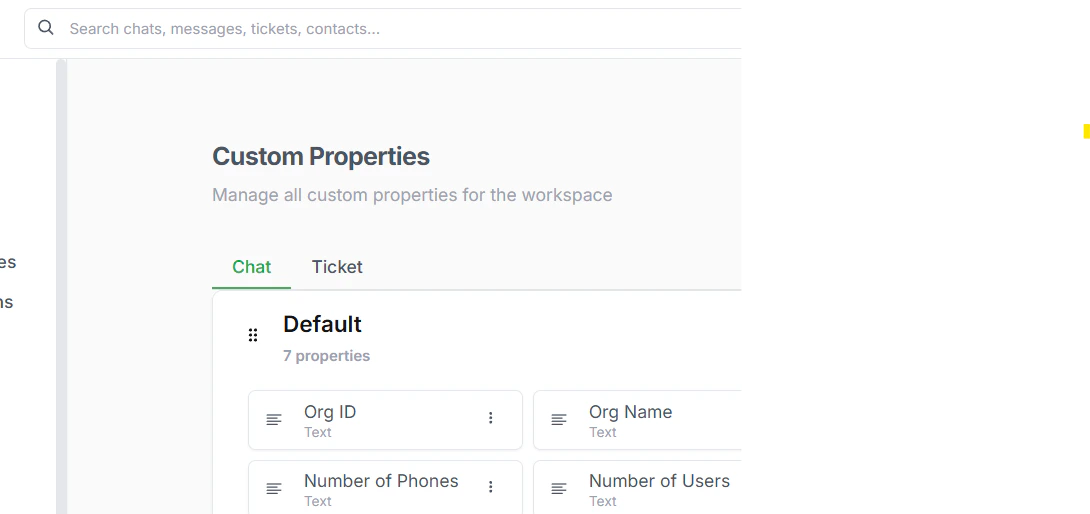 You'll see existing sections like **Default**, which already includes properties like Org ID, Org Name, Plan, and more.
***
### 3. Create a new section
Properties are organised into sections. To create one:
1. Click **+ New Section** in the top right
2. Give the section a name — for example, "Tax Info" or "Account Details"
You'll see existing sections like **Default**, which already includes properties like Org ID, Org Name, Plan, and more.
***
### 3. Create a new section
Properties are organised into sections. To create one:
1. Click **+ New Section** in the top right
2. Give the section a name — for example, "Tax Info" or "Account Details"
 ***
### 4. Add a property to the section
1. Click on the section to open it
2. Click **+ Add New Property**
3. Enter a property name
4. Select a property type
5. Configure any additional settings based on the type selected
6. Click **Create Property**
***
### 4. Add a property to the section
1. Click on the section to open it
2. Click **+ Add New Property**
3. Enter a property name
4. Select a property type
5. Configure any additional settings based on the type selected
6. Click **Create Property**
 Your property is now available across all chats or tickets in your workspace.
> **Note:** For tickets, you can mark certain properties as **mandatory** — ensuring your team always captures critical information before closing a ticket.
***
## Types of Custom Properties
Periskope offers six property types to cover different business needs:
| Type | What it's for |
| :--------------------- | :----------------------------------------------------- |
| Text | Free-form information — names, notes, account details |
| Date | Date picker — renewal dates, sign-up dates |
| File Upload | Attach files or documents directly to a chat or ticket |
| Single-Select Dropdown | Pick one option from a predefined list |
| Multi-Select Dropdown | Pick multiple options from a predefined list |
| Dependent Dropdown | Hierarchical selection — up to three levels deep |
***
## Viewing and Filling in Custom Properties in a Chat
Once properties are created, your team can view and fill them in from any chat or ticket.
1. Open any chat
2. In the right-side panel, click the **Properties** tab
3. You'll see all your sections listed — like Tax Info, ARR, or any custom ones you've created
4. Click any field to fill it in or update it
Your property is now available across all chats or tickets in your workspace.
> **Note:** For tickets, you can mark certain properties as **mandatory** — ensuring your team always captures critical information before closing a ticket.
***
## Types of Custom Properties
Periskope offers six property types to cover different business needs:
| Type | What it's for |
| :--------------------- | :----------------------------------------------------- |
| Text | Free-form information — names, notes, account details |
| Date | Date picker — renewal dates, sign-up dates |
| File Upload | Attach files or documents directly to a chat or ticket |
| Single-Select Dropdown | Pick one option from a predefined list |
| Multi-Select Dropdown | Pick multiple options from a predefined list |
| Dependent Dropdown | Hierarchical selection — up to three levels deep |
***
## Viewing and Filling in Custom Properties in a Chat
Once properties are created, your team can view and fill them in from any chat or ticket.
1. Open any chat
2. In the right-side panel, click the **Properties** tab
3. You'll see all your sections listed — like Tax Info, ARR, or any custom ones you've created
4. Click any field to fill it in or update it
 > **Tip:** Custom properties filled in here — like `org_id` — can also be used by the Org Assistant to look up customer details and run Custom Tool actions without you needing to open the chat.
***
## Managing Custom Properties
### Moving properties between sections
You can move a property from one section to another at any time to reorganise your structure.
> **Tip:** Custom properties filled in here — like `org_id` — can also be used by the Org Assistant to look up customer details and run Custom Tool actions without you needing to open the chat.
***
## Managing Custom Properties
### Moving properties between sections
You can move a property from one section to another at any time to reorganise your structure.
 ### Reordering and deleting sections and properties
Sections and properties can be reordered or deleted as your needs change.
### Filtering chats and tickets by custom properties
You can filter your chat or ticket inbox based on custom property values — for example, showing only chats where Plan is "Enterprise" or where a specific dropdown value is selected.
***
## Best Practices
**Keep it organised** — Group related properties into logical sections so your team can find what they need quickly.
**Use clear naming** — Make property names self-explanatory so there's no confusion about what to fill in.
**Start with essentials** — Begin with the most important properties and add more as needed, rather than creating everything at once.
**Review regularly** — Periodically check your properties to make sure they're still relevant and remove any that aren't being used.
**Train your team** — Make sure everyone knows how and when to fill in custom properties, especially any that are marked mandatory for tickets.
***
### Reordering and deleting sections and properties
Sections and properties can be reordered or deleted as your needs change.
### Filtering chats and tickets by custom properties
You can filter your chat or ticket inbox based on custom property values — for example, showing only chats where Plan is "Enterprise" or where a specific dropdown value is selected.
***
## Best Practices
**Keep it organised** — Group related properties into logical sections so your team can find what they need quickly.
**Use clear naming** — Make property names self-explanatory so there's no confusion about what to fill in.
**Start with essentials** — Begin with the most important properties and add more as needed, rather than creating everything at once.
**Review regularly** — Periodically check your properties to make sure they're still relevant and remove any that aren't being used.
**Train your team** — Make sure everyone knows how and when to fill in custom properties, especially any that are marked mandatory for tickets.
***