> ## Documentation Index
> Fetch the complete documentation index at: https://docs.periskope.app/llms.txt
> Use this file to discover all available pages before exploring further.
# Calling
> Make and receive WhatsApp voice calls from Periskope, and review every call with its recording, transcript and AI summary.
## Overview
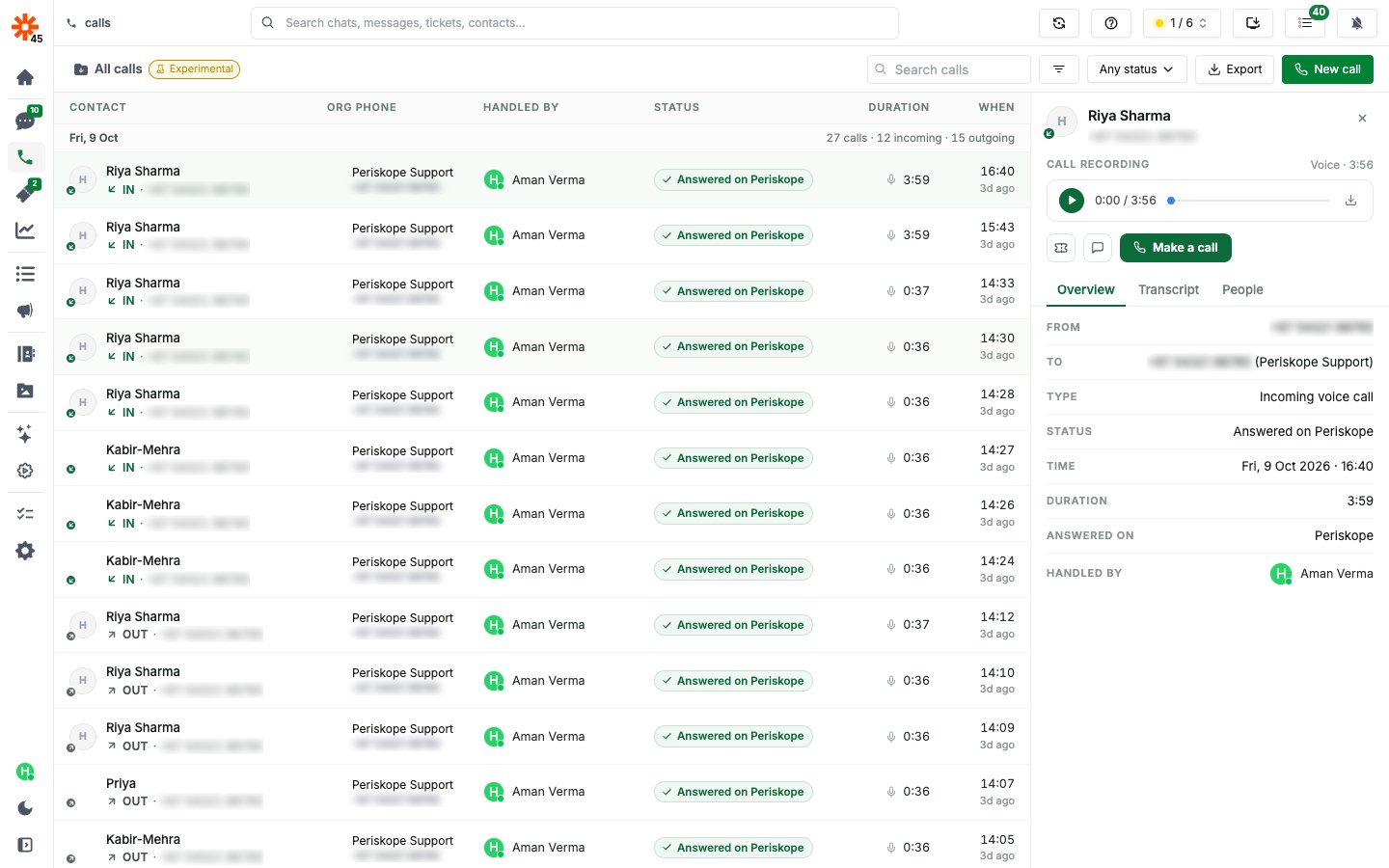
Calling lets your team make and answer WhatsApp voice calls on your connected numbers straight from Periskope. Incoming calls pop up for your team, so anyone can pick up. Teammates can join a live call, and every call is saved to the **Calls** page with its recording, transcript and an AI summary.
Calling is an **experimental** feature. It's available on every workspace: open **Calls** from the left sidebar to get started.
 Before you start:
* **A connected phone.** Calls are placed and received on your connected WhatsApp numbers.
* **Microphone access.** Allow Periskope to use your microphone when your browser or desktop app asks.
* **Voice calls with one contact.** Group calls and video calls aren't supported.
* **One call at a time.** End the call you're on before taking another one.
***
## Call history
The **Calls** page lists every call on your connected numbers, both incoming and outgoing. That includes calls answered in Periskope and calls answered on the phone itself. Calls are grouped by day, and each row shows:
| Column | What it shows |
| - | - |
| **Contact** | The customer's name and number, and whether the call was incoming or outgoing |
| **Org phone** | Your connected number that made or received the call |
| **Handled by** | The teammate who took or placed the call |
| **Status** | How the call ended |
| **Duration** | How long the call lasted |
| **When** | When the call happened |
Before you start:
* **A connected phone.** Calls are placed and received on your connected WhatsApp numbers.
* **Microphone access.** Allow Periskope to use your microphone when your browser or desktop app asks.
* **Voice calls with one contact.** Group calls and video calls aren't supported.
* **One call at a time.** End the call you're on before taking another one.
***
## Call history
The **Calls** page lists every call on your connected numbers, both incoming and outgoing. That includes calls answered in Periskope and calls answered on the phone itself. Calls are grouped by day, and each row shows:
| Column | What it shows |
| - | - |
| **Contact** | The customer's name and number, and whether the call was incoming or outgoing |
| **Org phone** | Your connected number that made or received the call |
| **Handled by** | The teammate who took or placed the call |
| **Status** | How the call ended |
| **Duration** | How long the call lasted |
| **When** | When the call happened |
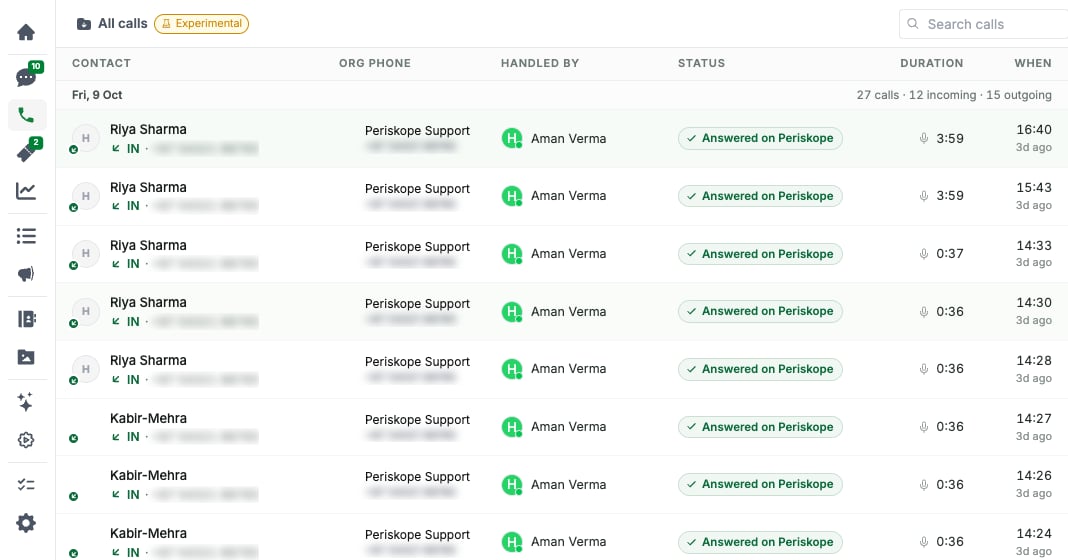 A call can have one of these statuses:
* **Answered on Periskope**: a teammate answered or placed the call in Periskope.
* **Answered on other device**: the call was answered on the phone itself.
* **Missed**: an incoming call that nobody answered.
* **Unanswered**: an outgoing call the contact didn't pick up.
To find a call:
* Switch between **All calls**, **Incoming**, **Outgoing** and **Missed** from the menu at the top left.
* Use **Search calls** to search by contact name, number or teammate.
* Use the filter to narrow calls by org phone, assignee or labels, and the status filter to show only certain statuses.
* Click **Export** to download the calls you're viewing as a CSV file.
Click any call to open its details on the right. From there you can **Create ticket**, **Open chat** with the contact, or **Make a call** to call them back. The **Overview** tab shows when the call happened, how long it lasted and who handled it, and the **People** tab lists everyone who was on the call.
***
## How to make a call
You can start a call from three places:
* **Calls page**: click **New call** at the top right.
* **A chat**: open a 1:1 chat and click the phone icon (**Start a voice call**) in the chat header.
* **A past call**: open a call on the Calls page and click **Make a call**.
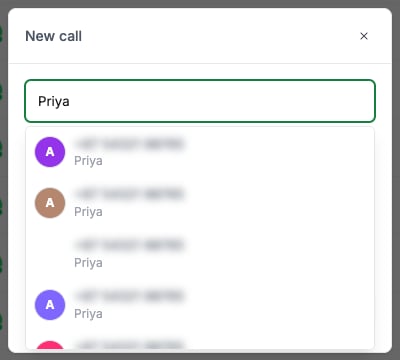
In the **New call** window, search your contacts by name or number, or type a new number. Periskope checks that the number is on WhatsApp.
Use the phone dropdown at the bottom to pick which connected number places the call.
The call starts ringing. Click **Cancel** to stop it before the contact answers.
A call can have one of these statuses:
* **Answered on Periskope**: a teammate answered or placed the call in Periskope.
* **Answered on other device**: the call was answered on the phone itself.
* **Missed**: an incoming call that nobody answered.
* **Unanswered**: an outgoing call the contact didn't pick up.
To find a call:
* Switch between **All calls**, **Incoming**, **Outgoing** and **Missed** from the menu at the top left.
* Use **Search calls** to search by contact name, number or teammate.
* Use the filter to narrow calls by org phone, assignee or labels, and the status filter to show only certain statuses.
* Click **Export** to download the calls you're viewing as a CSV file.
Click any call to open its details on the right. From there you can **Create ticket**, **Open chat** with the contact, or **Make a call** to call them back. The **Overview** tab shows when the call happened, how long it lasted and who handled it, and the **People** tab lists everyone who was on the call.
***
## How to make a call
You can start a call from three places:
* **Calls page**: click **New call** at the top right.
* **A chat**: open a 1:1 chat and click the phone icon (**Start a voice call**) in the chat header.
* **A past call**: open a call on the Calls page and click **Make a call**.
In the **New call** window, search your contacts by name or number, or type a new number. Periskope checks that the number is on WhatsApp.
Use the phone dropdown at the bottom to pick which connected number places the call.
The call starts ringing. Click **Cancel** to stop it before the contact answers.
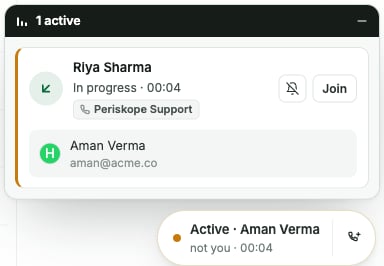
 During a call you can **Mute** or **Unmute** your microphone, **End for all** to hang up, or **Leave call** to drop off while your teammates stay on with the customer. The floating **Calls** button stays on screen, so you can keep working in Periskope while you talk.
Teammates' live calls show under **In progress** in the call popup. Click **Join** to join one, for example to help a teammate with a customer.
During a call you can **Mute** or **Unmute** your microphone, **End for all** to hang up, or **Leave call** to drop off while your teammates stay on with the customer. The floating **Calls** button stays on screen, so you can keep working in Periskope while you talk.
Teammates' live calls show under **In progress** in the call popup. Click **Join** to join one, for example to help a teammate with a customer.
 ***
## How to enable call notifications
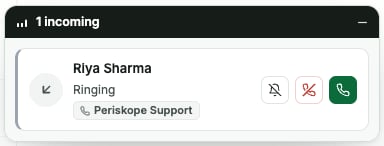
When a customer calls one of your connected numbers, a call popup opens with the caller and the phone they called. Click **Answer** to take the call in Periskope or **Decline** to reject it. If several calls come in at once, they're listed together in the popup.
***
## How to enable call notifications
When a customer calls one of your connected numbers, a call popup opens with the caller and the phone they called. Click **Answer** to take the call in Periskope or **Decline** to reject it. If several calls come in at once, they're listed together in the popup.
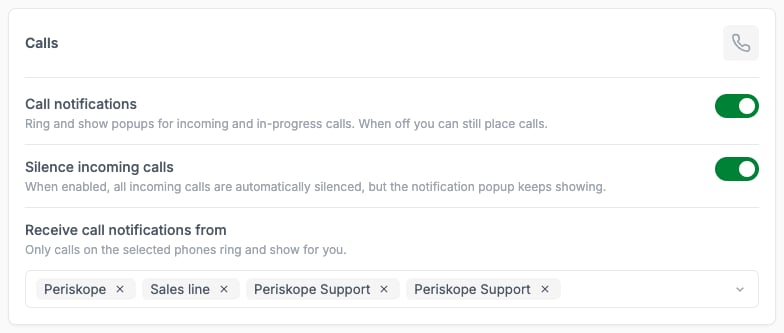
 Each teammate chooses how calls reach them under **Settings → Notifications → Calls**:
* **Call notifications**: shows popups for incoming and in-progress calls. It's on by default. You can still place calls when it's off.
* **Silence incoming calls**: when enabled, all incoming calls are automatically silenced, but the notification popup keeps showing. It's on by default. Turn it off to hear a ringtone for incoming calls.
* **Receive call notifications from**: choose which of your connected phones notify you. Leave it empty to get notifications from every phone.
Each teammate chooses how calls reach them under **Settings → Notifications → Calls**:
* **Call notifications**: shows popups for incoming and in-progress calls. It's on by default. You can still place calls when it's off.
* **Silence incoming calls**: when enabled, all incoming calls are automatically silenced, but the notification popup keeps showing. It's on by default. Turn it off to hear a ringtone for incoming calls.
* **Receive call notifications from**: choose which of your connected phones notify you. Leave it empty to get notifications from every phone.
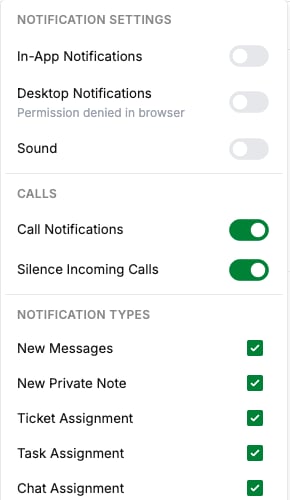
 You can also switch **Call Notifications** and **Silence Incoming Calls** on or off from the notification bell in the top bar.
 To quiet one call without declining it, click the bell icon on that call in the popup.
***
## Call recordings and transcripts
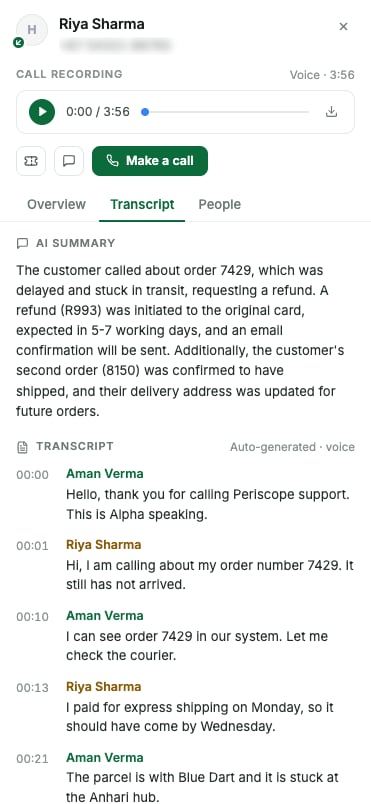
Calls taken or placed in Periskope are recorded. Open a call on the **Calls** page to see its recording and transcript on the right.
* **Call recording**: play the call, skip to any point, or download it.
* **AI summary**: a short summary of what the customer wanted and what was agreed, at the top of the **Transcript** tab.
* **Transcript**: every line of the conversation, timestamped and credited to whoever said it, either the customer or the teammate by name. When several teammates are on a call, each of their lines is credited to them.
To quiet one call without declining it, click the bell icon on that call in the popup.
***
## Call recordings and transcripts
Calls taken or placed in Periskope are recorded. Open a call on the **Calls** page to see its recording and transcript on the right.
* **Call recording**: play the call, skip to any point, or download it.
* **AI summary**: a short summary of what the customer wanted and what was agreed, at the top of the **Transcript** tab.
* **Transcript**: every line of the conversation, timestamped and credited to whoever said it, either the customer or the teammate by name. When several teammates are on a call, each of their lines is credited to them.
 The recording, transcript and summary appear a short while after the call ends. Calls answered on the phone itself, missed calls and unanswered calls have no recording.
This documentation is built and hosted on [Mintlify](https://mintlify.com), a developer documentation platform.
The recording, transcript and summary appear a short while after the call ends. Calls answered on the phone itself, missed calls and unanswered calls have no recording.
This documentation is built and hosted on [Mintlify](https://mintlify.com), a developer documentation platform.