> ## Documentation Index
> Fetch the complete documentation index at: https://docs.periskope.app/llms.txt
> Use this file to discover all available pages before exploring further.
# Variables & Message Templates
> Personalise bulk messages with per-contact variables and save reusable message templates for future broadcasts.
Message templates in Periskope are not related to WhatsApp Business API templates and do not require any prior approval.
## Variables
Variables let you personalize a bulk message for each recipient — inserting values like a contact's name, company, or any custom field into the message text. You can see exactly what each contact will receive in a live preview before you send.
### Adding Variables to a Message
Go to `Bulk messages > New bulk message`, select your contacts, and proceed to the Draft Message step.
Click the `{}` button in the message toolbar, or type `{` directly in the message body. Enter a name for the variable and a fallback value. The fallback is used for any contact where you leave the field empty.
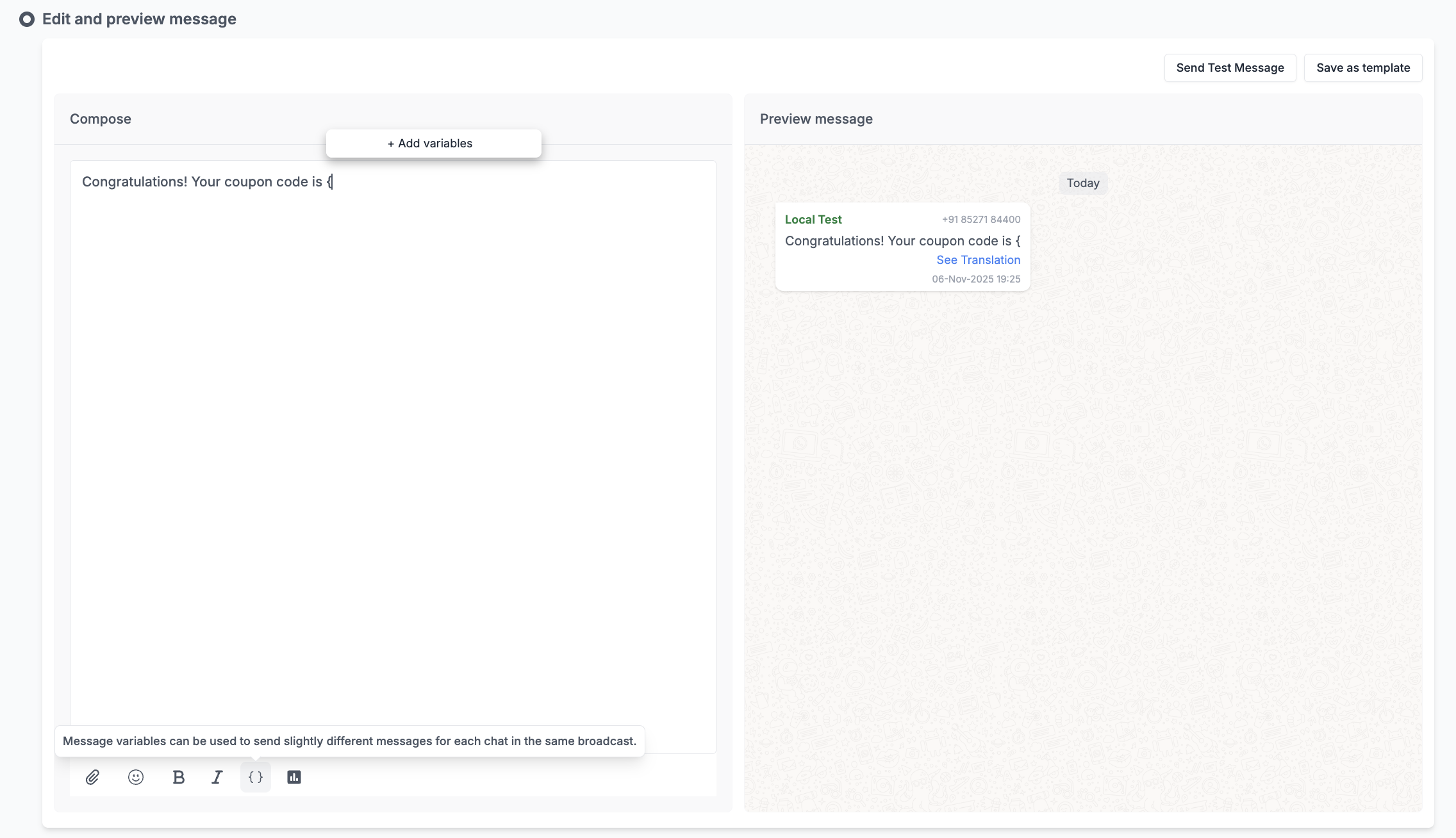
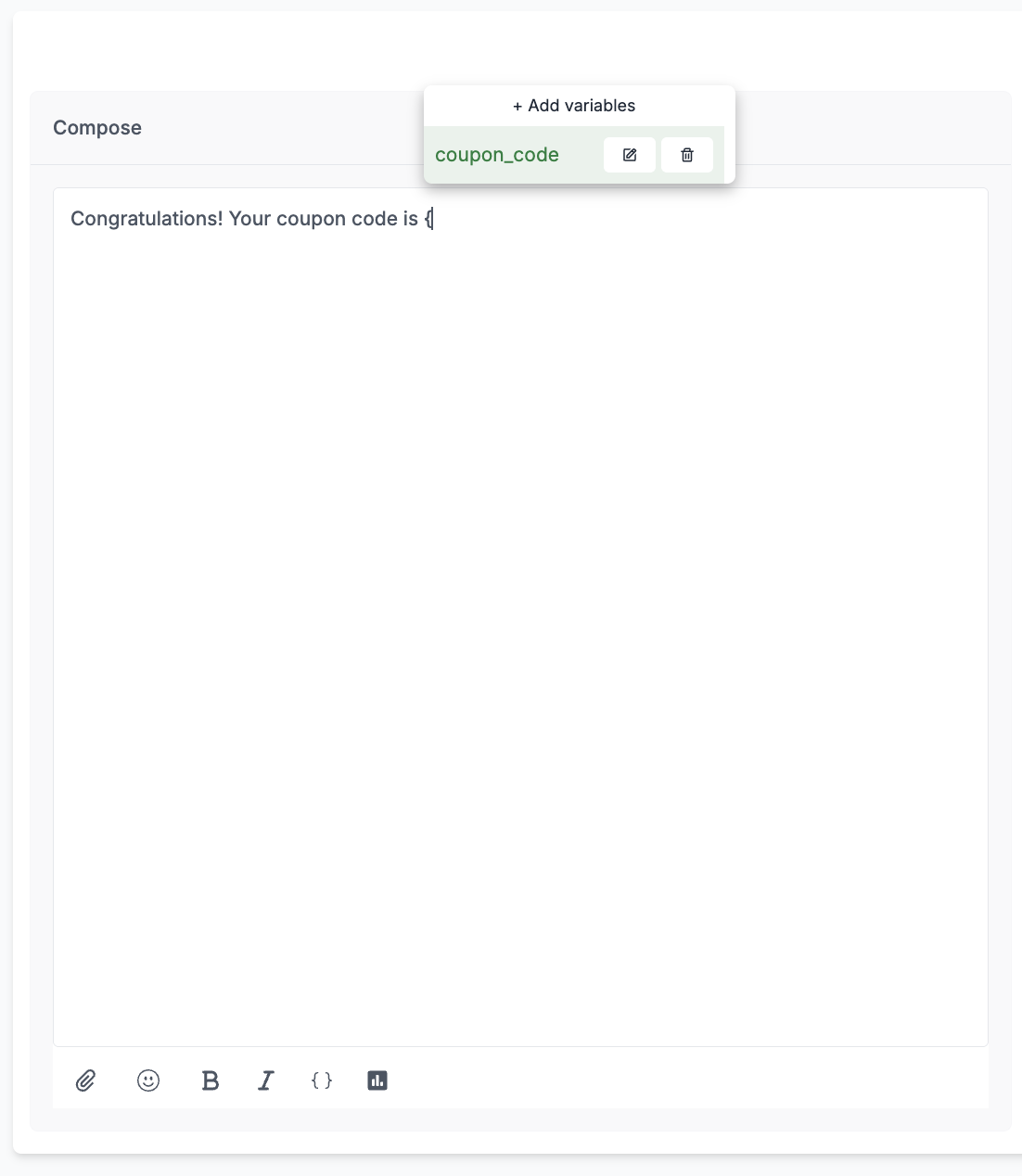
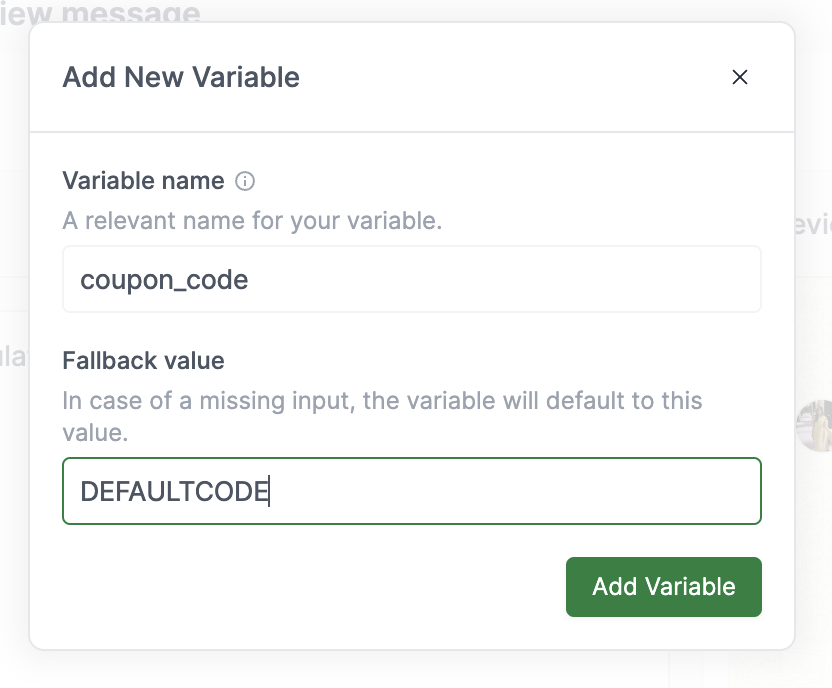 After creating a variable, insert it by selecting it from the pop-up menu that appears when you type `{`.
 Click `Next Step` to open the Fill Variables screen. Each contact appears as a row in the table — fill in variable values directly.
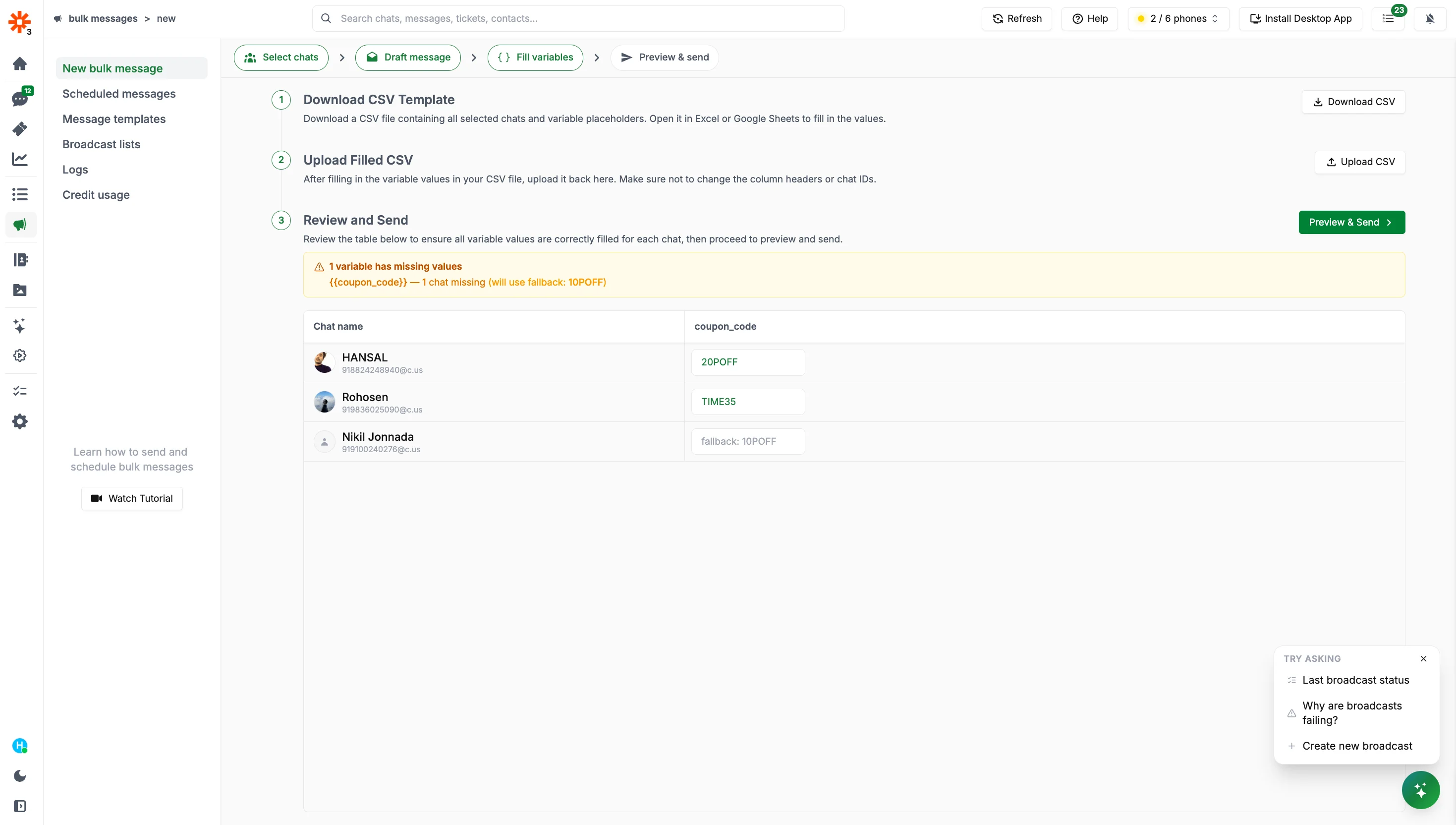 You can also fill values using a CSV. Download the CSV from the top right corner, fill in values using Google Sheets or Excel, then upload it back.
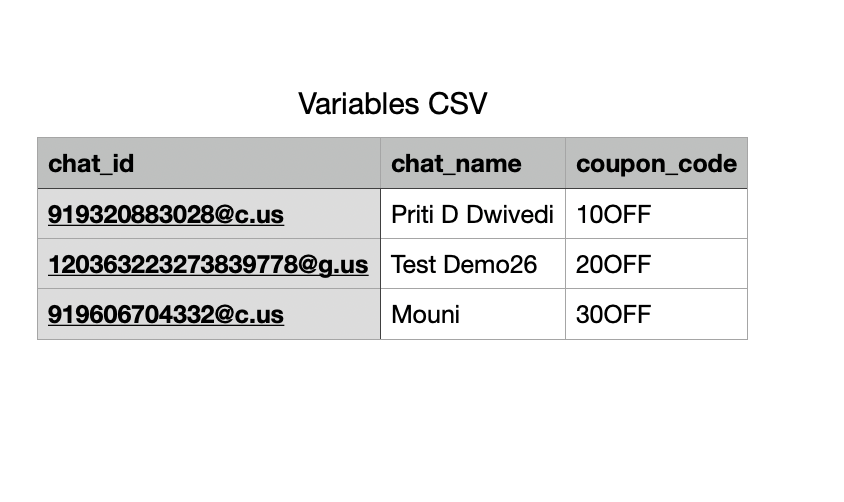 Do not modify the columns or add/remove rows in the downloaded CSV. If you need to add variables or chats, make those changes in the table first and download a new CSV.
Click through each contact in the preview panel to see exactly how the final message will look for that recipient, with all variables replaced by their actual values.
Do not modify the columns or add/remove rows in the downloaded CSV. If you need to add variables or chats, make those changes in the table first and download a new CSV.
Click through each contact in the preview panel to see exactly how the final message will look for that recipient, with all variables replaced by their actual values.
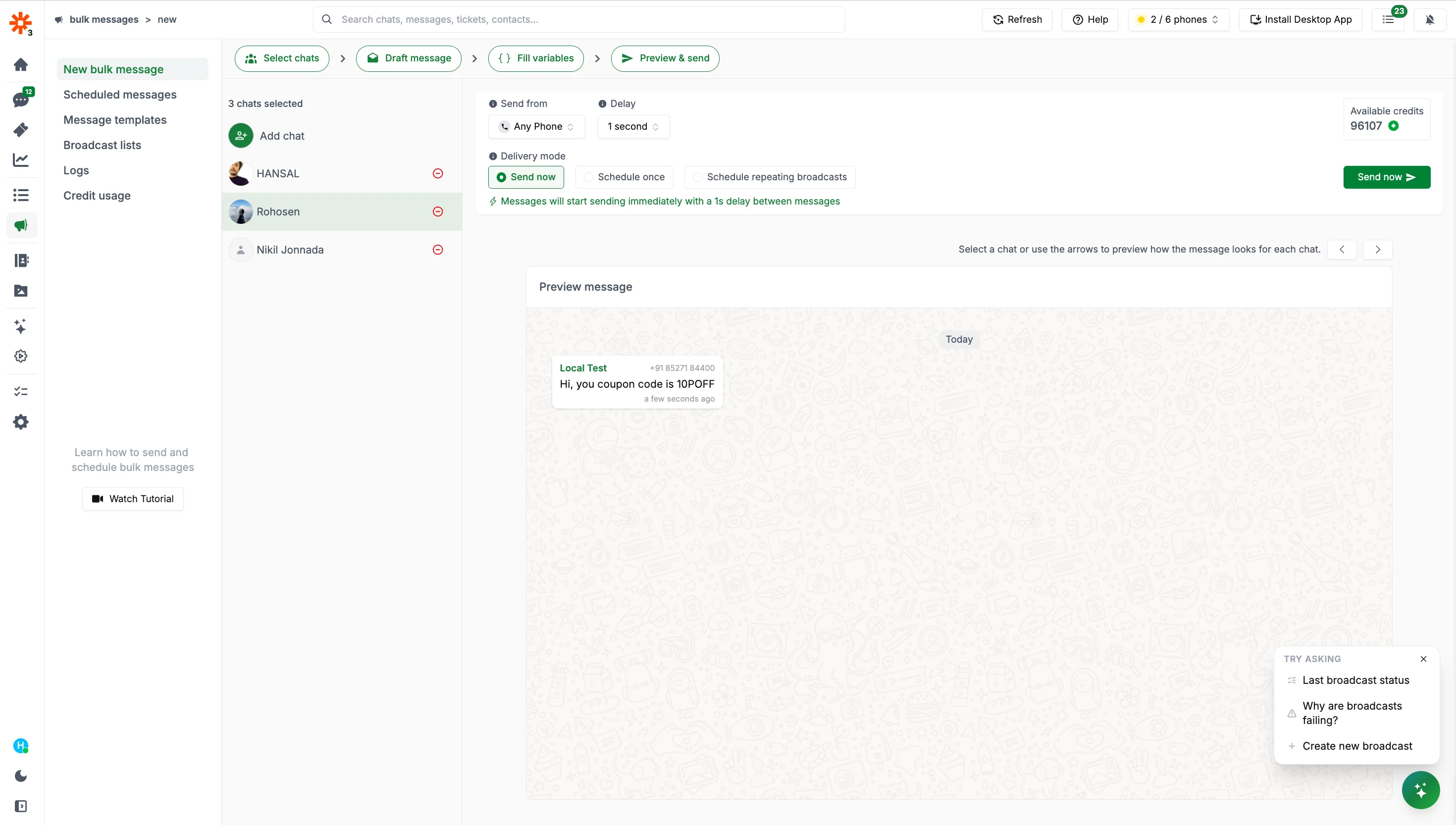 Once happy with the preview, choose a delivery mode and send. See [Sending a Bulk Message](/features/bulk-message) for delivery options.
***
## Message Templates
Message templates let you save a drafted message — including variables and attachments — and load it instantly in any future broadcast.
### Saving a Template
Write your message in the Draft Message section. You can include text, variables, images, videos, and other attachments.
Click the `Save template` button at the top of the Draft Message screen.
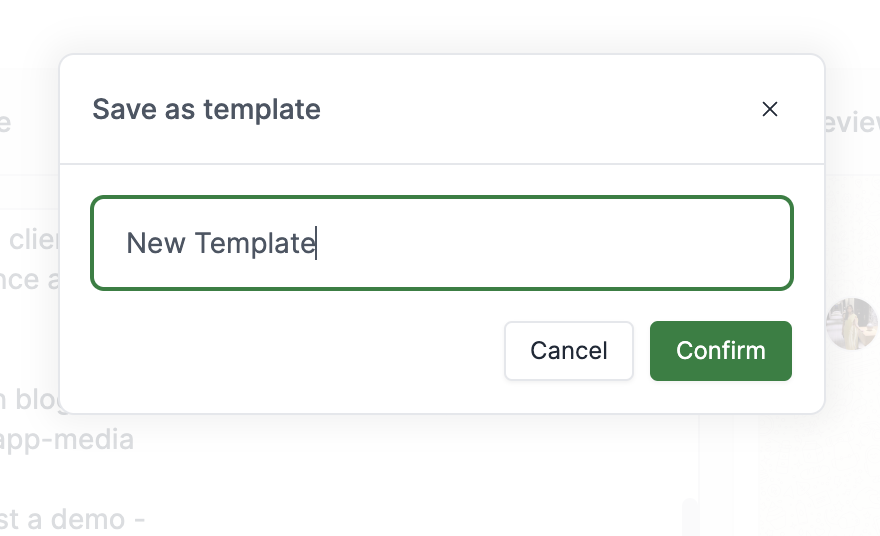
Enter a descriptive name so you can identify it easily later.
Once happy with the preview, choose a delivery mode and send. See [Sending a Bulk Message](/features/bulk-message) for delivery options.
***
## Message Templates
Message templates let you save a drafted message — including variables and attachments — and load it instantly in any future broadcast.
### Saving a Template
Write your message in the Draft Message section. You can include text, variables, images, videos, and other attachments.
Click the `Save template` button at the top of the Draft Message screen.
Enter a descriptive name so you can identify it easily later.
 ### Using a Template
When drafting a new broadcast, click the template picker to load a previously saved message. The message content, variables, and any attachments will be pre-filled.
### Duplicating a Template
You can duplicate an existing template from the template list to create a variation without modifying the original.
### Using a Template
When drafting a new broadcast, click the template picker to load a previously saved message. The message content, variables, and any attachments will be pre-filled.
### Duplicating a Template
You can duplicate an existing template from the template list to create a variation without modifying the original.