> ## Documentation Index
> Fetch the complete documentation index at: https://docs.periskope.app/llms.txt
> Use this file to discover all available pages before exploring further.
# Templates & Saved Chat Lists
> Guide to saving message templates, saved chat lists, and duplicating broadcasts for reuse
**Important Note**: Message templates in Periskope are not related to WhatsApp Business API templates and do not require any prior approval.
Periskope gives you three ways to save and reuse your work across broadcasts:
1. **Message templates** — save a message (including variables and attachments) to reuse in future broadcasts.
2. **Saved chat lists** — save a group of contacts under a name to load instantly when creating a new broadcast.
3. **Duplicate a broadcast** — copy any previous broadcast as a starting point for a new one.
***
## Message Templates
### Saving a Template
Write your message in the Draft Message section. You can include text, variables, images, videos, and other attachments.
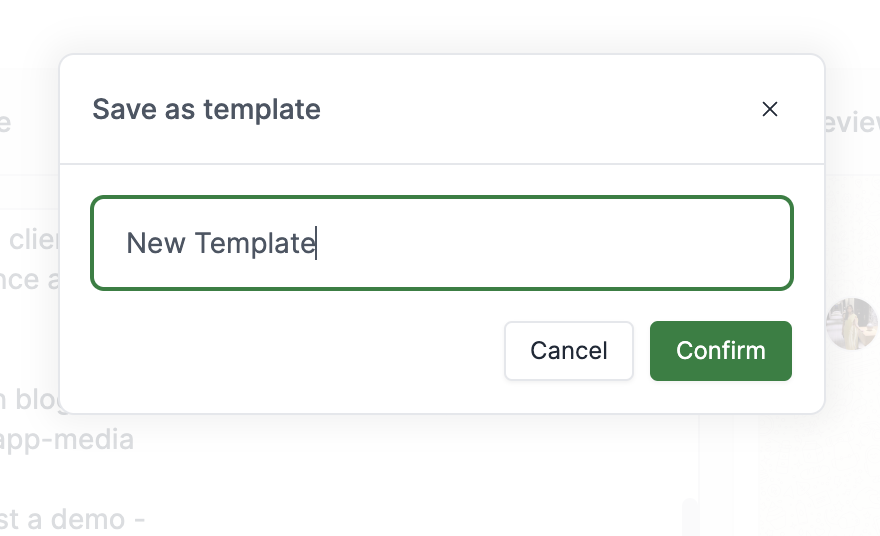
Click the `Save template` button at the top of the Draft Message screen.
Enter a descriptive name for the template so you can identify it easily in the future.
 ### Using a Template
When drafting a new broadcast, click the template picker to load a previously saved message. The message content, variables, and any attachments will be pre-filled.
You can also **duplicate** an existing template from the template list to create a variation without modifying the original.
***
## Saved Chat Lists
Saved chat lists let you save a group of contacts under a name and reload them instantly when creating any future broadcast — without re-selecting contacts each time.
### Saving a Chat List
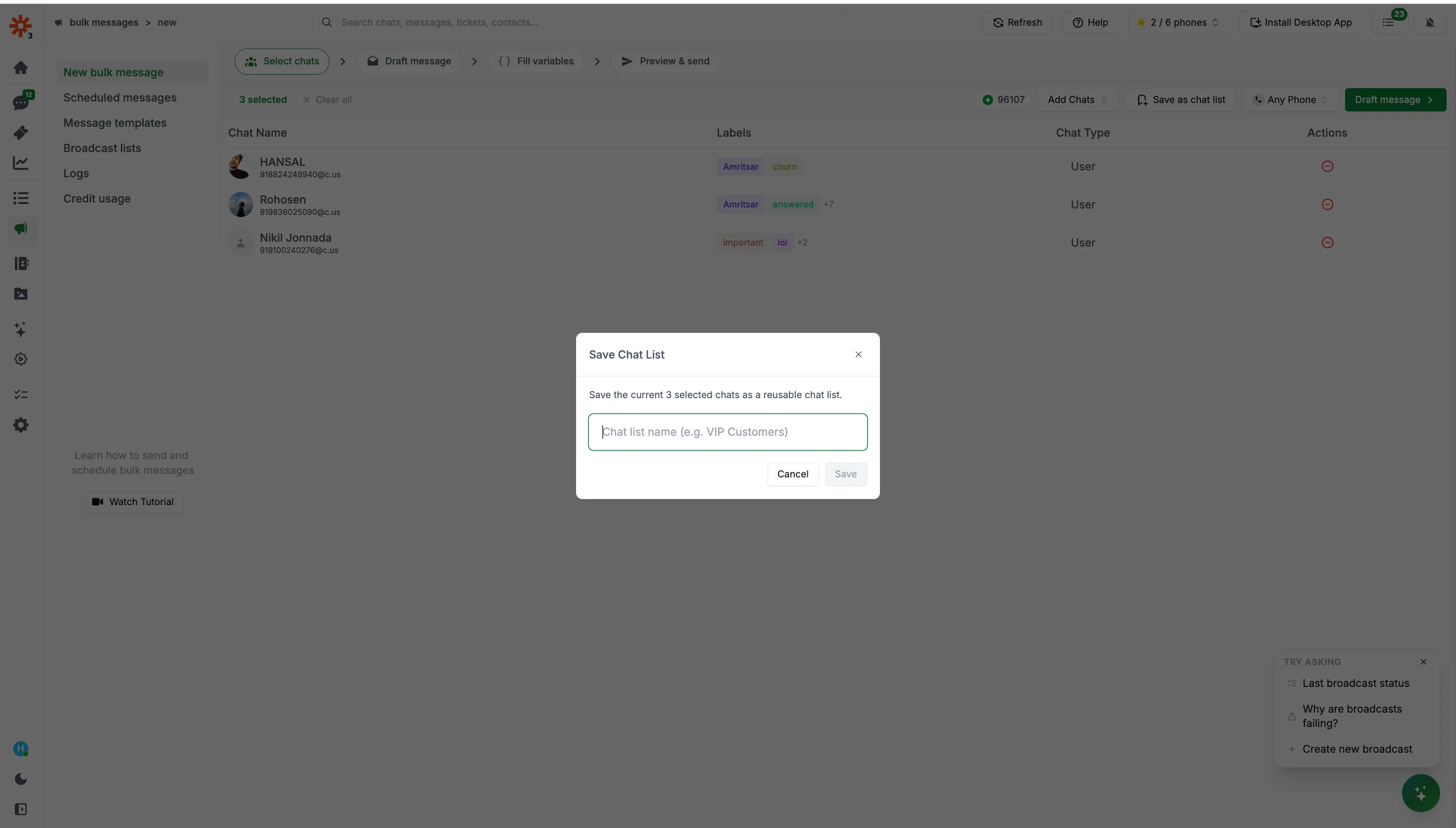
On the broadcast new page, select the contacts you want to include using the `Add Chats` button.
Click the save icon in the toolbar and enter a name for the list.
### Using a Template
When drafting a new broadcast, click the template picker to load a previously saved message. The message content, variables, and any attachments will be pre-filled.
You can also **duplicate** an existing template from the template list to create a variation without modifying the original.
***
## Saved Chat Lists
Saved chat lists let you save a group of contacts under a name and reload them instantly when creating any future broadcast — without re-selecting contacts each time.
### Saving a Chat List
On the broadcast new page, select the contacts you want to include using the `Add Chats` button.
Click the save icon in the toolbar and enter a name for the list.
 ### Using a Saved Chat List
When creating a new broadcast, click `Add Chats` → `Select from saved chat lists` and pick the list you want to load.
### Managing Saved Chat Lists
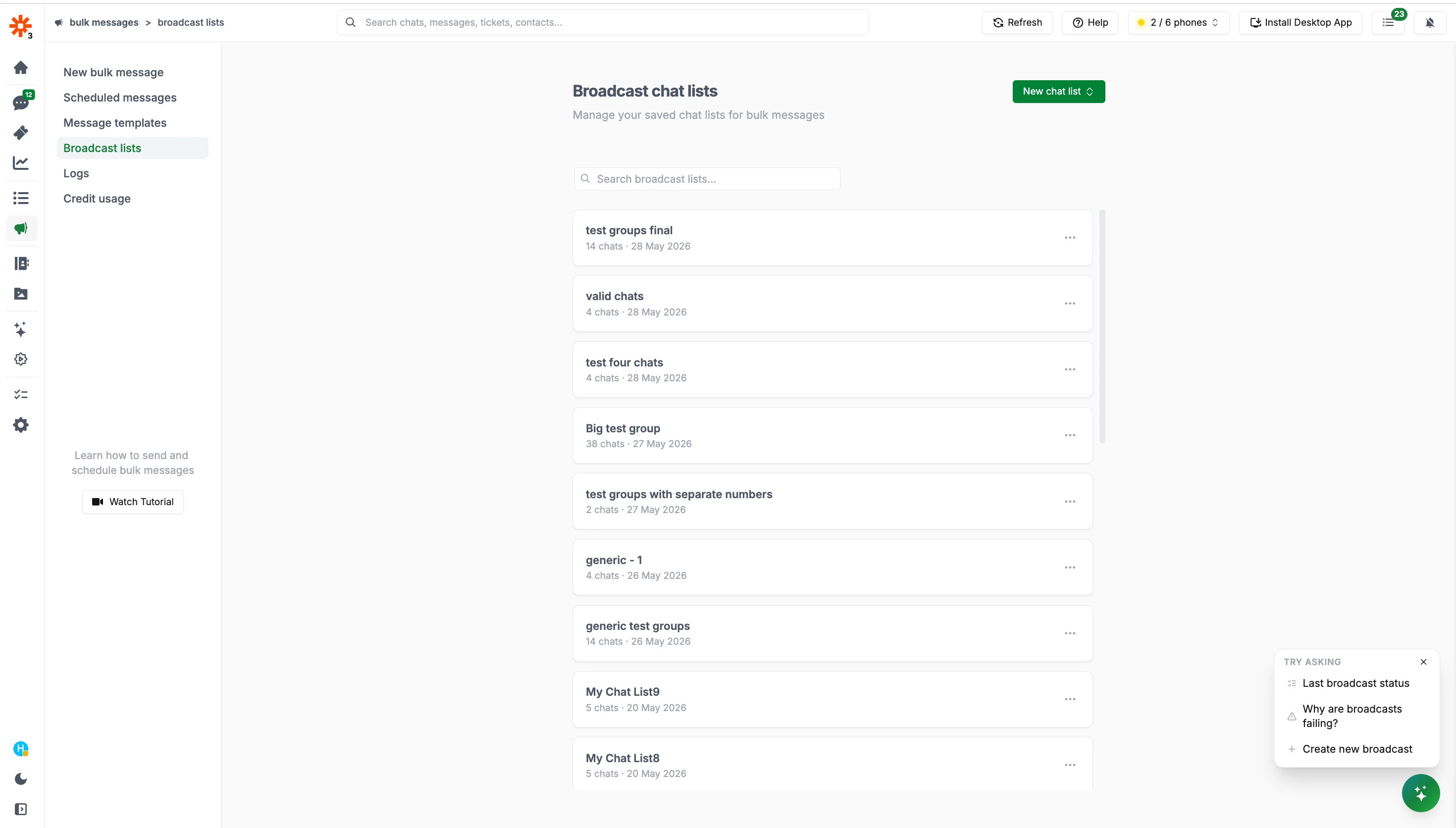
Go to `Bulk messages > Saved chat lists` to view, rename, edit, or delete any of your saved lists.
### Using a Saved Chat List
When creating a new broadcast, click `Add Chats` → `Select from saved chat lists` and pick the list you want to load.
### Managing Saved Chat Lists
Go to `Bulk messages > Saved chat lists` to view, rename, edit, or delete any of your saved lists.
 ***
## Duplicating a Broadcast
You can duplicate any previous broadcast from the logs screen to instantly use it as a starting point — with the same message, contacts, and settings pre-filled.
Navigate to `Bulk messages > Logs`, find the broadcast you want to reuse, and click `Duplicate` from the actions menu.
***
## Duplicating a Broadcast
You can duplicate any previous broadcast from the logs screen to instantly use it as a starting point — with the same message, contacts, and settings pre-filled.
Navigate to `Bulk messages > Logs`, find the broadcast you want to reuse, and click `Duplicate` from the actions menu.