> ## Documentation Index
> Fetch the complete documentation index at: https://docs.periskope.app/llms.txt
> Use this file to discover all available pages before exploring further.
# Saved Chat Lists
> Save a list of groups and contacts under a name and reload them instantly when creating any future broadcast.
## Overview
Saved chat lists let you save a list of group and contacts under a name and load them instantly when creating any future broadcast — without re-selecting contacts each time. This is especially useful for recurring sends to the same audience.
## Saving a Chat List
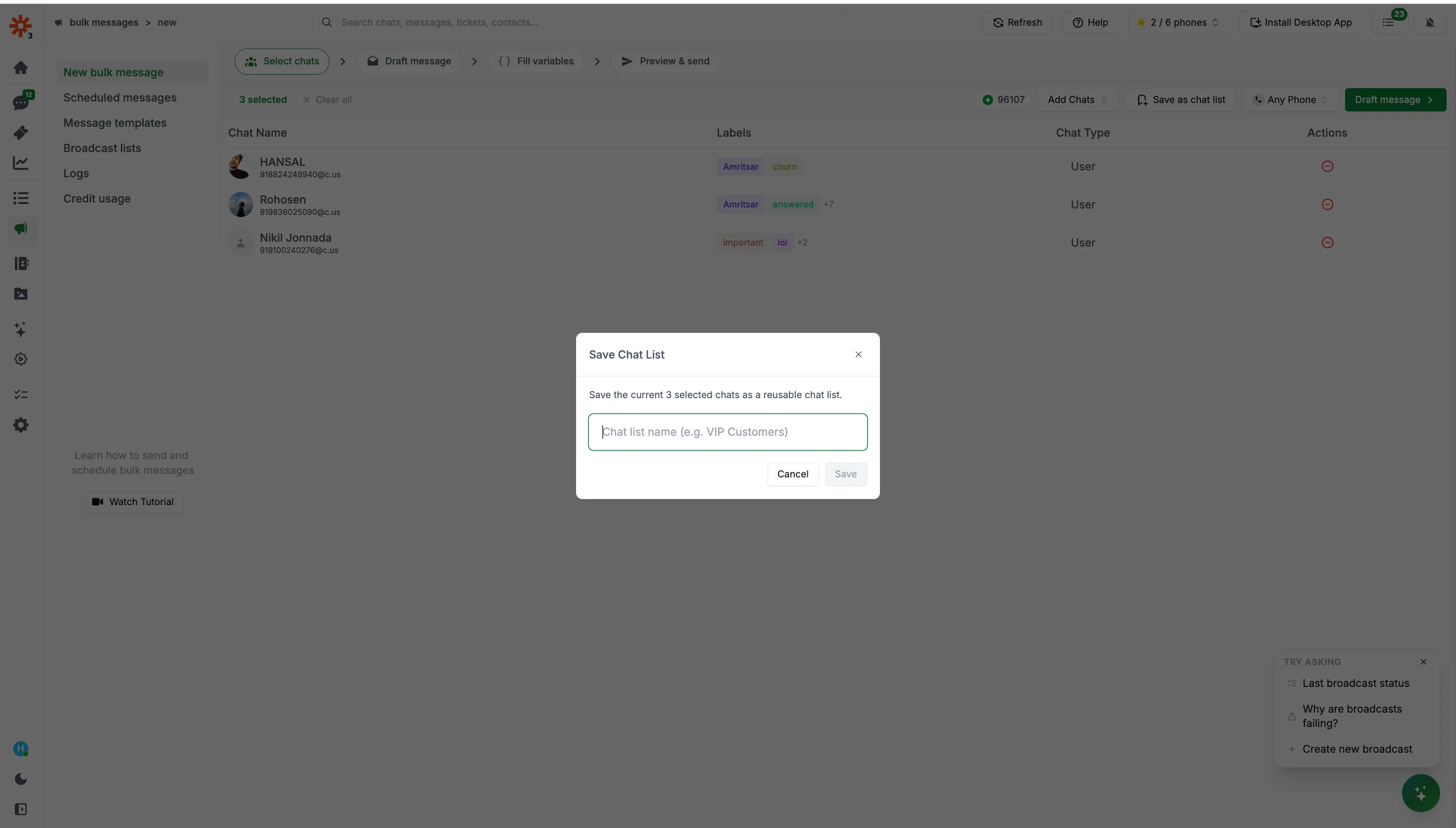
On the new broadcast page, select the contacts you want to include using the `Add Chats` button.
Click the save icon in the toolbar and enter a name for the list.
 ## Using a Saved Chat List
When creating a new broadcast, click `Add Chats` → `Select from saved chat lists` and pick the list you want to load. All contacts from the list will be added instantly.
## Managing Saved Chat Lists
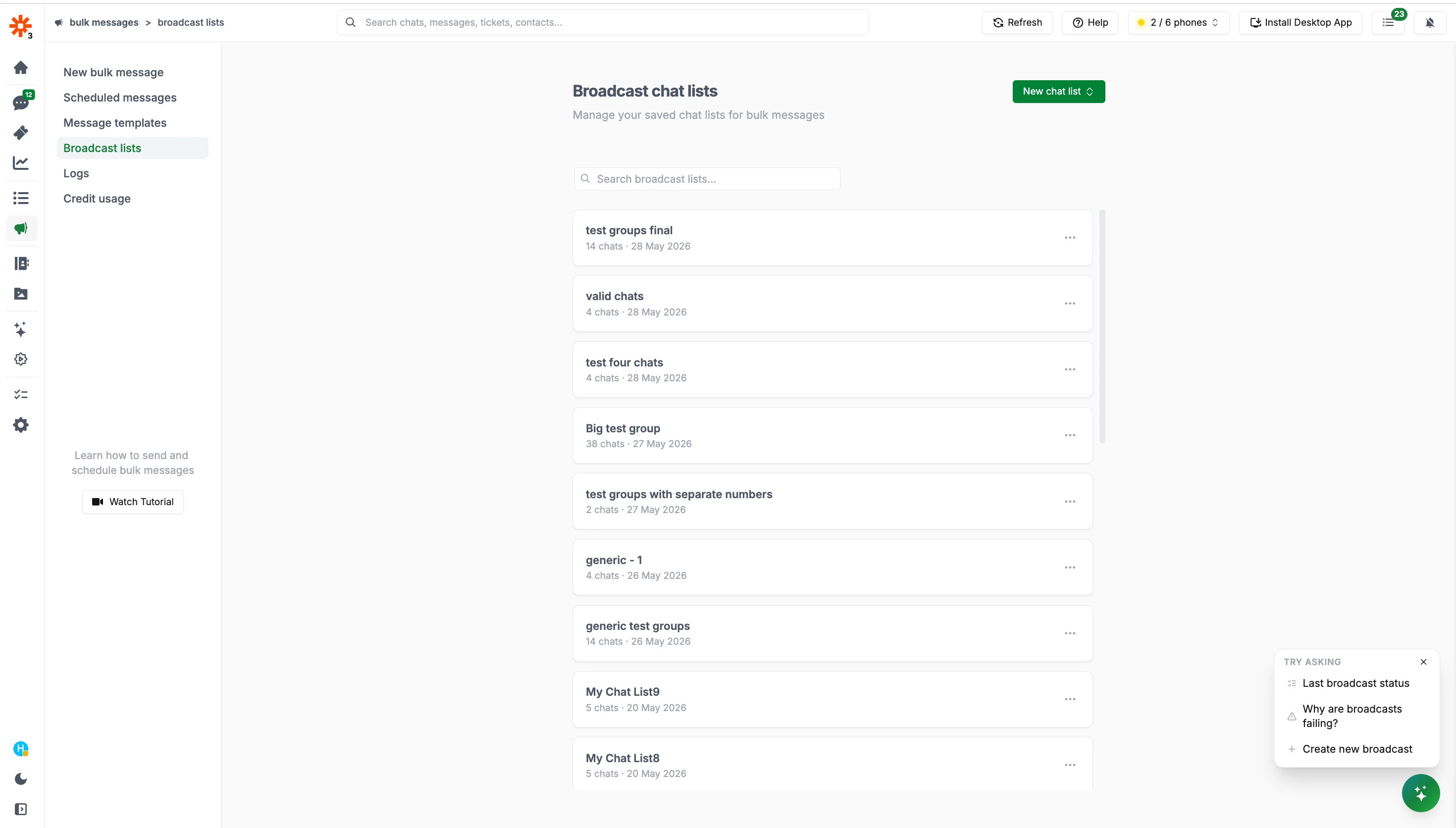
Go to `Bulk messages > Saved chat lists` to view, rename, edit, or delete any of your saved lists.
## Using a Saved Chat List
When creating a new broadcast, click `Add Chats` → `Select from saved chat lists` and pick the list you want to load. All contacts from the list will be added instantly.
## Managing Saved Chat Lists
Go to `Bulk messages > Saved chat lists` to view, rename, edit, or delete any of your saved lists.