> ## Documentation Index
> Fetch the complete documentation index at: https://docs.periskope.app/llms.txt
> Use this file to discover all available pages before exploring further.
# Repeating Bulk Messages
> Set up repeating bulk messages that go out automatically on a daily, weekly, or monthly schedule.
## Overview
Repeating bulk messages let you set a broadcast once and have it go out automatically on a recurring schedule — daily, weekly, or monthly. This is useful for regular updates, reminders, or any message you send on a fixed cadence.
## Setting Up a Repeating Broadcast
Select your contacts and draft your message as you normally would. See [Sending a Bulk Message](/features/bulk-message) for the full send flow.
In the delivery mode screen, choose **Schedule repeating broadcasts**. Set the cadence:
* **Daily** — sends every day at the specified time
* **Weekly** — sends on a chosen day of the week
* **Monthly** — sends on a chosen date each month
Also set the **delay between messages** to control the gap between each recipient's message and reduce the risk of hitting WhatsApp rate limits.
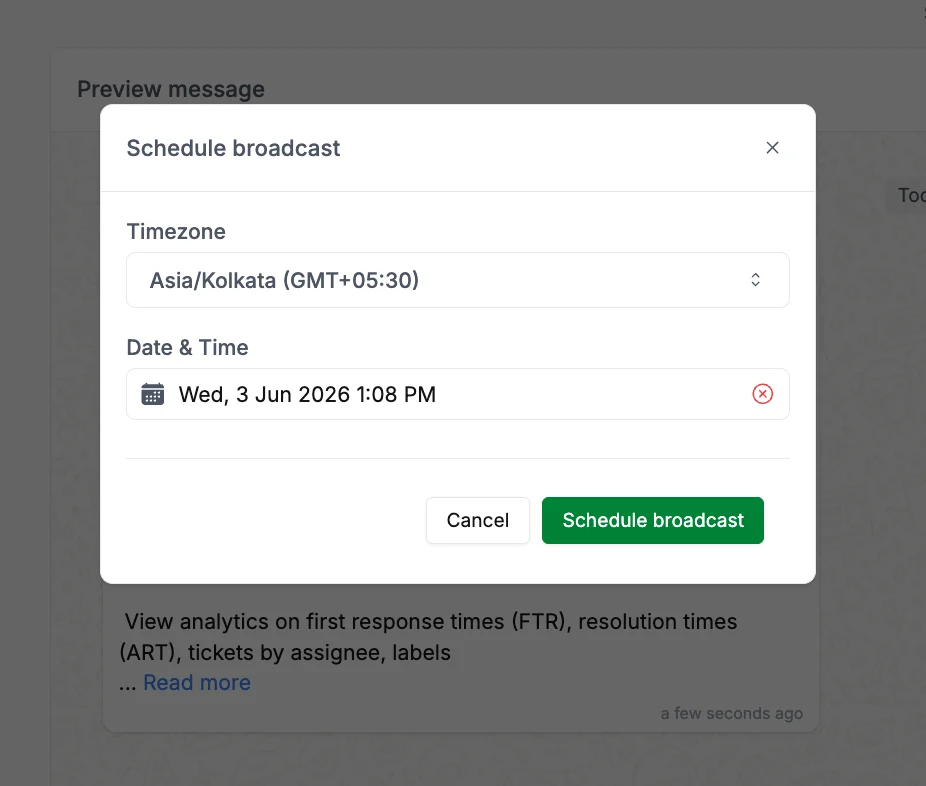 Once confirmed, Periskope runs the broadcast automatically at the scheduled time. You can monitor each run from the Logs screen.
## Managing Repeating Broadcasts
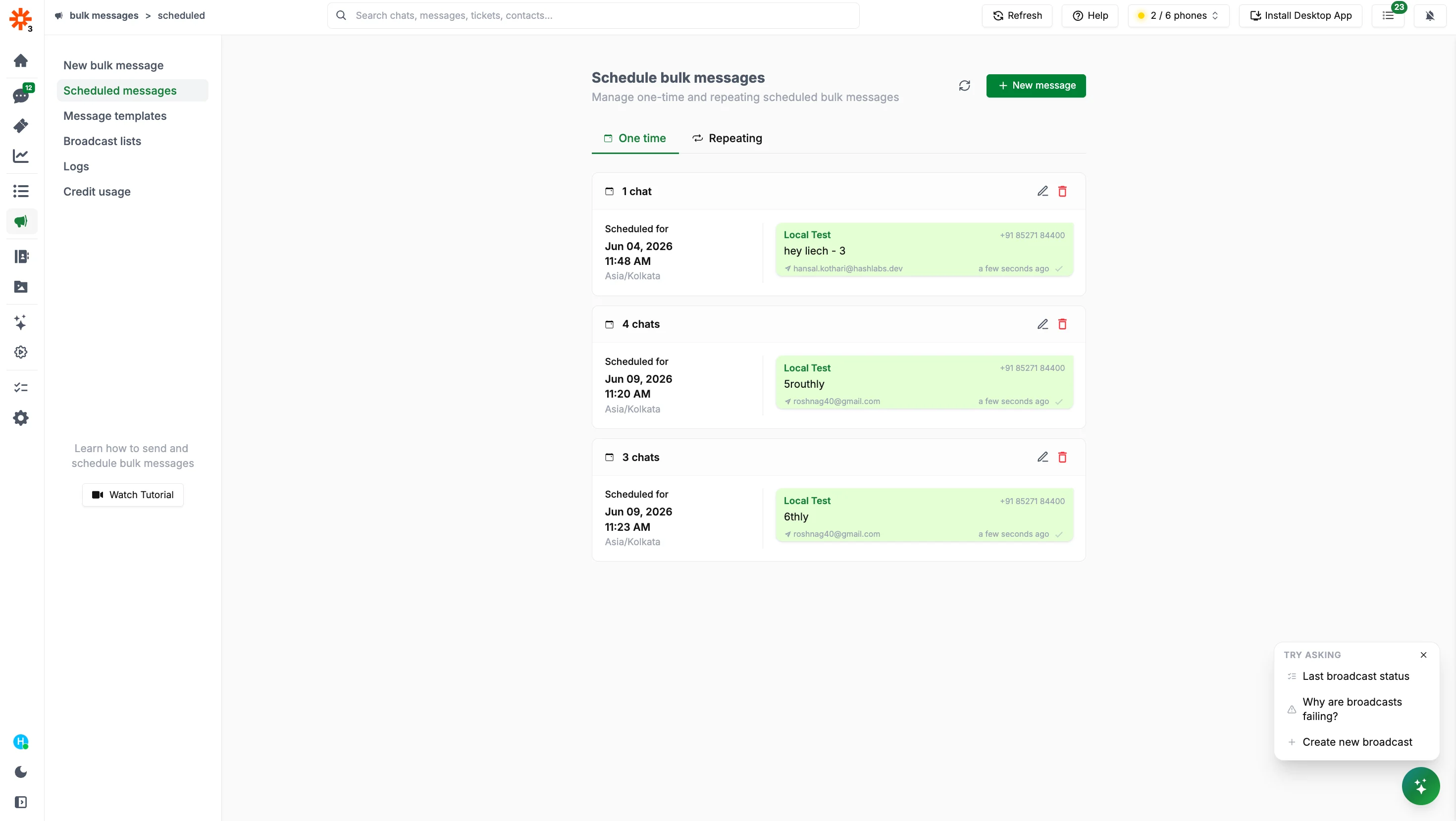
Go to `Bulk messages > Scheduled messages > Repeating` to see all active recurring series.
Each entry shows:
* The next scheduled run date
* The cadence (daily / weekly / monthly)
* A preview of the message
From this screen you can:
* **Edit** — update the message, contacts, or schedule
* **Pause** — temporarily stop the series without deleting it
* **Resume** — restart a paused series
* **Delete** — permanently remove the recurring series
Once confirmed, Periskope runs the broadcast automatically at the scheduled time. You can monitor each run from the Logs screen.
## Managing Repeating Broadcasts
Go to `Bulk messages > Scheduled messages > Repeating` to see all active recurring series.
Each entry shows:
* The next scheduled run date
* The cadence (daily / weekly / monthly)
* A preview of the message
From this screen you can:
* **Edit** — update the message, contacts, or schedule
* **Pause** — temporarily stop the series without deleting it
* **Resume** — restart a paused series
* **Delete** — permanently remove the recurring series
 Pausing a series does not affect runs that have already been sent. It only prevents future runs from going out.