> ## Documentation Index
> Fetch the complete documentation index at: https://docs.periskope.app/llms.txt
> Use this file to discover all available pages before exploring further.
# Logs
> View bulk message logs, stop ongoing broadcasts, retry failed messages, and duplicate previous broadcasts.
## Viewing Bulk Message Logs
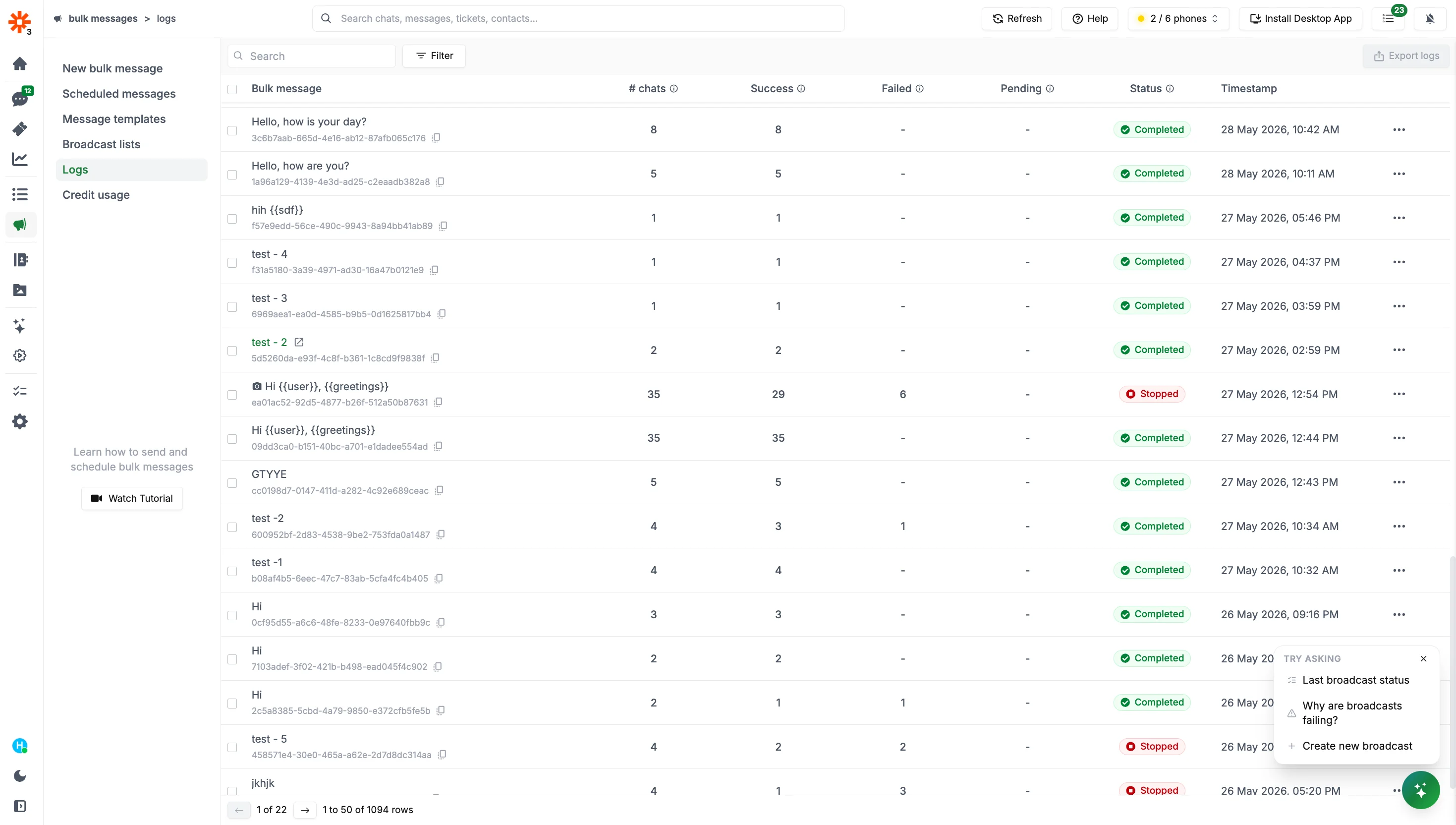
The bulk message logs screen provides a comprehensive view of all bulk message operations, both past and ongoing.
Access this screen by going to `Bulk messages > Logs`. Here's what you can do:
1. **View All Broadcast Operations**: See a list of all bulk message operations you have conducted or that are currently in progress. Each entry shows the broadcast status, total chats, and counts for successful, failed, and pending messages.
2. **Detailed Broadcast Information**: Click on any log entry to open a detailed view of that broadcast. This includes:
* Total chats, success count, failed count, pending count
* Delivered and read percentages
* Timestamp and who performed the broadcast
* A per-chat table showing the status of every individual message, which you can filter by status (success, failed, pending)
 ## Stopping an Ongoing Broadcast
If you need to halt a bulk message operation that is currently in progress, you can stop it from the logs screen.
Go to `Bulk messages > Logs` where you can see the status of all your ongoing and past broadcasts.
Locate the ongoing broadcast, click the three-dot menu (⋯) on the right, and select `Stop sending`. This immediately halts processing of any remaining messages in the queue.
Stopping a broadcast will not recall or unsend messages that have already been sent. It only prevents pending messages from going out.
## Retrying Failed Messages
If some messages in a broadcast failed to deliver, you can retry just those contacts without resending to everyone else.
Go to `Bulk messages > Logs`.
Locate the broadcast with failed messages, click the three-dot menu (⋯) on the right, and select `Retry failed`. This creates a new send operation targeting only the contacts that failed — recipients who already received the message will not be messaged again.
## Stopping an Ongoing Broadcast
If you need to halt a bulk message operation that is currently in progress, you can stop it from the logs screen.
Go to `Bulk messages > Logs` where you can see the status of all your ongoing and past broadcasts.
Locate the ongoing broadcast, click the three-dot menu (⋯) on the right, and select `Stop sending`. This immediately halts processing of any remaining messages in the queue.
Stopping a broadcast will not recall or unsend messages that have already been sent. It only prevents pending messages from going out.
## Retrying Failed Messages
If some messages in a broadcast failed to deliver, you can retry just those contacts without resending to everyone else.
Go to `Bulk messages > Logs`.
Locate the broadcast with failed messages, click the three-dot menu (⋯) on the right, and select `Retry failed`. This creates a new send operation targeting only the contacts that failed — recipients who already received the message will not be messaged again.
 Retrying a broadcast only sends to contacts where delivery failed. Successful and pending messages from the original broadcast are not affected.
## Duplicating a Broadcast
You can duplicate any previous broadcast to instantly use it as a starting point for a new one — keeping the same message, contact list, and settings.
Go to `Bulk messages > Logs`.
Find the broadcast you want to reuse and click the `Duplicate` button from the actions menu. This opens the new broadcast flow pre-filled with the original broadcast's settings, which you can adjust before sending.
Retrying a broadcast only sends to contacts where delivery failed. Successful and pending messages from the original broadcast are not affected.
## Duplicating a Broadcast
You can duplicate any previous broadcast to instantly use it as a starting point for a new one — keeping the same message, contact list, and settings.
Go to `Bulk messages > Logs`.
Find the broadcast you want to reuse and click the `Duplicate` button from the actions menu. This opens the new broadcast flow pre-filled with the original broadcast's settings, which you can adjust before sending.
