> ## Documentation Index
> Fetch the complete documentation index at: https://docs.periskope.app/llms.txt
> Use this file to discover all available pages before exploring further.
# Create Tickets from Keywords
You're managing hundreds of WhatsApp messages every day. Important ones get buried. Critical requests are missed. Your team spends hours scanning conversations for messages that need attention. What if every message containing urgent keywords automatically became a ticket? No manual flagging. No missed messages. Automatic ticket creation.
## How Keyword-Based Automation Works
Periskope monitors your WhatsApp conversations in real-time. When a message arrives containing your specified keywords (like "urgent" or "important"), the system instantly:
1. Detects the keyword in the message
2. Creates a support ticket automatically
3. Assigns it to the right team member
4. Sends an acknowledgment to the customer
5. Notifies your team via email or Slack
6. And much more.
## Step-by-Step Setup
> ### Step 1: Access Automation Rules
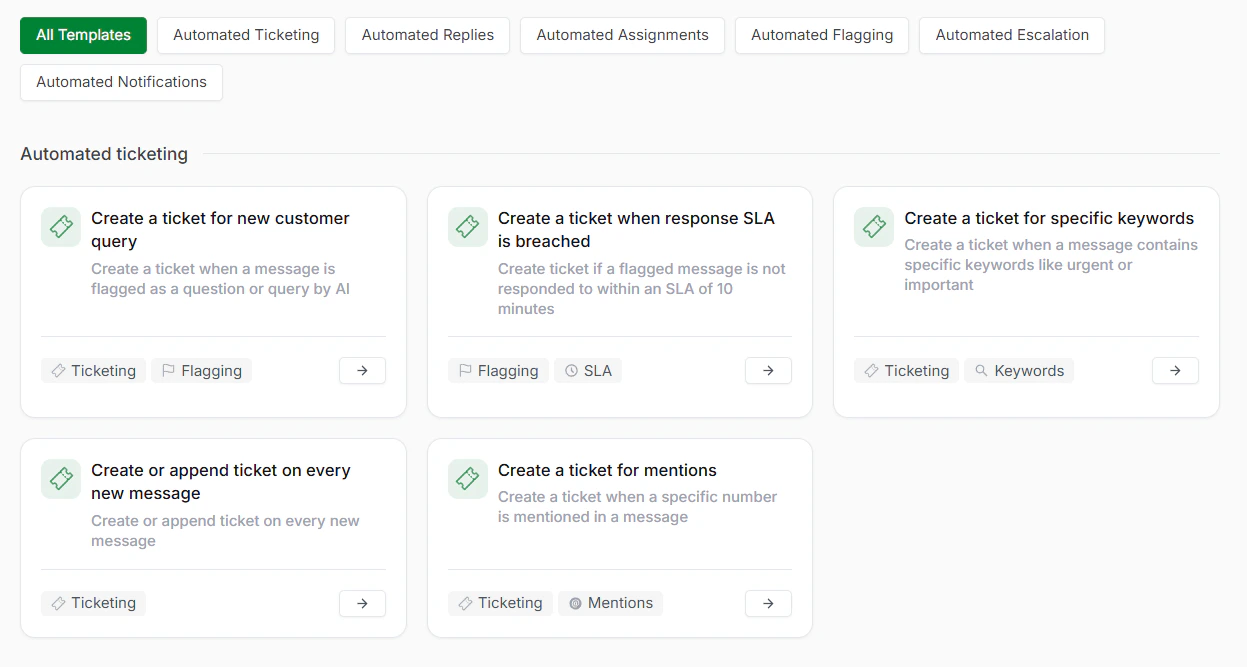
1. From the Periskope dashboard, go to Automation Rules
2. Click New Rule
3. Select Start From Template
You'll see several automation templates. Look for the template labeled "Create a ticket for specific keywords" and click on it.
> ### Step 2: Review the Trigger
The trigger is automatically pre-configured to monitor all incoming WhatsApp messages. This means Periskope is constantly listening for new messages across your connected numbers. This means that every WhatsApp message that arrives in Periskope will be scanned by this rule. The trigger is always active, watching for messages that match your conditions (keywords).
> ### Step 3: Define Your Keywords
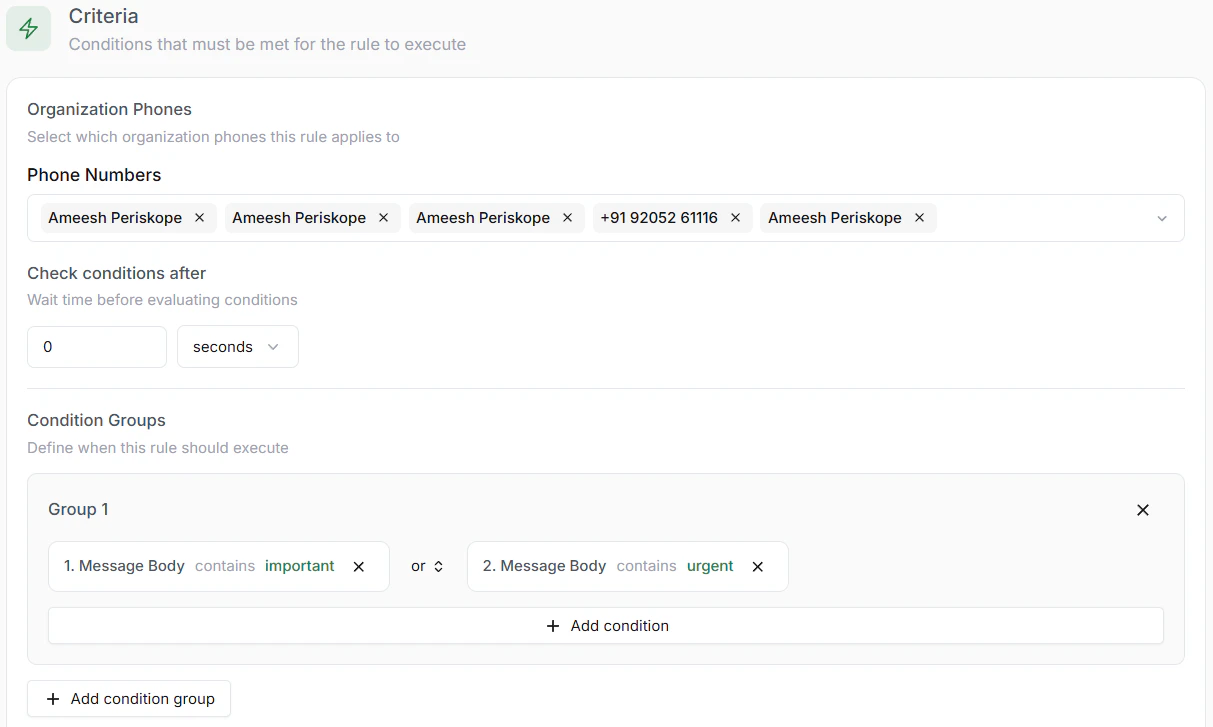
In the Check Condition section, enter the keywords you want to track. These are the words or phrases that trigger automatic ticket creation. The Keywords 'urgent' and 'important' are pre-configured.
Example Keywords: urgent, important, asap, help, emergency, problem, issue, broken, down
Timing: Set the "Check Condition Time" to how soon after a message arrives you want Periskope to evaluate the conditions. We recommend 10-15 seconds for real-time response.
> ### Step 4: Configure Automated Actions
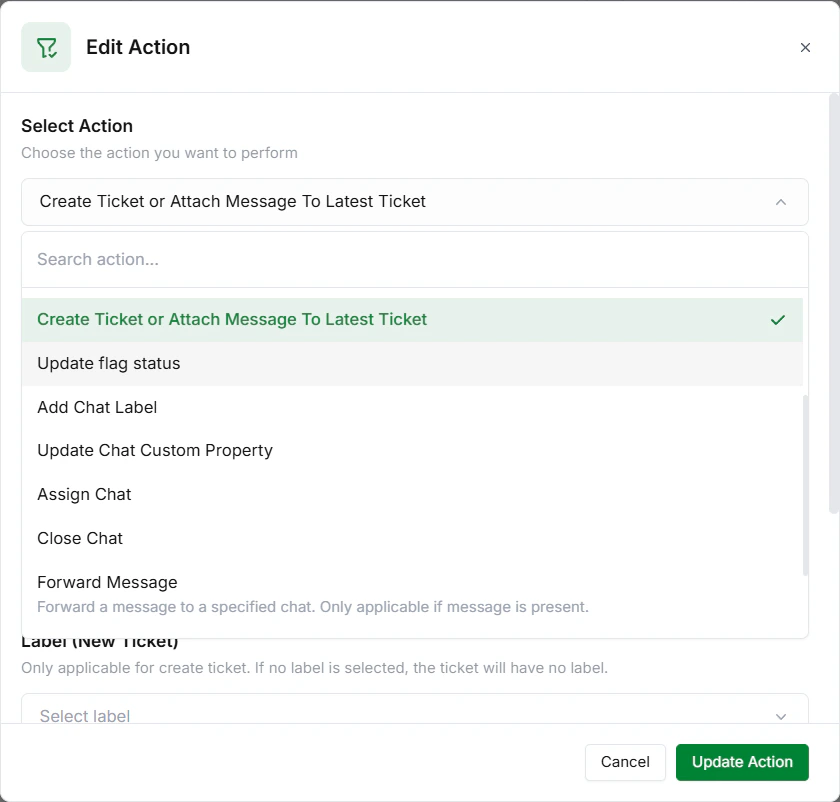
When a message containing your keywords is detected, Periskope automatically executes your configured actions. You can enable any combination:
* Create Ticket: Automatically generates a ticket in your system with the message context
* Assign to: Team Member Routes the ticket to a specific person or team
* Send Auto-Response: Sends an automated acknowledgment to the customer
* Email Notification: Alerts your team via email immediately
* Slack Alert: Posts to your Slack channel for real-time visibility
* Label Chat: Applies a label to organize the conversation
> ### Step 5: Save and Publish
1. Review all your settings
2. Click Save Rule and Publish it to get it online
3. Your automation is now active and monitoring
From this point forward, whenever a message containing your specified keyword comes, a ticket will be created, or your specified action will take place.
 > ### Step 2: Review the Trigger
The trigger is automatically pre-configured to monitor all incoming WhatsApp messages. This means Periskope is constantly listening for new messages across your connected numbers. This means that every WhatsApp message that arrives in Periskope will be scanned by this rule. The trigger is always active, watching for messages that match your conditions (keywords).
> ### Step 3: Define Your Keywords
In the Check Condition section, enter the keywords you want to track. These are the words or phrases that trigger automatic ticket creation. The Keywords 'urgent' and 'important' are pre-configured.
> ### Step 2: Review the Trigger
The trigger is automatically pre-configured to monitor all incoming WhatsApp messages. This means Periskope is constantly listening for new messages across your connected numbers. This means that every WhatsApp message that arrives in Periskope will be scanned by this rule. The trigger is always active, watching for messages that match your conditions (keywords).
> ### Step 3: Define Your Keywords
In the Check Condition section, enter the keywords you want to track. These are the words or phrases that trigger automatic ticket creation. The Keywords 'urgent' and 'important' are pre-configured.
 Timing: Set the "Check Condition Time" to how soon after a message arrives you want Periskope to evaluate the conditions. We recommend 10-15 seconds for real-time response.
> ### Step 4: Configure Automated Actions
When a message containing your keywords is detected, Periskope automatically executes your configured actions. You can enable any combination:
* Create Ticket: Automatically generates a ticket in your system with the message context
* Assign to: Team Member Routes the ticket to a specific person or team
* Send Auto-Response: Sends an automated acknowledgment to the customer
* Email Notification: Alerts your team via email immediately
* Slack Alert: Posts to your Slack channel for real-time visibility
* Label Chat: Applies a label to organize the conversation
Timing: Set the "Check Condition Time" to how soon after a message arrives you want Periskope to evaluate the conditions. We recommend 10-15 seconds for real-time response.
> ### Step 4: Configure Automated Actions
When a message containing your keywords is detected, Periskope automatically executes your configured actions. You can enable any combination:
* Create Ticket: Automatically generates a ticket in your system with the message context
* Assign to: Team Member Routes the ticket to a specific person or team
* Send Auto-Response: Sends an automated acknowledgment to the customer
* Email Notification: Alerts your team via email immediately
* Slack Alert: Posts to your Slack channel for real-time visibility
* Label Chat: Applies a label to organize the conversation
 > ### Step 5: Save and Publish
1. Review all your settings
2. Click Save Rule and Publish it to get it online
3. Your automation is now active and monitoring
From this point forward, whenever a message containing your specified keyword comes, a ticket will be created, or your specified action will take place.
> ### Step 5: Save and Publish
1. Review all your settings
2. Click Save Rule and Publish it to get it online
3. Your automation is now active and monitoring
From this point forward, whenever a message containing your specified keyword comes, a ticket will be created, or your specified action will take place.