> ## Documentation Index
> Fetch the complete documentation index at: https://docs.periskope.app/llms.txt
> Use this file to discover all available pages before exploring further.
# Create Ticket for SLA Breaches
If your team is drowning in WhatsApp notifications. Important customer messages buried among hundreds of daily conversations slip through the cracks. A high-priority issue waits unanswered for hours, and by the time someone notices, it's too late. With Periskope's automation rules, you can monitor for these SLA breaches and automatically escalate critical conversations in just 2 minutes.
## How SLA Breach Automation Works
When a flagged message (any conversation the system marks as high-priority) remains unresolved beyond your time threshold, Periskope automatically:
* Creates a support ticket to track the issue
* Sends an email alert to your team
* Posts a Slack notification to the right channel
* Assigns an escalation owner
* And much more.
## Step-by-Step Setup
> ### Step 1: Access Automation Rules
1. From the Periskope dashboard, go to Automation Rules
2. Click New Rule
3. Select Start From Template
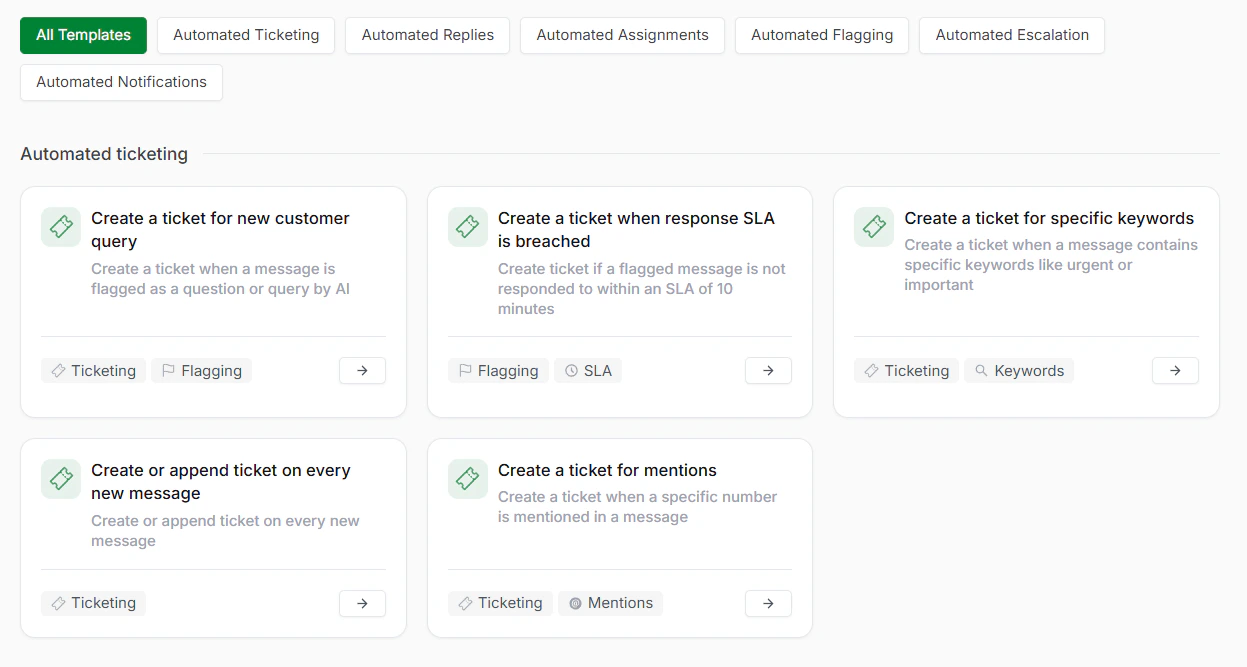
You'll see several automation templates. Look for the template labeled "Create a ticket when response SLA is breached" and click on it.
> ### Step 2: Review the Trigger
The trigger is automatically pre-configured to monitor WhatsApp conversations for flagged messages. A flagged message is any WhatsApp conversation that the system automatically marks as important based on your predefined conditions. This includes:
* Customer complaints or negative sentiment
* Messages containing urgent keywords (e.g., "ASAP", "urgent", "help")
* Conversations waiting longer than expected for a response
* Messages from high-value customers or VIP accounts
* Any custom condition you define
The trigger constantly monitors these conversations to catch messages that need attention.
> ### Step 3: Set Your Check Condition Time
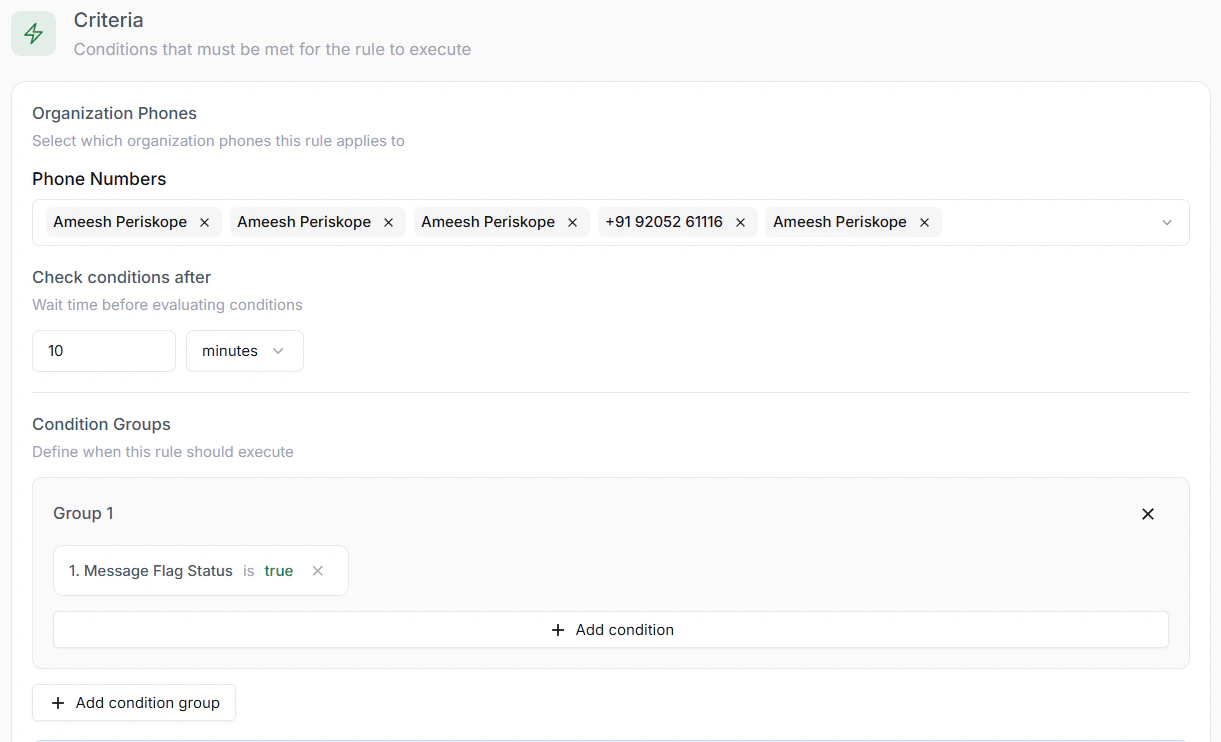
In the Criteria section, define the Check Condition After; it manages how frequently the system should check if a flagged message is still unresolved.
Example: Set the interval to 10 minutes; The system will check after 10 minutes: "Is this important message still waiting for a response?"; If true, it will execute the action defined.
> ### Step 4: Configure Automated Actions
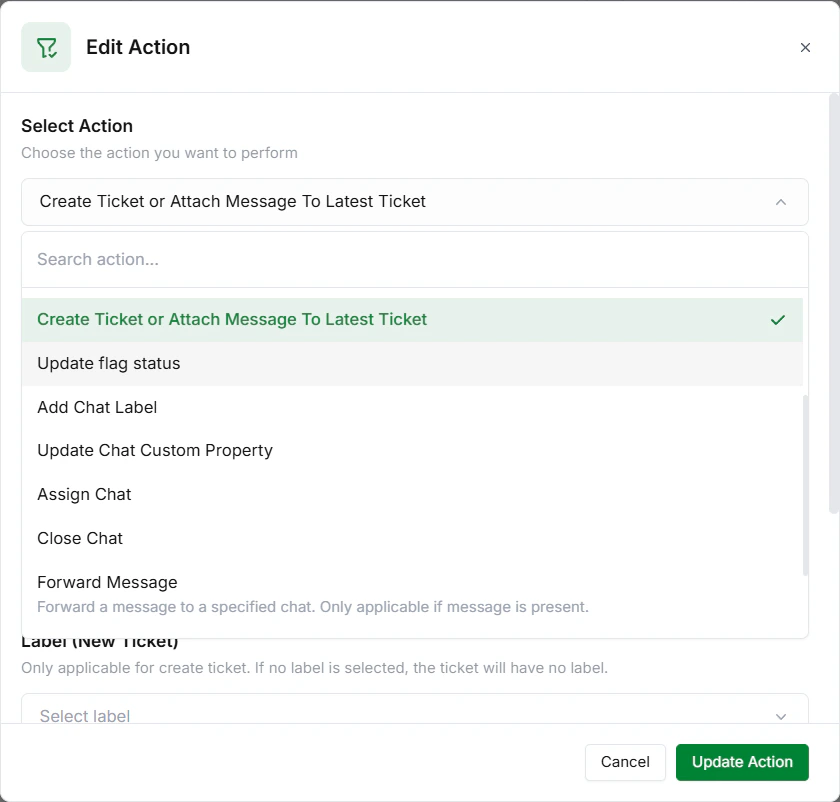
Once a flagged message remains unresolved after your time threshold, the system triggers your chosen actions. You can enable any combination of the following:
* Create a Support Ticket: Automatically generates a ticket in your support system. Includes the conversation context and message history. Ensures no issue falls through the cracks.
* Send an Email Notification: Delivers an alert to your support team. Includes a link to the WhatsApp conversation. Can be sent to multiple team members.
* Fire a Slack Notification: Posts an alert to your Slack channel or direct message. Keeps your team notified in real-time. Allows immediate action without leaving Slack.
* Assign an Escalation Owner: Routes the escalation to a specific team member. Can be based on skills, availability, or role. Ensures clear ownership and accountability.
> ### Step 5: Save and Publish
1. Review all your settings
2. Click Save Rule and Publish it to get it online
3. Your automation is now active and monitoring
From this point forward, whenever a critical message sits unanswered for longer than your threshold, your entire escalation workflow triggers automatically.
 > ### Step 2: Review the Trigger
The trigger is automatically pre-configured to monitor WhatsApp conversations for flagged messages. A flagged message is any WhatsApp conversation that the system automatically marks as important based on your predefined conditions. This includes:
* Customer complaints or negative sentiment
* Messages containing urgent keywords (e.g., "ASAP", "urgent", "help")
* Conversations waiting longer than expected for a response
* Messages from high-value customers or VIP accounts
* Any custom condition you define
The trigger constantly monitors these conversations to catch messages that need attention.
> ### Step 3: Set Your Check Condition Time
In the Criteria section, define the Check Condition After; it manages how frequently the system should check if a flagged message is still unresolved.
> ### Step 2: Review the Trigger
The trigger is automatically pre-configured to monitor WhatsApp conversations for flagged messages. A flagged message is any WhatsApp conversation that the system automatically marks as important based on your predefined conditions. This includes:
* Customer complaints or negative sentiment
* Messages containing urgent keywords (e.g., "ASAP", "urgent", "help")
* Conversations waiting longer than expected for a response
* Messages from high-value customers or VIP accounts
* Any custom condition you define
The trigger constantly monitors these conversations to catch messages that need attention.
> ### Step 3: Set Your Check Condition Time
In the Criteria section, define the Check Condition After; it manages how frequently the system should check if a flagged message is still unresolved.
 Example: Set the interval to 10 minutes; The system will check after 10 minutes: "Is this important message still waiting for a response?"; If true, it will execute the action defined.
> ### Step 4: Configure Automated Actions
Once a flagged message remains unresolved after your time threshold, the system triggers your chosen actions. You can enable any combination of the following:
* Create a Support Ticket: Automatically generates a ticket in your support system. Includes the conversation context and message history. Ensures no issue falls through the cracks.
* Send an Email Notification: Delivers an alert to your support team. Includes a link to the WhatsApp conversation. Can be sent to multiple team members.
* Fire a Slack Notification: Posts an alert to your Slack channel or direct message. Keeps your team notified in real-time. Allows immediate action without leaving Slack.
* Assign an Escalation Owner: Routes the escalation to a specific team member. Can be based on skills, availability, or role. Ensures clear ownership and accountability.
Example: Set the interval to 10 minutes; The system will check after 10 minutes: "Is this important message still waiting for a response?"; If true, it will execute the action defined.
> ### Step 4: Configure Automated Actions
Once a flagged message remains unresolved after your time threshold, the system triggers your chosen actions. You can enable any combination of the following:
* Create a Support Ticket: Automatically generates a ticket in your support system. Includes the conversation context and message history. Ensures no issue falls through the cracks.
* Send an Email Notification: Delivers an alert to your support team. Includes a link to the WhatsApp conversation. Can be sent to multiple team members.
* Fire a Slack Notification: Posts an alert to your Slack channel or direct message. Keeps your team notified in real-time. Allows immediate action without leaving Slack.
* Assign an Escalation Owner: Routes the escalation to a specific team member. Can be based on skills, availability, or role. Ensures clear ownership and accountability.
 > ### Step 5: Save and Publish
1. Review all your settings
2. Click Save Rule and Publish it to get it online
3. Your automation is now active and monitoring
From this point forward, whenever a critical message sits unanswered for longer than your threshold, your entire escalation workflow triggers automatically.
> ### Step 5: Save and Publish
1. Review all your settings
2. Click Save Rule and Publish it to get it online
3. Your automation is now active and monitoring
From this point forward, whenever a critical message sits unanswered for longer than your threshold, your entire escalation workflow triggers automatically.