> ## Documentation Index
> Fetch the complete documentation index at: https://docs.periskope.app/llms.txt
> Use this file to discover all available pages before exploring further.
# Automated Ticketing
Automatically create tickets from customer queries using pre-built templates. Set up automation in minutes, not hours. Never manually create another ticket again.
## Overview
Manually creating tickets for every customer query can get repetitive, and it's easy to miss things when conversations scale. With Periskope's Automated Ticketing Templates, you can automate this entire process in just a few steps. Pick a template, optionally add conditions, save, and you're done. Tickets are created automatically based on your rules.
## How It Works
Automated Ticketing Templates are pre-built rules that come with triggers and actions already configured. Instead of building automation from scratch, you activate a template and optionally customize it.
* Select a template from the Automated Ticketing category
* Review the pre-configured trigger and action
* Optionally add conditions to refine when it triggers
* Save and publish the rule
* Tickets are now created automatically
The entire process takes minutes. No coding. No complex setup. Just activate and go.
## Getting Started with Templates
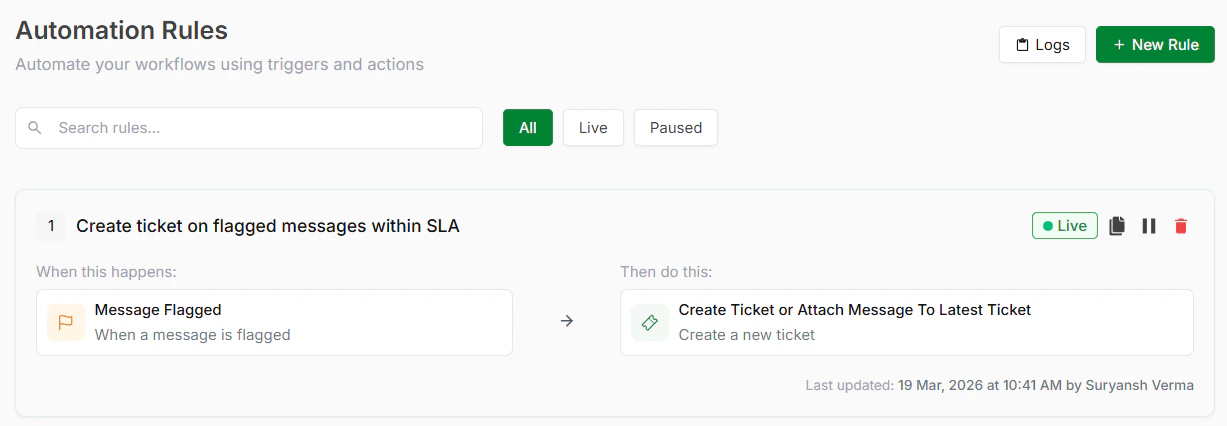
> **Step 1: Access Automation Rules**
From your Periskope dashboard > go to Automation Rules > Click New Rule > Click Start from Template. You'll see templates organized by category. Look for the Automated Ticketing category.
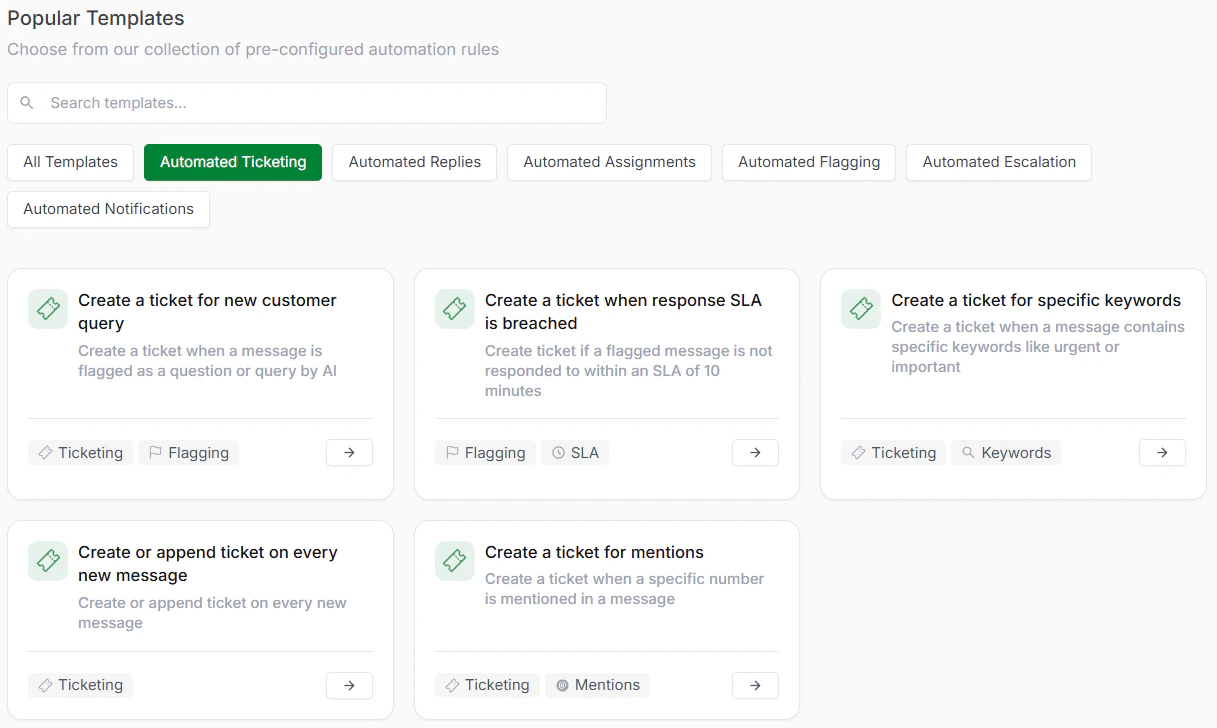
> **Step 2: Choose a Template**
Inside Automated Ticketing, you'll find several ready-to-use templates. Pick the one that matches your workflow. See templates below.
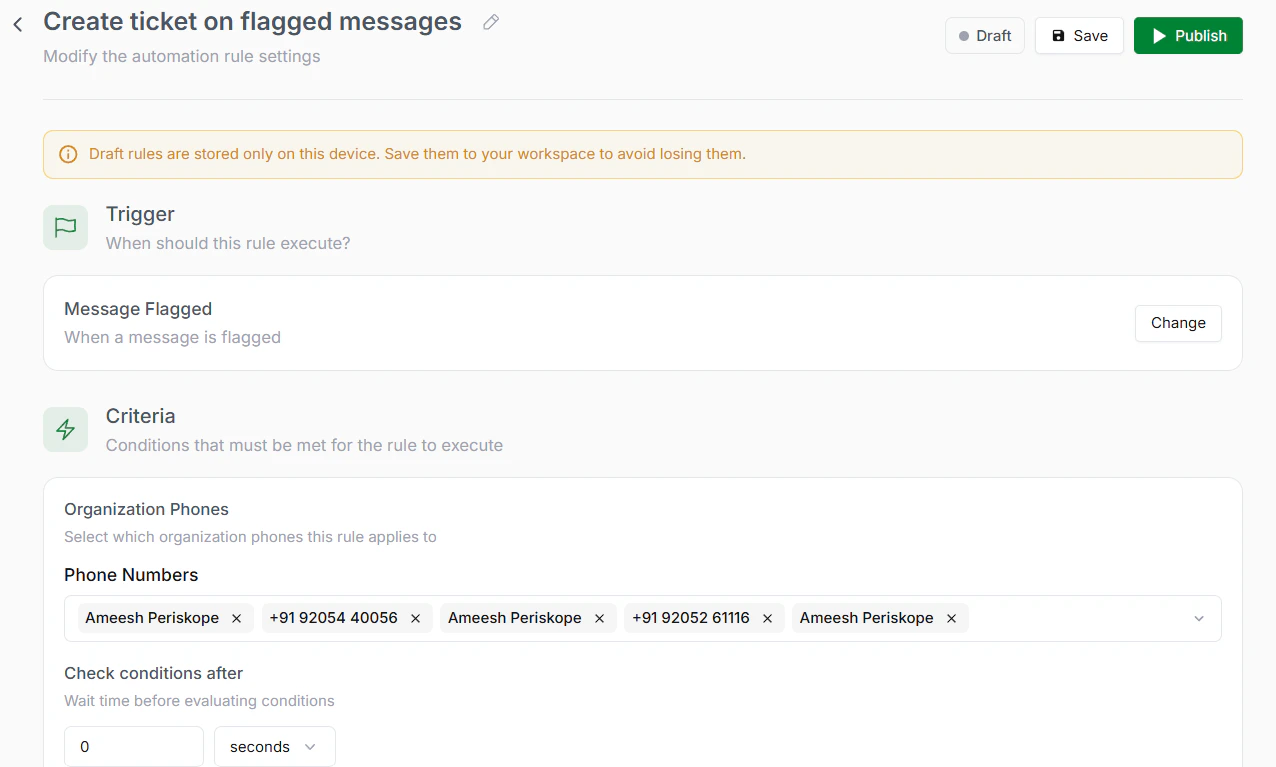
> **Step 3: Review and Optionally Customize**
The template comes with trigger and action pre-configured. You can use it as-is or add conditions for more control.
> **Step 4: Save and Publish**
Click Save to store your rule. Click Publish to activate it. Your automation is now live.
## Available Automated Ticketing Templates
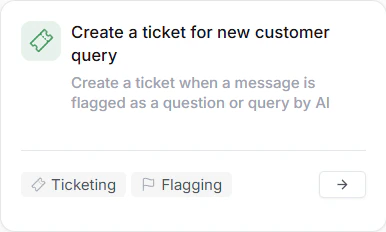
1. **Create a ticket for new customer query**
**When to use:** Your team flags customer queries during conversations that need tracking. Automatically converts those flags into tickets so nothing is missed.
**Use case:** Support team reads a WhatsApp message, sees it needs a ticket, flags it. Automation instantly creates the ticket. No manual work.
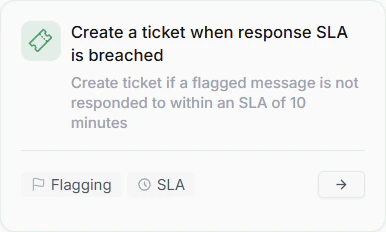
2. **Create a ticket when response SLA is breached**
**When to use:** You want tickets automatically created when your team takes too long to respond. Helps escalate slow conversations.
**Use case:** Customer message arrives. Team doesn't respond in your SLA window (e.g., 2 hours). Ticket is automatically created for escalation.
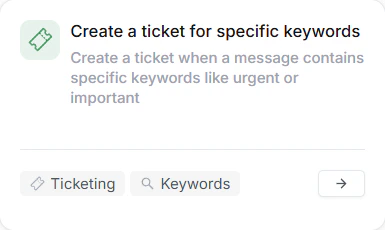
3. **Create a ticket for specific keywords**
**When to use:** Certain keywords indicate high-priority issues that should always get tickets. Let automation catch them.
**Use case:** Customer says, 'My account is broken.' The keyword 'broken' triggers ticket creation automatically. No manual flagging needed.
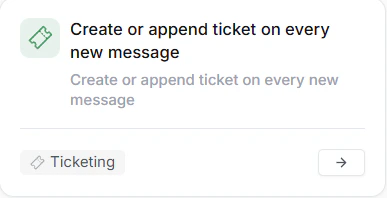
4. **Create or append ticket on every new message**
**When to use:** You want every message to become a ticket automatically. Best for high-volume support where everything needs tracking.
**Use case:** B2B support where every customer message must have a trackable ticket. Automation handles it all.
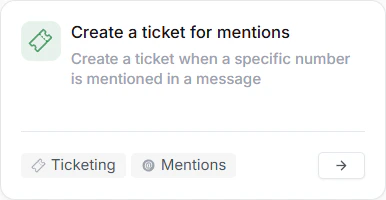
5. **Create a ticket for mentions**
**When to use:** Mentions in group chats often indicate someone needs to take action. Automatically create tickets to ensure follow-up.
**Use case:** Someone mentions @Sarah in a chat asking for help. A ticket is automatically assigned to Sarah. She gets notified immediately.
 > **Step 2: Choose a Template**
Inside Automated Ticketing, you'll find several ready-to-use templates. Pick the one that matches your workflow. See templates below.
> **Step 2: Choose a Template**
Inside Automated Ticketing, you'll find several ready-to-use templates. Pick the one that matches your workflow. See templates below.
 > **Step 3: Review and Optionally Customize**
The template comes with trigger and action pre-configured. You can use it as-is or add conditions for more control.
> **Step 3: Review and Optionally Customize**
The template comes with trigger and action pre-configured. You can use it as-is or add conditions for more control.
 > **Step 4: Save and Publish**
Click Save to store your rule. Click Publish to activate it. Your automation is now live.
## Available Automated Ticketing Templates
1. **Create a ticket for new customer query**
**When to use:** Your team flags customer queries during conversations that need tracking. Automatically converts those flags into tickets so nothing is missed.
**Use case:** Support team reads a WhatsApp message, sees it needs a ticket, flags it. Automation instantly creates the ticket. No manual work.
> **Step 4: Save and Publish**
Click Save to store your rule. Click Publish to activate it. Your automation is now live.
## Available Automated Ticketing Templates
1. **Create a ticket for new customer query**
**When to use:** Your team flags customer queries during conversations that need tracking. Automatically converts those flags into tickets so nothing is missed.
**Use case:** Support team reads a WhatsApp message, sees it needs a ticket, flags it. Automation instantly creates the ticket. No manual work.
 2. **Create a ticket when response SLA is breached**
**When to use:** You want tickets automatically created when your team takes too long to respond. Helps escalate slow conversations.
**Use case:** Customer message arrives. Team doesn't respond in your SLA window (e.g., 2 hours). Ticket is automatically created for escalation.
2. **Create a ticket when response SLA is breached**
**When to use:** You want tickets automatically created when your team takes too long to respond. Helps escalate slow conversations.
**Use case:** Customer message arrives. Team doesn't respond in your SLA window (e.g., 2 hours). Ticket is automatically created for escalation.
 3. **Create a ticket for specific keywords**
**When to use:** Certain keywords indicate high-priority issues that should always get tickets. Let automation catch them.
**Use case:** Customer says, 'My account is broken.' The keyword 'broken' triggers ticket creation automatically. No manual flagging needed.
3. **Create a ticket for specific keywords**
**When to use:** Certain keywords indicate high-priority issues that should always get tickets. Let automation catch them.
**Use case:** Customer says, 'My account is broken.' The keyword 'broken' triggers ticket creation automatically. No manual flagging needed.
 4. **Create or append ticket on every new message**
**When to use:** You want every message to become a ticket automatically. Best for high-volume support where everything needs tracking.
**Use case:** B2B support where every customer message must have a trackable ticket. Automation handles it all.
4. **Create or append ticket on every new message**
**When to use:** You want every message to become a ticket automatically. Best for high-volume support where everything needs tracking.
**Use case:** B2B support where every customer message must have a trackable ticket. Automation handles it all.
 5. **Create a ticket for mentions**
**When to use:** Mentions in group chats often indicate someone needs to take action. Automatically create tickets to ensure follow-up.
**Use case:** Someone mentions @Sarah in a chat asking for help. A ticket is automatically assigned to Sarah. She gets notified immediately.
5. **Create a ticket for mentions**
**When to use:** Mentions in group chats often indicate someone needs to take action. Automatically create tickets to ensure follow-up.
**Use case:** Someone mentions @Sarah in a chat asking for help. A ticket is automatically assigned to Sarah. She gets notified immediately.