> ## Documentation Index
> Fetch the complete documentation index at: https://docs.periskope.app/llms.txt
> Use this file to discover all available pages before exploring further.
# Automated Escalation
Surface critical issues instantly. Alert the right people at the right time. Prevent delays on important conversations. Keep SLA breaches and priority messages from falling through the cracks.
## Overview
As conversations scale, it's easy for important messages to get delayed or missed, especially when they need immediate attention. With Periskope's Automated Escalations Templates, you can automate how critical issues are surfaced and acted on. SLA breaches trigger instant notifications. Key customers get priority handling. Escalations happen automatically so nothing important gets missed.
## How It Works
Automated Escalations Templates are pre-built rules that surface critical issues by notifying the right people. Instead of building automation from scratch, you activate a template and customize who gets notified.
1. Select a template from the Automated Escalations category
2. Review the pre-configured trigger and escalation action
3. Optionally refine conditions to narrow what gets escalated
4. Select who should receive escalation notifications
5. Save and activate the rule
6. Critical issues are now escalated automatically
The entire process takes minutes. Escalations are instant, targeted, and ensure nothing critical gets missed.
## Getting Started with Automated Escalations
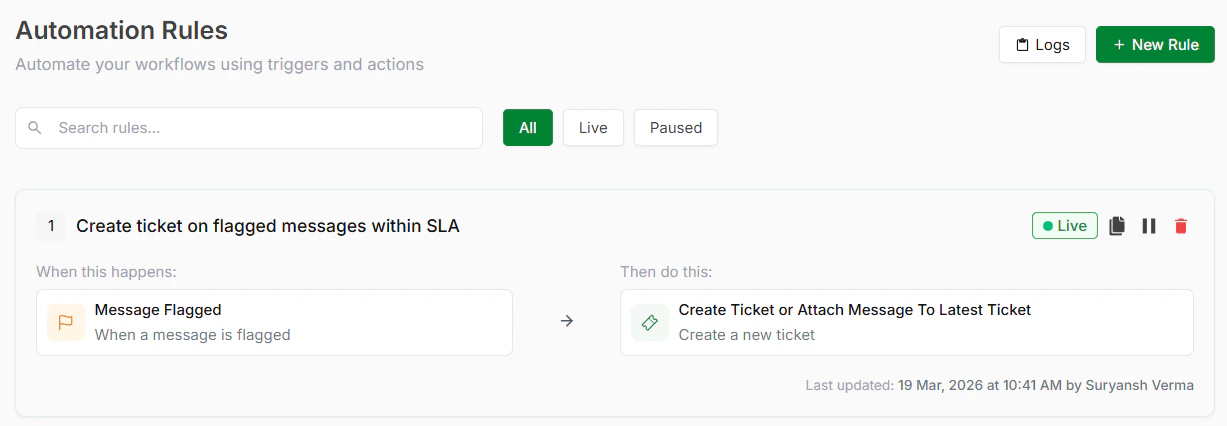
> **Step 1: Access Automation Rules and Start from Template**
From your Periskope dashboard > go to Automation Rules > Click New Rule > Click Start from Template. You’ll see templates organized by category. Look for the Automated Escalations category.
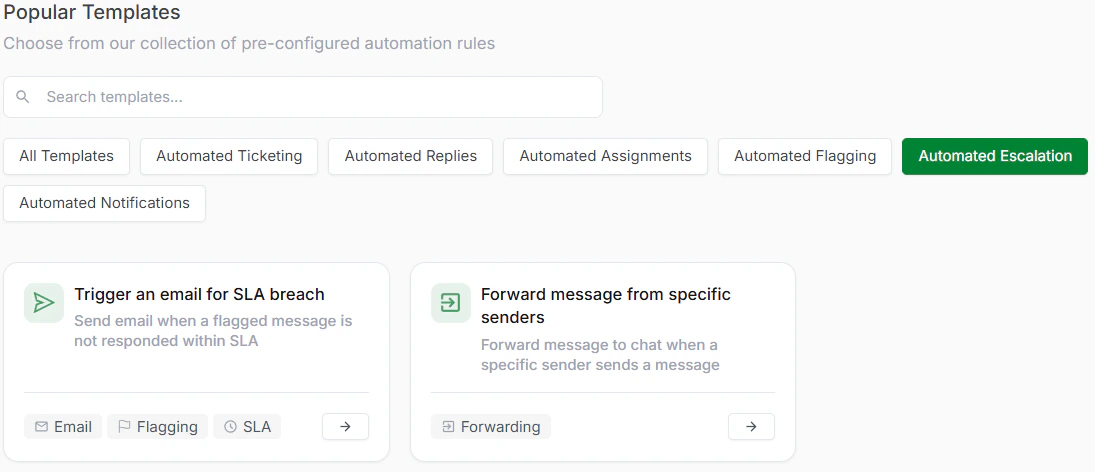
> **Step 2: Choose a Template**
Inside Automated Escalations, select the template that matches your needs. See available templates below.
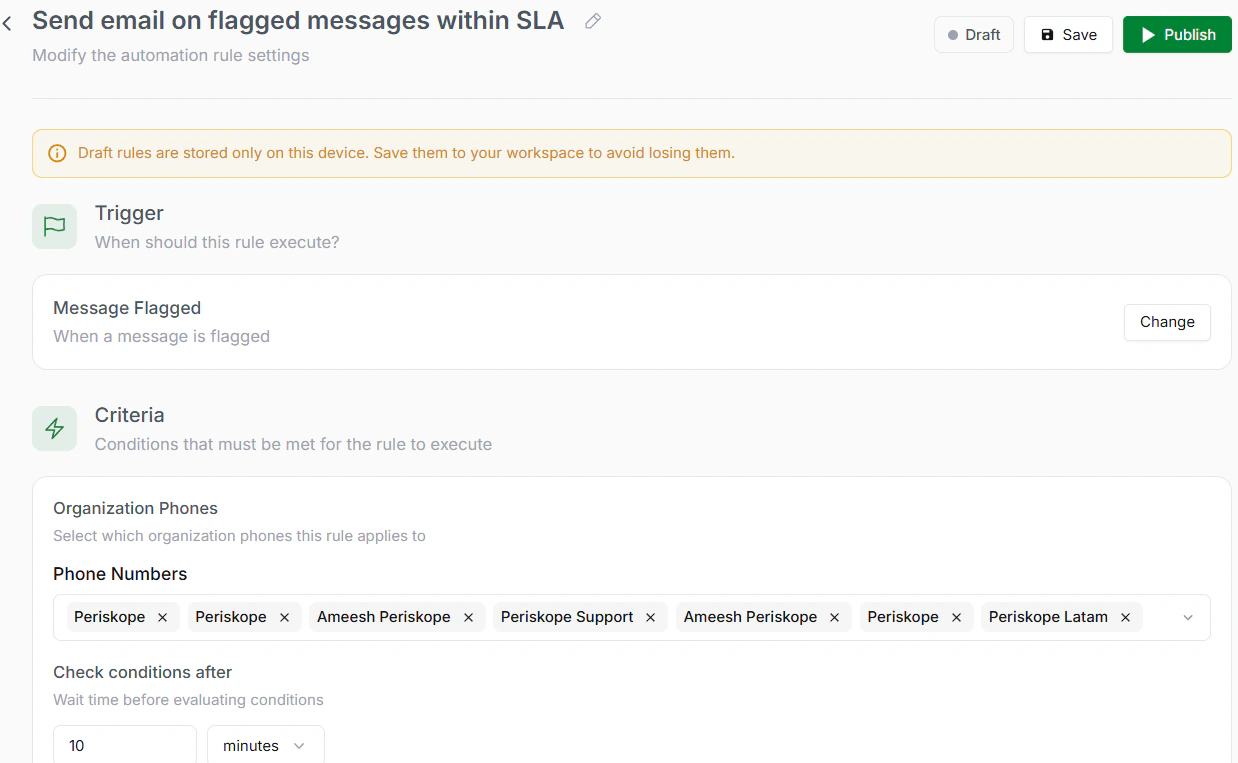
> **Step 3: Review and Optionally Customize**
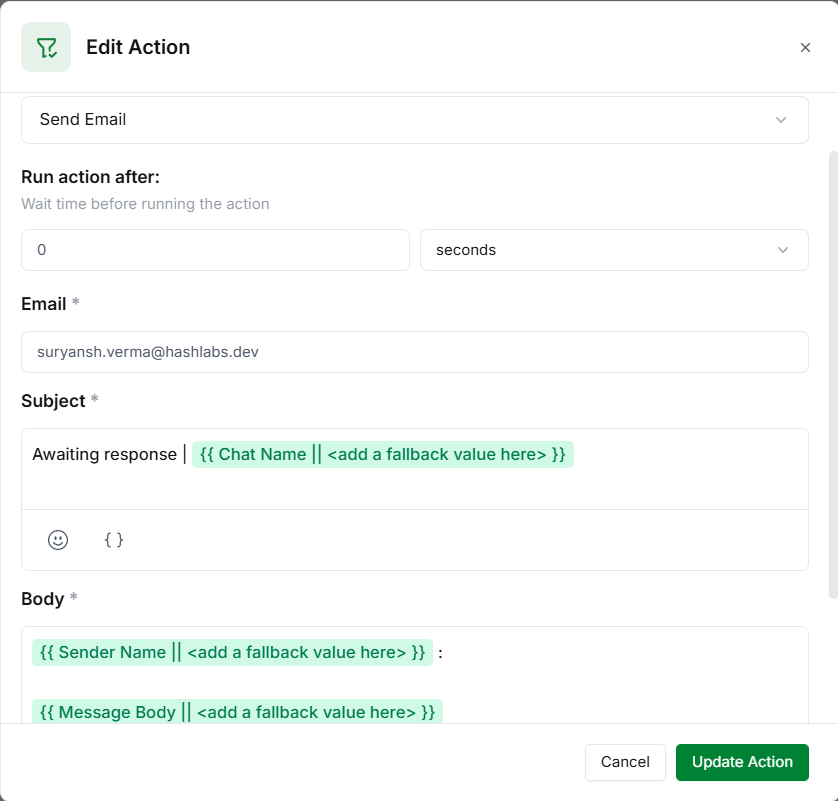
Each template comes with a trigger and action already configured. Review these to understand how the escalation will work and what conditions will activate it.
> **Step 4: Select Escalation Recipients**
Choose who should receive escalation notifications. These could be team leads, managers, or specific departments. Multiple recipients can be notified.
> **Step 5: Save and Activate**
Click Save to store your rule. Click Activate to turn it live. Critical issues are now escalated automatically.
## Available Automated Escalations Templates
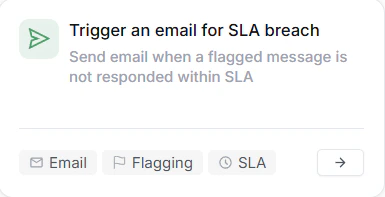
1. **Trigger an Email for SLA Breach**
**When to use:** Response times are critical and delays need immediate attention. This ensures that whenever an SLA is at risk or breached, the right stakeholders are notified instantly, helping teams take action before it impacts customer experience.
**Use case:** A customer message hasn't received a response in 4 hours (your SLA is 2 hours). The system automatically sends an email to your support manager saying: 'SLA Breach Alert: Message from VIP Customer XYZ has been pending for 4 hours. Immediate attention required.' Manager can take action instantly.
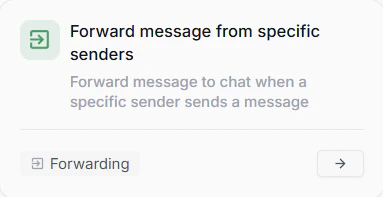
2. **Forward Message from Specific Senders**
**When to use:** Certain contacts or accounts need higher visibility. This ensures that messages from key customers or priority senders are automatically forwarded to the right people, so nothing important goes unnoticed.
**Use case:** Your biggest client sends a message. Instead of it sitting in the regular queue, the system automatically forwards it to your account manager with a note: 'Priority: Message from key account XYZ.' The account manager sees it immediately and can prioritize accordingly.
 > **Step 2: Choose a Template**
Inside Automated Escalations, select the template that matches your needs. See available templates below.
> **Step 2: Choose a Template**
Inside Automated Escalations, select the template that matches your needs. See available templates below.
 > **Step 3: Review and Optionally Customize**
Each template comes with a trigger and action already configured. Review these to understand how the escalation will work and what conditions will activate it.
> **Step 3: Review and Optionally Customize**
Each template comes with a trigger and action already configured. Review these to understand how the escalation will work and what conditions will activate it.
 > **Step 4: Select Escalation Recipients**
Choose who should receive escalation notifications. These could be team leads, managers, or specific departments. Multiple recipients can be notified.
> **Step 4: Select Escalation Recipients**
Choose who should receive escalation notifications. These could be team leads, managers, or specific departments. Multiple recipients can be notified.
 > **Step 5: Save and Activate**
Click Save to store your rule. Click Activate to turn it live. Critical issues are now escalated automatically.
## Available Automated Escalations Templates
1. **Trigger an Email for SLA Breach**
**When to use:** Response times are critical and delays need immediate attention. This ensures that whenever an SLA is at risk or breached, the right stakeholders are notified instantly, helping teams take action before it impacts customer experience.
**Use case:** A customer message hasn't received a response in 4 hours (your SLA is 2 hours). The system automatically sends an email to your support manager saying: 'SLA Breach Alert: Message from VIP Customer XYZ has been pending for 4 hours. Immediate attention required.' Manager can take action instantly.
> **Step 5: Save and Activate**
Click Save to store your rule. Click Activate to turn it live. Critical issues are now escalated automatically.
## Available Automated Escalations Templates
1. **Trigger an Email for SLA Breach**
**When to use:** Response times are critical and delays need immediate attention. This ensures that whenever an SLA is at risk or breached, the right stakeholders are notified instantly, helping teams take action before it impacts customer experience.
**Use case:** A customer message hasn't received a response in 4 hours (your SLA is 2 hours). The system automatically sends an email to your support manager saying: 'SLA Breach Alert: Message from VIP Customer XYZ has been pending for 4 hours. Immediate attention required.' Manager can take action instantly.
 2. **Forward Message from Specific Senders**
**When to use:** Certain contacts or accounts need higher visibility. This ensures that messages from key customers or priority senders are automatically forwarded to the right people, so nothing important goes unnoticed.
**Use case:** Your biggest client sends a message. Instead of it sitting in the regular queue, the system automatically forwards it to your account manager with a note: 'Priority: Message from key account XYZ.' The account manager sees it immediately and can prioritize accordingly.
2. **Forward Message from Specific Senders**
**When to use:** Certain contacts or accounts need higher visibility. This ensures that messages from key customers or priority senders are automatically forwarded to the right people, so nothing important goes unnoticed.
**Use case:** Your biggest client sends a message. Instead of it sitting in the regular queue, the system automatically forwards it to your account manager with a note: 'Priority: Message from key account XYZ.' The account manager sees it immediately and can prioritize accordingly.