> ## Documentation Index
> Fetch the complete documentation index at: https://docs.periskope.app/llms.txt
> Use this file to discover all available pages before exploring further.
# Automated Assignment
Automatically route conversations and tickets to the right team members. Balance workload fairly. Eliminate manual routing. Keep assignments consistent and fast.
## Overview
Not every conversation needs manual routing, but every conversation needs to reach the right person. With Periskope's Automated Assignments Templates, you can automate how chats and tickets are distributed to your team. Round robin ensures fair workload balance. Creator assignment maintains continuity. Let automation handle routing so your team can focus on handling conversations.
## How It Works
Automated Assignments Templates are pre-built rules that assign chats or tickets automatically based on triggers and logic. Instead of building automation from scratch, you activate a template and optionally add conditions.
* Select a template from the Automated Assignments category
* Review the pre-configured trigger and assignment logic
* Optionally add conditions to refine when assignments happen
* Select which team members to include in the assignment pool
* Save and activate the rule
* Chats and tickets are now assigned automatically
The entire process takes minutes. Assignments are instant, fair, and eliminate manual routing work.
## Getting Started with Automated Assignments
> **Step 1: Access Automation Rules and Start from Template**
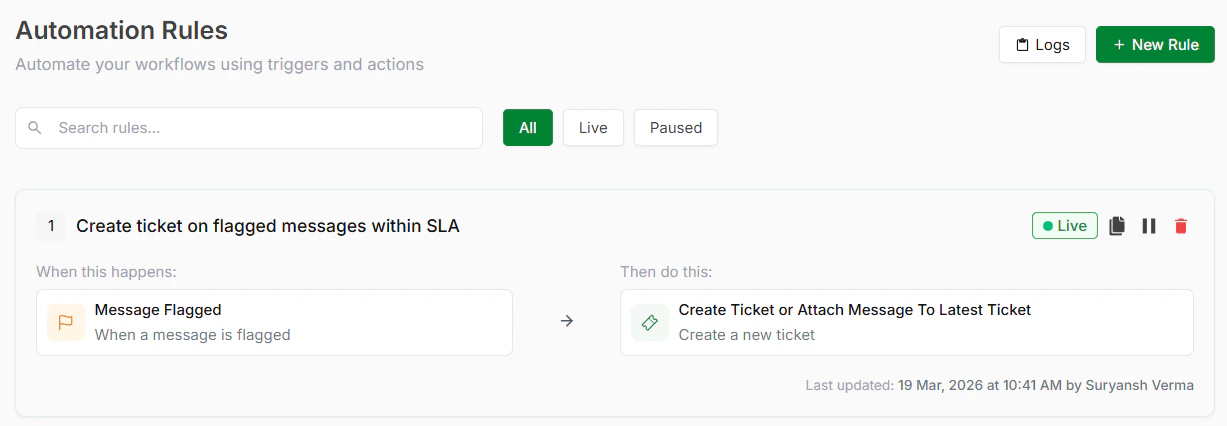
From your Periskope dashboard > go to Automation Rules > Click New Rule > Click Start from Template. You’ll see templates organized by category. Look for the Automated Assignments category.
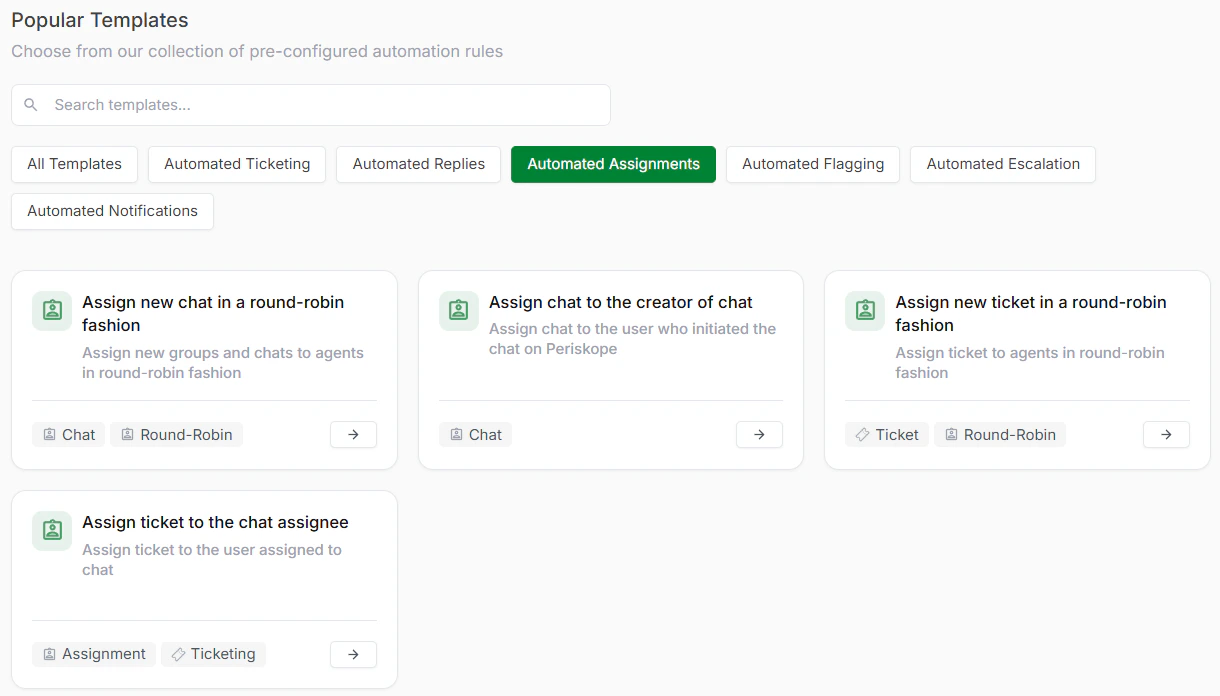
> **Step 2: Choose a Template**
Inside Automated Assignments, select the template that matches your workflow. See available templates below.
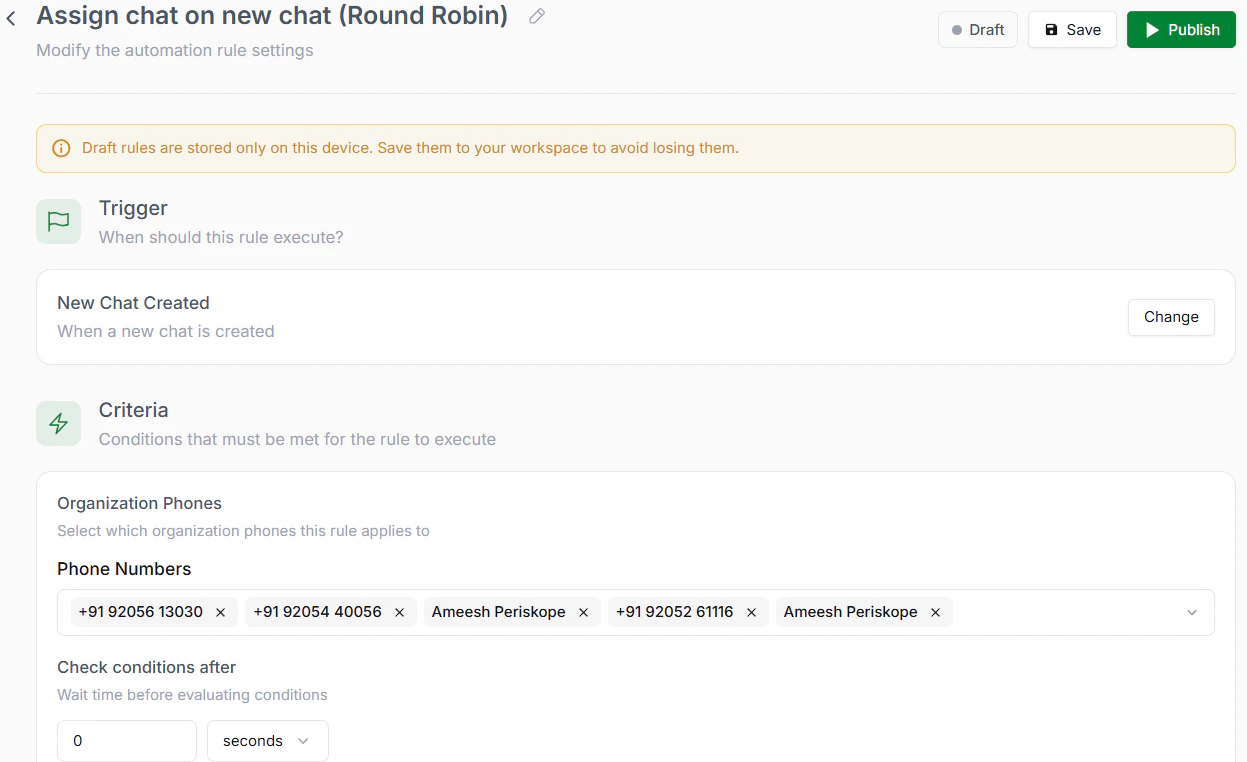
> **Step 3: Review and Optionally Customize**
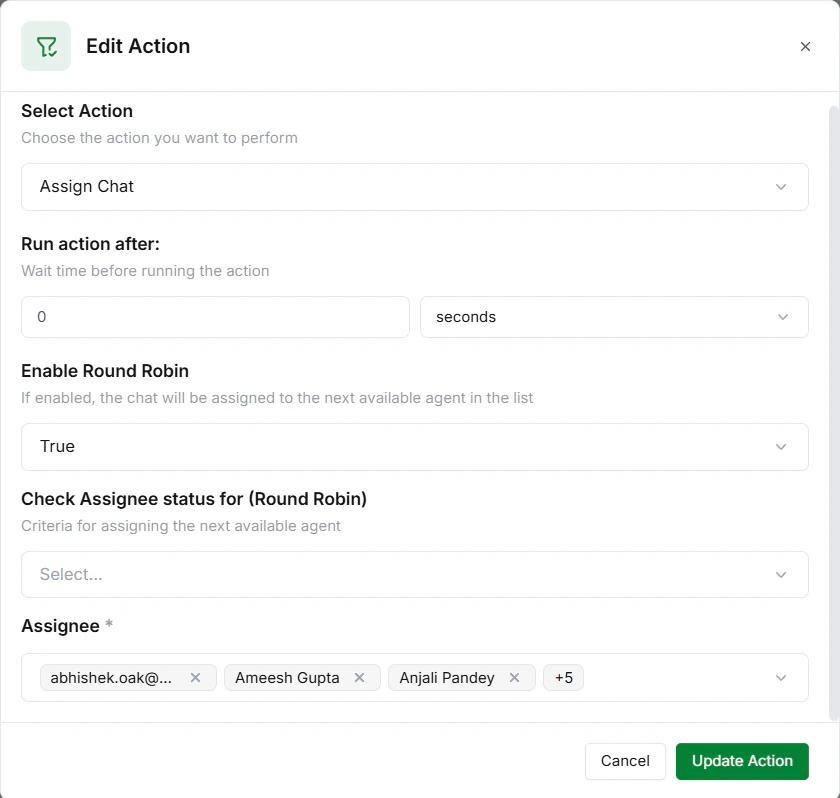
Each template comes with a trigger and action already configured. Review these to understand how the template will work. You can see what conditions will activate the assignment and what logic will be used.
> **Step 4: Select Your Team Members**
Choose which agents should be included in the assignment pool. For round robin, all selected members participate equally.
> **Step 5: Save and Activate**
Click Save to store your rule. Click Activate to turn it live. Assignments now happen automatically.
## Available Automated Assignments Templates
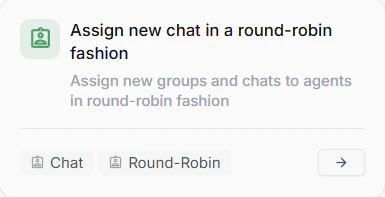
1. **Assign New Chat in a Round Robin Fashion**
**When to use:** You want to distribute incoming chats evenly across your team. This helps balance workload automatically, so no single agent gets overwhelmed while others are underutilized.
**Use case:** Your support team gets a steady stream of new customer chats. Instead of assigning manually, automation cycles through your team ensuring everyone gets an equal share of new conversations. Chat 1 goes to Alice, Chat 2 to Bob, Chat 3 to Carol, then back to Alice.
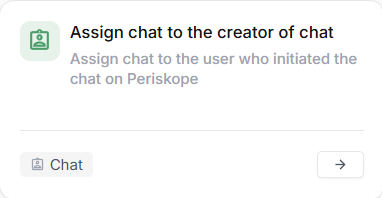
2. **Assign Chat to the Creator of Chat**
**When to use:** Conversations need ownership from the person who initiated or is already contextually involved. This works well when you want to maintain continuity and avoid unnecessary back-and-forth within the team.
**Use case:** Sarah starts a conversation with a customer. The system automatically assigns the chat to Sarah, so she owns it from the beginning. No need to route it separately. Context is maintained from the first interaction.
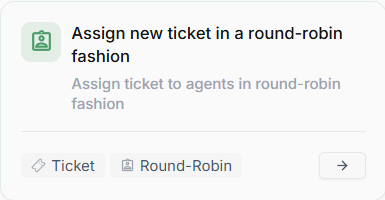
3. **Assign New Ticket in a Round Robin Fashion**
**When to use:** Support teams handling a steady flow of tickets need fair distribution and faster response times without manual intervention. Ensures consistent load balancing across the team.
**Use case:** Your support team receives 50 new tickets daily. Instead of assigning manually, round robin automatically distributes them. Each agent gets 10-12 tickets fairly, keeping workload balanced and preventing any agent from being overloaded.
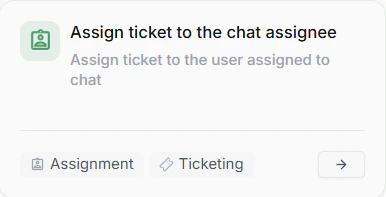
4. **Assign Ticket to the Chat Assignee**
**When to use:** Tickets are closely tied to ongoing conversations. This is useful when you want the same person handling the chat to also manage the ticket, keeping context intact and reducing handoffs.
**Use case:** A customer's ongoing chat with Bob becomes a support ticket. Instead of routing it elsewhere, the ticket automatically goes to Bob who already understands the full context of the conversation. No handoff needed.
 > **Step 2: Choose a Template**
Inside Automated Assignments, select the template that matches your workflow. See available templates below.
> **Step 2: Choose a Template**
Inside Automated Assignments, select the template that matches your workflow. See available templates below.
 > **Step 3: Review and Optionally Customize**
Each template comes with a trigger and action already configured. Review these to understand how the template will work. You can see what conditions will activate the assignment and what logic will be used.
> **Step 3: Review and Optionally Customize**
Each template comes with a trigger and action already configured. Review these to understand how the template will work. You can see what conditions will activate the assignment and what logic will be used.
 > **Step 4: Select Your Team Members**
Choose which agents should be included in the assignment pool. For round robin, all selected members participate equally.
> **Step 4: Select Your Team Members**
Choose which agents should be included in the assignment pool. For round robin, all selected members participate equally.
 > **Step 5: Save and Activate**
Click Save to store your rule. Click Activate to turn it live. Assignments now happen automatically.
## Available Automated Assignments Templates
1. **Assign New Chat in a Round Robin Fashion**
**When to use:** You want to distribute incoming chats evenly across your team. This helps balance workload automatically, so no single agent gets overwhelmed while others are underutilized.
**Use case:** Your support team gets a steady stream of new customer chats. Instead of assigning manually, automation cycles through your team ensuring everyone gets an equal share of new conversations. Chat 1 goes to Alice, Chat 2 to Bob, Chat 3 to Carol, then back to Alice.
> **Step 5: Save and Activate**
Click Save to store your rule. Click Activate to turn it live. Assignments now happen automatically.
## Available Automated Assignments Templates
1. **Assign New Chat in a Round Robin Fashion**
**When to use:** You want to distribute incoming chats evenly across your team. This helps balance workload automatically, so no single agent gets overwhelmed while others are underutilized.
**Use case:** Your support team gets a steady stream of new customer chats. Instead of assigning manually, automation cycles through your team ensuring everyone gets an equal share of new conversations. Chat 1 goes to Alice, Chat 2 to Bob, Chat 3 to Carol, then back to Alice.
 2. **Assign Chat to the Creator of Chat**
**When to use:** Conversations need ownership from the person who initiated or is already contextually involved. This works well when you want to maintain continuity and avoid unnecessary back-and-forth within the team.
**Use case:** Sarah starts a conversation with a customer. The system automatically assigns the chat to Sarah, so she owns it from the beginning. No need to route it separately. Context is maintained from the first interaction.
2. **Assign Chat to the Creator of Chat**
**When to use:** Conversations need ownership from the person who initiated or is already contextually involved. This works well when you want to maintain continuity and avoid unnecessary back-and-forth within the team.
**Use case:** Sarah starts a conversation with a customer. The system automatically assigns the chat to Sarah, so she owns it from the beginning. No need to route it separately. Context is maintained from the first interaction.
 3. **Assign New Ticket in a Round Robin Fashion**
**When to use:** Support teams handling a steady flow of tickets need fair distribution and faster response times without manual intervention. Ensures consistent load balancing across the team.
**Use case:** Your support team receives 50 new tickets daily. Instead of assigning manually, round robin automatically distributes them. Each agent gets 10-12 tickets fairly, keeping workload balanced and preventing any agent from being overloaded.
3. **Assign New Ticket in a Round Robin Fashion**
**When to use:** Support teams handling a steady flow of tickets need fair distribution and faster response times without manual intervention. Ensures consistent load balancing across the team.
**Use case:** Your support team receives 50 new tickets daily. Instead of assigning manually, round robin automatically distributes them. Each agent gets 10-12 tickets fairly, keeping workload balanced and preventing any agent from being overloaded.
 4. **Assign Ticket to the Chat Assignee**
**When to use:** Tickets are closely tied to ongoing conversations. This is useful when you want the same person handling the chat to also manage the ticket, keeping context intact and reducing handoffs.
**Use case:** A customer's ongoing chat with Bob becomes a support ticket. Instead of routing it elsewhere, the ticket automatically goes to Bob who already understands the full context of the conversation. No handoff needed.
4. **Assign Ticket to the Chat Assignee**
**When to use:** Tickets are closely tied to ongoing conversations. This is useful when you want the same person handling the chat to also manage the ticket, keeping context intact and reducing handoffs.
**Use case:** A customer's ongoing chat with Bob becomes a support ticket. Instead of routing it elsewhere, the ticket automatically goes to Bob who already understands the full context of the conversation. No handoff needed.