> ## Documentation Index
> Fetch the complete documentation index at: https://docs.periskope.app/llms.txt
> Use this file to discover all available pages before exploring further.
# Agent Settings
> Configure how your AI Agent activates, responds, and behaves across all conversations
## Agent Settings
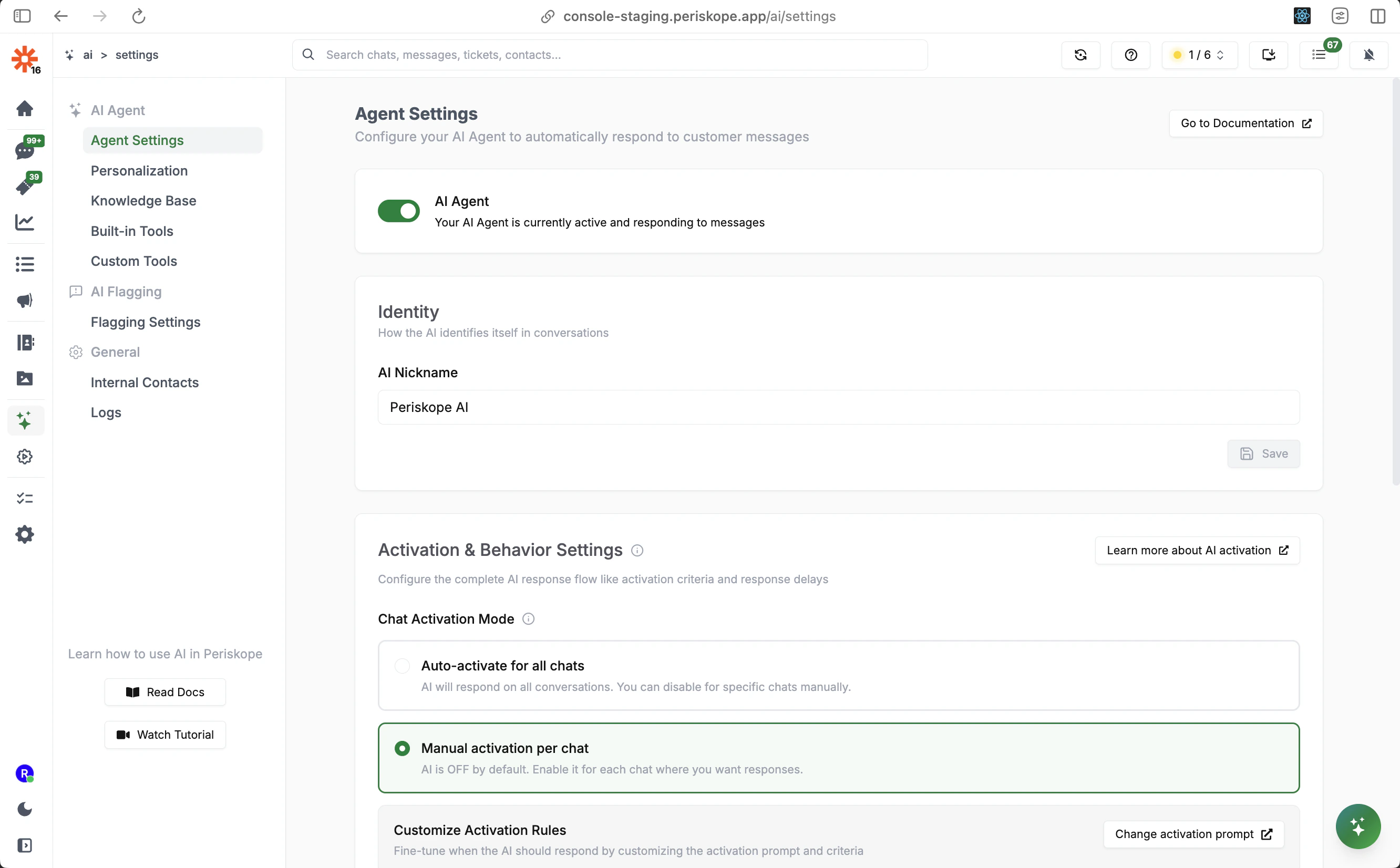
The Agent Settings panel is your primary control center for the AI Agent. Access it through **AI** > **Agent Settings**.
 ## AI Agent Toggles
The **AI Agent** toggle at the top is the master switch. When turned on, the AI Agent becomes active and can respond to messages based on your configured criteria. When turned off, it will not respond to any messages across all chats.
## Identity
**AI Nickname**
The name the AI uses to identify itself in customer conversations. For example, `Periskope AI` or `Support Bot`. This is shown to customers so they know they are interacting with an AI.
## Activation & Behavior Settings
### Chat Activation Mode
Controls whether the AI is on or off by default across your chats:
| Mode | Behavior |
| ------------------------------- | ------------------------------------------------------------------------------------- |
| **Auto-activate for all chats** | AI is ON for all conversations. You can manually disable it per chat. |
| **Manual activation per chat** | AI is OFF by default. You enable it only for specific chats where you want responses. |
Start with **Manual activation** while you're testing, then switch to **Auto-activate** once you're confident in your configuration.
### AI Settings in a Chat
When you open the **Settings tab** of a chat, you'll find two AI-specific toggles that control how the AI behaves in that particular conversation.
## AI Agent Toggles
The **AI Agent** toggle at the top is the master switch. When turned on, the AI Agent becomes active and can respond to messages based on your configured criteria. When turned off, it will not respond to any messages across all chats.
## Identity
**AI Nickname**
The name the AI uses to identify itself in customer conversations. For example, `Periskope AI` or `Support Bot`. This is shown to customers so they know they are interacting with an AI.
## Activation & Behavior Settings
### Chat Activation Mode
Controls whether the AI is on or off by default across your chats:
| Mode | Behavior |
| ------------------------------- | ------------------------------------------------------------------------------------- |
| **Auto-activate for all chats** | AI is ON for all conversations. You can manually disable it per chat. |
| **Manual activation per chat** | AI is OFF by default. You enable it only for specific chats where you want responses. |
Start with **Manual activation** while you're testing, then switch to **Auto-activate** once you're confident in your configuration.
### AI Settings in a Chat
When you open the **Settings tab** of a chat, you'll find two AI-specific toggles that control how the AI behaves in that particular conversation.
 #### Allow AI Flagging
When enabled, the AI will automatically flag important or sensitive messages in this chat for your team's attention — so nothing critical gets missed in a busy conversation.
#### Allow AI Agent
When enabled, the AI Agent is active in this chat and can respond to customer messages automatically, based on your knowledge base and configured tools. Turn this off if you want a team member to handle the conversation manually.
> **Note:** These toggles are per-chat settings. Turning off Allow AI Agent in one chat does not affect other chats where it is enabled.
### Customize Activation Rules
Click **Change activation prompt** to fine-tune when the AI should respond. By default, the AI uses built-in criteria:
* Messages that raise an issue, complaint, technical problem, or concern
* Messages that request an action, assistance, or support
* Messages that appear to require business attention
You can extend these with **custom rules** — for example:
* "Do NOT activate if it's just a greeting without a question"
* "Do NOT activate if the message is a simple acknowledgment like 'Ok', 'Thanks', 'Got it'"
* "Activate if the customer mentions a specific product by name"
Custom rules are **additive** — they extend the base rules rather than replace them.
## Operational Settings
#### Allow AI Flagging
When enabled, the AI will automatically flag important or sensitive messages in this chat for your team's attention — so nothing critical gets missed in a busy conversation.
#### Allow AI Agent
When enabled, the AI Agent is active in this chat and can respond to customer messages automatically, based on your knowledge base and configured tools. Turn this off if you want a team member to handle the conversation manually.
> **Note:** These toggles are per-chat settings. Turning off Allow AI Agent in one chat does not affect other chats where it is enabled.
### Customize Activation Rules
Click **Change activation prompt** to fine-tune when the AI should respond. By default, the AI uses built-in criteria:
* Messages that raise an issue, complaint, technical problem, or concern
* Messages that request an action, assistance, or support
* Messages that appear to require business attention
You can extend these with **custom rules** — for example:
* "Do NOT activate if it's just a greeting without a question"
* "Do NOT activate if the message is a simple acknowledgment like 'Ok', 'Thanks', 'Got it'"
* "Activate if the customer mentions a specific product by name"
Custom rules are **additive** — they extend the base rules rather than replace them.
## Operational Settings
 ### Allowed Phone Numbers
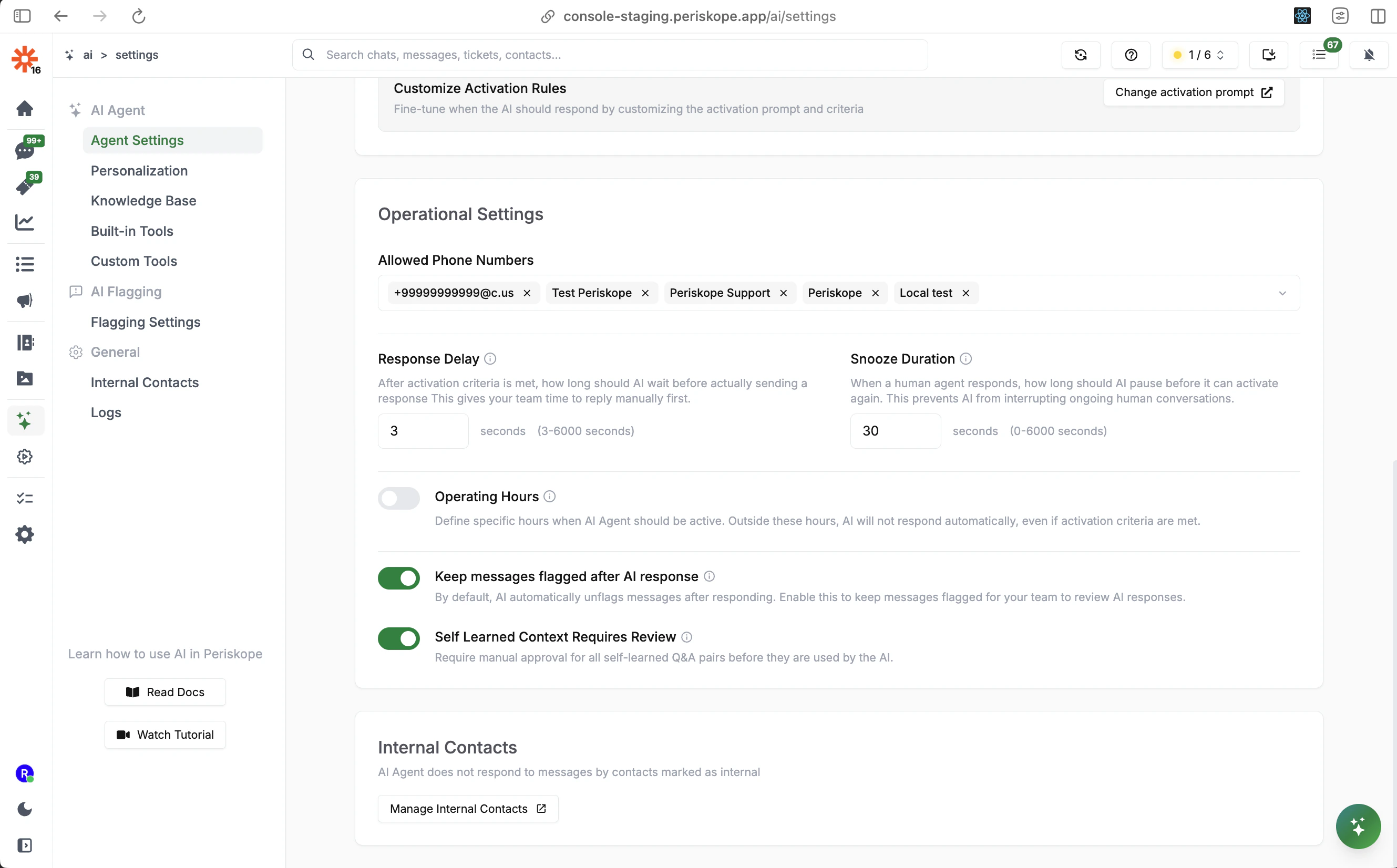
Restrict which phone numbers the AI Agent is active on. When set, the AI will only respond on conversations coming from or going to the listed numbers. Leave empty to allow all numbers.
### Response Delay
How long the AI waits after activation criteria is met before actually sending a response.
* **Default**: 3 seconds
* **Range**: 0–6000 seconds
* This gives your human agents a window to respond first. If a human replies within the delay window, the AI will stand down.
### Snooze Duration
How long the AI stays inactive after a human agent has responded or manually snoozed it.
* **Default**: 30 seconds
* **Range**: 0–6000 seconds
* During the snooze period, the AI will not respond to any new messages, allowing the human agent to fully handle the conversation.
* After the snooze period, the AI automatically returns to INACTIVE state and resumes monitoring for activation criteria.
### Operating Hours
Define specific hours when the AI should be active. Outside these hours, the AI will not respond automatically, even if activation criteria are met. Useful if you only want AI coverage during off-hours or weekends.
### Keep Messages Flagged After AI Response
When enabled, messages remain flagged even after the AI Agent responds. This is useful for keeping messages flagged for human review and quality control of AI interactions.
### Self Learned Context Requires Review
When enabled, all Q\&A pairs the AI learns automatically from conversations must be manually approved before the AI can use them. This gives you control over what the AI learns.
See [Knowledge Base - Self-Learned](/ai/agent/training#self-learned-context) for more details.
## Internal Contacts
The AI Agent automatically skips messages from contacts marked as internal team members. This ensures the AI only handles external customer conversations and never interferes with internal communications.
### Allowed Phone Numbers
Restrict which phone numbers the AI Agent is active on. When set, the AI will only respond on conversations coming from or going to the listed numbers. Leave empty to allow all numbers.
### Response Delay
How long the AI waits after activation criteria is met before actually sending a response.
* **Default**: 3 seconds
* **Range**: 0–6000 seconds
* This gives your human agents a window to respond first. If a human replies within the delay window, the AI will stand down.
### Snooze Duration
How long the AI stays inactive after a human agent has responded or manually snoozed it.
* **Default**: 30 seconds
* **Range**: 0–6000 seconds
* During the snooze period, the AI will not respond to any new messages, allowing the human agent to fully handle the conversation.
* After the snooze period, the AI automatically returns to INACTIVE state and resumes monitoring for activation criteria.
### Operating Hours
Define specific hours when the AI should be active. Outside these hours, the AI will not respond automatically, even if activation criteria are met. Useful if you only want AI coverage during off-hours or weekends.
### Keep Messages Flagged After AI Response
When enabled, messages remain flagged even after the AI Agent responds. This is useful for keeping messages flagged for human review and quality control of AI interactions.
### Self Learned Context Requires Review
When enabled, all Q\&A pairs the AI learns automatically from conversations must be manually approved before the AI can use them. This gives you control over what the AI learns.
See [Knowledge Base - Self-Learned](/ai/agent/training#self-learned-context) for more details.
## Internal Contacts
The AI Agent automatically skips messages from contacts marked as internal team members. This ensures the AI only handles external customer conversations and never interferes with internal communications.
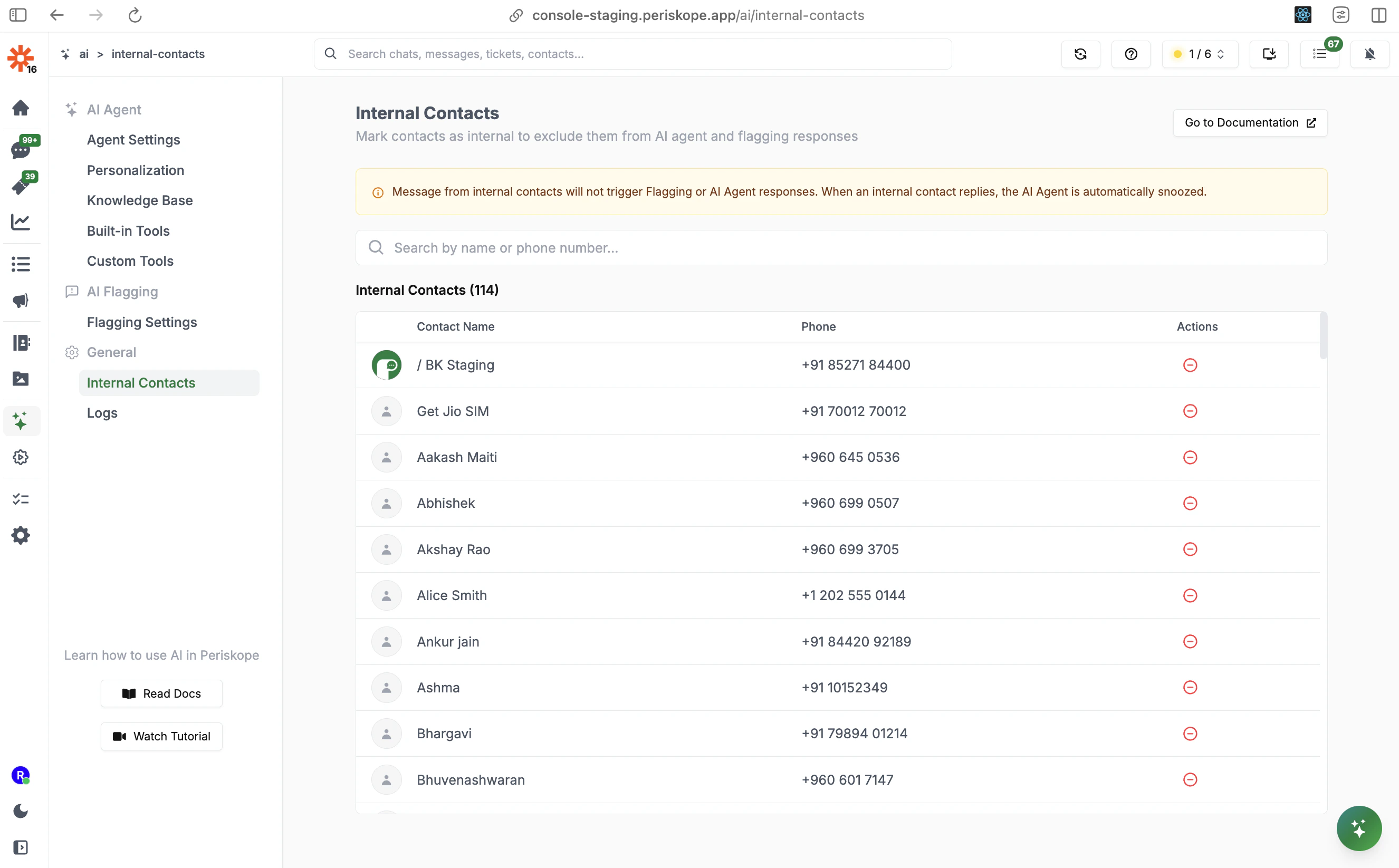 Click **Manage Internal Contacts** to view, add, or remove contacts from the internal list. You can search by name or phone number.
When an internal contact replies in a conversation, the AI Agent is automatically snoozed for the configured snooze duration.
## Next Steps
* **[Personalization](/ai/agent/personalization)** - Define the AI's role, instructions, personality, and tone
* **[Knowledge Base](/ai/agent/training)** - Train the AI with FAQs, documents, and self-learned context
* **[Built-in Tools](/ai/agent/built-in-tools)** - Configure what actions the AI can take
* **[Custom Tools](/ai/agent/custom-tools)** - Connect the AI to your own APIs
Click **Manage Internal Contacts** to view, add, or remove contacts from the internal list. You can search by name or phone number.
When an internal contact replies in a conversation, the AI Agent is automatically snoozed for the configured snooze duration.
## Next Steps
* **[Personalization](/ai/agent/personalization)** - Define the AI's role, instructions, personality, and tone
* **[Knowledge Base](/ai/agent/training)** - Train the AI with FAQs, documents, and self-learned context
* **[Built-in Tools](/ai/agent/built-in-tools)** - Configure what actions the AI can take
* **[Custom Tools](/ai/agent/custom-tools)** - Connect the AI to your own APIs