> ## Documentation Index
> Fetch the complete documentation index at: https://docs.periskope.app/llms.txt
> Use this file to discover all available pages before exploring further.
# AI Agent Overview
> Introduction to Periskope's AI Agent - what it is, how it works, and how to enable it
## What is AI Agent?
If you receive repetitive questions from clients and would like to manage day-to-day conversations automatically, Periskope's AI Agent can handle it for you. Train this AI to answer important questions on your behalf, escalate issues to the right team members, and create tickets for important tasks intelligently.
## How to Enable the AI Agent
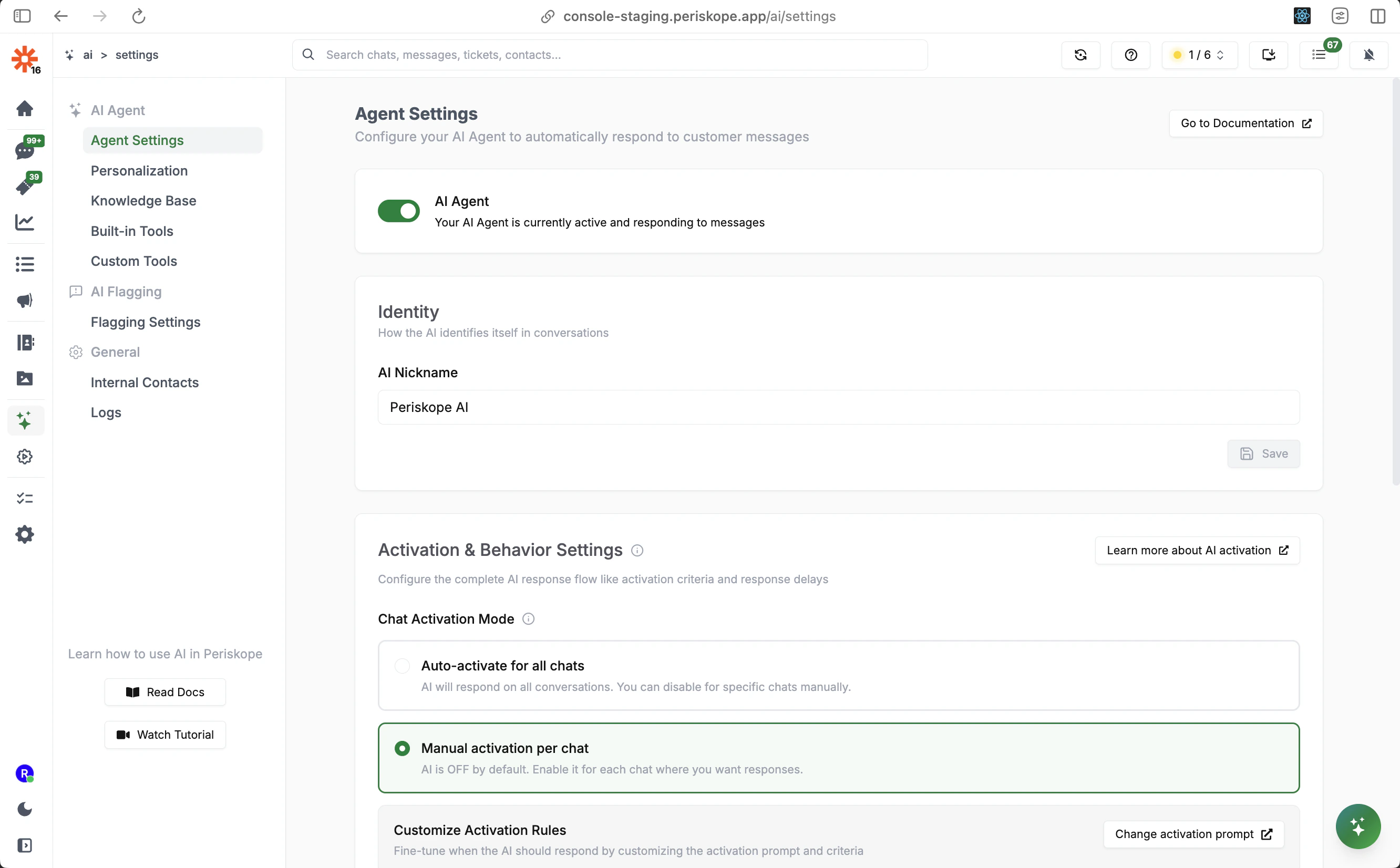
Go to **AI** > **Agent Settings** and toggle **AI Agent** on. When active, the AI Agent will start responding to messages based on your configured activation criteria.
Under **Identity**, enter an **AI Nickname**. This name will be shown to customers in chat conversations so they know they are speaking with an AI.
Under **Activation & Behavior Settings**, choose how the AI Agent activates:
* **Auto-activate for all chats**: AI is ON for all conversations by default. You can disable it per chat manually.
* **Manual activation per chat**: AI is OFF by default. You enable it only for chats where you want AI responses.
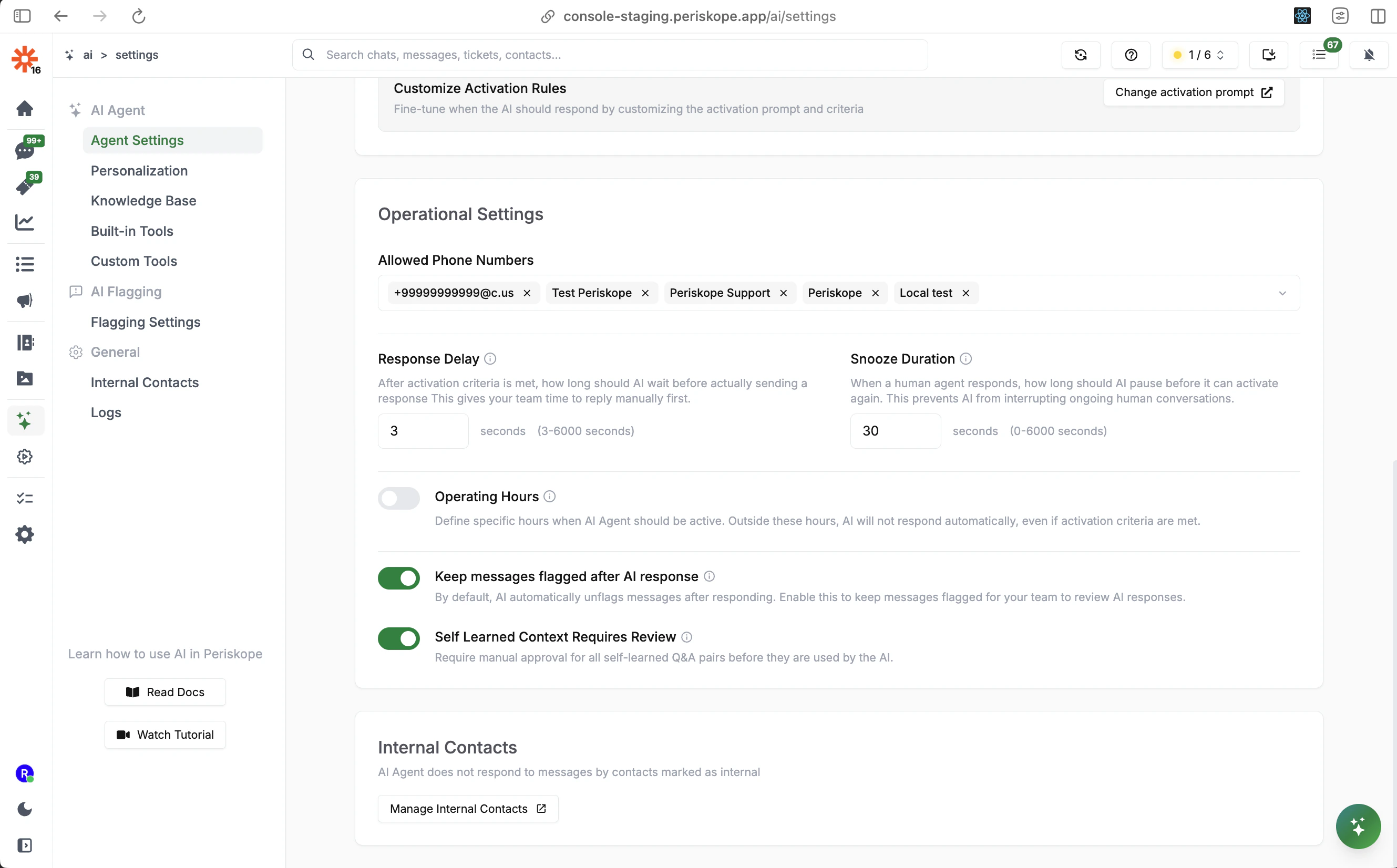
Scroll down to configure **Response Delay**, **Snooze Duration**, **Allowed Phone Numbers**, and other operational controls.
## How the AI Decides When to Respond
The AI Agent activates in a conversation when a message meets the **Activation Criteria** configured in your Agent Settings. The system uses intelligent prompt-based activation rather than simple keyword matching.
### Activation Process
1. **Base Activation Rules**: The system evaluates if a message meets core criteria such as:
* Contains a question, complaint, technical problem, or concern
* Requests an action, assistance, or support
* Appears to be something that requires business attention
2. **Custom Activation Rules**: Additional rules you define to customize when the AI should or should not respond
3. **Internal Contact Filtering**: Messages from contacts marked as "internal" are automatically excluded from AI responses
Once activated, the AI will respond after a configurable delay using your Knowledge Base, Personalization settings, and available tools. If it doesn't have a suitable response, it will follow the escalation rules you've configured.
### AI Agent States
The AI Agent operates in four distinct states:
* **INACTIVE**: AI Agent is enabled and monitoring conversations, waiting for messages that meet activation criteria
* **ACTIVE**: AI Agent is actively listening and will respond to the next external message
* **THINKING**: AI Agent is actively processing a message and preparing to respond
* **SNOOZED**: Temporarily inactive after human intervention, will reactivate after the snooze duration
## How to Stop the AI from Responding
When the AI Agent is active or thinking, you will see the **AI button** in the chat box along with a status indicator.
**Taking Over from AI**
Click the **AI button** to take over the conversation:
* **If AI is in THINKING state**: AI immediately enters **SNOOZED** state for the configured snooze duration. It will not respond during this period and then returns to INACTIVE.
* **If AI is in ACTIVE state**: AI immediately enters **INACTIVE** state. It will resume listening for messages that meet the activation criteria.
* **If an internal team member replies**: Always triggers SNOOZED state, using the same snooze duration setting.
The AI also automatically enters **SNOOZED** state when an **internal** team member responds to the conversation.
## AI Agent Decision Workflow
For every incoming message, the AI Agent follows this decision process:
1. **Message arrives** in a conversation
2. **Internal Contact Check**: If the sender is an internal team member → skip AI processing entirely
3. **AI Agent Status Check**: If AI is disabled for this chat → no response
4. **Activation Criteria Analysis**: AI evaluates the message against the activation prompt
5. **Response Delay**: Wait for the configured delay period (giving human agents time to respond first)
6. **Knowledge Base Search**: AI searches FAQs, Documents, and Self-Learned context
7. **Tool Calls**: AI calls any relevant built-in or custom tools to gather information
8. **Response Generation**: AI crafts a response based on all available context and your Personalization settings
9. **Action**: AI sends a direct reply, creates a private note, creates a ticket, or escalates to a team member
10. **State Management**: AI returns to ACTIVE state and continues monitoring the conversation
## Next Steps
* [**Agent Settings**](/ai/agent/settings) - Configure activation, response delays, and operational settings
* [**Personalization**](/ai/agent/personalization) - Define the AI's role, personality, and behavior
* [**Knowledge Base**](/ai/agent/training) - Train the AI with FAQs, documents, and self-learned context
* [**Built-in Tools**](/ai/agent/built-in-tools) - Configure what actions the AI can take
* [**Custom Tools**](/ai/agent/custom-tools) - Connect the AI to your own APIs