> ## Documentation Index
> Fetch the complete documentation index at: https://docs.periskope.app/llms.txt
> Use this file to discover all available pages before exploring further.
# Connectors
> Connect your AI Agent to your own systems over MCP so it can look things up and take actions
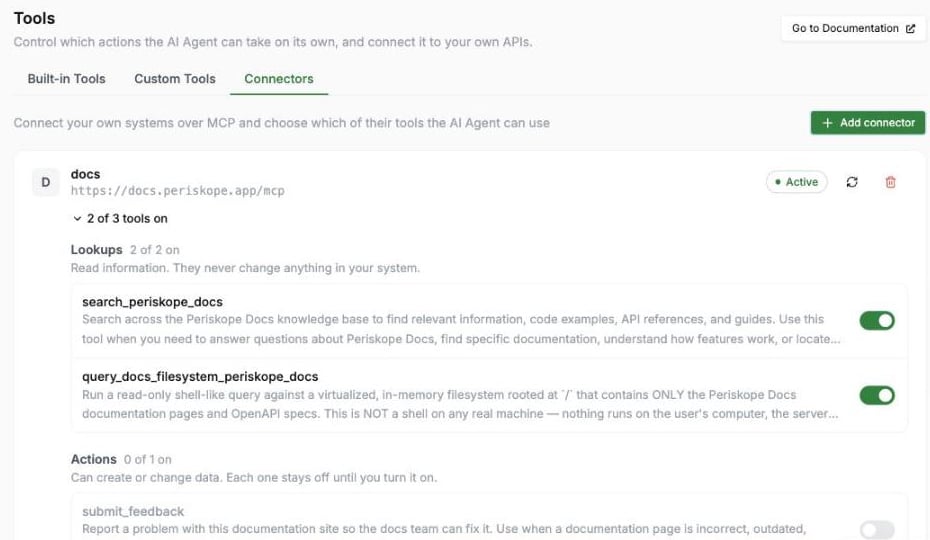
Connectors let the AI Agent work with systems that speak [MCP](https://modelcontextprotocol.io) (Model Context Protocol) — your product docs, CRM, order system, or any other MCP server. The AI reads from the connected system in real time and, if you allow it, takes actions there too.
Access Connectors through **AI** > **Tools**, on the **Connectors** tab.
 Connectors require a Pro plan, and the AI Agent must be enabled before you can add one.
## Add a Connector
Click **Add connector** and provide:
* **Name**: A label to identify the connector (e.g. "Company Docs")
* **MCP server URL**: The MCP server's endpoint (e.g. `https://docs.company.com/mcp`). It must be a public `https` address — private and local addresses are rejected.
* **Authentication**: How Periskope signs in to the server
Connectors require a Pro plan, and the AI Agent must be enabled before you can add one.
## Add a Connector
Click **Add connector** and provide:
* **Name**: A label to identify the connector (e.g. "Company Docs")
* **MCP server URL**: The MCP server's endpoint (e.g. `https://docs.company.com/mcp`). It must be a public `https` address — private and local addresses are rejected.
* **Authentication**: How Periskope signs in to the server
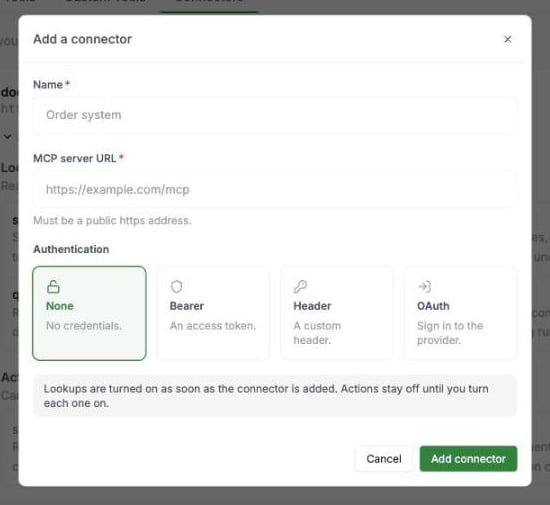 | Type | Use For |
| - | - |
| **None** | Public servers with no credentials required |
| **Bearer** | A single bearer token sent as `Authorization: Bearer ` |
| **Header** | A custom header key/value pair (e.g. `X-Api-Key`) |
| **OAuth** | Sign in through the provider — you're redirected to authorize and returned automatically |
You can connect up to 5 connectors per organization.
## Lookups and Actions
Once connected, Periskope discovers the tools the server offers and sorts them into two groups. Expand a connector to see them and switch individual tools on or off.
| Group | What it does | Default |
| - | - | - |
| **Lookups** | Read information. They never change anything in your system. | Switched on when you connect |
| **Actions** | Create or change data in your system. | Every one stays off until you turn it on |
A connector can have up to 100 tools switched on.
Periskope uses the read-only marking the server publishes for each tool. If a server doesn't publish one, Periskope goes by the tool's name — names that start with a reading word such as `search`, `get`, `list`, `read` or `fetch` count as Lookups.
Look through the **Lookups** list too. For a server that doesn't label its tools, a tool that both reads and writes (for example `get_or_create_customer`) can appear as a Lookup. Switch off anything you don't want the AI to run on its own.
## How the AI Uses Actions
* The AI can only call tools you've switched on, and only when the conversation calls for it.
* The AI never repeats the same action with the same details in a conversation, so a customer's request isn't carried out twice.
* If a connector doesn't confirm an action in time (calls time out after 10 seconds), the AI doesn't try again. It tells the customer your team will confirm. Check the connected system to see whether the action went through.
* If an action returns an error, the AI reads it and can correct the details and try once more.
* Anything a connector returns is treated as information, never as instructions the AI must follow.
You can see every tool call in a conversation in the [Logs](/ai/agent/logs) view under **Tool Calls**.
## Manage a Connector
* **Refresh** re-syncs the tool list after the server's capabilities change. Your on/off choices for existing tools are kept.
* **Disconnect** removes the connector entirely.
* If a connection using OAuth expires or is revoked, the connector is marked **Needs re-auth**. Click **Reconnect** to sign in again.
## Next Steps
* [**Custom Tools**](/ai/agent/custom-tools) - Connect the AI to your own HTTP APIs
* [**Built-in Tools**](/ai/agent/built-in-tools) - Configure native AI actions like creating tickets and private notes
* [**Knowledge Base**](/ai/agent/training) - Train the AI with FAQs and documents
This documentation is built and hosted on [Mintlify](https://mintlify.com), a developer documentation platform.
| Type | Use For |
| - | - |
| **None** | Public servers with no credentials required |
| **Bearer** | A single bearer token sent as `Authorization: Bearer ` |
| **Header** | A custom header key/value pair (e.g. `X-Api-Key`) |
| **OAuth** | Sign in through the provider — you're redirected to authorize and returned automatically |
You can connect up to 5 connectors per organization.
## Lookups and Actions
Once connected, Periskope discovers the tools the server offers and sorts them into two groups. Expand a connector to see them and switch individual tools on or off.
| Group | What it does | Default |
| - | - | - |
| **Lookups** | Read information. They never change anything in your system. | Switched on when you connect |
| **Actions** | Create or change data in your system. | Every one stays off until you turn it on |
A connector can have up to 100 tools switched on.
Periskope uses the read-only marking the server publishes for each tool. If a server doesn't publish one, Periskope goes by the tool's name — names that start with a reading word such as `search`, `get`, `list`, `read` or `fetch` count as Lookups.
Look through the **Lookups** list too. For a server that doesn't label its tools, a tool that both reads and writes (for example `get_or_create_customer`) can appear as a Lookup. Switch off anything you don't want the AI to run on its own.
## How the AI Uses Actions
* The AI can only call tools you've switched on, and only when the conversation calls for it.
* The AI never repeats the same action with the same details in a conversation, so a customer's request isn't carried out twice.
* If a connector doesn't confirm an action in time (calls time out after 10 seconds), the AI doesn't try again. It tells the customer your team will confirm. Check the connected system to see whether the action went through.
* If an action returns an error, the AI reads it and can correct the details and try once more.
* Anything a connector returns is treated as information, never as instructions the AI must follow.
You can see every tool call in a conversation in the [Logs](/ai/agent/logs) view under **Tool Calls**.
## Manage a Connector
* **Refresh** re-syncs the tool list after the server's capabilities change. Your on/off choices for existing tools are kept.
* **Disconnect** removes the connector entirely.
* If a connection using OAuth expires or is revoked, the connector is marked **Needs re-auth**. Click **Reconnect** to sign in again.
## Next Steps
* [**Custom Tools**](/ai/agent/custom-tools) - Connect the AI to your own HTTP APIs
* [**Built-in Tools**](/ai/agent/built-in-tools) - Configure native AI actions like creating tickets and private notes
* [**Knowledge Base**](/ai/agent/training) - Train the AI with FAQs and documents
This documentation is built and hosted on [Mintlify](https://mintlify.com), a developer documentation platform.