> ## Documentation Index
> Fetch the complete documentation index at: https://docs.periskope.app/llms.txt
> Use this file to discover all available pages before exploring further.
# Org & Chat Assistant
Periskope has two AI assistants built into the interface — the **Org Assistant** and the **Chat Assistant**. Each serves a different purpose, and together they cover everything from bulk workspace actions to per-conversation intelligence.
***
## Chat Assistant
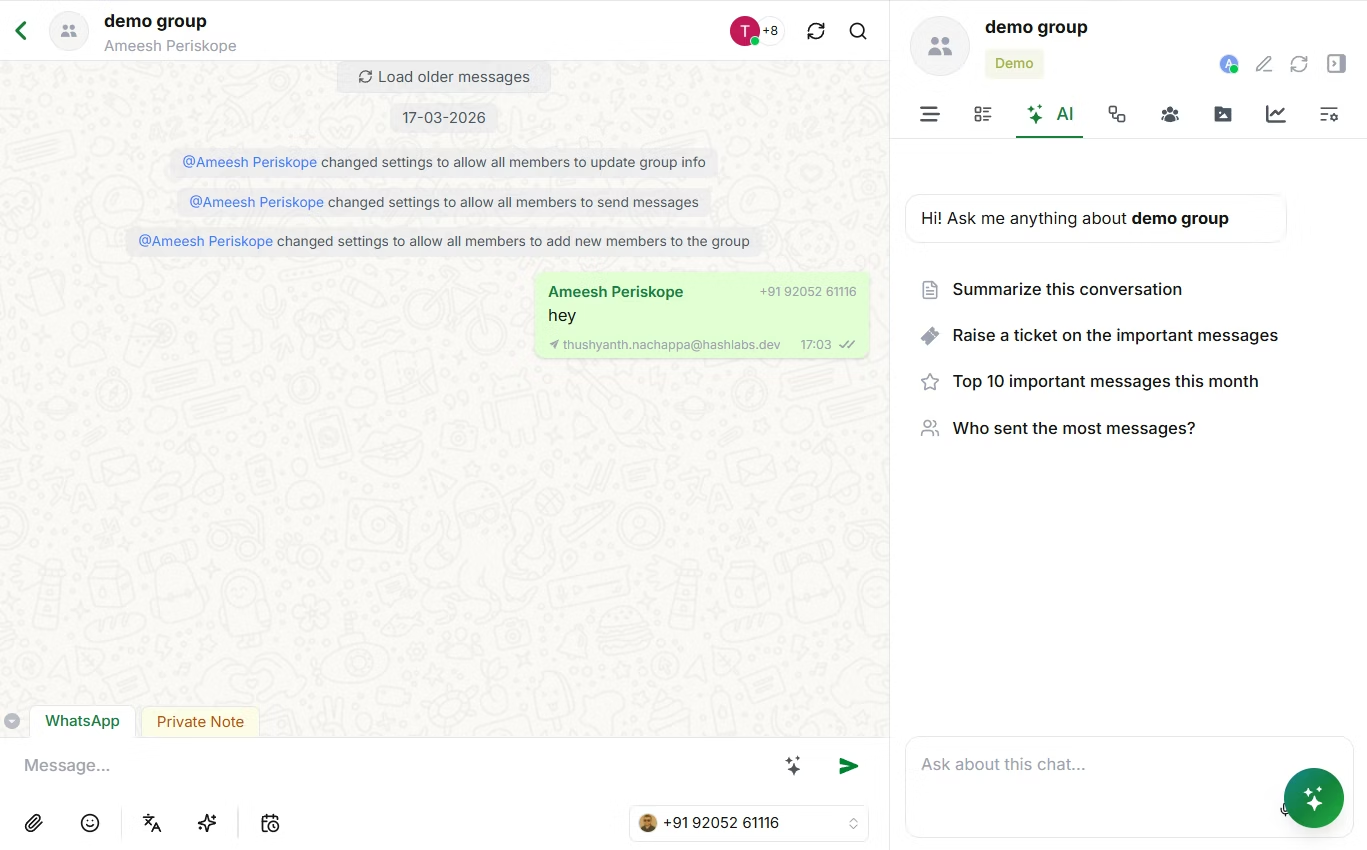
The Chat Assistant is available inside any individual chat. When you open a chat, look for the right-side panel — click the **AI tab** to access it.
The Chat Assistant gives you quick, context-aware actions specific to the conversation you're in — without needing to read through the entire chat history.
***
### What the Chat Assistant Can Do
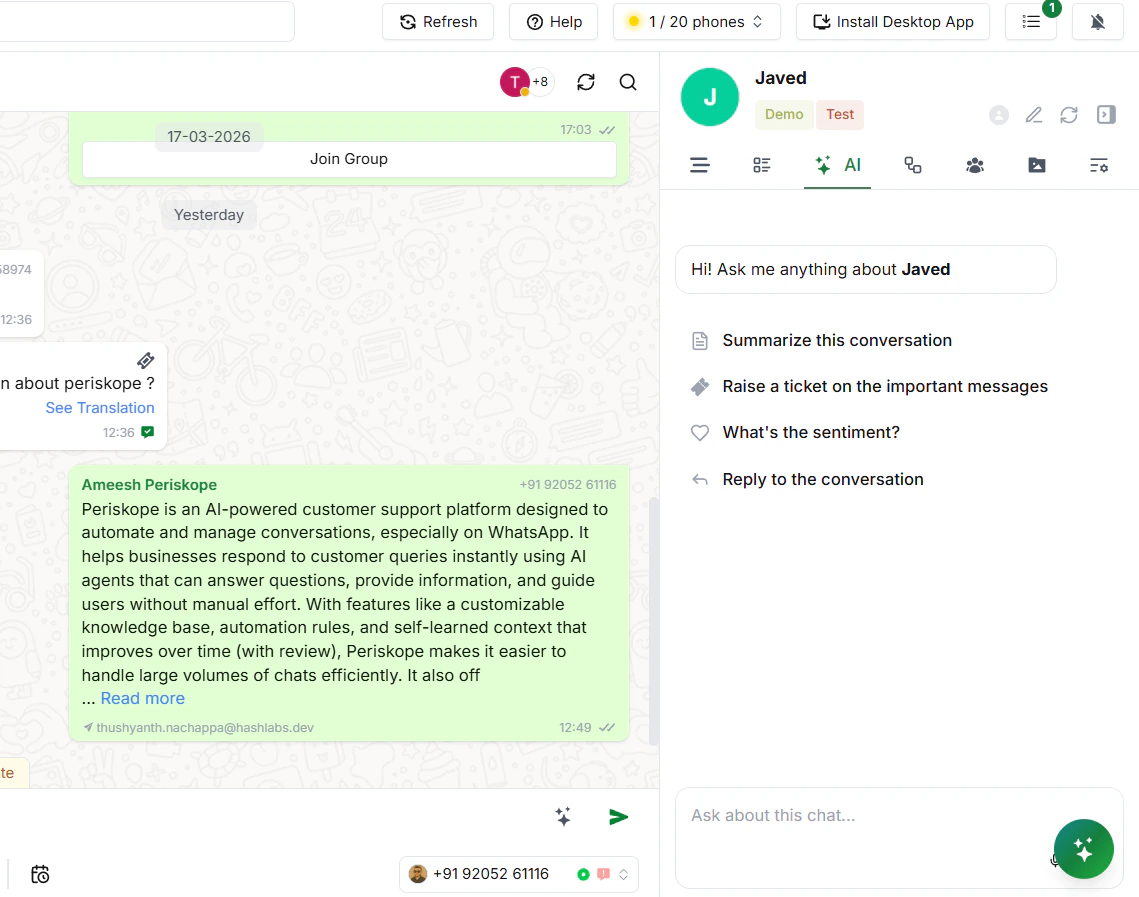
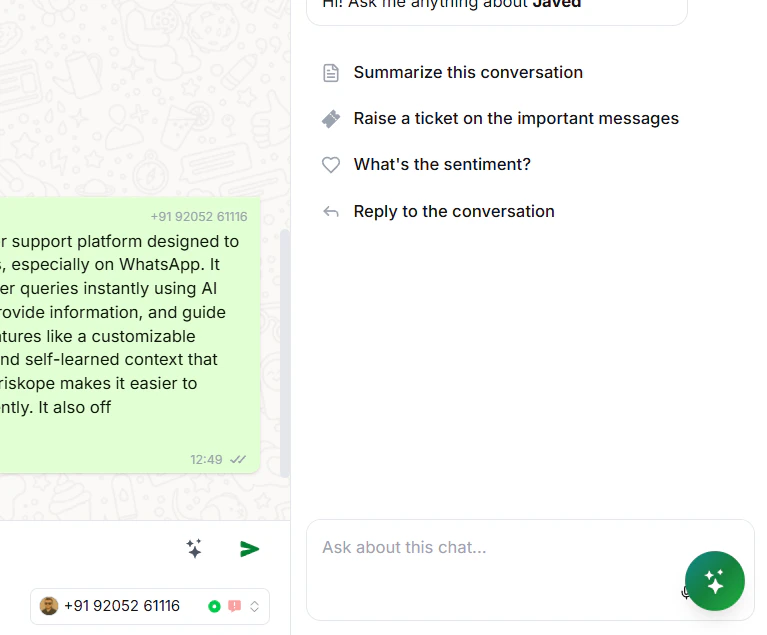
When you open the AI tab in a chat, you'll see a set of built-in quick actions:
| Action | What it does |
| :--------------------------------------- | :----------------------------------------------------------------------- |
| Summarise this conversation | Generates a concise summary of the chat so far |
| Raise a ticket on the important messages | Identifies key messages and creates a ticket automatically |
| What's the sentiment? | Analyses the tone of the conversation — positive, neutral, or frustrated |
| Reply to the conversation | Drafts a suggested reply based on the context of the chat |
You can also type a custom question in the text field at the bottom of the AI panel:
```text theme={null}
Has this customer mentioned billing issues before?
```
```text theme={null}
What was the last thing we promised this customer?
```
```text theme={null}
Summarise only the unresolved issues in this chat.
```
***
## Org Assistant
The Org Assistant is available across every page in Periskope. Look for the **AI icon in the bottom-right corner** of the screen — clicking it opens the Org Assistant in a side panel.
Unlike the AI Agent (which talks to your customers), the Org Assistant works for your team. It understands your workspace, can access chat data, and can take real actions — all from a single conversation.
***
### What the Org Assistant Can Do
| Capability | What you can ask |
| :-------------------- | :-------------------------------------------------------- |
| Bulk chat management | Update labels, assign chats, send private notes |
| Ticket & task updates | Change status, priority, or owner across multiple tickets |
| Data lookup | Fetch custom properties, search messages by timeframe |
| Custom tool actions | Extend trials, fetch account details, trigger API actions |
***
### Manage Multiple Chats at Once
One of the most powerful — and least obvious — things the Org Assistant can do is act across many chats at the same time. Instead of opening each chat individually, just tell it what you need.
#### Update labels across multiple chats
Apply, update, or remove labels across a group of chats in one instruction. Useful after a busy period when chats need to be re-categorised, or when tagging a batch of conversations for a campaign or audit.
**Example prompts:**
```text theme={null}
Add the label "Escalated" to all open chats assigned to Priya.
```
```text theme={null}
Remove the "Pending" label from all chats updated today.
```
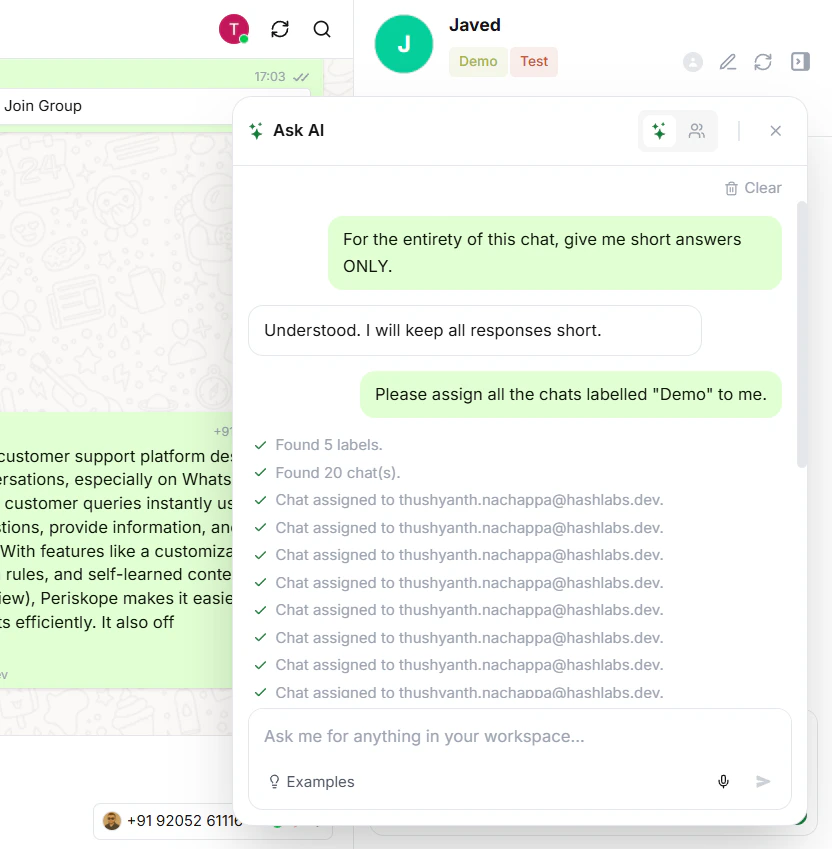
#### Assign multiple chats to one person
Hand off an entire batch of chats to a team member in a single request. Useful during shift changes or when redistributing workload.
**Example prompts:**
```text theme={null}
Assign all unassigned chats from today to Rahul.
```
```text theme={null}
Move all chats labelled "VIP" to Sara.
```
#### Send private notes to multiple chats
Drop an internal note into several chats simultaneously — helpful when you need to flag context or instructions for your team across multiple active conversations at once.
**Example prompts:**
```text theme={null}
Send a private note to all chats with the "Renewal" label:
"Follow up with the customer about their renewal before Friday."
```
#### Activate the AI Agent on multiple chats
Switch on the AI Agent across several chats at the same time, without toggling each one manually.
**Example prompts:**
```text theme={null}
Activate the AI Agent on all chats that have been idle for more than 2 hours.
```
***
### Handle Tasks & Tickets in Bulk
#### Update multiple tickets or tasks
Describe the change you need and let the Org Assistant apply it across all matching tickets at once — no need to open each one individually.
**Example prompts:**
```text theme={null}
Mark all open tickets tagged "Bug" as high priority.
```
```text theme={null}
Reassign all tickets under Alex to the general queue.
```
***
### Look Up Chat Data Instantly
#### Get custom properties of any chat
Every chat can have custom properties attached — things like `org_id`, plan type, account tier, or renewal date. Instead of opening the chat to look these up, just ask.
**Example prompts:**
```text theme={null}
What is the org_id for Acme Corp?
```
```text theme={null}
What plan is the customer in the TechBase chat on?
```
#### Search messages within a specific timeframe
Search for specific messages across a set of chats within a date range. Useful for audits, escalation reviews, or tracking down a conversation.
**Example prompts:**
```text theme={null}
Find all messages from last week where a customer mentioned "refund".
```
```text theme={null}
Search chats labelled "Enterprise" for any messages about downtime in the last 30 days.
```
***
### Custom Tool Actions
If your workspace has Custom Tools configured, the Org Assistant can call them directly — no tab switching, no manually looking up IDs.
When you ask it to perform an action, the Org Assistant will:
1. Understand what you need from your message
2. Look up required values — like `org_id` — from the chat's custom properties automatically
3. Call the relevant Custom Tool with the right parameters
4. Confirm the result back to you in the conversation
#### Example — Extending a customer's trial
```text theme={null}
Extend the trial for Acme Corp by 7 days.
```
The assistant finds the `org_id` from the chat's custom properties and calls your trial extension tool automatically — no need to open the chat.
#### Example — Fetching account details
```text theme={null}
What is the current subscription status for GlobalTech?
```
> **Note:** For custom tool actions to work, the relevant tool must be active under AI > Custom Tools, and required properties like `org_id` must be present in the chat's custom properties.
 The Chat Assistant gives you quick, context-aware actions specific to the conversation you're in — without needing to read through the entire chat history.
***
### What the Chat Assistant Can Do
When you open the AI tab in a chat, you'll see a set of built-in quick actions:
The Chat Assistant gives you quick, context-aware actions specific to the conversation you're in — without needing to read through the entire chat history.
***
### What the Chat Assistant Can Do
When you open the AI tab in a chat, you'll see a set of built-in quick actions:
 | Action | What it does |
| :--------------------------------------- | :----------------------------------------------------------------------- |
| Summarise this conversation | Generates a concise summary of the chat so far |
| Raise a ticket on the important messages | Identifies key messages and creates a ticket automatically |
| What's the sentiment? | Analyses the tone of the conversation — positive, neutral, or frustrated |
| Reply to the conversation | Drafts a suggested reply based on the context of the chat |
You can also type a custom question in the text field at the bottom of the AI panel:
```text theme={null}
Has this customer mentioned billing issues before?
```
```text theme={null}
What was the last thing we promised this customer?
```
```text theme={null}
Summarise only the unresolved issues in this chat.
```
***
## Org Assistant
The Org Assistant is available across every page in Periskope. Look for the **AI icon in the bottom-right corner** of the screen — clicking it opens the Org Assistant in a side panel.
| Action | What it does |
| :--------------------------------------- | :----------------------------------------------------------------------- |
| Summarise this conversation | Generates a concise summary of the chat so far |
| Raise a ticket on the important messages | Identifies key messages and creates a ticket automatically |
| What's the sentiment? | Analyses the tone of the conversation — positive, neutral, or frustrated |
| Reply to the conversation | Drafts a suggested reply based on the context of the chat |
You can also type a custom question in the text field at the bottom of the AI panel:
```text theme={null}
Has this customer mentioned billing issues before?
```
```text theme={null}
What was the last thing we promised this customer?
```
```text theme={null}
Summarise only the unresolved issues in this chat.
```
***
## Org Assistant
The Org Assistant is available across every page in Periskope. Look for the **AI icon in the bottom-right corner** of the screen — clicking it opens the Org Assistant in a side panel.
 Unlike the AI Agent (which talks to your customers), the Org Assistant works for your team. It understands your workspace, can access chat data, and can take real actions — all from a single conversation.
***
### What the Org Assistant Can Do
| Capability | What you can ask |
| :-------------------- | :-------------------------------------------------------- |
| Bulk chat management | Update labels, assign chats, send private notes |
| Ticket & task updates | Change status, priority, or owner across multiple tickets |
| Data lookup | Fetch custom properties, search messages by timeframe |
| Custom tool actions | Extend trials, fetch account details, trigger API actions |
***
### Manage Multiple Chats at Once
One of the most powerful — and least obvious — things the Org Assistant can do is act across many chats at the same time. Instead of opening each chat individually, just tell it what you need.
#### Update labels across multiple chats
Apply, update, or remove labels across a group of chats in one instruction. Useful after a busy period when chats need to be re-categorised, or when tagging a batch of conversations for a campaign or audit.
**Example prompts:**
```text theme={null}
Add the label "Escalated" to all open chats assigned to Priya.
```
```text theme={null}
Remove the "Pending" label from all chats updated today.
```
#### Assign multiple chats to one person
Hand off an entire batch of chats to a team member in a single request. Useful during shift changes or when redistributing workload.
Unlike the AI Agent (which talks to your customers), the Org Assistant works for your team. It understands your workspace, can access chat data, and can take real actions — all from a single conversation.
***
### What the Org Assistant Can Do
| Capability | What you can ask |
| :-------------------- | :-------------------------------------------------------- |
| Bulk chat management | Update labels, assign chats, send private notes |
| Ticket & task updates | Change status, priority, or owner across multiple tickets |
| Data lookup | Fetch custom properties, search messages by timeframe |
| Custom tool actions | Extend trials, fetch account details, trigger API actions |
***
### Manage Multiple Chats at Once
One of the most powerful — and least obvious — things the Org Assistant can do is act across many chats at the same time. Instead of opening each chat individually, just tell it what you need.
#### Update labels across multiple chats
Apply, update, or remove labels across a group of chats in one instruction. Useful after a busy period when chats need to be re-categorised, or when tagging a batch of conversations for a campaign or audit.
**Example prompts:**
```text theme={null}
Add the label "Escalated" to all open chats assigned to Priya.
```
```text theme={null}
Remove the "Pending" label from all chats updated today.
```
#### Assign multiple chats to one person
Hand off an entire batch of chats to a team member in a single request. Useful during shift changes or when redistributing workload.
 **Example prompts:**
```text theme={null}
Assign all unassigned chats from today to Rahul.
```
```text theme={null}
Move all chats labelled "VIP" to Sara.
```
#### Send private notes to multiple chats
Drop an internal note into several chats simultaneously — helpful when you need to flag context or instructions for your team across multiple active conversations at once.
**Example prompts:**
```text theme={null}
Assign all unassigned chats from today to Rahul.
```
```text theme={null}
Move all chats labelled "VIP" to Sara.
```
#### Send private notes to multiple chats
Drop an internal note into several chats simultaneously — helpful when you need to flag context or instructions for your team across multiple active conversations at once.
 **Example prompts:**
```text theme={null}
Send a private note to all chats with the "Renewal" label:
"Follow up with the customer about their renewal before Friday."
```
#### Activate the AI Agent on multiple chats
Switch on the AI Agent across several chats at the same time, without toggling each one manually.
**Example prompts:**
```text theme={null}
Activate the AI Agent on all chats that have been idle for more than 2 hours.
```
***
### Handle Tasks & Tickets in Bulk
#### Update multiple tickets or tasks
Describe the change you need and let the Org Assistant apply it across all matching tickets at once — no need to open each one individually.
**Example prompts:**
```text theme={null}
Mark all open tickets tagged "Bug" as high priority.
```
```text theme={null}
Reassign all tickets under Alex to the general queue.
```
***
### Look Up Chat Data Instantly
#### Get custom properties of any chat
Every chat can have custom properties attached — things like `org_id`, plan type, account tier, or renewal date. Instead of opening the chat to look these up, just ask.
**Example prompts:**
```text theme={null}
What is the org_id for Acme Corp?
```
```text theme={null}
What plan is the customer in the TechBase chat on?
```
#### Search messages within a specific timeframe
Search for specific messages across a set of chats within a date range. Useful for audits, escalation reviews, or tracking down a conversation.
**Example prompts:**
```text theme={null}
Send a private note to all chats with the "Renewal" label:
"Follow up with the customer about their renewal before Friday."
```
#### Activate the AI Agent on multiple chats
Switch on the AI Agent across several chats at the same time, without toggling each one manually.
**Example prompts:**
```text theme={null}
Activate the AI Agent on all chats that have been idle for more than 2 hours.
```
***
### Handle Tasks & Tickets in Bulk
#### Update multiple tickets or tasks
Describe the change you need and let the Org Assistant apply it across all matching tickets at once — no need to open each one individually.
**Example prompts:**
```text theme={null}
Mark all open tickets tagged "Bug" as high priority.
```
```text theme={null}
Reassign all tickets under Alex to the general queue.
```
***
### Look Up Chat Data Instantly
#### Get custom properties of any chat
Every chat can have custom properties attached — things like `org_id`, plan type, account tier, or renewal date. Instead of opening the chat to look these up, just ask.
**Example prompts:**
```text theme={null}
What is the org_id for Acme Corp?
```
```text theme={null}
What plan is the customer in the TechBase chat on?
```
#### Search messages within a specific timeframe
Search for specific messages across a set of chats within a date range. Useful for audits, escalation reviews, or tracking down a conversation.
 **Example prompts:**
```text theme={null}
Find all messages from last week where a customer mentioned "refund".
```
```text theme={null}
Search chats labelled "Enterprise" for any messages about downtime in the last 30 days.
```
***
### Custom Tool Actions
If your workspace has Custom Tools configured, the Org Assistant can call them directly — no tab switching, no manually looking up IDs.
When you ask it to perform an action, the Org Assistant will:
1. Understand what you need from your message
2. Look up required values — like `org_id` — from the chat's custom properties automatically
3. Call the relevant Custom Tool with the right parameters
4. Confirm the result back to you in the conversation
#### Example — Extending a customer's trial
```text theme={null}
Extend the trial for Acme Corp by 7 days.
```
The assistant finds the `org_id` from the chat's custom properties and calls your trial extension tool automatically — no need to open the chat.
#### Example — Fetching account details
```text theme={null}
What is the current subscription status for GlobalTech?
```
> **Note:** For custom tool actions to work, the relevant tool must be active under AI > Custom Tools, and required properties like `org_id` must be present in the chat's custom properties.
**Example prompts:**
```text theme={null}
Find all messages from last week where a customer mentioned "refund".
```
```text theme={null}
Search chats labelled "Enterprise" for any messages about downtime in the last 30 days.
```
***
### Custom Tool Actions
If your workspace has Custom Tools configured, the Org Assistant can call them directly — no tab switching, no manually looking up IDs.
When you ask it to perform an action, the Org Assistant will:
1. Understand what you need from your message
2. Look up required values — like `org_id` — from the chat's custom properties automatically
3. Call the relevant Custom Tool with the right parameters
4. Confirm the result back to you in the conversation
#### Example — Extending a customer's trial
```text theme={null}
Extend the trial for Acme Corp by 7 days.
```
The assistant finds the `org_id` from the chat's custom properties and calls your trial extension tool automatically — no need to open the chat.
#### Example — Fetching account details
```text theme={null}
What is the current subscription status for GlobalTech?
```
> **Note:** For custom tool actions to work, the relevant tool must be active under AI > Custom Tools, and required properties like `org_id` must be present in the chat's custom properties.